





pashashocky
Members
-
Joined
-
Last visited
-
Sure, understood your preference, and it's likely user dependent - you are right. I'll keep the notes to myself. Although I won't be the last having this question and I'd much rather have a documentation section with USE AT YOUR OWN RISK, rather than having to gather information from 5 different sources and having to experiment...
-
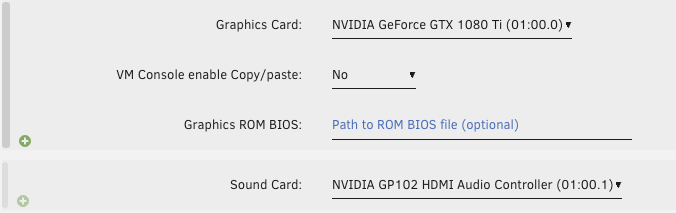
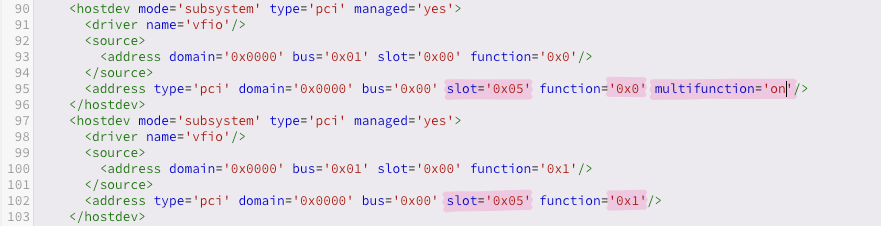
So this is something that would be worth adding to the documentation somewhere, I think it's not fully documented. Read the posts below. USE AT YOUR OWN RISK! THIS IS NOT DOCUMENTED ON PURPOSE. CAN LEAD TO DATA LOSS IF YOU CRASH YOUR SERVER. Here are the steps I took with the nvidia-driver installed Settings -> VM Manager -> PCIe ACS override -> Set to "Downstream" Reboot server Check Tools -> System Devices and make sure the GPU and it's sound card are in an IOMMU group by themselves Run `lspci -vnn -s 01:00.0` to verify `Kernel driver in use: nvidia`. At this stage I have `nvidia-persistenced` currently running, and made sure it's not being used by any Docker containers explicitly Run `pidof nvidia-persistenced` Run `kill -9 5212` - or whatever the pid is from the above command Now we should be good to pass through the GPU to the VM Make sure to pass through both the VM and its sound card Switch to XML mode on the same page (top right corner) Make sure the GPU is in the same `slot`, add `multifunction='on'` and increment the soundcard function to `0x1`. Start the VM, install nvidia drivers and you should be good to go! Thank you for your help!

-
Cool, this is much more helpful! So guessing by the use of `nvidia-persistenced` you have the Nvidia Driver plugin installed with your configuration? I'll give it a go this weekend!
-
Yeah, so wha I'm trying to figure out is how do I go around the "will likely crash your server" - is it random or does that only happen if the GPU is being used elsewhere? binding to vfio is suboptimal because the GPU eats power all the time then.
-
Heya, I'm wondering what is your guidance on using this plugin with GPU being occasionally passed into a VM? I couldn't find any information apart from don't download if you are planning to pass through to a VM, but I've read in other forum posts that I could pass it through to a VM when it's not being used by a docker container? Plex can see my GPU right now, but I've selected the iGPU for transcoding.. does it mean it's also being used by docker and I can't pass it through to a VM? Feels like I have to constantly install and remove this plugin if I want to ever pass through to the VM, but is there any way to do it without constant server reboots?

