





LRBP
Members
-
Joined
-
Last visited
Everything posted by LRBP
-
Thank you both!
-
That worked. I'm still wondering why it doesn't show under "Network" in Windows File Explorer after everything we've done, but hey, beggars can't be choosers, right? Frank, thank you so much for both, your help and patience. You got me to a workable spot with the server, THANKS! I have an unrelated question for you. During this whole process, I also consulted with a friend who has more experience than I do with servers in general. He created a "Testing" share. I will like to delete that share. How do I delete shares?
-
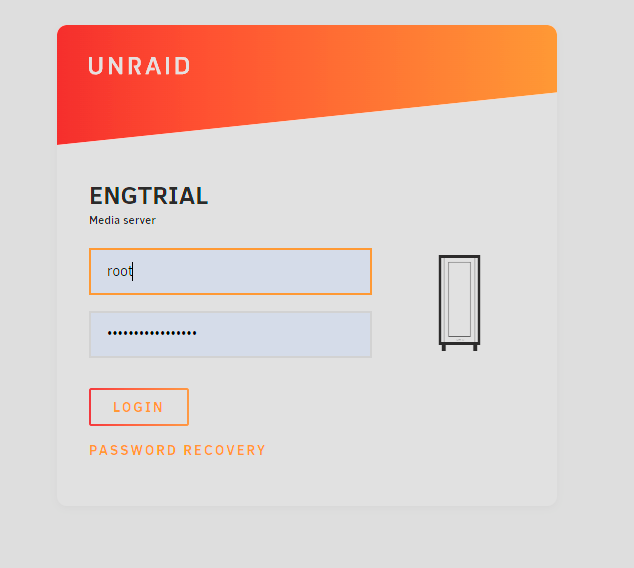
The following is the latest Diagnostics file: Unconfirmed 385421.zipThe login I'm referring to, does not have a check box (see below):
 Did it already, as per your instructions, but no "handshake"
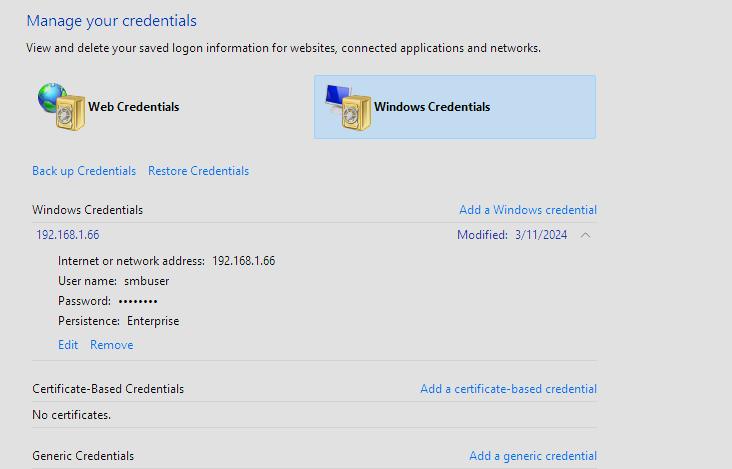 Most of the directions suggested by the PDFs were previously done. Nonetheless, the major difference is that now I find a link to the server (not it's name, but IP address) under "This PC" on the extreme left column when I open Windows File Explorer. The "handshake" you mentioned is not happening as I need to manually sign into Unraid everytime, but it seems like we are making strides!!Reporting back: I used the IP address in the file explorer address bar (as you suggested) and I was able to get to the photo file. Once I try to open it, it asks for the user and password. So, I guess we are getting somewhere now!!! I'm excited. Looking forward to the next suggestions.Ok, took care of the first item by switching "Export" to "No" for the appdata share. Correct? Regarding the second item. I do have Dynamix File Manager, but not really sure what you meant. Do you mean I don't need to have the File Explorer visibility? If so, how do I go about accessing server files from other devices in the network?Here it goes:
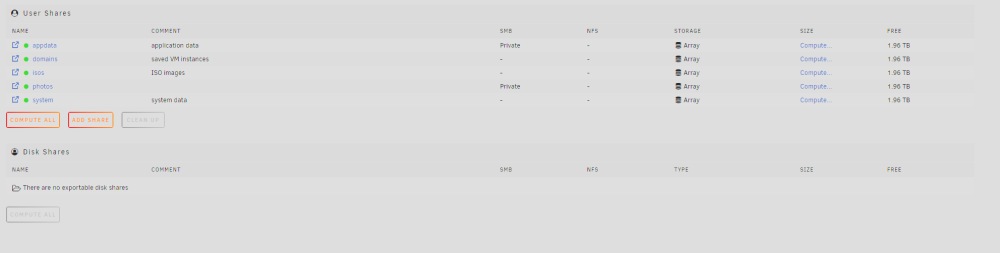 It has been while trying to use the server's name, not the IP address. The IP address was good to allow me to setup and manage the server, but I haven't been able to make the server visible to my PC or my wife's Mac regardless of which one I use (IP address or server name). This has been the problem since the start. Now, from what I've gathered by Frank1940's reaction to the latest system log, we have corrected a bunch of other issues but the server visibility problem remains.I did everything as per the description in the included thread. The one issue I still had was with including the server in the Neighborhood Network (following the "Unraid & Windows 10 SMB Setup" instructions) because the Windows File Explorer can't find it. Whenever I try to address the server using "// or \\" it does not recognize the address.Frank1940, the following is the latest Diagnostics file. It was generated after I had executed your last set of instructions. Unconfirmed 523985.zipFirst of all, thanks for taking the time to help me with this. I ran the command as suggested above and the main difference I noticed was that where your script shows "total 8" mine says "total 0" After that the lines do look similar with "nobody" in all of the owner spaces (with the exception of the one "root") and "users" on the group spaces (with the exception of the one "root"). Also different from your script I don't have any instances of "user" as owner. I also ran the New Permissions routine. Checked to see if this made the server visible, but I still don't see it from my PC or Mac.Frank1940, is there a way to correct/change the reasons for your concerns with the syslog from the above post?Yes, it is set to Yes (Workgroup) as you originally instructed.Yes, the enabling of SMB was done from Frank1940's original instructions, thanks though.Is there a way to correct it? I don't really understand the language enough to make sense of what you're pointing out, or to know what I did to cause it. Although, I must say it is refreshing to know there seem to be an identified cause to the issue.Unconfirmed 62089.crdownload Let me know if this works.Thanks for your help. I've gone through all the suggestions in your message and as a result ended up changing quite a few settings. Unfortunately, the results are still the same. The server remains undetectable from either PC or Mac.First let me mention that I am new to both, server setup/management and Linux based systems. I successfully installed Unraid but have an issue. Neither my Windows 11 PC nor my Mac can detect/discover the server in the Network. In order to do the original Unraid setup, I was alble to plug in the server's IP address in the browser, but realize I will be unable to enjoy the benefits of having a server if the computers cannot detect it in the Network. I don't think the fact that the server is hard wired to the Network while the PC and Mac are connected via WiFi should be significant, but I wanted to state that just in case. I have searched some of the threads here in the Forum, but while I've found some similar issues, I am yet to find the exact same situation addressed. Nonetheless, I have incorporated some of the suggestions offered, but still have the same issue. Any help will definitely be appreciated.


Account
Navigation
Search
Configure browser push notifications
Chrome (Android)
- Tap the lock icon next to the address bar.
- Tap Permissions → Notifications.
- Adjust your preference.
Chrome (Desktop)
- Click the padlock icon in the address bar.
- Select Site settings.
- Find Notifications and adjust your preference.
Safari (iOS 16.4+)
- Ensure the site is installed via Add to Home Screen.
- Open Settings App → Notifications.
- Find your app name and adjust your preference.
Safari (macOS)
- Go to Safari → Preferences.
- Click the Websites tab.
- Select Notifications in the sidebar.
- Find this website and adjust your preference.
Edge (Android)
- Tap the lock icon next to the address bar.
- Tap Permissions.
- Find Notifications and adjust your preference.
Edge (Desktop)
- Click the padlock icon in the address bar.
- Click Permissions for this site.
- Find Notifications and adjust your preference.
Firefox (Android)
- Go to Settings → Site permissions.
- Tap Notifications.
- Find this site in the list and adjust your preference.
Firefox (Desktop)
- Open Firefox Settings.
- Search for Notifications.
- Find this site in the list and adjust your preference.