





Zuluuk
Members
-
Joined
-
Last visited
-
I have enabled exclusive share option, will test monitor and update as required. For now, I don't think log review is required. I will update when I get more details. Ty
-
Hi everyone, I've run into a strange Plex problem and I'm hoping someone can point me in the right direction. I'm on Unraid 7.3.2. A few days ago I changed my Plex appdata mapping from /mnt/user/appdata to /mnt/cache/appdata so it writes directly to the cache drive and skips the Unraid user share layer. I've confirmed nothing has been moved to the array: running ls on /mnt/disk* shows no appdata on any array disk. Since that change, every library scan ends with Plex reporting changed or missing media, even though all the files are still there and playable. When I try to Empty Trash to clear the missing items, it fails. I ran ChuckPa's DBRepair and it reported the database as malformed, failing each time with 5–6 JSON errors. I told it to ignore those errors and rebuilt the database, and afterwards the DB checked out fine. But as soon as I ran another media scan, the exact same problem came back. The odd part is that if I switch the mapping back to /mnt/user/appdata, everything works normally. The problem only happens when Plex uses /mnt/cache directly. Has anyone seen this before, or have an idea why writing straight to the cache would cause this when the user share path doesn't? Happy to provide diagnostics or any other details. Thanks in advance!
-
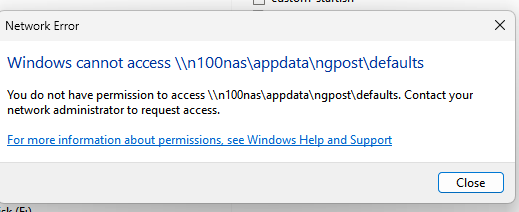
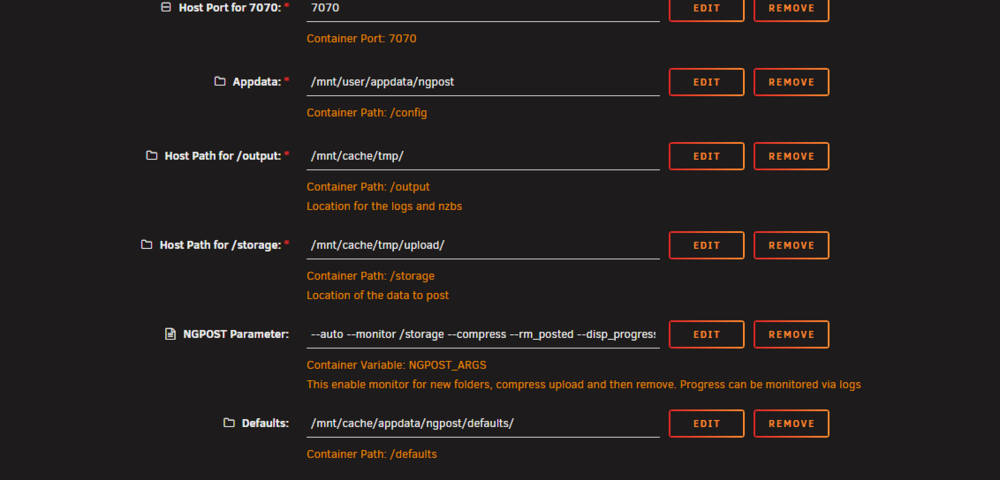
Making a docker and publishing it to unraid is a bit of a hassle. Lets use what we have here, I made a bit of a change to the script and allowing pass through parameters. Due to the way dockers work it self heal so any changes made to the docker isn't permanent. Unless the original creator update the script. Create a tmp local to copy the defaults folder to. This is just a folder redirect. What i did is use point /tmp to /mnt/cache/appdata/ngpost/defaults/ Go in to the docker via console. run cp -a /defaults/. /tmp/ Change the permissions of the files folder otherwise we can't write to it outside of the docker. run chmod 777 -R /tmp or you will get the following Edit the autostart file #!/bin/sh set -e # Check config file if [ ! -f "/config/.ngPost" ]; then cp /opt/ngPost.sample.conf /config/.ngPost fi # Create directories mkdir -p /output/nzb /output/.logs /output/.tmp # Use environment variable for extra args; default is empty NGPOST_ARGS="${NGPOST_ARGS:-}" exec dbus-launch /usr/local/bin/ngPost $NGPOST_ARGS We are taking the parameters and passing it to the docker. If no parameter are there then just run it like normal. Go into your docker editor and change the /tmp to /defaults Add the to the parameter which we created $NGPOST_ARGS value --auto --monitor /storage --compress --rm_posted --disp_progress files This will make the settings persistent. Upload status is reviewed via looking at the logs.
-
Hi, My apologies for reopening such an old thread. I’m not sure if it’s still actively maintained, but I wanted to ask about enabling auto-monitoring of a folder. From what I understand, ngpost only supports folder monitoring at startup. Is there any way to achieve dynamic, real-time monitoring using your Docker setup? Thank you! -- Solution -- Note the auto post will disable the GUI so vnc would no longer opens up the console. Installing nano to edit the config sudo apt update sudo apt install nano config file location /defaults/autostart Comment out the dbus-launch /usr/local/bin/ngPost with # Add in the new line dbus-launch /usr/local/bin/ngPost --monitor /storage/tmp --compress --rm_posted --disp_progress files /storage/tmp is the path to your monitored folder, yours might be different. You can monitor by looking at the logs on your docker page I noticed the --rm_posted causes the app to crash / randomly
-
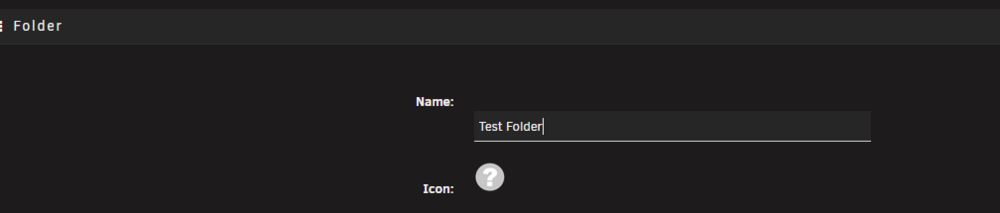
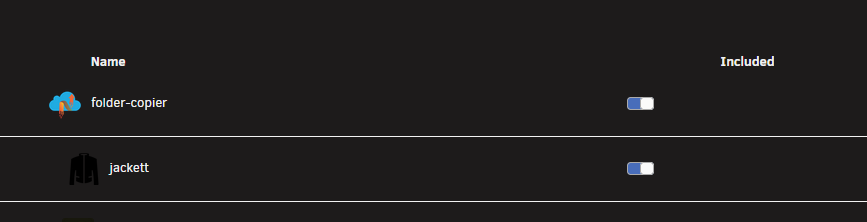
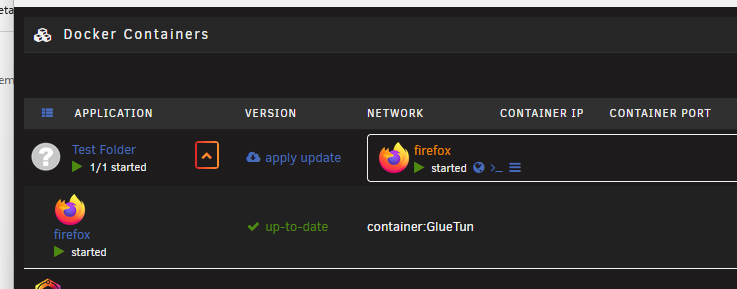
Hi everyone, Happy New Year to you. I had folderview2 working for a while however yesterday when I created a docker manually not via the App repository folder view just throws a fit. The docker that I have that broke folderview2 is folder-copier. Is it because of the name? I did take a backup of folderview2 setting and restore but the issue remains the same after a reinstall. I created Test folder. Selected the two docker It is not even showing the correct docker. I posted on reddit but was suggest to come here, I hop someone has a fix as this is not workable :) I had to uninstall folderview to have the correct functions. Damn it is the name, I changed the name of the docker to something else and it worked.
-
🚀 Fully Automated Setup for Fan Control Docker This setup is now fully automated — just waiting for Squid to publish it to the Community Applications repository. 🧪 If it's not published yet:You can still use it manually by placing the template file into the following directory: /boot/config/plugins/dockerMan/templates-user/Once added, simply deploy the Docker container using the Unraid Docker tab as you would with any other template. 📦 What the Docker container does:During startup, it downloads docker-entrypoint.sh automatically via Docker Compose. When the container starts, it checks if fan_control.sh exists in the /usr/local/data directory: If the script is missing, it will automatically download the latest version from GitHub. If the script already exists, it will skip the download and use your existing file. This allows for hands-free updates and deployment, and ensures your fan control script is always available. my-minimal-liquidctl.xml
-
My apologies if I am hijacking your thread. This is most likely my last contribution. I was able to reduce the docker size massively. Dockerfilefan_control.sh I’ve created a custom Docker container for minimal-liquidctl and wanted to share how you can integrate it into the Unraid GUI: 1. Build the Docker image Open a terminal and run: docker build -t minimal-liquidctl . 2. Tag the image for Unraid (fake registry tag) After building, tag the image like so: docker tag minimal-liquidctl local/minimal-liquidctl:latest 3. Add to Unraid via GUI Create a Docker template XML file (e.g., minimal-liquidctl.xml). Place it in the following path on your Unraid flash drive: /boot/config/plugins/dockerMan/templates-user/minimal-liquidctl.xml I am new to this, and when I have time I will most likely post this on dockerhub / the app repository.

-
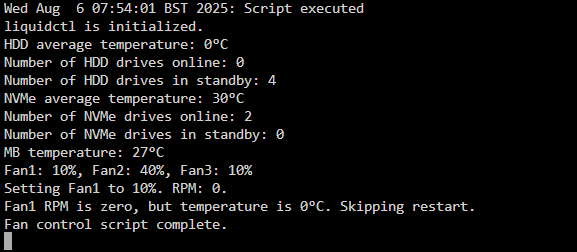
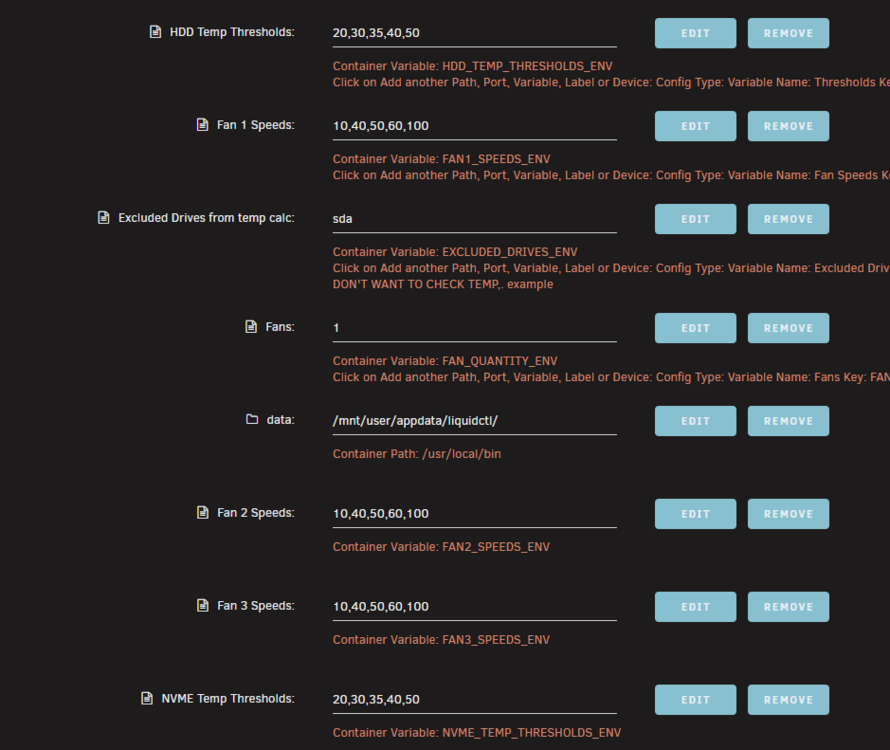
fan_control.sh I modified this a little; FAN 1 controls the HDD FAN 2 controls the NVMe FAN 3 Controls the MB/case I also added the data path so I can edit the script easier.

-
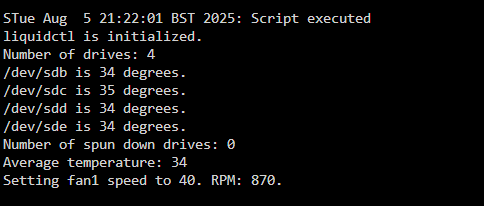
I think I fixed the issue; I edited the file /user/local/bin/fan_control.sh I added the value 194 to look at just that temperature line and ignore the others.

-
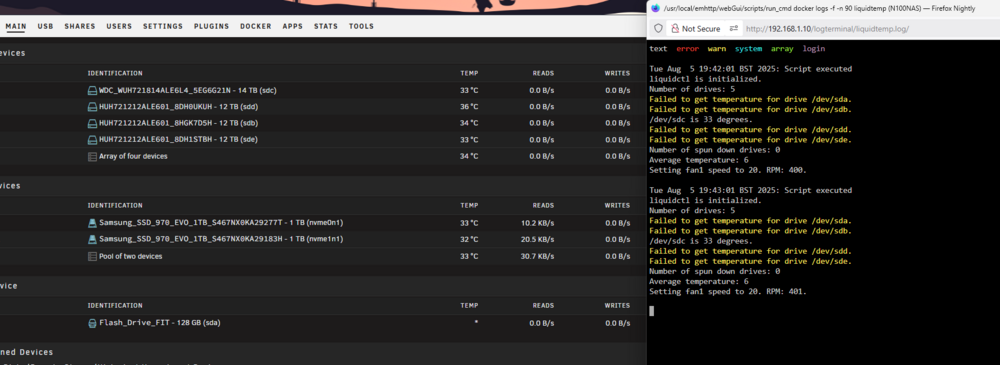
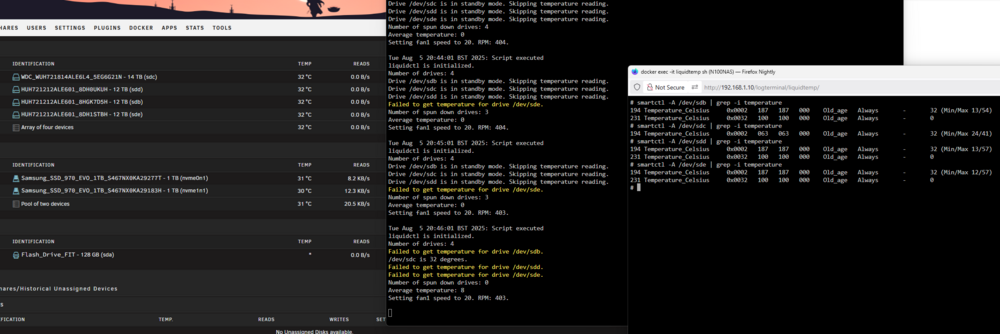
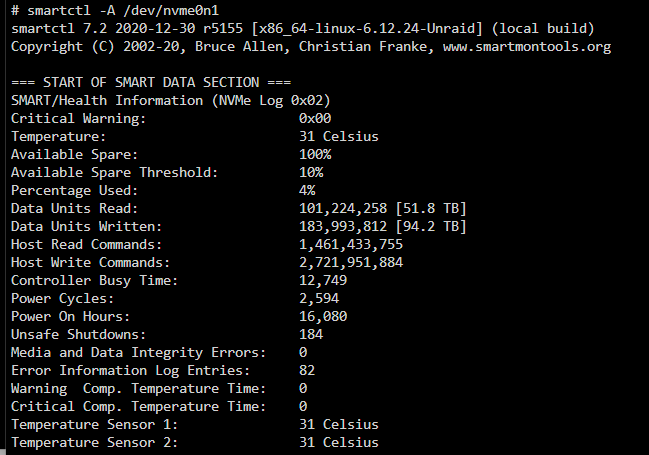
Hi @PSteward I don't know what the issue is; I can understand sda would report as fail as this is the usb drive but why are my other hdd showing as error? It was okay when I did a dry fitting. The concerning part is the average temperature is reporting as 6 when the array is showing as 33+ Adding more information, i think i worked out the issue: Everything except for the sdc has a 231 temperature of 0, this is actually not a temperature reading. Can you explain what script you are using to calculate this? Can we exclude smart value for 231? I did more research and we can get individual fan control. liquidctl set fan1 speed 60 liquidctl set fan2 speed 50 liquidctl set fan3 speed 40 With regards to the nvme you can get temperature by Looking forward to your reply.
-
Thank you so much for sharing this, I've been looking for a solution like this for quite a while! I'd love to see support for NVMe drives as well, especially for thermal monitoring. Being able to fully automate all my fans would really help cut down on unnecessary noise. Just curious, was there a particular reason you didn’t release this as a community app? I think a lot of people would benefit from it. Thanks again! Update: I have purchased the fan controller and it work great with this docker. Things I noticed. Even though fan one isn't connected it complains in the log, is there a way to have selective fans rather than quantity. If we have the temperature and fan control for the nvme and it being dedicated to a selective fan would be great.
-
Hi, Can anyone let me know what in nerdtools are already included with unraid and what we need to compile a docker to utilize? ty.
-
I am very sorry to quote you on such an old post. I am running into this exact issue, I wanted to convert my iso / bin into chd. I was wondering if you have any guides on how to do this? thanks.


