





StoneFalcon
Members
-
Joined
-
Last visited
Everything posted by StoneFalcon
-
You are a lifesaver. Thankyou!
-
The solution was to go to the Plugins tab and update there. Yikes, very simple.
-
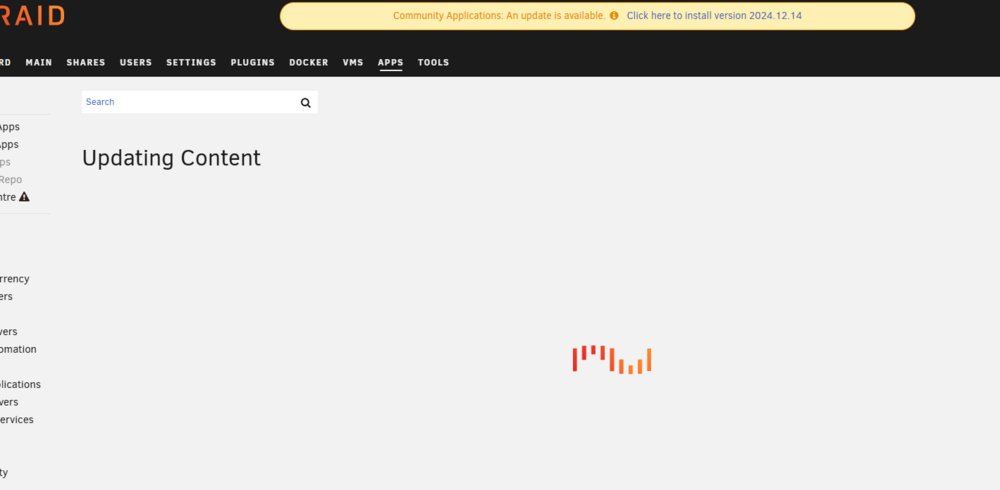
I recently upgraded to 7.0.1, and have restarted my server twice. Everything else is running fine, but when I click the Apps tab, I get this screen forever. In addition, whenever I move the mouse over any part of the browser window, it changes to the spinning blue 'Windows is busy' cursor and I cannot click the yellow banner to install the Community Applications Update. Does anybody have a suggestion for how to resolve this?
-
OK thanks I shall do!
-
Thank you. Do you know what that PLG file is likely to be called?
-
That does seem like the obvious resolution, but as I said in my post, "whenever I move the mouse over any part of the browser window, it changes to the spinning blue 'Windows is busy' cursor and I cannot click the yellow banner to install the Community Applications Update."
-
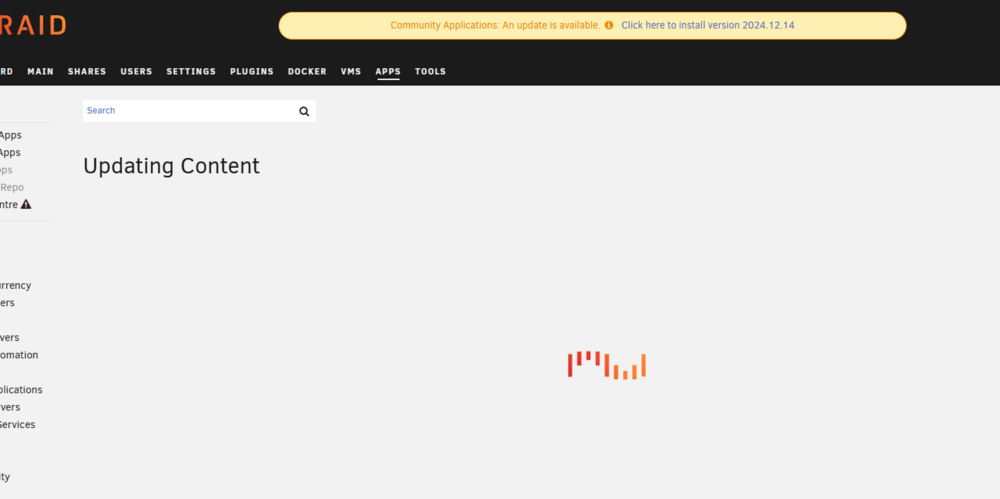
I recently upgraded to 7.0.1, and have restarted my server twice. Everything else is running fine, but when I click the Apps tab, I get this screen forever. In addition, whenever I move the mouse over any part of the browser window, it changes to the spinning blue 'Windows is busy' cursor and I cannot click the yellow banner to install the Community Applications Update. Does anybody have a suggestion for how to resolve this?
-
Hi! Thank you very much. Ok so Postgres is on 5433, which I set it to following the Space Invader One tutorial. Immich is set to 5433 as well for the PostgreSQL port. Postgres is set to bridge mode. NEVER MIND! Thanks to your pointer, I discovered a typo in the IP address in Immich. I thought I'd fixed it... but looking at the logs should have been my first port of call. Thankyou for your help.
-
Thank you. Here is a snippet of the immich log. This is looping. Error: connect EHOSTUNREACH 192.168.1.178:5433 at TCPConnectWrap.afterConnect [as oncomplete] (node:net:1634:16) { errno: -113, code: 'EHOSTUNREACH', syscall: 'connect', address: '192.168.1.178', port: 5433 } Node.js v22.14.0 api worker exited with code 1 Starting api worker [32m[Nest] 15728 - [39m05/28/2025, 3:27:02 PM [32m LOG[39m [33m[Api:EventRepository][39m [32mInitialized websocket server[39m /app/immich/server/node_modules/postgres/cjs/src/connection.js:388 if (!query || typeof query !== 'object' || !query.reject) throw err ^ Error: connect EHOSTUNREACH 192.168.1.178:5433 tiberius-diagnostics-20250528-2321.zip
-
Hi all, I followed Space Invader One's excellent t guide for how to setup Immich with a cloudflare tunnel on Unraid. It worked perfectly for 5 months until I decided to upgrade my server. In the process the server ended up with a new IP, and instead of just going into settings and putting it back, I went into the Immich container and updated it to the new one. I then did the same for my Cloudflare tunnel and it all seemed to work fine. I even backed up some photos from my phone. The next day I tried to search for a photo using my phone app and got nothing. I went home and tried to log into the Web UI for my Immich container... which failed with... "The site cannot be reached" So in a panic, I changed it all back, then went into settings and changed my IP back to the old one. For good measure I went into my router's DHCP settings and made sure the IP was reserved. But it's still broken. Wtf have I done? 😨😭


