





ruben12121
Members
-
Joined
-
Last visited
Everything posted by ruben12121
-
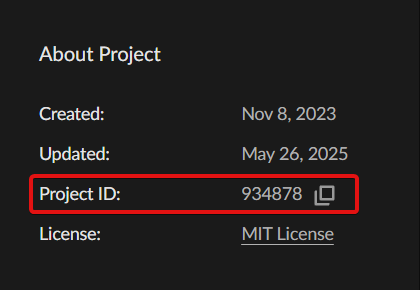
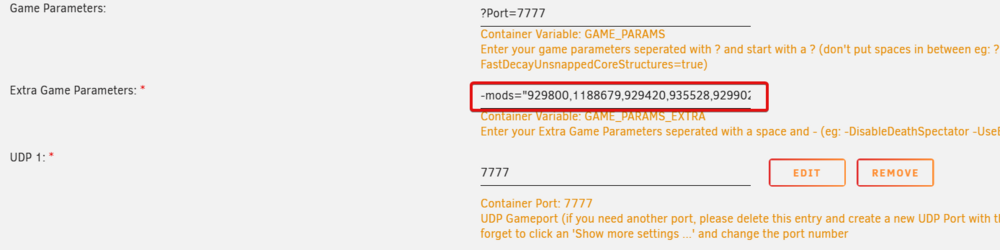
Thanks Mainfrezzer, that fixed it. Apparently I was using an outdated guide that told me to find the modID based on the CurseForge URL when downloading the mod... To help others who might have similar issues... How to run mods on ARK: Survival Ascended Dedicated Server 1. Grab the Project IDs of the mods you want to runHead over to the ARK: Survival Ascended section on CurseForge Browse and find a mod you want to install. Click on it. On the mod's main page, look on the right-hand side for a section called "About Project" . In that section, you'll find the Project ID. Copy it! It should be a string of numbers. Tip: I made a list of all the mods I wanted to use and copied all Project IDs in a notepad. I separated them by commas, for example: 929420,929231,929878 2. Add the mods to your server configurationNow we need to tell the server which mods to load. In your Unraid web interface, go to the "Docker" tab. Find your ARK: Survival Ascended container and click its icon, then select "Edit". Scroll down until you find the field for "Extra Game Parameters" In this field, you add the -mods argument. Be careful about the format, look at the examples. Example for a single mod: -mods="929420" Example for multiple mods: -mods="929420,929231,929878" 3. Start the server and check the logsThe first time you add mods, the server will need to download them. This can take a few minutes. To check the progress or when troubleshooting, click the ARK: Survival Ascended container and click its icon, then select "Logs". You are looking for a line that confirms the mods are being loaded. It should look something like this: [2025.07.25-13.05.54:685][ 14]UShooterEngine::LoadGameMods with 12 mods The number (12) should correspond with the amount of mods you have running. Good luck with running mods on your dedicated server! Special thanks to both ich777 and Mainfrezzer for their contributions!
-
I currently have the same question, since I'm stuck trying to run mods on the server ARK:SA. It runs great however when I try to add mods it bootloops. I've added: to the game parameters: -mods="6679508" (and without the quotation marks) to the GameUserSettings.ini: ActiveMods=6679508 When the server runs I get this error: LogCFCore: Error: Error querying server mods: Failed to send request to server with error: 404 It seems to be stuck with curseforge and sadly I can't figure out how to make it read the local directory of mods so I can bypass it. Maybe Mainfrezzer, you have an idea? @Mainfrezzer Thanks all PS Ich777 I want to thank you. Even if you'd stop today with creating/maintaining these docker containers I'm very grateful for your work. It has allowed me to have countless amazing experiences with friends and family through running servers based on your containers, be it Valheim, ARK, Chivalry, Insurgency, ...

