





Megabit
Members
-
Joined
-
Last visited
-
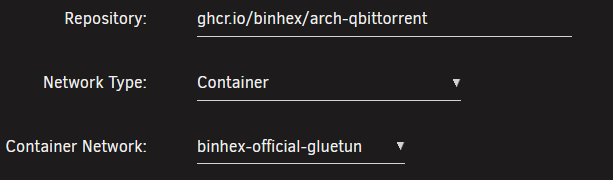
Thanks for the feedback. I'm a long-time user of Docker in Unraid, but I've never really done a deep dive into how they work behind the scenes. This was pretty helpful! And FWIW, Proton Wireguard seems to be working fine for me. I loaded up ipleak.net's torrent tracking test multiple times in qBittorrent after restarting both it and Gluetun, and every single time it has come back with my VPN's public IP and forwarded port, which matches the IP shown in both qBittorrent's web UI (Settings gear, Behavior tab, enable "Show external IP in status bar") and in the appdata/gluetun/ip file. After following Gluetun's directions for generating a Proton Wireguard connection on their github wiki, I ended up setting (or at least ensuring) the following variables in binhex-official-gluetun to make binhex-qbittorrent work the way I need: VPN_SERVICE_PROVIDER: protonvpn VPN_TYPE: wireguard WIREGUARD_PRIVATE_KEY: copied from generated Proton connection file SERVER_COUNTRIES and SERVER_CITIES: choose your favorite, or leave empty to let it pick one itself VPN_PORT_FORWARDING: on TZ: set to my local time zone PORT_FORWARD_ONLY: on WIREGUARD_PUBLIC_KEY: again, copied from generated Proton connection file WIREGUARD_IMPLEMENTATION: auto (left at default) WIREGUARD_MTU: 1400 (left at default) VPN_PORT_FORWARDING_STATUS_FILE: /gluetun/forwarded_port (left at default) I also added the qBT web UI port to Gluetun (mentioned here in their docs), and of course changed binhex-qbittorrent's network type to use the Gluetun container. Although I did that through the Unraid UI instead of adding a command as an extra parameter; it seems to do the same thing based on the Docker command execution
-
Couple of questions, as I somehow managed to stumble upon this container (and by extension, binhex-official-gluetun) while it's still fairly new. The first is around this: Does that apply to Wireguard VPNs in general? Or is it just a limitation of PIA's Wireguard implementation? I'm not a PIA customer, and I haven't seen any major issues yet as a Proton user; qBT is sending all its traffic over Proton for me. But if there's a potential brief security "gap", I don't mind switching to the OpenVPN protocol. My second question/observation - it seems that if I have GLUETUN_INCOMING_PORT set to "yes" (which I do, as Proton randomly assigns a forwarded port each time it connects), I also have to enable "Bypass authentication for clients on localhost" in qBT's Web UI settings. If I don't enable that setting, I get the log output below, and the health check script fails to set the port to whatever is listed in appdata/gluetun/forwarded_port. Are there any other ways to make this work without bypassing auth, or am I worrying about nothing because this is Docker and "localhost" is just limited to within what the Docker container considers to be localhost? 2025-07-28 01:40:40,600 DEBG 'start-script' stdout output: [INFO] Verifying 'qbittorrent' incoming port matches VPN port '52210' 2025-07-28 01:40:40,611 DEBG 'start-script' stderr output: jq: parse error: Invalid numeric literal at line 2, column 0 2025-07-28 01:40:40,612 DEBG 'start-script' stdout output: [WARN] Unable to retrieve current port from qbittorrent API 2025-07-28 01:40:40,612 DEBG 'start-script' stdout output: [INFO] Waiting for port 8085 to be listening... 2025-07-28 01:40:40,615 DEBG 'start-script' stderr output: Connection to localhost (::1) 8085 port [tcp/*] succeeded! 2025-07-28 01:40:40,619 DEBG 'start-script' stderr output: Connection to localhost (::1) 8085 port [tcp/*] succeeded! 2025-07-28 01:40:40,619 DEBG 'start-script' stdout output: [INFO] Port 8085 is now listening 2025-07-28 01:40:40,627 DEBG 'start-script' stdout output: [INFO] Sleeping for 60 seconds before re-checking port assignment...
