Lajames
Members
-
Joined
-
Last visited
-
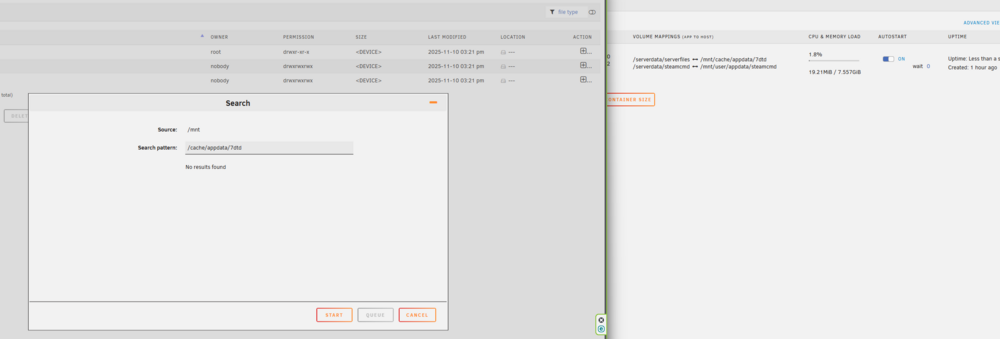
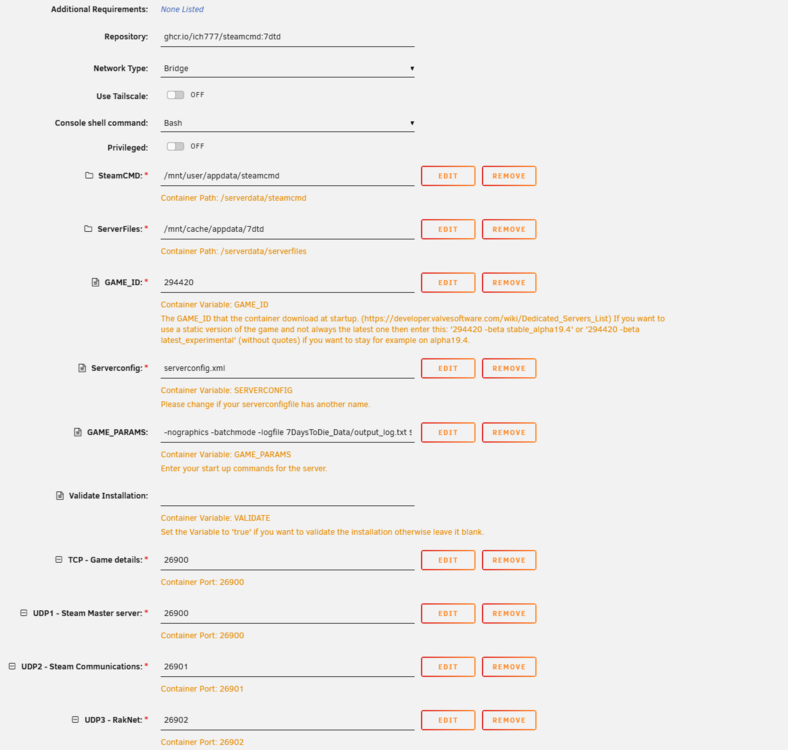
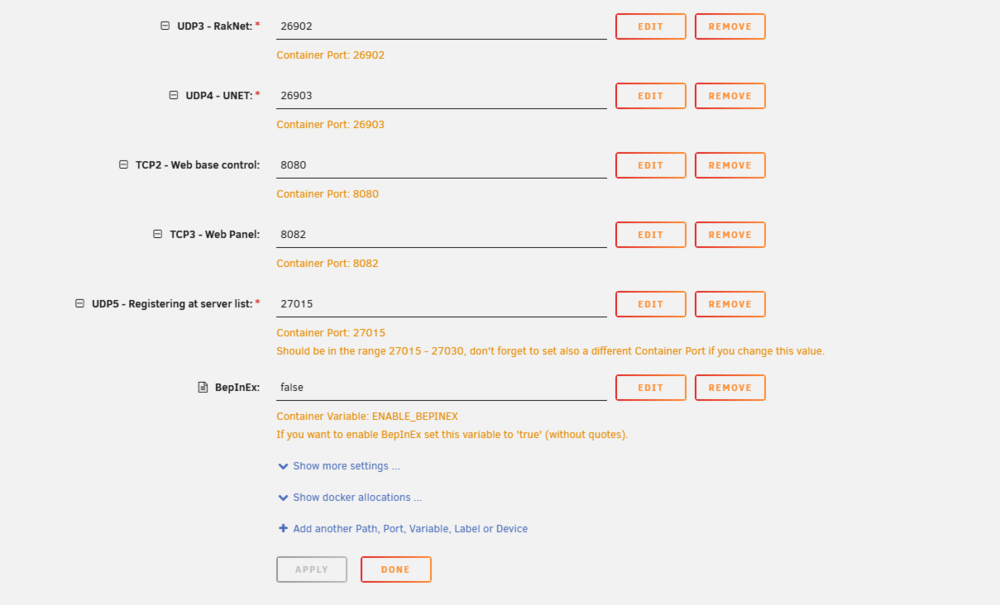
I am very new to this, I'm trying to setup 7D2D, I can't find the XML I need to update. I can't open the logs or console while the container is running the screens just close as fast as they open. I believe the container is stopping and restarting consistently. I feel like I missed some pretty major things. I have tried this guide A Guide on how to install Ich777’s container (docker) on an Unraid server. – 7 Days to Die Admin Coalition but I can't even find where the actual XML file is for the serverconfig.xml connecting anonymously to Steam Public...OK Waiting for client config...OK Waiting for user info...OK Error! App '294420' state is 0x202 after update job. Unloading Steam API...OK ---Prepare Server--- grep: /serverdata/serverfiles/serverconfig.xml: No such file or directory ---Creating UserDataFolder config --- sed: can't read /serverdata/serverfiles/serverconfig.xml: No such file or directory ---UserDataFolder location found--- ---Server ready--- ---Start Server--- /opt/scripts/start-server.sh: line 189: /serverdata/serverfiles/7DaysToDieServer.x86_64: No such file or directory ---Ensuring UID: 99 matches user--- usermod: no changes ---Ensuring GID: 100 matches user--- usermod: no changes ---Setting umask to 000--- ---Checking for optional scripts--- ---No optional script found, continuing--- ---Taking ownership of data...--- ---Starting...--- ---Update SteamCMD--- Redirecting stderr to '/serverdata/Steam/logs/stderr.txt' Logging directory: '/serverdata/Steam/logs' [ 0%] Checking for available updates... [----] Verifying installation... UpdateUI: skip show logo Steam Console Client (c) Valve Corporation - version 1759461699 -- type 'quit' to exit -- Loading Steam API...OK connecting anonymously to Steam Public...OK Nov 10 18:30:20 LouisasServer kernel: veth189e5ab: entered allmulticast mode Nov 10 18:30:20 LouisasServer kernel: veth189e5ab: entered promiscuous mode Nov 10 18:30:20 LouisasServer kernel: eth0: renamed from veth19278ed Nov 10 18:30:20 LouisasServer kernel: docker0: port 1(veth189e5ab) entered blocking state Nov 10 18:30:20 LouisasServer kernel: docker0: port 1(veth189e5ab) entered forwarding state Nov 10 18:30:30 LouisasServer kernel: docker0: port 1(veth189e5ab) entered disabled state Nov 10 18:30:30 LouisasServer kernel: veth19278ed: renamed from eth0 Nov 10 18:30:30 LouisasServer kernel: docker0: port 1(veth189e5ab) entered disabled state Nov 10 18:30:30 LouisasServer kernel: veth189e5ab (unregistering): left allmulticast mode Nov 10 18:30:30 LouisasServer kernel: veth189e5ab (unregistering): left promiscuous mode Nov 10 18:30:30 LouisasServer kernel: docker0: port 1(veth189e5ab) entered disabled state Nov 10 18:31:30 LouisasServer kernel: docker0: port 1(vethffe6713) entered blocking state Nov 10 18:31:30 LouisasServer kernel: docker0: port 1(vethffe6713) entered disabled state Nov 10 18:31:30 LouisasServer kernel: vethffe6713: entered allmulticast mode Nov 10 18:31:30 LouisasServer kernel: vethffe6713: entered promiscuous mode Nov 10 18:31:30 LouisasServer kernel: eth0: renamed from veth4b7b69a Nov 10 18:31:30 LouisasServer kernel: docker0: port 1(vethffe6713) entered blocking state Nov 10 18:31:30 LouisasServer kernel: docker0: port 1(vethffe6713) entered forwarding state Nov 10 18:31:39 LouisasServer kernel: docker0: port 1(vethffe6713) entered disabled state Nov 10 18:31:39 LouisasServer kernel: veth4b7b69a: renamed from eth0