




Skip to content
View in the app

A better way to browse. Learn more.

Unraid

A full-screen app on your home screen with push notifications, badges and more.

To install this app on iOS and iPadOS
  1. Tap the Share icon in Safari
  2. Scroll the menu and tap Add to Home Screen.
  3. Tap Add in the top-right corner.
To install this app on Android
  1. Tap the 3-dot menu (⋮) in the top-right corner of the browser.
  2. Tap Add to Home screen or Install app.
  3. Confirm by tapping Install.

wilkins502

Members
  • Joined

  • Last visited

Everything posted by wilkins502

  1. Apologies on the wrong thread, that's the correct /config path for Jellyseer from my understanding. I didn't have another instance of Jellyseer installed, there was/is only one jellyseer folder in my appdata.
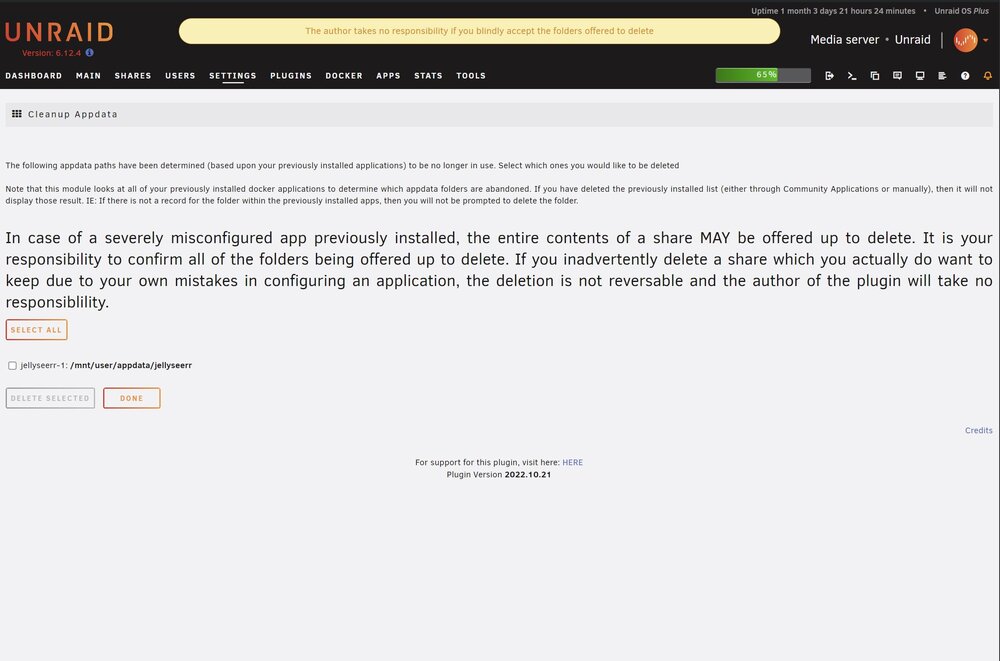
  2. Hi there, want to report that when installing Jellyseer in a docker container, this plugin reports it as abandoned and you have to manually deselect it to avoid the issue. My jellyseer is actively in use in this screenshot, still shows up in the list. Anyone else run into this?
  3. Had the exact same problem. Went to open the terminal to try to find out what was using disk1. It was me, in a terminal window looking at disk1. Sometimes (everytime) it's all my fault)


Account

Navigation

Search

Search

Configure browser push notifications

Chrome (Android)
  1. Tap the lock icon next to the address bar.
  2. Tap Permissions → Notifications.
  3. Adjust your preference.
Chrome (Desktop)
  1. Click the padlock icon in the address bar.
  2. Select Site settings.
  3. Find Notifications and adjust your preference.