MrCBlade_3
Members
-
Joined
-
Last visited
-
Thanks you for the fix and fast update. no issues after updating the docker.
-
The Default path for me is /mnt/user/appdata/conanexiles/ConanSandbox/Saved/Config/WindowsServer ("user" might be something else for you) from this is a file called "Engine.ini" in it you can change the name and password as needed. Default is below. [OnlineSubsystem] ServerName=Docker ConanExile ServerPassword=Docker
-
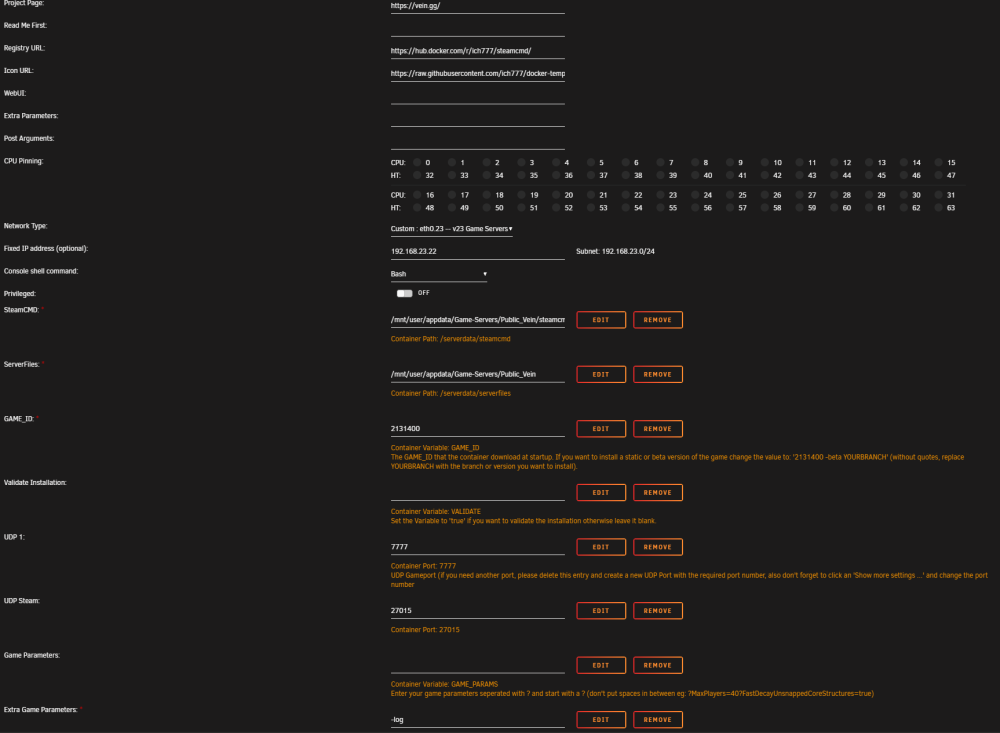
Hey everyone, I have been using VEIN on and off. but last 6 months i have not used it and now when i do i get errors. I am going to guess it something I am missing but would be nice to confirm if it just me or if others have the problem. I have deleted the docker and also deleted the downloaded files and configs (I wasn't worried about saves) I have looked on the VEIN discord to see if anyone else had the issue. (looking seems only 2 other people used unraid but one left and the other has not posted in a while and using search i couldn't see anyone else with the problem) When starting the docker it downloads everything fine from what i can tell but on game start up or restart i get this error (I do not know how to make the logs go back more) i did remove the restart=unless-stopped to stop the looping and gte the last error. ich777 thank you and great work on all your dockers I use a lot of them 👍