





Bob1215
Members
-
Joined
-
Last visited
Everything posted by Bob1215
-
I'm on Debian 9.4. I did try that. Here is the output: sudo bash Downloads/test/unRAIDServer-6.5.3-x86_64/make_bootable_linux INFO: make_bootable_linux v1.3 INFO: The following device appears to be the unRAID USB Flash drive: /dev/sdb INFO: Temporarily mounting unRAID USB Flash drive to /tmp/UNRAID_TMP_MOUNT Permit UEFI boot mode [Y/N]: y INFO: unRAID USB Flash drive currently mounted to /tmp/UNRAID_TMP_MOUNT, copying temporary installer files to /tmp/UNRAID To continue you may need to enter your admin password INFO: Installing Syslinux bootloader on /dev/sdb1 sh: 1: mcopy: not found INFO: Writing MBR on /dev/sdb 0+1 records in 0+1 records out 447 bytes copied, 0.000791486 s, 565 kB/s INFO: the unRAID USB Flash drive is now bootable and may be ejected. Then, when I insert the USB into the server, the server says The server can successfully boot from a Debian 9 Live USB, and the boot priority is for the SanDisk USB (all others are disabled), and no hard drives are connected.
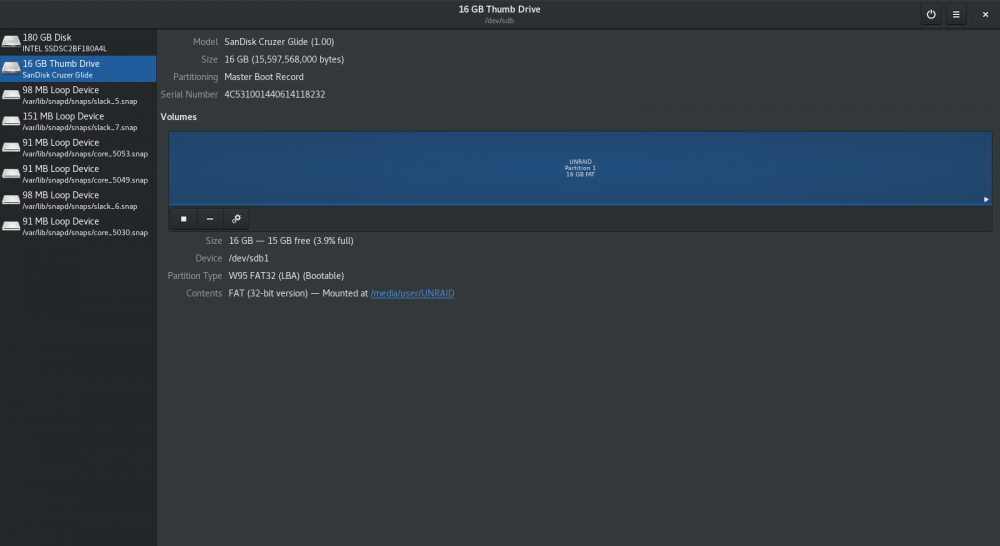
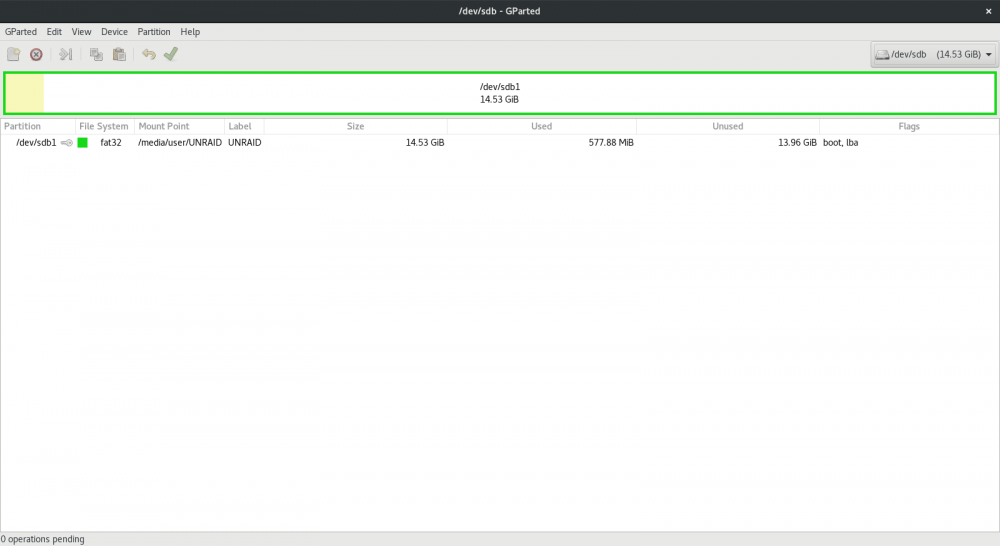
-
I've been trying for the past few days to create a unRAID USB. I do not have access to any Windows or Mac machines. I've tried using "dd" and I've tried using Etcher, but both have failed. All of the instructions and tutorials seem to lack any mention of Linux. Is there a tutorial I am missing, or is there simply not information on how to achieve this?


