





CoZ
Members
-
Joined
-
Last visited
-
That's crazy! You have the same exact error but yet your server starts and, is connectable. What in the Sam Hill is going on? LOL
-
Using the other container almost feels like cheating on you...your Valheim Container and I have been together for so long. ;) I do not WANT to use the other container.... but, it appears I HAVE to.
-
So a new dedicated Valheim server popped up in the App section of unraid (https://github.com/blckassassin/unraid-game-servers/tree/main/games/valheim) I wiped out everything from ich777 container and pulled down the above. The server starts fine with no issue. Maybe @ich777 can take a look at the above container and see what is different between the two?
-
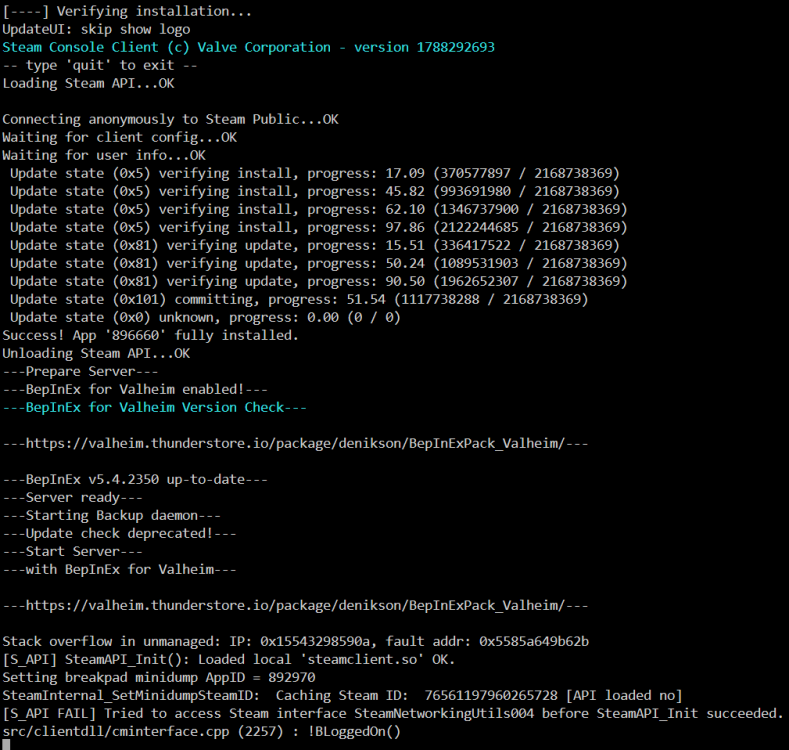
I had already tried turning it on/off... it didn't make a difference on mine. Still the same error message: Stack overflow in unmanaged: IP: 0x1465dab8590a, fault addr: 0x55fa7842d26b
-
I've set the container to host from bridge and still getting the error(s). I've also re-booted the Unraid server... .still same errors.
-
Removed container, removed template, removed /appdata/valheim. Pulled down a new container let it install. Still get the same error: Stack overflow in unmanaged: IP: 0x147ca418590a, fault addr: 0x555e3bcb582b Using the server browser in-game, there is a red X over both the WAN and Local IP of the server. So it is for sure not starting.
-
Strange. I, and others, can't get anyone to join - yet you have no issues with the same error......
-
Also having the same issue with the Unmanaged IP error. Running Unraid 7.3.2 and running the container in Bridge mode. Client refuses to connect either via Local IP or WAN
-
Well, let's hope they listen and, follow through.
-
None of what you wrote regarding the "new" Windrose container sounds better than what you had already put together for us months ago. I'll stick with yours.
-
For anyone that is/was having issues copying the single player world over to the dedicated server, they've changed how it's done (again). The easiest way that I have found is to copy the entire \Username\appdata\local\R5\Saved\SaveProfiles\{Bunch of random numbers' folder\RocksDB and the RocksDB_V2 folders over to your \appdata\windrose saved world location. Then go into your windrose directory on your server, delete everything out of RocksDB and RocksDB_V2 folders that IS NOT "worlds" subdirectoy. There was an issue with the patch changing the RocksDB to RocksDB_V2 and the single player world not migrating correctly blah blah blah. I tried every which way to get it to "stick" otherwise it would just create a new world and overwrite any changes to the Serverdescription.json file that you put into it.
-
They aren't making it easy for us - they keep introducing breaking changes. Now for instance, since today's update, they've changed the location of the "world / save" folder. I've fixed the crashing on the container start. I've figured out the new format for copying over a single player to the dedicated server with no crashes. However, now I'm unable to connect anymore to the dedicated server as I could before with just the invite code. It's back to dropping me back into the main loading screen. Sigh. LoL
-
Got to post #2. You need to delete a file to "kick start" the update. It's been mentioned in this thread 30+ times now.
-
I sent in a bug report with what I posted earlier, the errors. I have been tinkering in the meantime. It seems that the P2pProxyAddress entry in the server.json MUST match the IP Unraid assigns it. For example, I earlier had that P2pProxyAddress set to my tower's IP address of 192.168.X.XXX and it was working fine before the updates were pushed out. I've changed it to the internal IP set by the container (172.17.0.28) and I am no longer getting the crash/restart cycle.
-
Yes. It's the same procedure I've used in the past to move over the world.


