





P4R4N01D
Members
-
Joined
-
Last visited
-
I am using Chrome, The laptop is just for testing purposes, I have a production server already set up at another location, but as it is already being used with currently 6 VMs and many shares, there is no way I can use that for testing. It seems that it is mainly a chrome problem for me - Edge and Firefox seem to work
-
Diagnostics are attached. Just restarted the server though... tower-diagnostics-20190406-0002.zip
-
Yes it can, everything seems to be set up properly
-
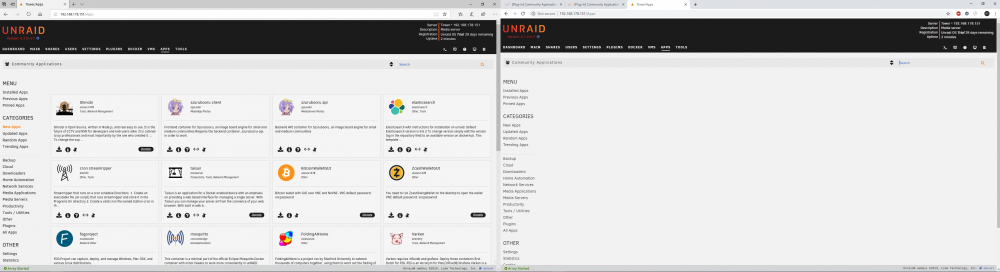
I have a problem with a fresh install of unraid and a fresh install of CA. After installing CA and going to the Apps-Tab, nothing shows up. I get the left sidebar, but only Menu, Other and Version are clickable. And indeed, when looking at the source code, all entries beneath Category don't have a "onclick"-Event assigned. (Search also does not work) Furthermore going into Statistics, last change is "December 31, 1969 @ 4:00 pm", while the unix time stamp clearly states 2019-04-05 16:00. Number of Repositories is 119, and template Errors 87+. Other than the last two entries everything else is at 0. At this point I did a clean install of CA, then unraid (and CA). Honestly I'm out of ideas by now... Any help would be appreciated.
