






OliverRC
Members
-
Joined
-
Last visited
Everything posted by OliverRC
-
One word "enshitification"
-
Thanks I have updated my reply with the steps required. Appreciate the swift response. I will outline the steps to make is clear to the next person
-
Okay that sounds good, now I am just a little hesitant after destroying my cache the first time. Updated: Instructions to achieve this thanks to the help of @JorgeB 1. Stop Array 2. Change "Cache" / Pool name pool to 2 slots 3. Add drive to 2nd slot 4. Format 5. Let BTFRS operation run to completion (RAID 1 - the default) 6. Click "Cache" / Pool Name under "Pool devices" 7. Under "Balance Status" click the dropdown "Perform full balance" and select "Convert to single mode" 8. Let balance complete 9. Success, live long and prosper

-
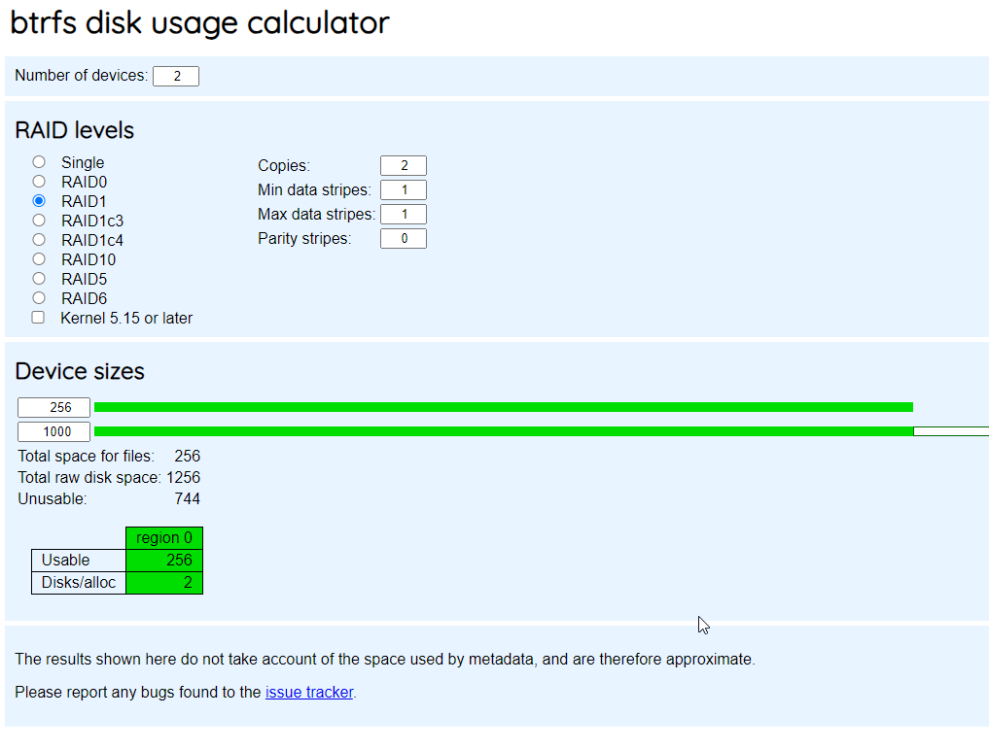
Objective: * Create pool with a 256 SSD and a 1 TB NVME * Have both drives in single pool addressable by shares * No redundancy required * Maximize space (e.g 1256 GB being the theoretical max ignoring FS and RAID implementations) How do I achieve this? I have tried and failed miserably once (thankfully had a backup of `/mnt/cache`). When I added both to a pool the UI reported the same drive space as the 256GB SSD. Trying to go back to single device BTRFS I managed to break everything. This BTRFS calculator indicates that the RAID 1 configuration means I cannot use ~744Gb of data. Now I am back with two single device pools, but that is "meh" as a share can only be allocated to a single pool. I'd appreciate some guidance before proceeding and having to spend 2 hrs restoring my server

-
Amazing man, I suspected something had changed in the updated and my config was old. This saved me a ton of debugging!
-
+1 and API for remotely managed server seems like it should be a core feature!
-
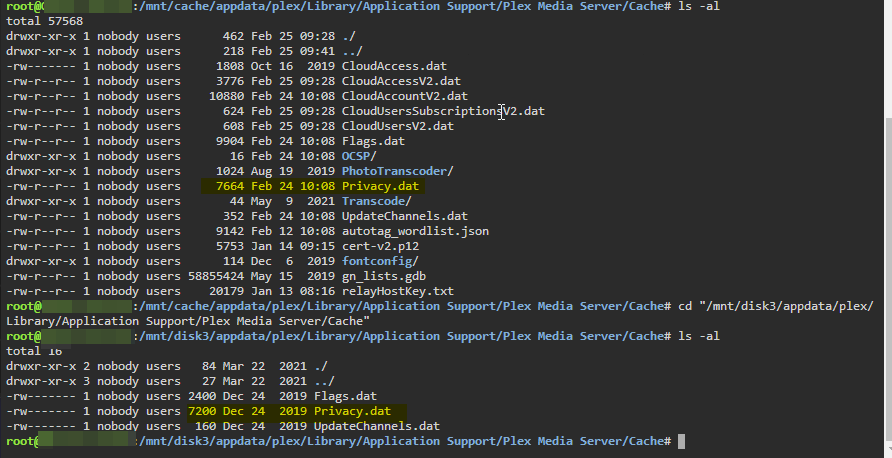
Cool, did a spot check comparing the files in /mnt/disk{n} vs /mnt/cache vs /mnt/user and it seems that the user directory is only looking at cache and whatever is on disk must be old. Thanks for the advice /response @trurl
-
It would seem as though the files on the disks are old. Perhaps this is why the mover doesn't want to move them? What course of action would be recommended? Go in an remove the old files?
-
I have a number of files I am trying to consolidate on the Cache drive as a performance optimization (tyring to follow these steps) for Plex. The files currently are distributed across the Cache and Disks. I have stopped all containers, disabled Docker and given ample time for shutdown. Furthermore, when this didn't work I rebooted the system and made sure no container processes or VM (I have none) were running. Unfortunately not matter what I do it seems the mover is not doing anything. I've run it from the GUI, run it with logging enabled, and tried running it from Terminal. The cache drive has ample free space and I've tried everything to ensure the files are not being access and therefore locked. The only thing I can see is when drilling down through the share that some files are marked as "yellow" which I can only presume is some permissions. Could this be preventing them from moving? Does the disk indicator imply the file is duplicated across both Cache and Disk in the above screenshot? The mover completes it's execution, does not output anything that I can see and yet the files remain unchanged in my "/appdata" share









