ThorThe1
Members
-
Joined
-
Last visited
-
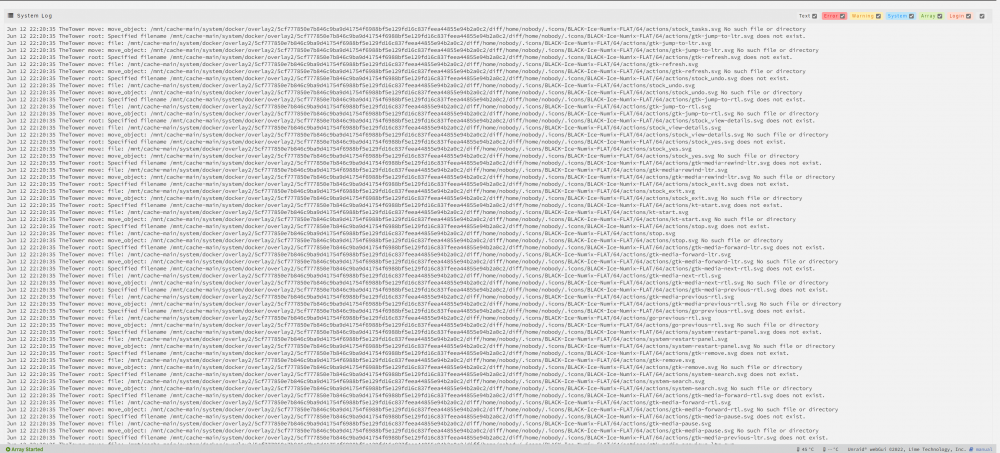
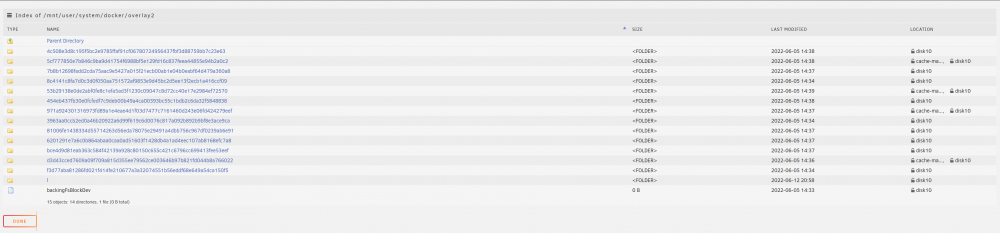
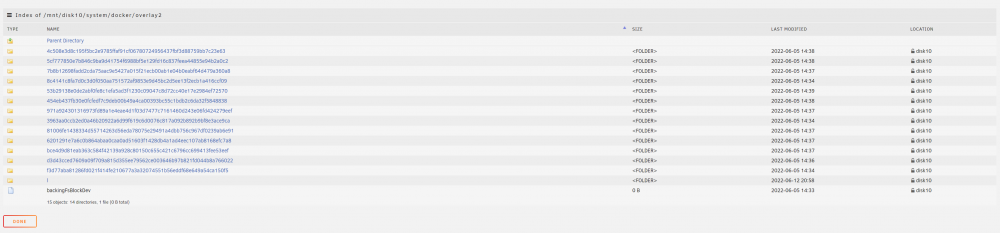
I had no idea what I had for the docker container (folder or img file). I ended up deleting the docker img through the docker menu settings but that did not remove the files off of disk 10 which the mover tried to move, but also said it didn't exist. The 2 pools that I had for VMs I was misusing. I was not understanding the difference between the pools/cache to hold the VM vs using unassigned devices to store the OS/VM on the drives directly. *** That's why the domains and isos folder was also configured wrong. *What I did to correct everything was: Delete all the files from Disk 10 that the mover was trying to move. I read some user forums and found out how to delete files without using an application/docker program. In terminal: rm -rf /path/to/dir Example: rm -rf /mnt/user/system/libvirt Moved all the files that the mover would not move from the domain and isos shares. I read that you should only move/copy files and folders from user share to user share OR disk to disk. In terminal: mv /path/to/dir /path/to/dir Example: mv /mnt/cache-main/domain /mnt/disk12/ After all that I was able to clean up how the cache drive acted, and I moved my VMs to run on the storage device directly (through unassigned devices). Thank you all for the help!!
-
It was the services.
-
thetower-diagnostics-20220616-2308.zipHere it is. I've tried "YES" and "PREFER" and had the dockers, and vms disabled before invoking the mover and it still never moves the files.
-
Hoping to find someone that would help me figure out why the mover is saying there are no files in the location it's trying to move.
-
Hello everyone, If someone can help me out, I would be so thankful! Below is a screen shot of the mover trying to move files/folder from a location that it says does not exist. I've deactivated docker and VMs. system log Cache Disk 10 User Shares


-
Ok, so do you mean you bought a new OEM version like mine (9217-4i4e)? If so, that's great! Please let me know how it goes!!
-
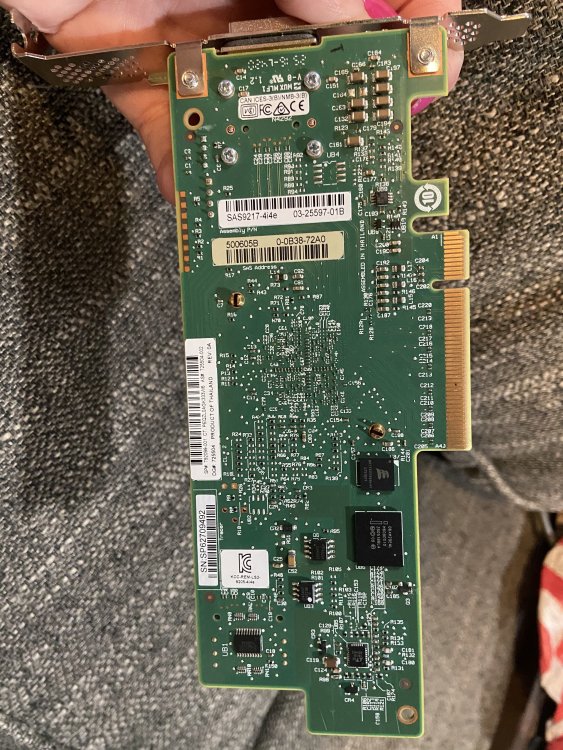
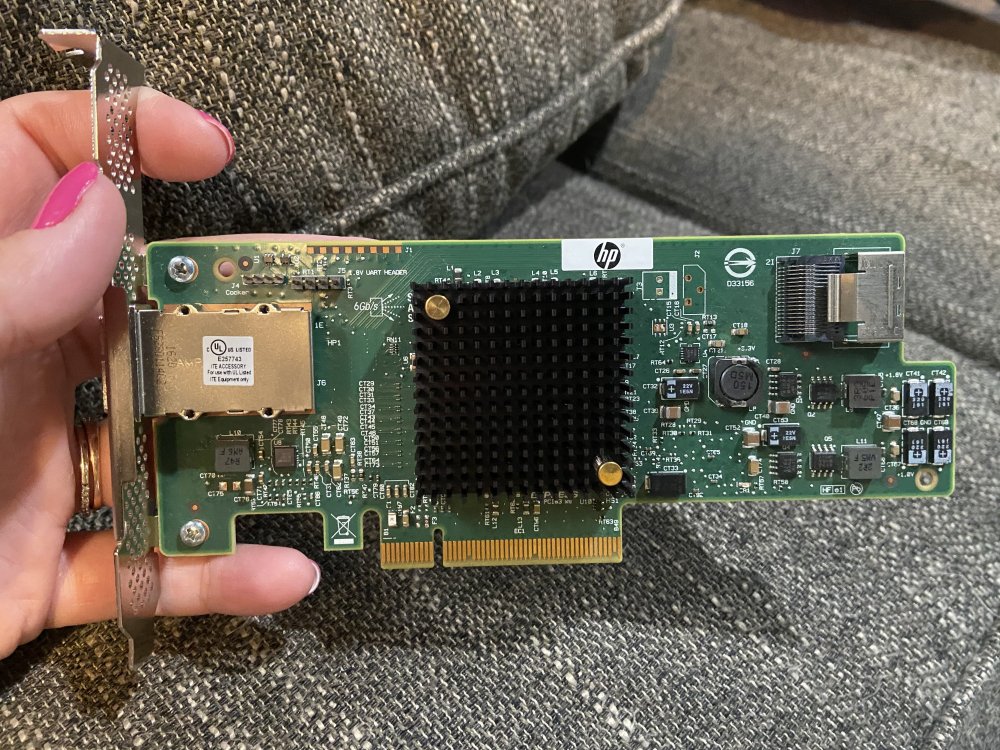
Hello everyone! I'm really new to flashing SAS cards. I received this card from my brother for free. He bought it and couldn't get it to work and it is past the return window. I was wondering how to flash this one to I.T Mode. Everything I search just has people talking about buying an already flashed card. Or just getting a different model. I'm not looking to buy another card. I can live without this, but it would be pretty awesome to get it to work to pool JBOD LSI SAS9217-4i4e - HP If anyone has leads for this, I would be very grateful!