Zudnic
Members
-
Joined
-
Last visited
Everything posted by Zudnic
-
Thank you for the information. I set up wired backhaul using MoCA and I'm getting much better transfer rates.
-
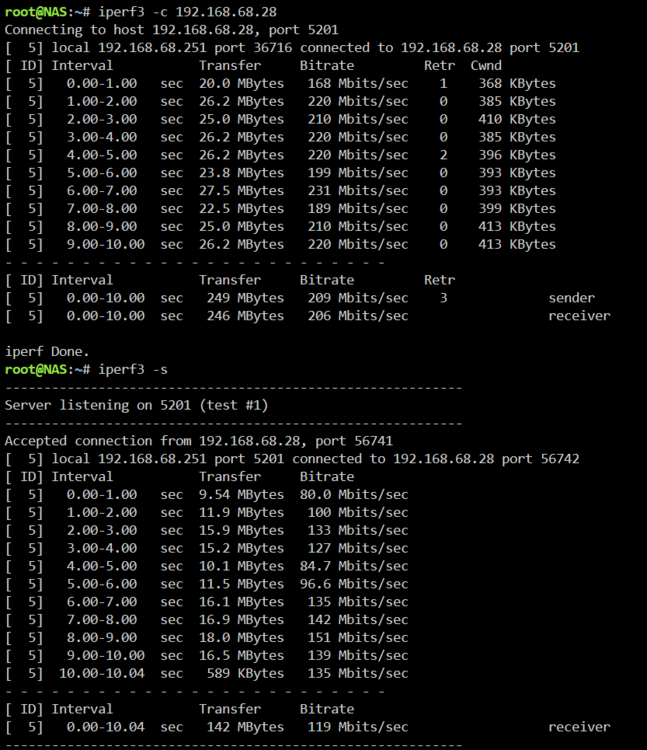
Hi, I'm getting very slow transfer speeds (20mb/sec over SMB) and I'm wondering if I'm doing something wrong on the network side. I have a TP-Link Deco XE75 system with three nodes. It is about a year old and supports Wifi 6E. I have my Unraid connected to the base node using a new Cat-6 cable. From a laptop, I am getting about 20mb/sec. I've attached iperf3 results in both directions from a laptop on wifi to the server. The laptop is connected to the base node of the mesh network via Wifi 5. Also, attached diagnostics are taken during a transfer of a ~2.5gb file from the same Windows laptop to the SMB share. The SMB is cache-first. I routinely see people posting speeds of 100gb+ here, and even complaining that's too slow. I'm wondering if I am doing anything wrong. Unraid running on an older Dell chassis, Intel Xeon CPU E5-2420 0 @ 1.90GHz, 20gb RAM, NIC capable of 1gb/sec. Thanks in advance. nas-diagnostics-20241201-2202.zip
-
This is over a home wifi mesh network, a relatively new Deco system. Laptops are on wifi (one on wifi 6). Unraid is Cat6 cabled to the base station. I can confirm it is a network issue. I set my Windows laptop as an iperf3 server, and pinged it from my other laptop. Speeds were comparable to speeds between the computers and Unraid. Thank you - I'll take this up with TP-Link management, as they say.
-
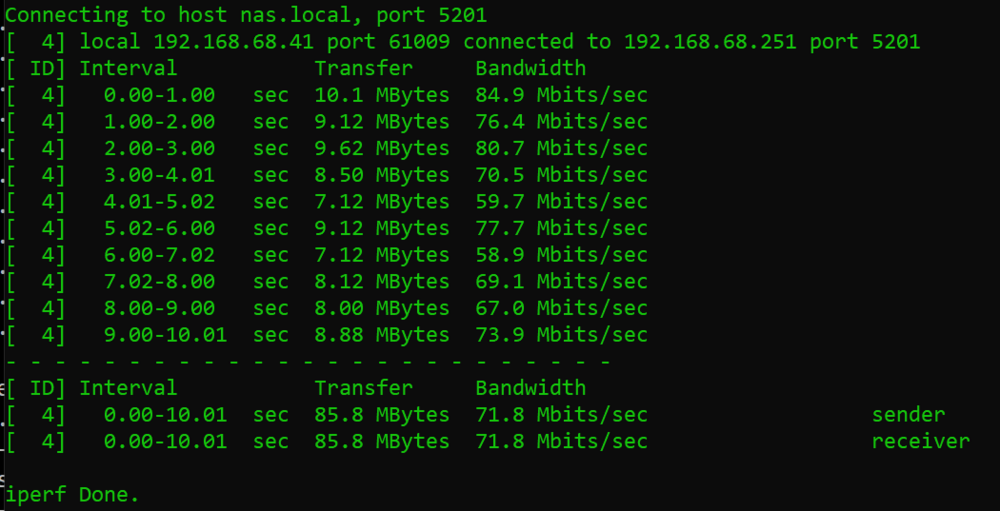
I've read up on all the threads regarding slow transfer speeds, but I can't seem to improve it. SMB transfers hover around 10-20mb/s, occasionally spike to 100mb/s and occasionally crater to 3-4mb/s. For the most part 20gb will take about 20-30 minutes. I've observed this from both a new M3 MacBook Pro and and older Dell XPS. Both have SSDs as source drives. My hardware is old, Intel Xeon CPU E5-2420 0 @ 1.90GHz, 20gb RAM. I have an Ubuntu VM running at the moment. Windows reports local network operating in the 800mb/sec range. Parity is paused. Turbo Mode enabled. Transferring to cache-first share. iperf results are slow (see screenshot) Since I'm observing this from 2 computers, and iPerf is not awesome, I'm assuming this has to do with Unraid or the hardware. Could this be a result of old hardware? Attached diagnostics taken during a 20gb transfer of images. Thank you! nas-diagnostics-20241127-1211.zip
-
So this is resolved. I found that the PCI ribbon had another connector intended for an optical drive, so I hooked that up and the system recognized both drives. I added both to the cache and now I have a pool. Unfortunately we never did get to the root cause, so apologies to those of you who find this in the future. @JorgeB -- Thank you again for your help.
-
So I disconnected the parity drive and added the new drive in its PCI slot. Unraid recognized the new drive as part of the pool, and I can now read the contents of the original disk. Thank you! It seems that the drive itself remembers if it has been in a pool, because the current pool is new and only ever contained the old drive. The drive must have somehow retained something about being part of a cache when it was in the old cache with the new drive. I can see the new disk filling, presumably it's mirroring the old drive. Last question - can I simply remove the old drive once the clone is complete? Thanks again!
-
Correct, I want to fix this one first since I need its data.
-
I don't intend to run the cache off USB, I'm going to replace the 500gb drive in sdg. I had the new one in USB to see if I could try to format it. I've removed it and re-ran the commands: root@NAS:~# blkid /dev/sdg1 /dev/sdg1: UUID="3e4c1317-5258-403f-be33-554ba20fbd00" UUID_SUB="58a6c765-6cc6-4d17-ac9b-4ae31f85a31d" BLOCK_SIZE="4096" TYPE="btrfs" root@NAS:~# fdisk -l /dev/sdg Disk /dev/sdg: 465.76 GiB, 500107862016 bytes, 976773168 sectors Disk model: Samsung SSD 860 Units: sectors of 1 * 512 = 512 bytes Sector size (logical/physical): 512 bytes / 512 bytes I/O size (minimum/optimal): 512 bytes / 512 bytes Disklabel type: dos Disk identifier: 0x00000000 Device Boot Start End Sectors Size Id Type /dev/sdg1 64 976773167 976773104 465.8G 83 Linux root@NAS:~# btrfs fi show Label: none uuid: faa9618e-5b63-48f8-bcd6-c35221312204 Total devices 1 FS bytes used 412.00KiB devid 1 size 1.00GiB used 126.38MiB path /dev/loop2 Label: none uuid: 3e4c1317-5258-403f-be33-554ba20fbd00 Total devices 2 FS bytes used 424.97GiB devid 1 size 465.76GiB used 465.76GiB path /dev/sdg1 *** Some devices missing
-
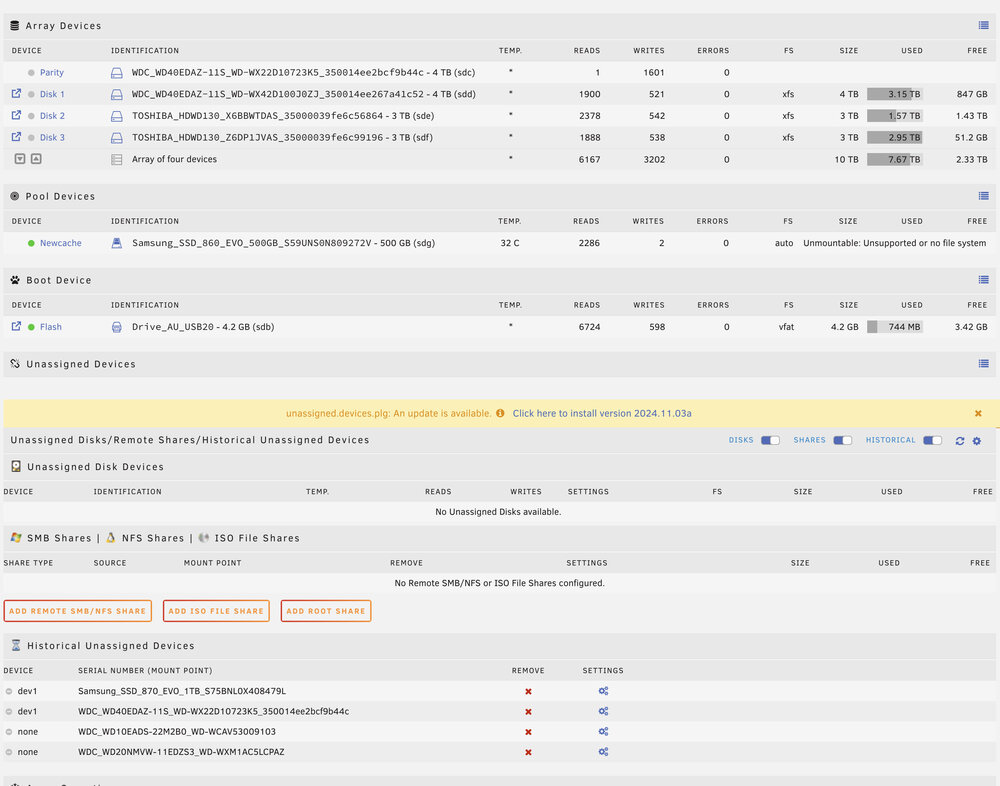
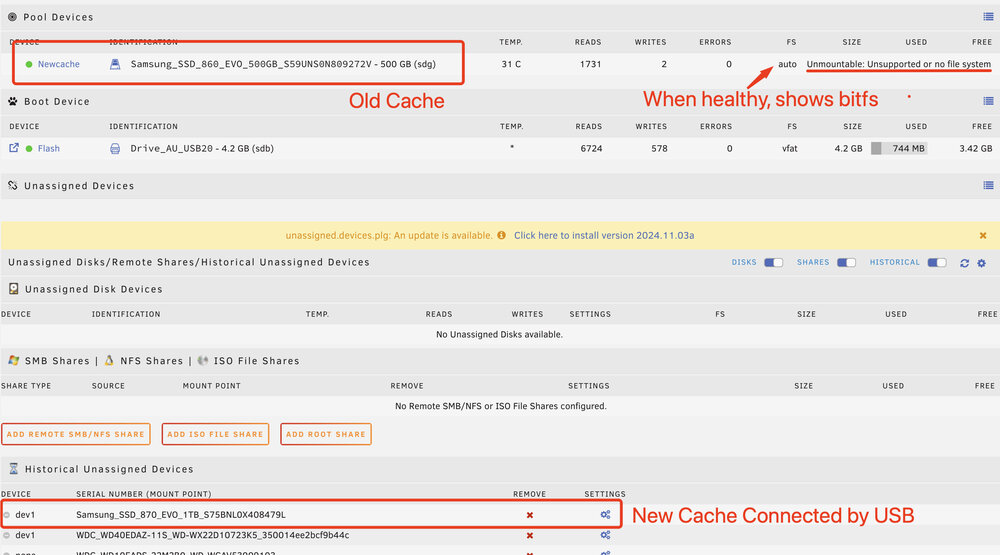
Thank you - that's a good question. The first thing I did was connect the new drive via PCI, expand the cache to 2 devices, and add the new one alongside the old one. (In doing so, I disconnected the parity drive because I needed the PCI slot.) The system recognized the new drive in the pool, but did not format it, and nothing was written to it. So I removed the new drive, reconnected the parity drive, and shrunk the cache back to 1. This resulted in the old cache giving the "Unmountable: Unsupported or no file system" error as shown in my screenshot. Trying to get the system to mount the cache drive, I created a new pool with the old drive only (with a new name, "newcache") and removed the original cache pool. Currently, the new drive is attached via USB and shows in historical unassigned devices.
-
root@NAS:~# btrfs fi show Label: none uuid: faa9618e-5b63-48f8-bcd6-c35221312204 Total devices 1 FS bytes used 412.00KiB devid 1 size 1.00GiB used 126.38MiB path /dev/loop2 Label: none uuid: 3e4c1317-5258-403f-be33-554ba20fbd00 Total devices 2 FS bytes used 424.97GiB devid 1 size 465.76GiB used 465.76GiB path /dev/sdg1 *** Some devices missing
-
Thank you.. I rebooted, the drive in question is sdg now. root@NAS:~# blkid /dev/sdg1 /dev/sdg1: UUID="3e4c1317-5258-403f-be33-554ba20fbd00" UUID_SUB="58a6c765-6cc6-4d17-ac9b-4ae31f85a31d" BLOCK_SIZE="4096" TYPE="btrfs" root@NAS:~# fdisk -l /dev/sdg Disk /dev/sdg: 465.76 GiB, 500107862016 bytes, 976773168 sectors Disk model: Samsung SSD 860 Units: sectors of 1 * 512 = 512 bytes Sector size (logical/physical): 512 bytes / 512 bytes I/O size (minimum/optimal): 512 bytes / 512 bytes Disklabel type: dos Disk identifier: 0x00000000 Device Boot Start End Sectors Size Id Type /dev/sdg1 64 976773167 976773104 465.8G 83 Linux
-
I can't believe I forgot to do that. [Diagnostics removed for privacy purposes]
-
Lots of content out there on this message, but I have what I believe to be a somewhat unique circumstance. I am trying to replace my cache drive (btrfs). My chassis is somewhat dated and all my PCI slots are taken. Giving this a shot, I disconnected the parity drive and connected the new cache drive, which was not yet formatted. I added the new drive to the cache pool, but I did not see a way to format it. So I shut down the machine, removed the new cache drive and reconnected the parity drive. Changed the cache pool size back to 1. Started the array, and parity re-ran automatically. However the cache drive now shows "Unmountable: Unsupported or no file system" The cache drive contains a few VMs which are not mirrored to the array, so I want to be careful that I don't lose its contents.

-
I have an Ubuntu VM running on Unraid v6.9.1, version 22.04.3 LTS. For a long time I have saved torrents via qBittorrent to a mounted disk. Within Ubuntu, on boot, I'd use this command: sudo mount -t 9p -o trans=virtio ubuntudata /mnt/ubuntudata This works fine in the Ubuntu UI - I can see it in the file browser and interact with it normally. ubuntudata is a share on my unraid server. However, lately, qBittorrent does not play nice when saving to this drive. It will start the download, then after about 60-90 seconds, it will pop up that it had a file I/O error and the torrent will show status : "Errored: Invalid argument" This is the same folder I have been using for a long time so I am confident that the problem is not permissions. Thanks in advance for any help. zudnic-diagnostics-20231012-1244.zip
-
Thank you! That did the trick. Appreciate the quick response and idiot-proof instructions.
-
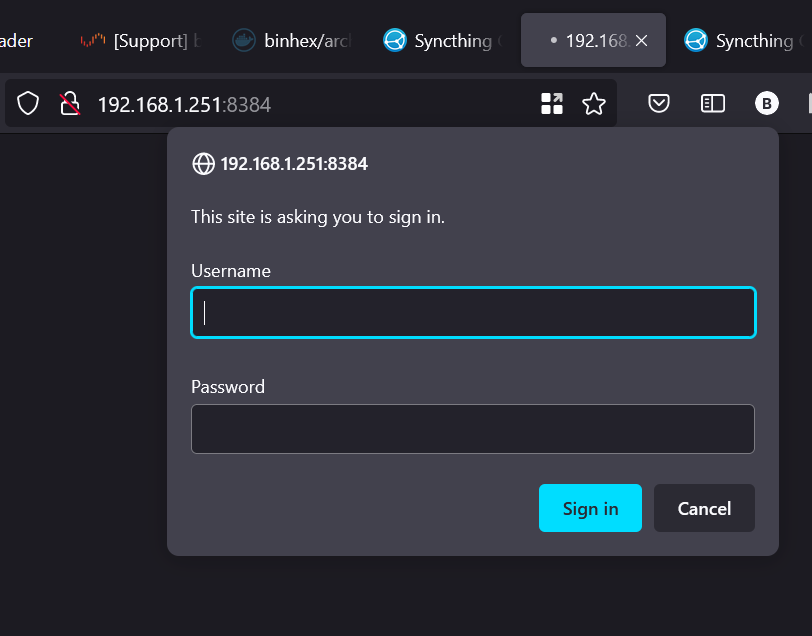
Hi all, thank you for creating and supporting this app. I'm still learning, so please bear with me because this sounds like an utterly stupid question. I installed the binhex syncthing UI in Unraid. When I go to the Web UI URL, it asks for credentials. I can't find anything about default credentials, canceling out doesn't work, and my Unraid user credentials don't work either. Is there a default username and password? I'm sure there is something basic I'm missing but any help is appreciated.
-
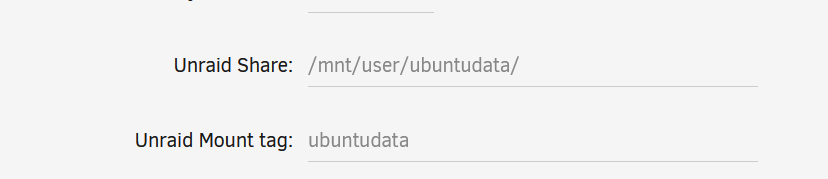
--- leaving the below for the Google machine to pick up, but I figured this out. In the command described in this thread, (1) the path at the end is the LOCAL path on the VM. I got confused as hell because unRAID config has you enter a a path on unRAID. This is a "well,duh" moment and I should probably not stay up so late doing this stuff. The directory in the last parameter must exist since it's the local mount point on the VM. In other words, the two lines in unRAID are basically making an alias for the VM to use. So when the vm goes looking for "ubuntudata", unRAID translates that to "/mnt/user/ubuntudata". Just to add to this old thread, I am having a problem not addressed previously here. I have a Ubuntu VM running in the default location: /mnt/user/domains/Ubuntu2/vdisk1.img In the VM config I have set the following: Since it says "Unraid Share" I set it up as an ordinary share. The share is public and exported, SMB enabled but not AFP. I then run the command from inside the VM: sudo mount -t 9p -o trans=virtio ubuntudata /mnt/user/ubuntudata Which returns: mount: /mnt/user/ubuntudata: mount point does not exist. I have tried several different variations of this command including putting quotes around the mount tag, adding/removing trailing slashes, etc. All give that same error. It looks like Ubuntu isn't seeing anything outside its own file system. I did a find for "ubuntudata" and it came back with : me@ubuntu:/$ sudo find / -name "ubuntudata" find: '/run/user/1000/gvfs': permission denied My use case here is that my VM ISO is quite small since it is running on my cache disk. I want to create a storage space for the VM that is separate. I can connect to a regular unRAID share via SMB but I cannot download directly to it, large files fail routinely. I thought this method was supposed to circumvent gvfs? Thanks in advance.