





DBone-Unraid
Members
-
Joined
-
Last visited
Everything posted by DBone-Unraid
-
Thank you for the heads up. Since I have my container templates are working now I will just leave them as is, since they have been removed I should not have to worry about any future updates which is fine with me as long as the servers keep loading up. If I run into issues down the road I will switch to the new container from @Mainfrezzer . Thank you both for all the work you put into these containers. They are awesome!
-
Just an update to this (for ARK Survival Evolved dockers using Pre-Aquatica). I attempted to abandon the dockers all together and instead use ARK Server Manager on a Windows VM. I was able to get the servers setup in ASM on the VM and they started successfully with the PreAquatica version and I was able to connect to them. However, I noticed that when making certain settings changes, ASM was not correctly updating the changes I made consistently across the 6 maps (severs) I had setup in my cluster. I tried setting 1 server up first with all my settings and then just copy those settings to all other servers updating the ports for each server but some settings didn't appear to update properly, for example the login password and the mods. Even though they were set within the server profile, upon starting the servers, some were missing the mods and some were missing the password. Finally, as a last ditch effort, late last night I booted up one of my docker containers in unraid and it downloaded and validated with the -beta preaquatica added to the GAME ID field, then once the comit was done, I stopped the container and removed the "true" from the VALIDATE field, started the docker and it loaded up just fine and I was able to connect. I set the correct GAME ID on all other docker containers and they all started just fine and I was able to connect with no progress lost. All my dockers share the same SteamCMD files so once the first server was good the rest worked just fine with no need to validate.
-
Thanks, that helps clear things up quite a bit. I am in the process of rolling back now. I entered "376030 -beta preaquatica" into the GAME_ID field and set Validate to True. It just got done downloading but now it seems to be stuck on "committing". My docker log just keeps updating as follows: Update state (0x101) committing, progress: 0.00 (0 / 17741617222) It has been running for 20 minutes now and still not showing any progress. After rebooting the container a few times it finally managed to get through the commit stage but now right after "downloading" of mods is successful the docker log window closes and the container is stuck in a boot loop. Any ideas?
-
@Mainfrezzer How do I go about rolling back my servers to the preaquatica stuff using the unraid docker templates I had setup and running 2 month ago. The servers were running prior to the update and I was unable to shut them down until just now and they attempted to update but were stuck in a download loop. I have my single player setup to run the Pre-Aquatica beta branch but now I need to see if I can get my servers rolled back since I don't ever plan to buy Aquatica. I am using some mods as well. Any help would be greatly appreciated.
-
Good call on changing to /mnt/cache, I didn't even notice one of my paths was setup that way until it was pointed out in a previous post, thank you @ich777 & @devnet. I cannot say that I have ever run into the loop issue you are having. Just a little bit ago a started a brand new server from scratch installing it to a completely new folder for both the server files and steamcmd. I put in all the custom path mappings making sure to modify them to my new paths for the new server and steamcmd directories and used the same exact settings in my Game Parameters and Extra Game Parameters including the -automanagedmods flag. Here is what I have for my "Extra Game Parameters": -server -log -automanagedmods -NoBattlEye -crossplay If it still gives you the loop, then take the -automanagedmods and then continue on as follows. After the docker template is setup, let the docker launch so that it can download all the files and start the server. The first run you will not have any mods because the GameUserSettings.ini file will be generated upon the first startup. Once the server starts up, I check to make sure it shows up in the server browser in game. You will note that the column "W/Mods" will be blank at this time. Then stop the server and edit your GameUserSettings.ini file adding the ActiveMods= along with all the mods you want separated by a comma. Launch the server now and give it some time to download the mods. You should be able to open the logs of the docker while it is running and see messages like "Downloading item 1999447172 ..." for each mod you have listed in your GameUserSettings.ini file. I'm wondering if one of your other custom paths still has an extra space after Linux. After the new server was setup I checked my directory and this is what I have: /serverdata/serverfiles/Engine/Binaries/ThirdParty/SteamCMD# ls -lrt total 0 drwxrwx--- 1 steam users 24 Jan 9 17:14 Win64 drwxrwx--- 1 steam users 118 Jan 9 20:21 Linux After booting the server with mods, check this folder from the console of the docker to see if you have the "workshop" folder. /serverdata/serverfiles/Engine/Binaries/ThirdParty/SteamCMD/Linux/steamapps# ls -lrt total 8 -rwxrwxrwx 1 steam users 220 Jan 9 20:21 libraryfolders.vdf drwxrwx--- 1 steam users 84 Jan 9 20:21 workshop If the workshop folder is not being created in the "Linux" no space directory but is going into the "Linux " with the space directory then there is most likely an extra space somewhere in one of the custom path configurations.
-
@devnet can you check your path setup to make sure there isn't a space at the end of the container path?
-
@devnet When you did the mappings for the engineapps, did you accidentally include a space after Linux? The container path should be: /serverdata/serverfiles/Engine/Binaries/ThirdParty/SteamCMD/Linux/steamapps From what I can tell that is the only place where the space could have been added that would cause this issue.

-
Hello @KyrVorga, yes, you are able to use mods with this container. It has been quite a while since I set this up so please bare with me, there is more detail somewhere within this forum topic which is how I was able to get this working, if I come across the posts, I will be sure to share them. In the meantime, here is some information on my current setup that has been working for quite some time. Within the Docker setup in the "Extra Game Parameters" you need to make sure to include "-automanagedmods", if you are setting up a cluster you will want to make sure this is only on the first map to startup within the cluster, also make sure that you give the first map plenty of time to startup before the next map in the cluster starts to give the mods enough time to update. You will also need to add extra parameters to the Docker template for the steam workshop, again, this will only be setup on the first map that starts up in the cluster if applicable. Full container path in the below screenshot is: /serverdata/serverfiles/Engine/Binaries/ThirdParty/SteamCMD/Linux/steamapps Full container path in the below screenshot is: /serverdata/serverfiles/Engine/Binaries/ThirdParty/SteamCMD/Linux I hope this information is useful and is able to get you up an running with mods.

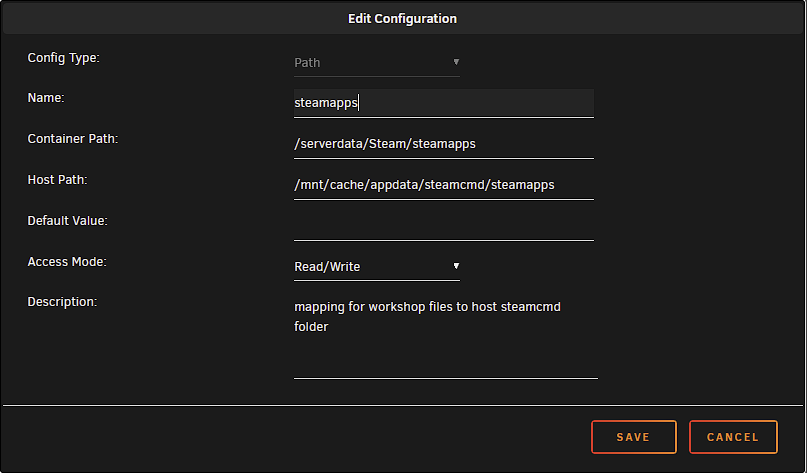
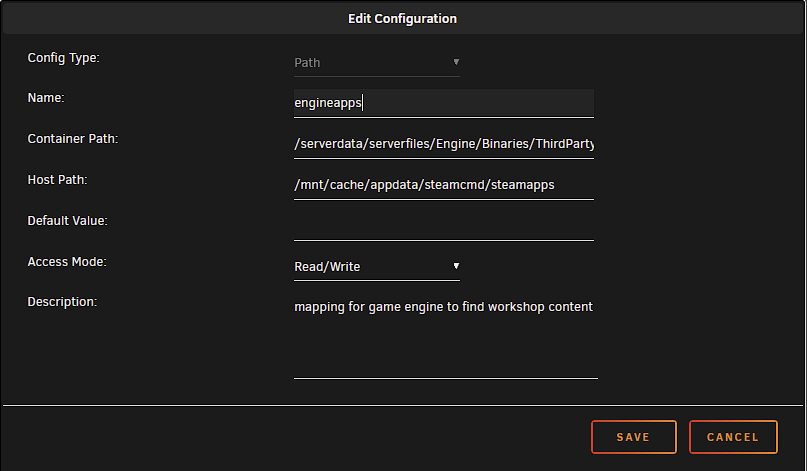
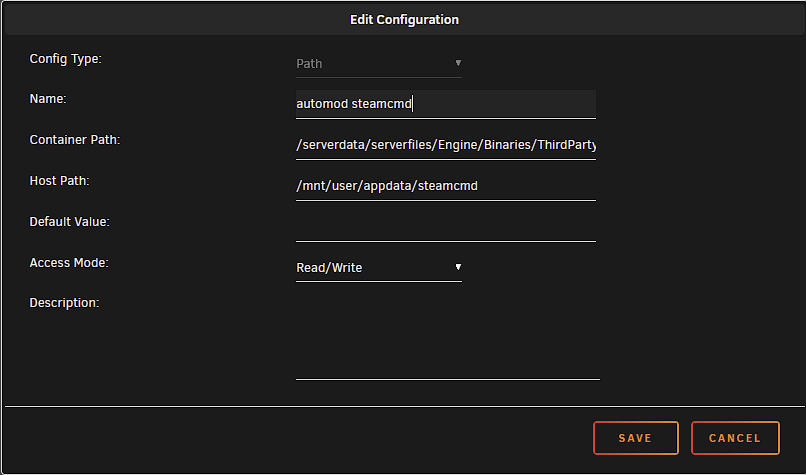
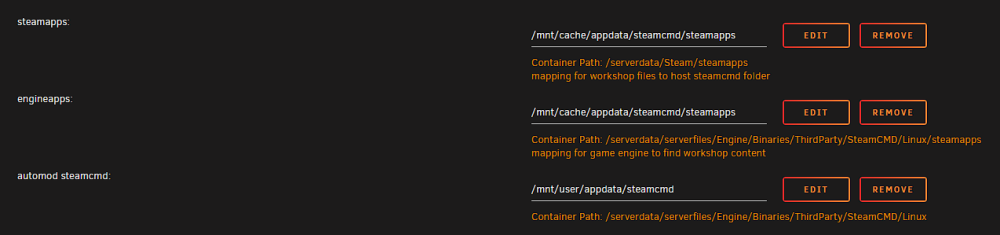
-
@Mortalic Please see this previous post regarding the GameUserSettings.ini and Game.ini files getting reset to default. Here is how I was able to keep these files from going back to default.
-
Thank you for the quick response. I followed the steps but the server still does not start. I tried jre11 and jre15, also for the Game Version I left blank originally but now changed it to "custom" so I am seeing a difference in the log output regarding the jar file but the server still terminates. ---Checking if UID: 99 matches user--- usermod: no changes ---Checking if GID: 100 matches user--- usermod: no changes ---Setting umask to 000--- ---Checking for optional scripts--- ---No optional script found, continuing--- ---Starting...--- ---Checking for 'runtime' folder--- ---'runtime' folder found--- ---Checking if Runtime is installed--- ---Runtime found--- ---Checking for Minecraft Server executable --- ---Custom mode enabled please make sure that 'forge-1.17.1-37.0.107-server.jar' is in the main directory!--- ---Executable 'forge-1.17.1-37.0.107-server.jar' in main directory found, continuing!--- ---Preparing Server--- ---Checking for 'server.properties'--- ---'server.properties' found... ---Checking for old logs--- ---Starting Server--- ---Checking if UID: 99 matches user--- usermod: no changes ---Checking if GID: 100 matches user--- usermod: no changes ---Setting umask to 000--- ---Checking for optional scripts--- ---No optional script found, continuing--- ---Starting...--- ---Checking for 'runtime' folder--- ---'runtime' folder found--- ---Checking if Runtime is installed--- ---Runtime found--- ---Checking for Minecraft Server executable --- ---Custom mode enabled please make sure that 'forge-1.17.1-37.0.107-server.jar' is in the main directory!--- ---Executable 'forge-1.17.1-37.0.107-server.jar' in main directory found, continuing!--- ---Preparing Server--- ---Checking for 'server.properties'--- ---'server.properties' found... ---Checking for old logs--- ---Starting Server--- ---Waiting for logs, please stand by...--- ---Waiting for logs, please stand by...--- [18:24:50] [Server thread/INFO]: Stopping server [18:24:50] [Server thread/INFO]: Saving players [18:24:50] [Server thread/INFO]: Saving worlds [18:24:50] [Server thread/INFO]: Saving chunks for level 'ServerLevel[world]'/minecraft:overworld [18:24:53] [Server thread/INFO]: Saving chunks for level 'ServerLevel[world]'/minecraft:the_nether [18:24:53] [Server thread/INFO]: Saving chunks for level 'ServerLevel[world]'/minecraft:the_end [18:24:53] [Server thread/INFO]: ThreadedAnvilChunkStorage (world): All chunks are saved [18:24:53] [Server thread/INFO]: ThreadedAnvilChunkStorage (DIM-1): All chunks are saved [18:24:53] [Server thread/INFO]: ThreadedAnvilChunkStorage (DIM1): All chunks are saved [18:24:53] [Server thread/INFO]: ThreadedAnvilChunkStorage: All dimensions are saved Terminated
-
Sorry if this has been posted before. Wondering if anyone has been able to get Minecraft Forge 1.17.1 working with the MinecraftBasicServer docker in order to play with mods. If so, would like to know what I need to do to get it working. So far this is what I have tried. I have installed the docker and let it run through the initial setup. I then downloaded the Forge 1.17.1 installer and ran the server installer. I just installed it to a temporary folder on my desktop. I then copied all those files over to where the minecraftbasicserver files are and set the Serverfile name to "forge-1.17.1-37.0.107-server". This server jar file is buried in the "\libraries\net\minecraftforge\forge\1.17.1-37.0.107" folder. I tried to just copy this jar file into the root of the minecraft server data folder (where the original server.jar file is) thinking that would work but the server never actually starts. Just get "waiting for logs, please stand by..." and then just keeps looping through the below log output. ---Checking if UID: 99 matches user--- usermod: no changes ---Checking if GID: 100 matches user--- usermod: no changes ---Setting umask to 000--- ---Checking for optional scripts--- ---No optional script found, continuing--- ---Starting...--- ---Checking for 'runtime' folder--- ---'runtime' folder found--- ---Checking if Runtime is installed--- ---Runtime found--- ---Checking for Minecraft Server executable --- ---Preparing Server--- ---Checking for 'server.properties'--- ---'server.properties' found... ---Checking for old logs--- ---Starting Server--- ---Waiting for logs, please stand by...--- [18:24:50] [Server thread/INFO]: Stopping server [18:24:50] [Server thread/INFO]: Saving players [18:24:50] [Server thread/INFO]: Saving worlds [18:24:50] [Server thread/INFO]: Saving chunks for level 'ServerLevel[world]'/minecraft:overworld [18:24:53] [Server thread/INFO]: Saving chunks for level 'ServerLevel[world]'/minecraft:the_nether [18:24:53] [Server thread/INFO]: Saving chunks for level 'ServerLevel[world]'/minecraft:the_end [18:24:53] [Server thread/INFO]: ThreadedAnvilChunkStorage (world): All chunks are saved [18:24:53] [Server thread/INFO]: ThreadedAnvilChunkStorage (DIM-1): All chunks are saved [18:24:53] [Server thread/INFO]: ThreadedAnvilChunkStorage (DIM1): All chunks are saved [18:24:53] [Server thread/INFO]: ThreadedAnvilChunkStorage: All dimensions are saved Terminated Any hep would be greatly appreciated.
-
@Saiba Samurai Sorry to hear you are having issues getting ARK servers up and running. Just out of curiosity what kind of router are you using for your port forwarding and are you using stock firmware on the router or a third party firmware. Not that it should make any difference for port forwarding but just wanted to ask in case someone else has had similar issues with the same router/firmware. Also, when setting up your custom network to run your servers on is the IP Address within the same network subnet mask as your main network? I saw in your screenshot that your custom network you tried using is 192.168.20.117. Is your router IP set at 192.168.20.1?
-
No problem @Body Karate. Glad I was able to help.
-
Hi @Body Karate, I too was having issues with my GUS.ini & Gami.ini files being overwritten upon server restart. It was happening randomly. One way I found to keep the files intact was to use the linux chattr command to change the attribute of those two files so that they could not be modified, deleted or overwritten at all. To accomplish this once you have your settings how you want them in those files you would open up a terminal window from your unraid web interface and then change directory into to where those files are saved. Then issue the following commands on those files: chattr +i Game.ini chattr +i GameUserSettings.ini Keep in mind that you will not be able to edit these files once the command has been run. In order to make changes to the files you will need to run the command using the -i option as follows: chattr -i Game.ini chattr -i GameUserSettings.ini Once you make your changes run the command with the +i option mentioned previously and they should not get changed/overwritten when the server starts. You will get an error in the Docker log when the docker tries to change ownership of the files but that is fine because you don't want them to be touched once you have them set how you want them. For one server this will work just fine but once you get multiple servers up and running and they each have their own GUS.ini & Game.ini settings then you will definitely want to look into the User Scripts plugin for unraid. With that plugin you can write a script that can unlock the files, copy over the updated files that you updated from a location on your server that you can modify and then lock the files down again.
-
Thank you so much @Cyd for the help and explanation. I am excited to get all the maps up an running and save a bunch of storage on my cache drive. Excellent work on getting this all setup. Thank you.
-
Do I have to put them in a specific location and does the ARK0-A3C docker call them somehow?
-
@Cyd First off, excellent work on getting this all setup. I have a question regarding how the ARK0-A3C docker works. I have all 10 map templates downloaded and have modified them with my settings. I am not going to use the dynamicconfig.ini as I will have the settings for each map contained in their own ini files. On the github I noticed that there are some script files along with all the template files. I'm just wondering if I need to copy those script files somewhere specific or does the ARK0-A3C docker somehow contain those for performing the backups and updates? I have read through the readme file and I didn't really see where the script files were discussed. Any help would be greatly appreciated. Thank you.
-
For ARK Game.ini & GUS.ini settings being reset. I was struggling with the issue of all my Game.ini & GUS.ini settings files getting reset to default upon server reboot. So what I did was issued a the chattr +i command to lock the Game.ini & GUS.ini down so they cannot be modified/overwritten. I ended up installing the User Scripts plugin for Unraid and I keep backups of all my Game.ini & GUS.ini settings in a share that I have permission to edit on my Windows computer. Anytime I want to make a change to either of these files I simply edit the file from the share that I can access and then I fire off a script from the User Scripts plugin. Here is a sample of how the script is run for one of my ARK Servers (I currently have a cluster of 8 different maps so I have entries for each of the 8 maps). #!/bin/bash chattr -i /mnt/cache/ARKServer/TheIsland/ShooterGame/Saved/Config/LinuxServer/Game.ini chattr -i /mnt/cache/ARKServer/TheIsland/ShooterGame/Saved/Config/LinuxServer/GameUserSettings.ini cp /mnt/cache/ARKServer/BackupINI/TheIsland/Game.ini /mnt/cache/ARKServer/TheIsland/ShooterGame/Saved/Config/LinuxServer/Game.ini cp /mnt/cache/ARKServer/BackupINI/TheIsland/GameUserSettings.ini /mnt/cache/ARKServer/TheIsland/ShooterGame/Saved/Config/LinuxServer/GameUserSettings.ini chattr +i /mnt/cache/ARKServer/TheIsland/ShooterGame/Saved/Config/LinuxServer/Game.ini chattr +i /mnt/cache/ARKServer/TheIsland/ShooterGame/Saved/Config/LinuxServer/GameUserSettings.ini In the Script the "chattr -i" unlocks the file then the cp command will copy the updated file from my backup directory. After the copy the "chattr +i" command will lock the file so that not even the docker can write to the file. If you look at the log of the docker after starting it you will see the following errors: chown: changing ownership of '/serverdata/serverfiles/ShooterGame/Saved/Config/LinuxServer/GameUserSettings.ini': Operation not permitted chown: changing ownership of '/serverdata/serverfiles/ShooterGame/Saved/Config/LinuxServer/Game.ini': Operation not permitted Since I have done this my Game.ini & GUS.ini files stay intact through reboots and server updates. Currently my cluster setup has the default docker install for each map so it takes up way too much space on my Cache drive (500 GB) so my next order of business is to get all maps to share the common files and only have a different location for individual Save data. I'm really liking what I see with what @Cyd has put together with the A3C that is on the github. I am definitely going to have to get that figured out. Great stuff!
-
My daily Speedtest is still showing only 8 Mbps consistently but I did fire up a VM on Unraid and had Epic Games download and install a game. While it was downloading I went to the dashboard in the Unraid WebUI and the receive speeds on my NIC were hitting 100 Mbps. So not sure why Speedtest cannot show the correct download speed through Unraid. Will probably just disable the daily Speedtest as I am not noticing any other slow downs anywhere else.
-
I too have noticed a decrease in internet download speeds to my unraid server. I have the Speedtest plugin installed and have it set to run every morning at 3AM. It has been hitting around 100 Mbps consistently ever since I installed the plugin (which is the speed I have with my ISP) but over the past week or so I have noticed that the speeds have dropped drastically to below 10 Mbps every time (getting about 7 to 8 Mbps). I have tried a different network cable and even swapped cables with another computer that does hit 100 Mbps on speedtest.net. The results are the same I get less than 10 Mbps on the unraid server using the speedtest plugin and my other computers get 100 Mbps. All computers including the unraid server are plugged into the same switch. I ran iperf3 from unraid to one of my computers and was getting around 500 Mbps on average. I just recently updated to version 6.9 but looking through the speedtest logs the problem started a few days before I did the upgrade. The dashboard shows that I am connect at 1000 Mbps full duplex. My unraid server doesn't really download much from the internet as it is mainly used as a file/plex server but I am just curious as to why all the sudden the speeds dropped from 100 Mbps to below 10 Mbps and would like to figure out what changed and if I possibly have a hardware failure starting to emerge. Any help/advice on what to check next would be greatly appreciated. Thank you.
-
I have not done a lot playing since I got them running, but am able to see and connect to both servers without any issues so far. I am in the same boat currently I can only run 2 maps but am in the process of building an upgraded server so I should be able to run more maps soon. Thanks again!
-
Sweet! I was actually wondering if that was what I had to do but figured I would try the command line by itself first and since it is working I'm going to leave it alone. I did test RCON and that is working too! Thank you so much for creating this docker @ich777 and thank you @ich777 & @cwrivers and all others who contributed to this post to help get this working. I truly appreciate it. Keep up the great work!
-
Ok, I just had some success! Here is what I did. Server1 - Original server left this set to bridge and left all ports as default. Forwarded the correct ports in my router to the unraid IP address (because of the bridge) Server2 - The new server. Set to custom network and gave it a static IP address on my network. Completely removed all 4 ports in the docker template (using the "Remove" button so they no longer exist on the template). In the Game Parameters I entered the ports I wanted it to use with this line: ?listen?Port=7779?QueryPort=27017 Went into my router and forwarded the correct ports to my new custom Static IP. In my case they are: 7779, 7780, 27017 & 27021 for RCON Added the following code to the appropriate sections in the file "ShooterGame/Saved/Config/LinuxServer/GameUserSettings.ini". I don't know that this is necessary but I figured it wouldn't hurt. Under [ServerSettings]: RCONEnabled=True RCONPort=27021 Under [SessionSettings]: QueryPort=27017 I started both servers and went into ARK and was able to see both servers at the same time and successfully connected to each. I was unable to test outside connections but this should work since my router is forwarding the correct ports to the proper IP addresses now. Also, I did not test RCON to see if that works yet either, I'm just happy to have them both up and running and able to connect to them at this point. Hope you are able to get yours working too!
-
I dont know if anyone outside the network will be able to connect, but somehow both servers are running right now, and i havent changed any settings in the router. Both servers are visible thru steam and ark. As far as the steam port goes, do i only need to change that in the docker settings or is there a .ini file somewhere with it as well? That is the 20715 port right? OK, so I am learning a lot here. Thank you all so much for your input and hard work on this. I understand the folders now so that is sorted out. I like the idea of just doing a custom network setup and then just assigning a static IP to each Server Docker I want to setup, then I don't have to mess with changing the ports in the docker template or parameters. My next problem is that if I leave the ports the same for each server I want to run my router will not let me forward the same port to multiple IP addresses. How do I go about that or am I not quite fully understanding what you are saying? Again, thank you so much for your help and advice, it is truly appreciated.
-
Thank you for the response. Yes I did delete the ports and enter new ones. After that I was only able to see 1 server at a time and when I hit the refresh button on the in game server browser it would toggle between the two servers only showing 1 at a time. When I tried to start the other server with a completely different map it loaded up the original server and map. In order for me to see both servers at the same time I had to put the ports in the Game Parameters line but then I just deleted them from the template all together, didn't think to try putting them in the template and having them in the game parameters. I will give that a try next and check out that other post. For the "SteamCMD" setting, I should be able to use the same directory for all my servers correct? Do I need to use a different directory for the "ServerFiles" setting or can all my servers use the same directory? Thanks again for your help and keep up the good work!



