avinyc
Members
-
Joined
-
Last visited
Everything posted by avinyc
-
That seems like the most promising explanation. It has to be something going on either in my server or router if this connection issue is not universal. I'll see if I can figure out if somehow there is a firewall problem or something causing this to fail.
-
I am running the helper script before running the VM. After the last fresh install, the VM wouldn't show up until the script was executed.
-
I edited the VMs XML and changed to e1000-82545em, still not working. The recovery server error persists.
-
I tried running a fresh install and selecting method 2, none of the isos were downloading. I re-ran as method 1 and then tried method 2 afterwards, sill returns the same error that recovery server could not be contacted.
-
Tried installing catalina and posted this yesterday. Unfortunately, once I get to the steps after formatting the drive, I click to continue and the error message is "The recovery server could not be contacted."
-
If there are instructions on how to create or download the proper qemu BigSur-install.img file, I am guessing it can be copied to the ISO folder and the installation would work. If it's easier to wait for the update at this point, that might be better.
-
It looks like Big Sur has been updated so maybe that's why it's not downloading through the container. Running method 2 the machinabox_Big Sur.log shows "Product ID 001-86606 could not be found." index-10.16-10.15-10.14-10.13-10.12-10.11-10.10-10.9-mountainlion-lion-snowleopard-leopard.merged-1.sucatalog has been updated to show Product ID 071-00838 which I suspect is the 11.2 (20D64) update. Not entirely sure about this, but if somewhere in the script it is looking for an old build it needs to be updated to this one now: https://mrmacintosh.com/macos-big-sur-11-2-update-20d64-is-live-whats-new/
-
I am not sure if this may be true for others, but at first I thought I was having problems because I would run the container with big sur and not see the user scripts show up quickly. As I checked the logs, the container was running and nothing was happening for about 30 minutes. Once I checked after it finished running, I see the user scripts show up (which makes the vmready_notify useless now for me). So I don't know if that could be the issue with some installs, but I would recommend patience for this one despite SI1's speedy video tutorial. EDIT: Spoke to soon, tried to run install and it only shows Catalina and returns an error saying "The recovery server could not be contacted." Will have to either wait for an update for this container or try again another time.
-
I just set up a windows vm and forget to adjust the initial size of 30g. I went to increase the capacity and got the same problem. I downloaded Paragon Partition Manager: https://www.paragon-software.com/us/free/pm-express/ Resized the partitions easily.
-
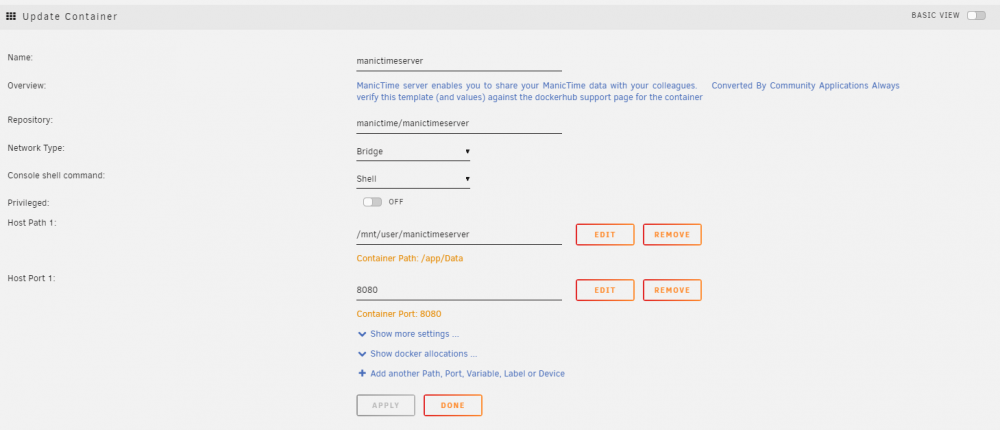
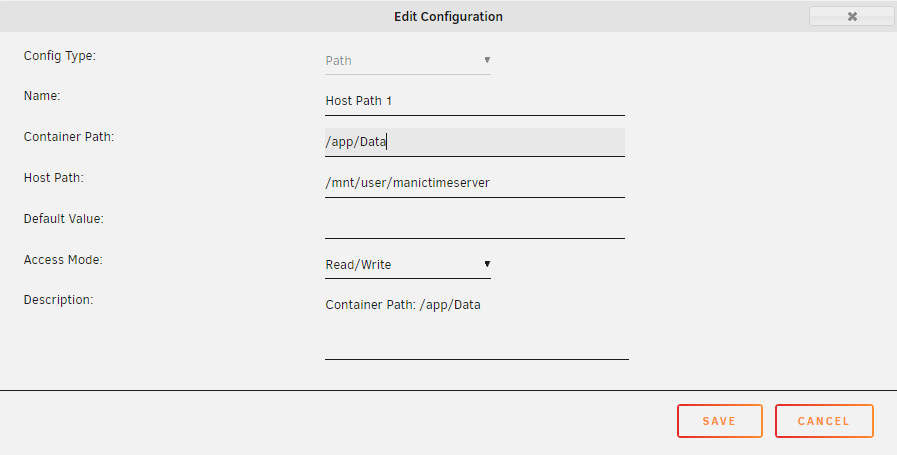
Wait, so I still have this set up incorrectly? Here's what the container looks like now, but everything is running (or so I think): Are you saying I should reverse the container and host paths here? Or am I missing something else and need to add back the other paths?
-
Ahh, that makes sense now! I used /mnt/user/manictimeserver, which is now working again. Thank you for explaining this to me, I still have a lot to learn but really happy I can use this software now:)
-
Well, I guess typing everything sometimes helps you to gather your thoughts. I went ahead and changed the host path from /var/lib/manictimeserver/Data to /mnt/user/manictimeserver and now everything is working even after rebooting. I had tried looking with krusader to find the manictimeserver folder in /var/lib, but it never showed up so I guess I shouldn't have changed that setting from the original docker image. I am unsure about the reverse proxy setup, but hopefully someone else has done this or has a guide.
-
Hi Everyone, My apologies if I am not asking this correctly or in the right place. Just started with unraid and running into trouble trying to set up the manictimeserver (https://www.manictime.com/). Not sure if anyone uses this time tracking program, but I am hoping I can get this up and running correctly. I found the docker in CA after enabling additional results from dockerhub in settings. There is also a link to the docker image here: https://hub.docker.com/r/manictime/manictimeserver/ The command line didn't match what the docker image was showing, so I added the host path and port and installed the container. Here's a snapshot of that: I also opened the console to execute addadmin to create the admin user and password as mentioned in the quickstart. Everything is running correctly and I can connect to the client software on my windows machine. My problem is once the unraid server is shutdown or restarted, the manictime server doesn't retain the server settings. I'm clearly failing to figure out how to set this so it is saved in the correct folder or use a database. I'm also hoping I can get the reverse proxy working with SWAG according to the instructions here: https://manictime.uservoice.com/knowledgebase/articles/1880923-using-reverse-proxy-with-manictime-server If anyone uses this time tracking software or can point me in the right direction on how to configure this correctly, I would truly appreciate it. Let me know what other information or details I am missing that I should provide here as well. TIA