





Kulisch
Members
-
Joined
-
Last visited
Everything posted by Kulisch
-
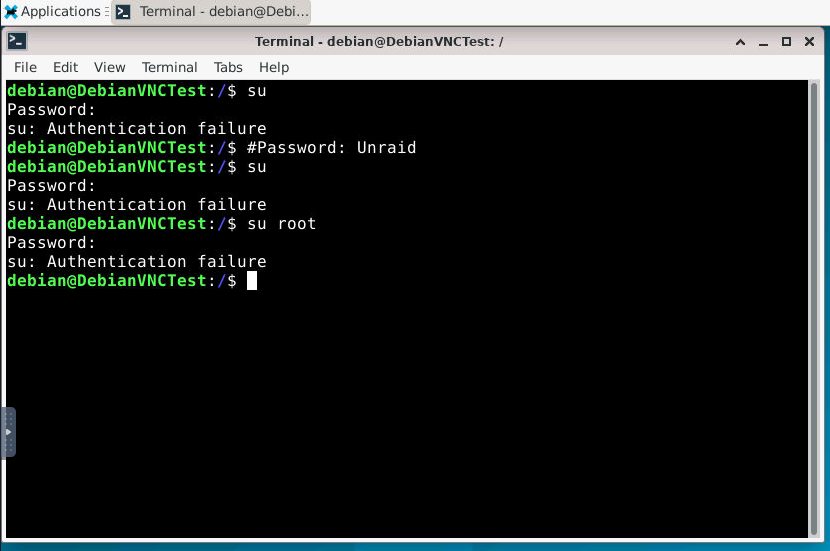
Start failing there: In the meantime, I tried another image... Result: kulisch@Alpine:/$ su root su: must be suid to work properly
-
Ok thanks, for checking that. I also tested most of the mentioned commands in the vnc container, but same result. I have no Idea what else could be the problem in this case. I have installed and removed the plugin 1-2 weeks earlier. Maybe I have to clean some files/folder manually? Maybe rw permissions for the lxc path?
-
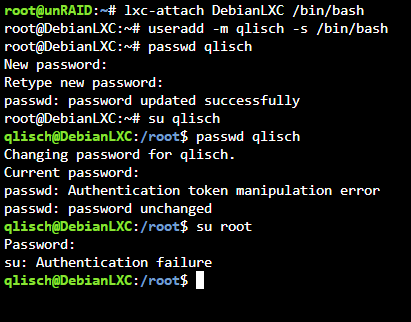
For SSH Access I use the software "Windows Terminal". The Session is Powershell. SSH Client ist Installed (Windows 10). That shouldn't matter in this case. As you see the user was created in the same software. I created the user, set 12345 as password in the webterminal of Unraid, but result is the same. Just to make this clear, every account has the same password right now. Works: SSH Access with every Account (root, qlisch, kulisch, debian) switching from root to user changing password as root for every user Don't work: switching from user to root switching from user to another user (tested: debian -> qlisch, kulisch -> debian) changing password as user The mentioned user are created per SSH and per webterminal Unraid. Still wanting current password. Passwords are correctly typed in every time. You can see it because I successfully logged in per SSH with password prompt. (see previous post)


-
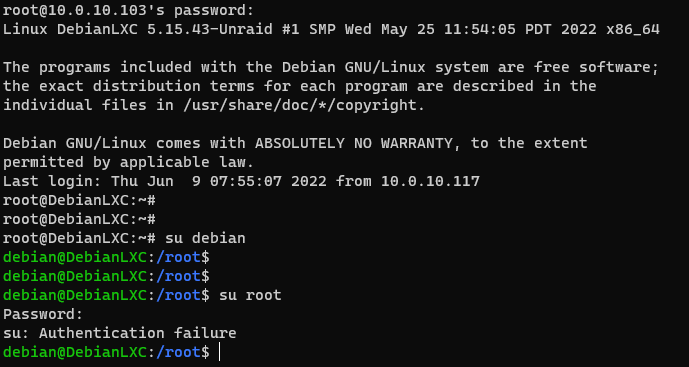
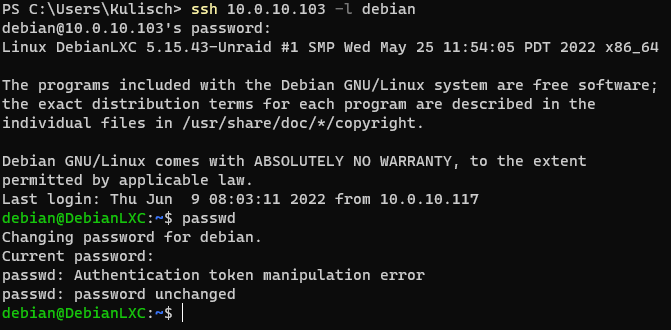
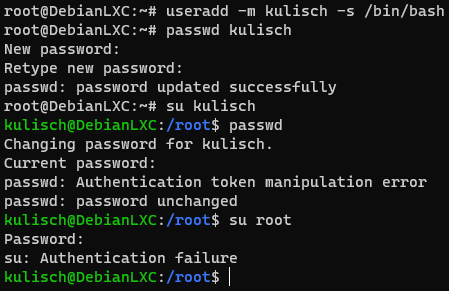
Thanks for the quick response. Did it before reinstalling LXC and didn't work. Now the login with ssh -l root works (I guess that was my fault). But switching user (su) still doesn't work. Changed the password to "12345" for root (for testing of course). and now login with debian is possible but changing the mentioned test password shows this error: Do I have to create a user with specific arguments? Did it like you instructed on the first post in this topic.
-
First of all, thanks for the work you put in here. LXC is something I've actually been missing a little bit and that's why I'm just happy that it's being built. I am currently having problems with the root user. When changing the password I get "passwd: password updated successfully" but a login via SSH (PermitRootLogin Yes) and "su, su root, su -" from the "debian" or self created user is not possible. Also the login with the default password (VNC Container) does not work. I use the default settings and the container debian bullseye. I deleted LXC plugin to be on the safe side, removed the LXC folder, rebooted and reinstalled it. Unfortunately, no change. The path has not been changed. Read and write permissions are also untouched. Do you know what could be the reason?
-
Hey @Alfy1080 Since I haven't worked with relays, I can't really give you any help specifically on this topic. This can happen for different reasons. Maybe because in the past the IP was used by another user for spam purposes and/or was/is a dynamic IP. If your IP/domain appears in the blacklist, you would have to make a request that it is whitelisted again. Check if the IP is listed and make a request for a whitelist. There are many options to check and whitelist IPs and Domains. https://check.spamhaus.org Sorry that I can't give you the help you need.
-
As mentioned before, you can check your router and ask your ISP if outgoing SMTP is allowed or not. Do you have a static public IP address? You can set other ports for incoming connections, but how it is for outgoing requests, I can't tell you. I did not have such a case. Sorry.
-
root@NotUnraid:~ $ nmap 209.222.82.253 -p 25 -Pn Starting Nmap 7.80 ( https://nmap.org ) at 2022-05-23 08:17 CEST Nmap scan report for mail.ess.barracuda.com (209.222.82.253) Host is up (0.12s latency). PORT STATE SERVICE 25/tcp open smtp Nmap done: 1 IP address (1 host up) scanned in 5.90 seconds root@NotUnraid:~ $ nc 209.222.82.253 25 220 mail.ess.barracuda.com ESMTP (mx-inbound20-134.us-east-2b.ess.aws) It is best to try the same commands (vm, live linux, raspi, etc) as I did above. If this does not work for several target mail servers, then a blockage would not be impossible. Maybe it is also blocked at the router. If not, ask your provider. If 25 SMTP works, or partially, check if you can send mail to other addresses like gmail, microsoft, protonmail etc. Otherwise check again if you are forwarding all ports correctly and you are using the right ports on the client (SSL/TLS). If necessary check your domain at DNSBWL as mentioned in previous post.
-
That is correct. The requests to the reverse proxy are HTTP/HTTPS (80/443) requests only. Since SMTP IMAP etc. does not belong to this category, no communication can take place. Therefore the error messages you mentioned shows that the SMTP requests are invalid. As described, the router must forward these ports directly to the mail server. As soon as this should be enabled, SSL should definitely be configured.
-
I'm not sure if I just understood this correctly, but if you are trying to use the NGINX reverse proxy to forward the communication to the email server then this is not possible. The port forwardings like SMTP 25 143 465 587 etc... should not be forwarded to the reverse proxy but must be forwarded to the mail server (192.168.1.3) directly. The mail server itself does not have a web interface via port 80 or 443. For this an additional container like Roundcube would have to be installed to have a WebUI. But this is another topic and should only be addressed when the mailserver itself is working. Make sure you have a static IP address and not a dynamic one. Because dynamic addresses are declared as spam and for mailing this is practically useless. First of all I would try the following to make sure the mailserver is configured correctly. The server is running without SSL for now, which is fine for local connections. If the mail server is in your local network (not on the internet) you can try to connect directly to it with a mail client (Thunderbird for example). First create two accounts ([email protected] & [email protected] for example). As SMTP Host and Outgoing Server you use your IP address 192.168.1.3. Accordingly you use [email protected] and [email protected] as username and password which you have choosen. If the server allows connections (even if over non SSL for now) and you can send and receive mails to another account on the same server, that means the server itself is working. The connections from outside I would just check by making sure that the ports 25 143 etc. are forwarded to your mail server 192.168.1.3. There are certain websites that check if the connection to the mail server can be established, if and how secure the connection itself is. Or use a smartphone mail client outside your WIFI to check if a connection can be established. Also make sure that the duckdns MX records are set correctly. These are also important. If the connection works outside and you can send an address from bob (sender) to max (receiver), most things will work. But after that you should definitely configure SSL because unencrypted connections should definitely be avoided for production use cases. If your mails to GMail, iCloud, or other providers are declaring your mails as spam, I would check if your domain appears in the DNSBL. If so, you can make a request that this can be taken out. I hope that this big amount of information does not overwhelm you. I hope I could help you.
-
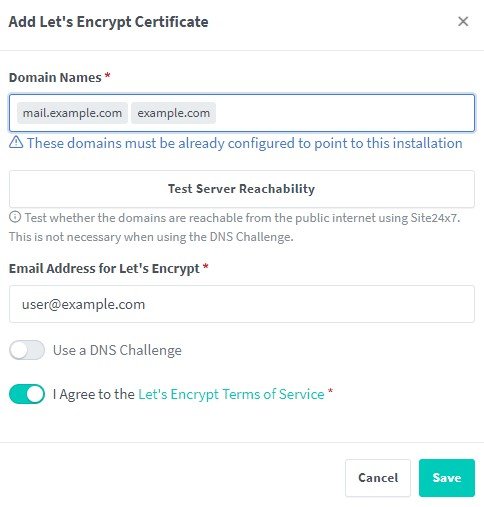
As I see it, you can get the certificates through the NginxProxyManager via HTTP or DNS Challenge. With HTTP Challenge LE (Letsencrypt) makes the request exclusively over port 80. Therefore it is important that your router listens on port 80 and then forwards the port you configured for the application to the proxy. LE -> HTTP 80 (TCP) -> 80:Router:11180 -> HTTP 11180 (TCP) -> NginxProxy (Custom or Unraid IP). As long as the web port is not the same as one of the mail server ports or the Unraid webinterface you can choose whatever you want. DNS: Have no experience in that one. Maybe this info will help you. If you have further questions about the NginxProxyManager, please use the appropriate forum.
-
During testing I noticed that the Key Path is NOT a variable. This is wrong and must be corrected. I will adjust the template as soon as possible. Update: Fixed the template There are several ways to setup SSL. Im using Swag as a reverse proxy to get my letsencrypt certificates. The certificates are saved in the following path: /mnt/user/appdata/swag/etc/letsencrypt/live/example.com/cert.pem /mnt/user/appdata/swag/etc/letsencrypt/live/example.com/privkey.pem /mnt/user/appdata/swag/etc/letsencrypt/live/example.com/chain.pem /mnt/user/appdata/swag/etc/letsencrypt/live/example.com/fullchain.pem /mnt/user/appdata/swag/etc/letsencrypt/live/example.com/priv-fullchain-bundle.pem That means I use letsencrypt as SSL_TYPE and Mount SSL Path: Host path: /mnt/user/appdata/swag/etc/letsencrypt/ Container: /etc/letsencrypt/ It is important with the letsencrypt option that the domain is recognized in the directory name. The mail server checks for <example.com> or <mail.example.com> depending on what was configured. Something like: /etc/letsencrypt/live/<example.com>/fullchain.pem or /etc/letsencrypt/live/<mail.example.com>/fullchain.pem If this is not possible, then choose SSL_Type as manual. Then it is important to specify where the certificates are located in the container. The variables already in Show more settings ... 1. Path: Mount SSL Path Host: /mnt/user/appdata/swag/etc/letsencrypt/ Container: /etc/letsencrypt/ 2. Environment Variable: SSL_Type = manual SSL_CERT_PATH = /etc/letsencrypt/live/example.com/fullchain.pem SSL_KEY_PATH = /etc/letsencrypt/live/example.com/privkey.pem
-
A production-ready fullstack but simple mail server (SMTP, IMAP, LDAP, Antispam, Antivirus, etc.). Only configuration files, no SQL database. Keep it simple and versioned. Easy to deploy and upgrade. Documentation via MkDocs. Please post any questions/issues relating to this docker you have in this thread. If you need help but are not using unRAID, then please do not post here. Links: Github Documentation Environment variables Your best friend setup.sh Docker Hub
-
Thank you for the quick answer. I use Unraid with one GPU. Unraid itself has no GPU (headless). Does it matter in this case?
-
Quick question, is it possible to install a GTX 1070 and a GTX 660 in a Unraid system and use them for one VM each? Would like to find out technically before I make any changes. I have not found a similar question in the forums unfortunately, maybe I have not looked thoroughly. This is my first question, so please forgive me. Thank you very much. 🙂


