





mpatterson
Members
-
Joined
-
Last visited
Everything posted by mpatterson
-
I struggled getting this working, all of the settings looked good and I tried various fixes but just couldn't get that initial handshake. It ended up being super easy (of course). In my Port Forwarding rule I had it set to use TCP instead of UDP. I switched it to UDP and that fixed it. Of course the instructions to use UDP is right there on the config page but I just didn't pay enough attention. But maybe someone else will struggle and come here and this will help them.
-
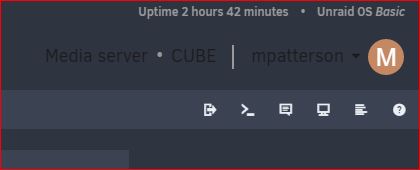
Theme Name: NordDark-black Base Theme: Black I updated Unraid to 6.9.1 and installed the Unraid.net App, in the upper right corner which shows my Unraid username and server details the text is black. If I change the Base Theme to Gray the text turns white but I don't like the icons down the left side, I want the tab names at the top of the page.
-
Thanks for the fix. Any idea why that changed? The IP of my Unrad server is a 192.168 IP. I know Unraid will set up its own internal networks and now Sab is showing a 172.17 IP. Changing Radarr and Sonarr to check that IP worked, but why did Sab change the IP it was using? Before updating it was working fine so I assume it was using the 192.168 IP.
