





Jflo
Members
-
Joined
-
Last visited
-
Title says it all, I thought I had researched this model enough, but I guess not, there is a pretty significant difference from the tutorials I saw. No HDMI, no video out of any kind. I tore down the whole thing looking for headers- nothing. I did initialize it and can ssh into it, and guess I'll try to figure out something grub related... Any Asustor fans here that can help? I'm just astonished this thing has no video out.
-
uncanny timing, i literally just pushed this fix moments ago. Thanks for the spot and the fix.
-
This fixed the issue, thanks!
-
I have set JAVA_VERSION to 16 correctly, but the entrypoint script is unable to find a jvm there: 2021-07-06 18:26:07.521942 [info] JAVA_VERSION defined as '16' '/usr/lib/jvm/java-16-openjdk' is not a valid Java environment path So it's picking up JAVA_VERSION but thats not helping. I tried setting a JAVA_HOME but that didn't work either.
-
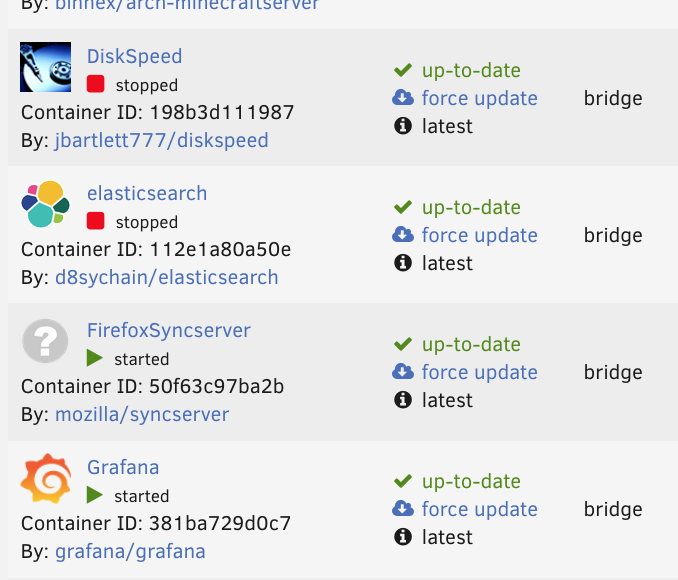
I don't understand why the included Icon does not render correctly on the installed docker apps page.
-
I dunno, i never tried it. Mozilla ships it with the embedded SQLlite, but looking at their init code here: https://github.com/mozilla-services/syncserver/blob/master/syncserver.ini Looks like they may at least support whatever pymysql is....
-
I didn't see any existing configs that used the official image from Mozilla, so I made one. https://github.com/jflo/ffsync-unraid This will likely be the support thread for any questions.

