





th3unpleasantpeasant
Members
-
Joined
-
Last visited
Everything posted by th3unpleasantpeasant
-
That seems to have fixed it. Thank you very much :) It may be worth adding this to the template for others. This was initially failing for me when I set up the additional path. Access Mode: Read/Write fixed it
-
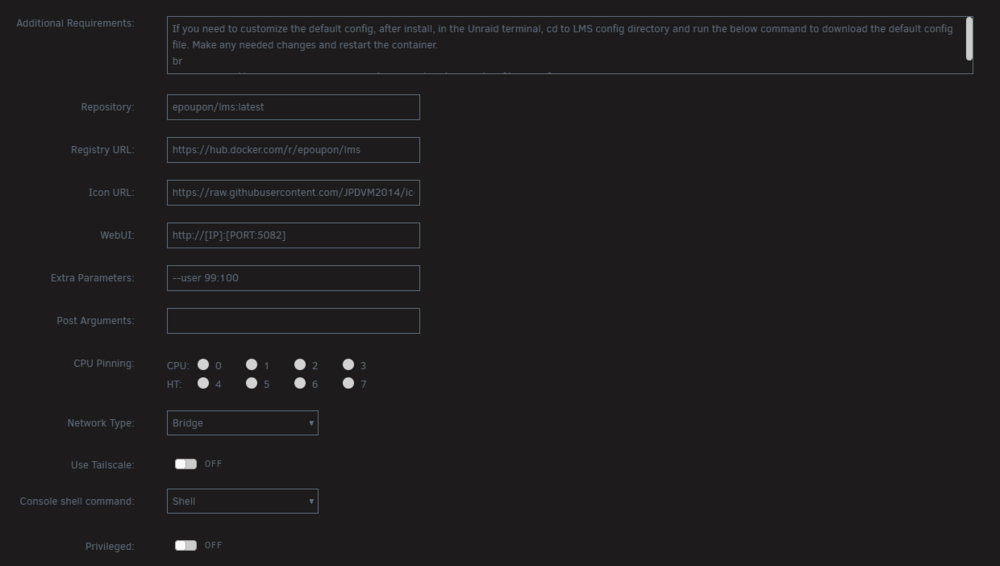
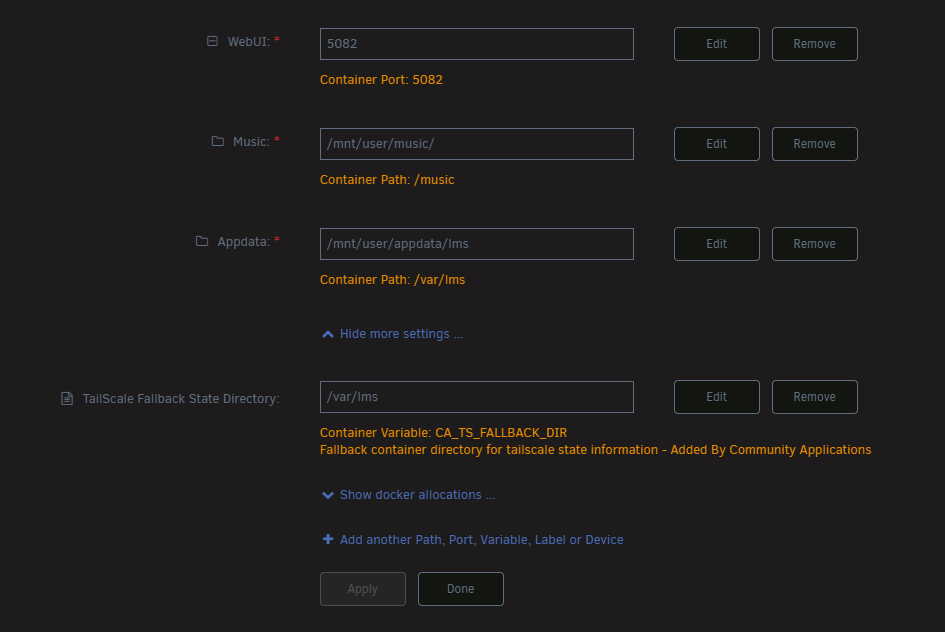
Sorry for the delay. Screenshots below. I've not made any changes to the default settings.
-
I wasn't originally, I was in /mnt/user/appdata/lms but I've created the config folder through the terminal and downloaded the lms.conf to /mnt/user/appdata/lms/config using wget. I made a quick change to the lms.conf and restarted the container but the change isn't being picked up when the container starts up again
-
Much appreciated. LMS is one of the better alternatives to Airsonic and Navidrome isn't for me so I'd love if the template was still maintained. The info for the custom config file is here. https://hub.docker.com/r/epoupon/lms#custom-configuration-file Will the CA continue to get updates btw?
-
Thanks for providing the template for LMS however, it seems that the custom config instructions aren't working. The steps given are: If you need to customize the default config, after install, in the Unraid terminal, cd to LMS config directory and run the below command to download the default config file. Make any needed changes and restart the container. wget https://raw.githubusercontent.com/epoupon/lms/master/conf/lms.conf I make some changes to the config file that was downloaded, restart the container but the changes aren't implemented. The default config file in the container is /etc/lms.conf and it seems that this is the config file that the container continues to use. It seems like there isn't a link between /var/lms/lms.conf and this path above?
-
Seems to now be working after a full server restart

-
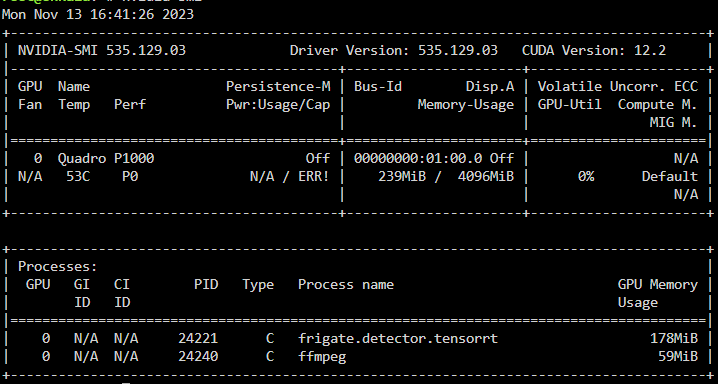
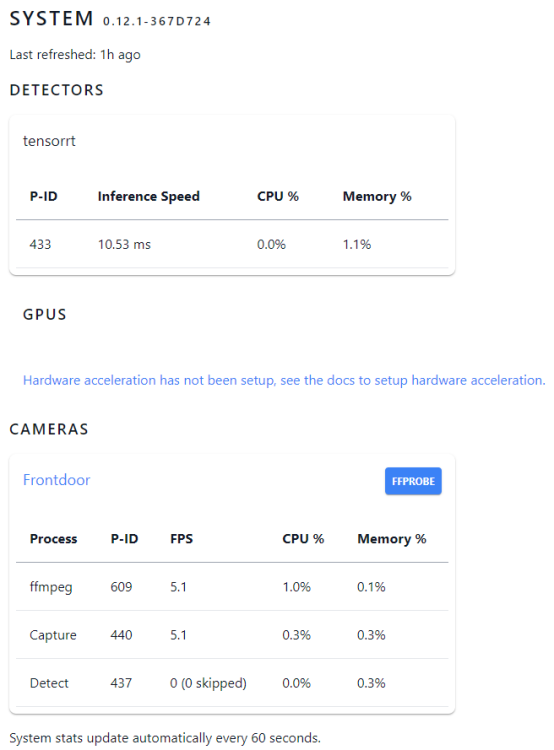
Frigate doesn't seem to be detecting my nvidia GPU for hardware acceleration when checking the frigate system information This is my extra parameters line "--shm-size=256mb --mount type=tmpfs,target=/tmp/cache,tmpfs-size=1000000000 --restart unless-stopped --runtime=nvidia" I have entered the GPU ID and the set the capabilities to all. This is also the same when the capabilities are set to 'compute,utility,video' nvidia-smi on the unraid terminal shows the ffmpeg process for the 1 camera I currently have and also the tensorrt detector process I also have the hardware acceleration args like this in the frigate config: ffmpeg: hwaccel_args: - -hwaccel - cuda - -c:v - h264_cuvid Unsure of where to go next?
-
@A75G any chance of updating Airsonic Advanced to the latest release? Edge Release 11.0.0-SNAPSHOT.20230217142243 thanks :)
-
Can someone point me in the right direction? I have A75G's airsonic-advanced docker accessed through SWAG / reverse proxy with a duckdns subdomain and lets encrypt https certificate. I'm using the airsonic.subdomain.conf config and all is working well. I'd like to start using fail2ban to block access to the airsonic URL but during testing, looking at the airsonic logs they show failed logins from the IP of the internal docker container and not the real external IP. I have the 'server.use-forward-headers=true' line added to the airsonic.properties file in the airsonic config as stated in the airsonic.subdomain.conf from SWAG but something seems missing Any suggestions?


