Kinspappy
Members
-
Joined
-
Last visited
-
Garuda Linux Hyprland (Arch Linux based). Machine: Q35-9.2 Bios: OVMF GPU: Intel ARC A380 root@Tower:~# lspci | grep VGA 03:00.0 VGA compatible controller: Intel Corporation DG2 [Arc A380] (rev 05) 15:00.0 VGA compatible controller: Advanced Micro Devices, Inc. [AMD/ATI] Granite Ridge [Radeon Graphics] (rev d1) root@Tower:~# cat /sys/bus/pci/devices/0000\:03\:00.0/boot_vga 0 root@Tower:~# cat /sys/bus/pci/devices/0000\:15\:00.0/boot_vga 1
-
Thanks for looking into this! I am running Garuda Linux Hyprland (Arch Linux based). Machine: Q35-9.2 GPU: Intel ARC A380
-
Upgraded Unraid from 7.2.6 to 7.3.0 and also had issues with my Linux VM (latest Garuda Linux Hyprland using an Intel ARC A380. After upgrading and starting up the VM, it boots to the login screen with the resolution messed up. Cannot see everything that is displayed and changing the resolution in the VM didn't fix it. Rebooting the VM causes it to no longer display video thru the Intel ARC A380 GPU at all. Tried VNC and it booted, but the resolution was still messed up. Downgraded back to 7.2.6 to get it working again. A few days later 7.3.1 came out, so I updated to that. It did the same thing as 7.3.0. Downgraded back to 7.2.6 again and everything was fine. Saw 7.2.7 released and I upgraded to that. Everything was working good. Decided to try and upgrade back to 7.3.1 and try creating a new Garuda Linux Hyprland VM. This immediately wouldn't display video thru my Intel ARC A380 GPU. Tried booting with VNC display and it booted to the login screen. Resolution was not set for my display, so I logged in and updated the OS thinking maybe a video card driver needed to be downloaded. Tried booting up using the Intel GPU after and it still didn't work. Both the old VM and the new VM have CPU migration on. Going to go back to 7.2.7 until this gets sorted. bluedragon-diagnostics-20260601_1709.zip
-
Good to know that I have the Nvidia-Driver set up correctly. I thought I did. I will uninstall the jellyfin app and reinstall it with the official repository. Wiil also post in one of the container thread as needed and report back if I get it working. Thanks again for your help!
-
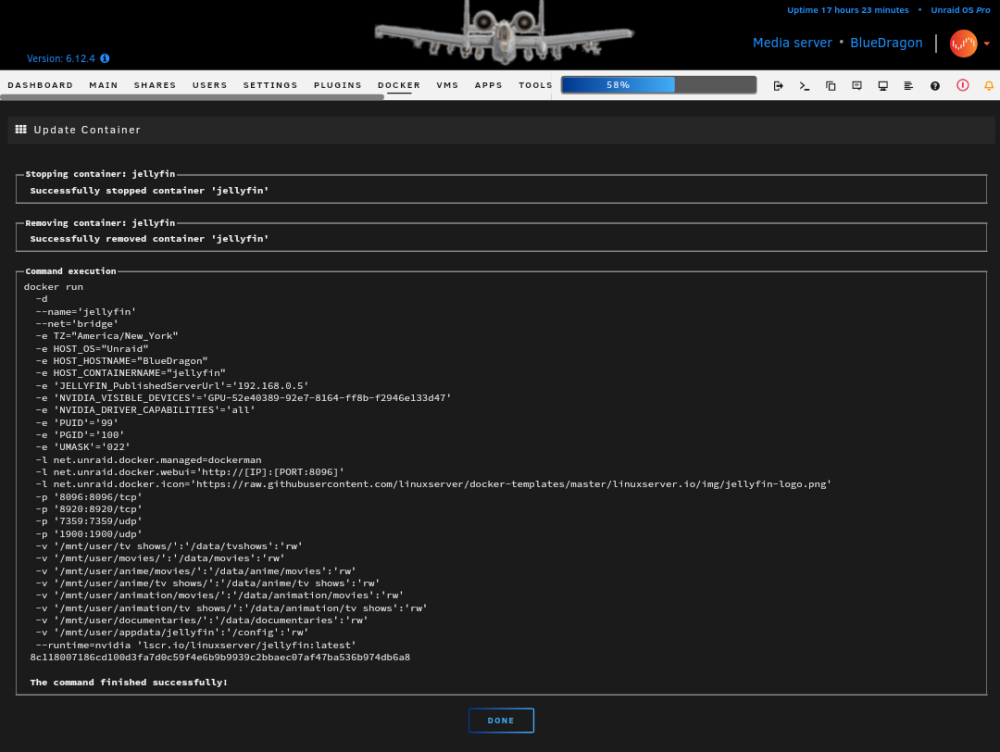
Here is my diagnostics. bluedragon-diagnostics-20230928-1139.zip Here is my docker run. I have the linuxserver version installed. Don't know how to install the official jellyfin version as I don't see it in Community Applications. Thank you for the help!
-
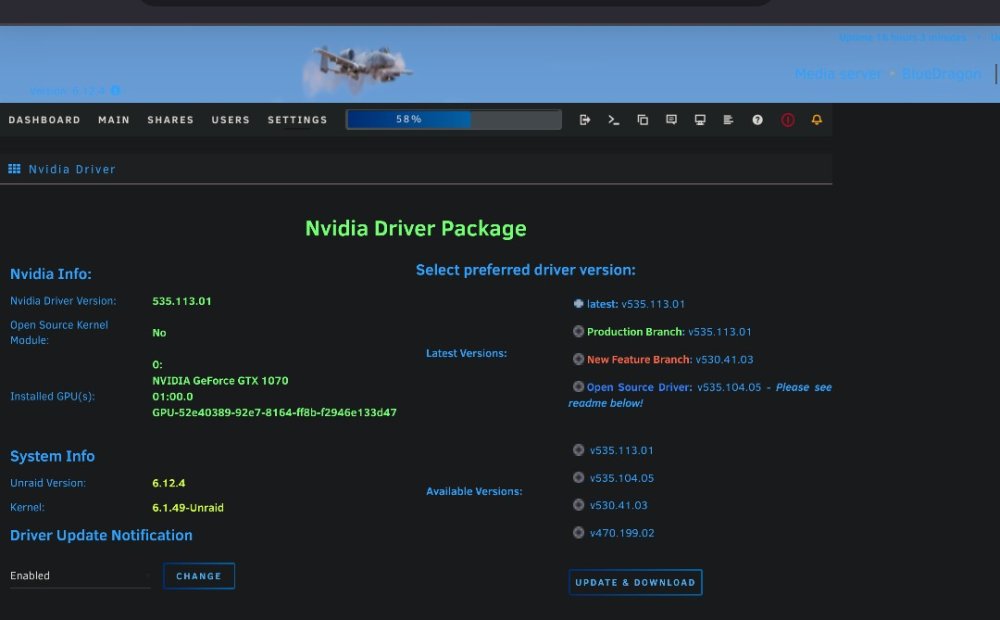
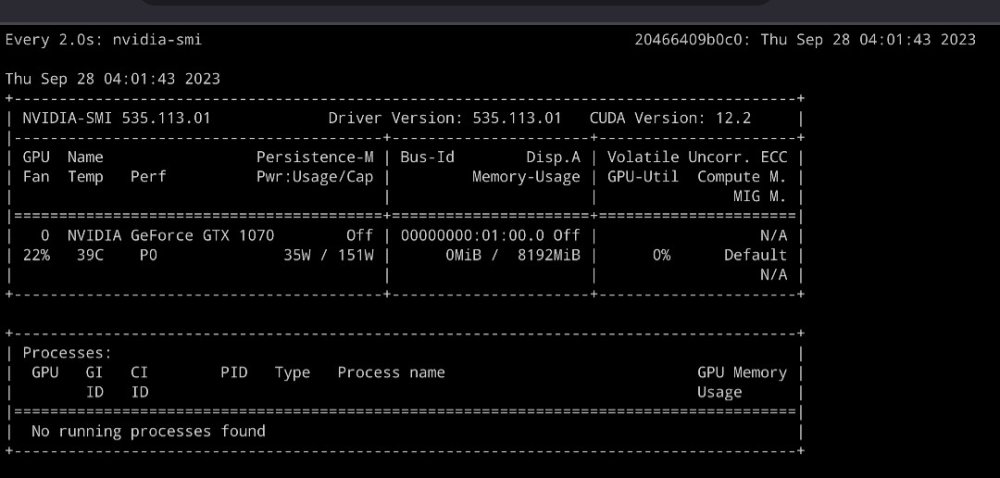
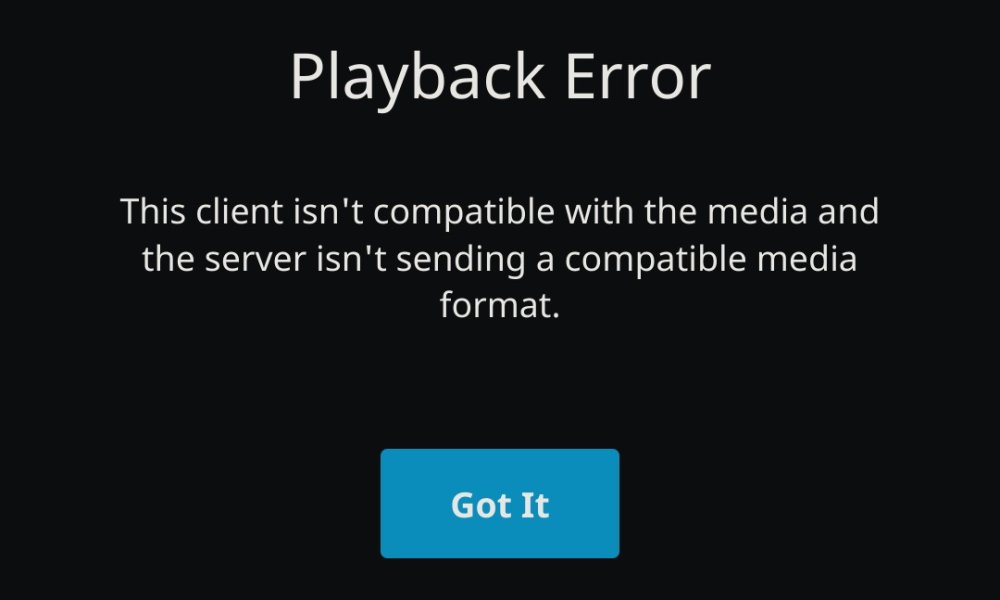
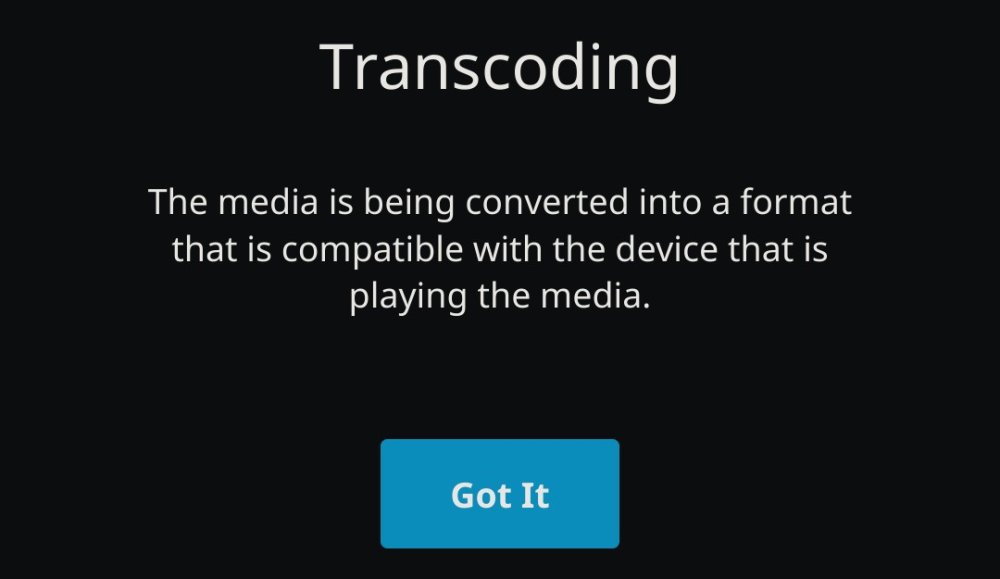
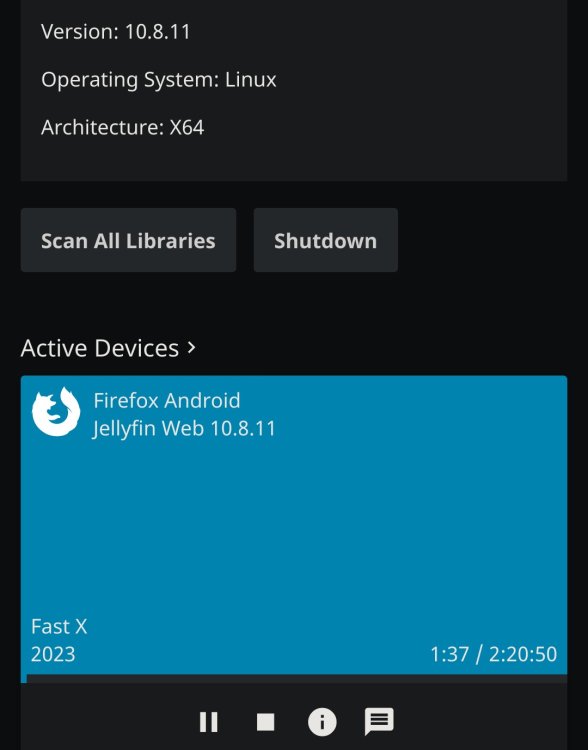
Finally giving in and asking for help. Been struggling to get this working for a while. I am looking to use my Nvidia GeForce 1070 FE to HW transcode 4k HEVC 10 Bit files. Was going to use the skylake igpu, but it doesn't look like it supports it. Will instead use the skylake igpu for VMs once I get it working using the Intel GVT-g plug-in. Want to get this working first then will post in that forum topic for help on that if needed. System specs: Motherboard: Gigabyte ga-z170x-gaming7 updated to the latest bios. CPU: Intel 6700k skylake Memory: 64 GB DDR4 GPU: Nvidia GeForce 1070 FE This Nvidia GPU was used in a bare metal machine and also can be passed through to a VM using its vbios rom. In the VM I was able to install jellyfin and watch 4k HEVC 10 Bit files using my Firefox browser. It is installed in the PCIEx16 slot. PCIe ACS override is disabled. So far, I have the Nvidia-Driver installed and this is what shows up on the settings page and with 'watch nvidia-smi'. Here is my container dialog. When I try to play a 4k HEVC 10 Bit file, this is the error that shows up. Other video files as well as flac music files don't work either. I get the same playback error. Here is the jellyfin dashboard. It looks like it says it's trancoding, but the above playback error shows up after several seconds. Here is my diagnostics after getting the playback error. bluedragon-diagnostics-20230928-1139.zip Any help on this would be greatly appreciated!