





ZeroThirtySeven
Members
-
Joined
-
Last visited
Everything posted by ZeroThirtySeven
-
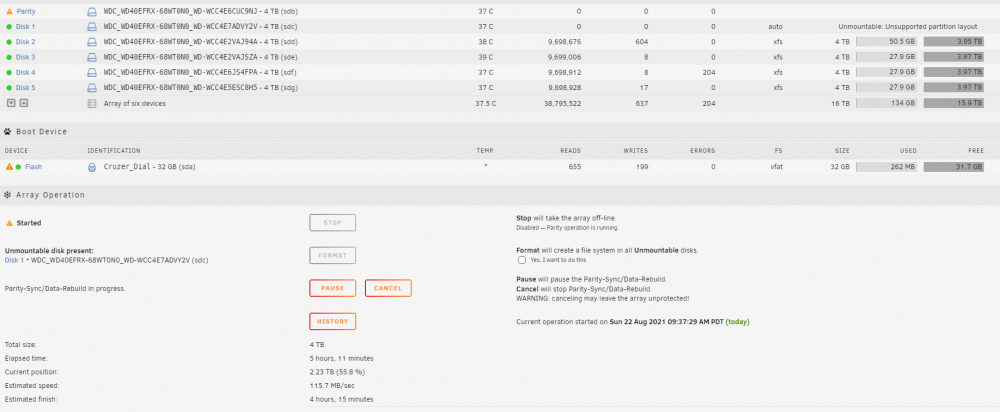
I have added the Diagnostic files. This is a New setup. I just installed Unraid. The Drives have data on them, but I don't care about the data, they were sold to me with the Hardware. Since the post, I found that if I set it up with 2 Parity drives, then everything works fine, but I don't need/want 2 Parity. I also started over with the latest stable version of Unraid and the issue remains. The server is doing a parity sync, I guess cause the drives were not zero'ed out before I used them. I am going to wait till that finishes to continue troubleshooting unless you guys have any further idea's. Current status... diagnostics-20210822-1743.zip
-
No Matter what I do, Disk 1 will not show (or the first disk listed) will not Mount. Hardware Troubleshooting I have replaced the Disk. I have replaced the Sata Cable. I have switched SATA ports on the Motherboard. THese all returned the same result. Software Troubleshooting. I then tried making the unmountable disk the parity disk, and it then still lists the first disk in the array as Unmountable. Doesn't matter what disk is in that slot, it lists as unmountable. I then also tried skipping the first disk, and then it just shows disk 2 as unmountable. I am new to Unraid. Thanks for any help.


