





kolepard
Members
-
Joined
-
Last visited
-
Sorry to hear support for this as unRAID moves to Fedora will be limited, as this has been the best feature added to unRAID for my purposes for a while. If you can suggest an alternative when the time comes I'd appreciate it. Thank you, though, for everything you've done on this; it's been invaluable for rsyncing data between servers for me and I very much appreciate it. Kevin
-
Just to close this loop, my issues were resolved in the referenced thread. Kevin
-
@JorgeB I will clear the pool state then. You mentioned a docker image problem, too. Are there additional steps I need to take with respect to that? Thank you. Keivn
-
@wgstarks Thank you! Editing the docker settings by setting "Network Type" to "Container" and then setting "Container Network" the "binhex-deluge-vpn" solved this problem! All Dockers are now working normally again. @JorgeB I ran scub twice once under 7.2.4 and a second time under 7.3.1. The results appear the same. Scrub result under 7.2.4 UUID: 6b450441-1d2d-4b45-ab90-434d50d5cc7c Scrub started: Sun Jun 14 08:07:15 2026 Status: finished Duration: 0:00:37 Total to scrub: 186.42GiB Rate: 5.04GiB/s Error summary: no errors found Scrub result under 7.3.1 UUID: 6b450441-1d2d-4b45-ab90-434d50d5cc7c Scrub started: Sun Jun 14 08:53:02 2026 Status: finished Duration: 0:00:46 Total to scrub: 281.30GiB Rate: 6.12GiB/s Error summary: no errors found I also ran an extended SMART self-test on the NVMe drive that was reporting errors; that report is attached. Thank you @JorgeB for your help with this. Kevin tower-smart-20260614-0911.zip
-
Thank you @JorgeB and @itimpi . I have updated to 7.3.1 again and posted diagnostics in a new thread, as you have recommended. https://forums.unraid.net/topic/199433-dockers-fail-to-start-with-731/#comment-1627674 Reverting to 7.2.4 again resolved the issues with the Dockers not starting. Thank you. Kevin
-
I updated from 7.2.4 to 7.3.1 yesterday. The update process seemed to go fine, but upon restart it reported errors on my second cache pool drive (which is made of 2 NVMe drives on a Supermicro riser card installed on a Supermicro X12SPi-TF motherboard) that had not been reported previously on 7.2.4. None of the Docker modules in the Arr stack (Prowlarr, Sonarr, Radarr) would start and gave an Execution Error - Bad Parameter. They were also listed as having invalid IP addresses. Diagnostics are attached. Any help appreciated. I have successfully reverted to 7.2.4 (I had the same problem with 7.2.7) but obviously cannot stay on that version forever. Many Thanks. Kevintower-diagnostics-20260613-1236.zip
-
I updated from 7.2.4 to 7.3.1 today. The update process seemed to go fine, but upon restart it reported errors on my second cache pool drive (which is made of 2 NVMe drives on a Supermicro riser card installed on a Supermicro X12SPi-TF motherboard) that had not been reported previously on 7.2.4. None of the Docker modules in the Arr stack (Prowlarr, Sonarr, Radarr) would start and gave an Execution Error - Bad Parameter. They were also listed as having invalid IP addresses. Subsequently I reverted to 7.2.4 and the reported errors disappeared and the Arr stack modules started normally. Just thought I'd report the experience. Kevin
-
Thank you to tjb_altf4 and Kilrah for providing the answer. I appreciate your help. Kevin
-
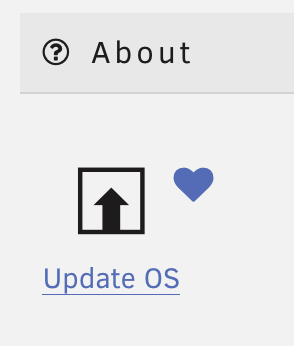
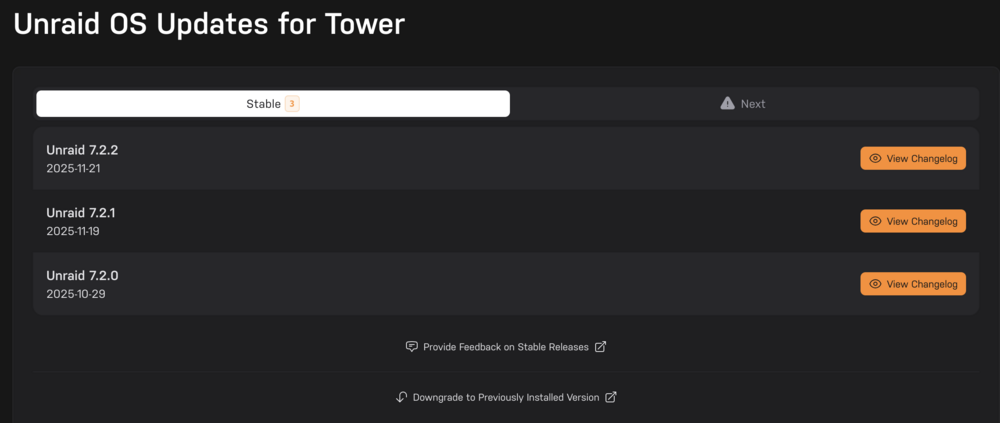
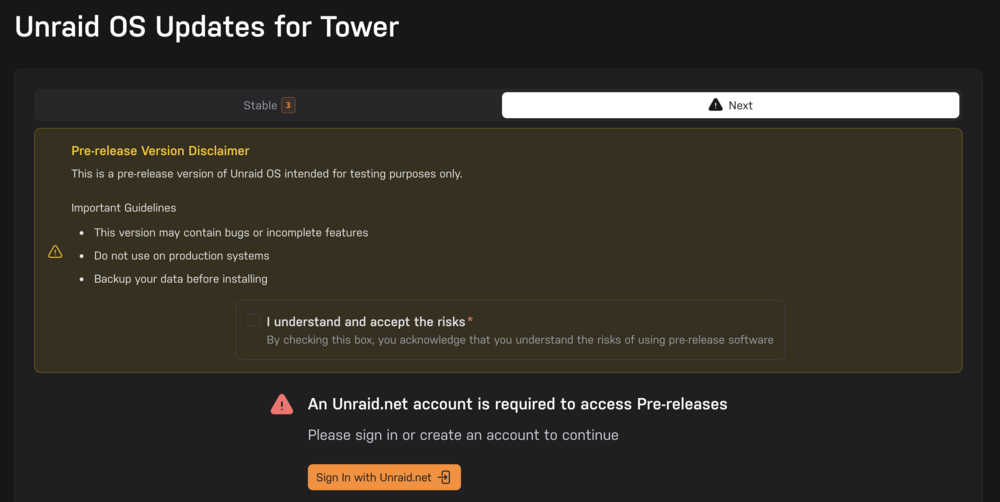
I still see this. Under the Tools tab I select this: I then get this screen: To me this looks like the "Stable" branch is selected. I then click "Next" and get this: Where you can see the Pre-rlease Version Disclaimer. Sorry for my slow response; I've been out of town and unable to take screenshots. Kevin
-
When I go through the update tool in 7.1.4 although I see 7.2.0 listed under stable releases (dated 29-October-2025), when I try to progress, it presents a warning and disclaimer that this is pre-release. If this is not actually pre-release, will that warning/disclaimer be corrected? Thanks. Kevin
-
Thanks. I keep backups of everything on the cache drive. Thank you again. Kevin
-
Thanks for verifying. I presume these remaining 2 drives are mirrored, correct? Is there a better way for me to set this up so I avoid this problem in the future? Or was this just bad luck? Kevin
-
Those were before the steps I outlined in the next post, so you're right. These are after. Thank you for checking them for me. Kevin tower-diagnostics-20250706-0914.zip
-
Most of my last message disappeared, an only the diagnostics appeared; I'm not sure why. That Seagate drive is will appear "spun up" for a while after a power cycle, no matter how I attach it, which I think is the major problem. The last set of diagnostics was obtained while it was "spun up" (i.e., green dot). What I did was run btrfs dev remove missing /mnt/cache It reported no device was missing, which was true, so I did this: Ran a balance operation and let it finish. Stopped array Set the problematic drive, sdj, to unassigned Checked "I Want to Do This" Restarted the array Let the BTRFS Operation complete, which showed a cache pool of 3 devices (Huzzah! Progress!) Stopped the array again Removed the second SSD Again checked "I Want to Do this" Restarted array Let the BTRFS operation complete again This has left me with a pool 2 devices of the 2 NVMe drives on the PCIe riser card. Fortunately I was able to complete the first 5 steps before the troublesome SSD dropped off and reported "spun down". I'm not sure what I would have needed to do if the troublesome drive "spun down" before I could complete those steps. I presume these remaining 2 drives are mirrored, correct? Is there a better way for me to set this up so I avoid this problem in the future? Or was this just bad luck? Thank you again for your help. Kevin
-
tower-diagnostics-20250705-1318.zip


