





Ikthayt
Members
-
Joined
-
Last visited
-
Can you explain further? I am having same issue and would like to fix. What did you do for a 'new setup'?
-
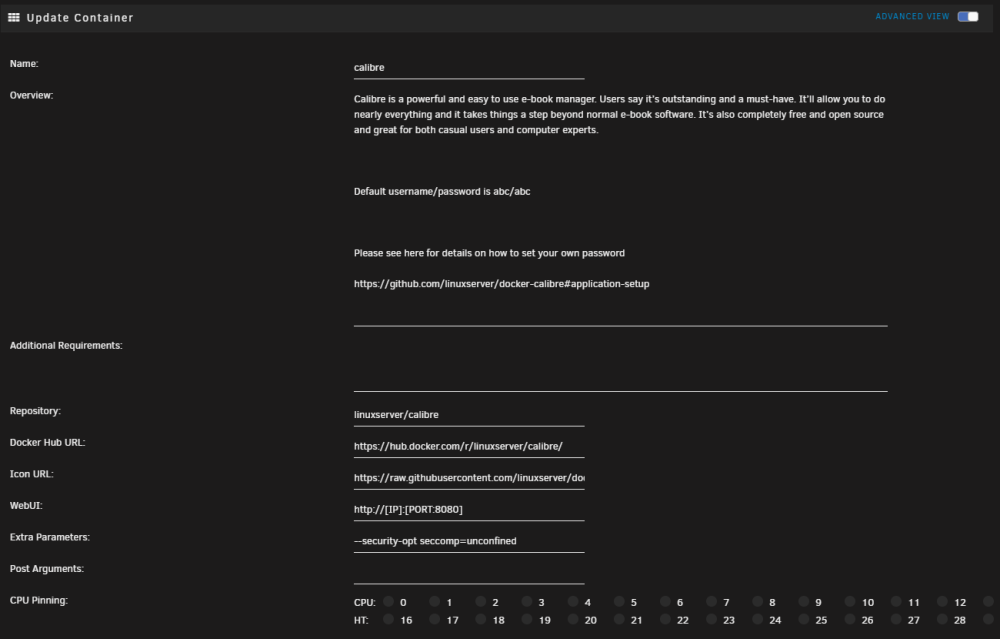
For those trying to figure out how to add this extra variable to the docker template, you need to go to 'advanced' view (slider in the upper-right corner) and then look for the 'Extra parameters' section and enter this in the field: --security-opt seccomp=unconfined Worked for me as well - calibre gui back up and running.
-
How would I get the Kavita-Email container to get pulled with this one? https://wiki.kavitareader.com/en/guides/misc/email https://github.com/Kareadita/KavitaEmail I'd like to use my own SMTP email. I don't know that I understand how to install and run this within this container and have it persist through updates. Any suggestions or is there a separate unraid app for this?
-
Ikthayt joined the community
-
I currently use the fithwum container and have two different mappings; one for the data (my worlds, uploads, modules, compendiums, etc.), one for the actual VTT software. /foundry/data <--> /mnt/user/Foundry/ /foundry/fvtt <--> /mnt/user/appdata/FoundryVTT Did this just to keep the appdata folder reasonable, as it is on the SSD cache array and my data folder is on the storage array (data folder is nearing 40GB at this point, so don't need all that on the cache). The server running from the appdata folder is fine though. Thoughts? I'm not totally stuck on this - just made sense at the time with fithwum's config.




