





eyarea51
Members
-
Joined
-
Last visited
-
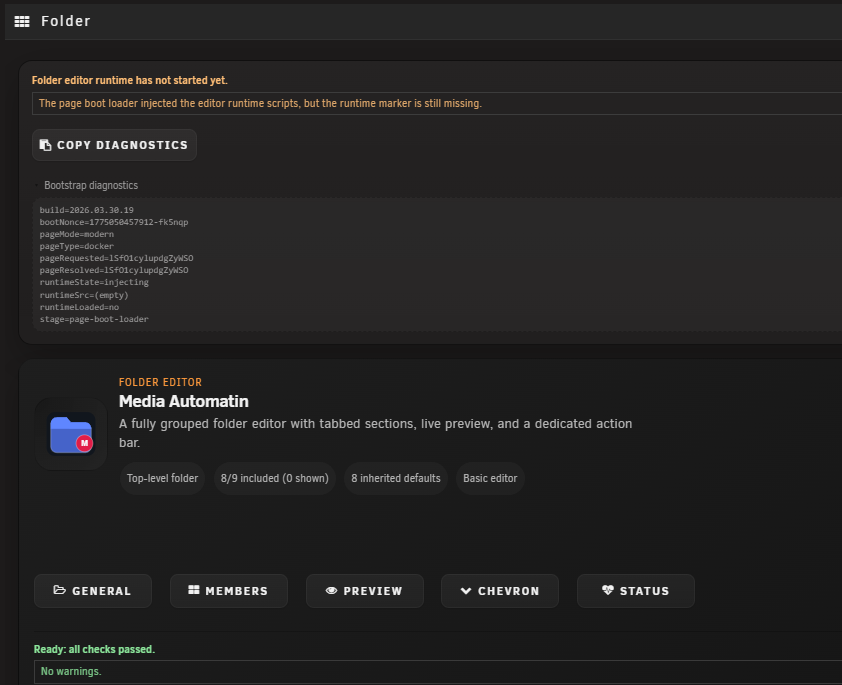
I am having an issue with a folder; the previews are not working. When I open the folder for editing, I get the error "The page boot loader injected the editor runtime scripts, but the runtime marker is still missing." The other folders I have are working normally. The Folder in question, I deleted and then recreated but the issue has persisted. here is the copy of the diagnostics, FolderView Plus Folder Editor Bootstrap Diagnostics summary: Folder editor runtime has not started yet. details: The page boot loader injected the editor runtime scripts, but the runtime marker is still missing. severity: warning [environment] pageMode: modern pageType: docker requestedId: lSfO1cylupdgZyWSO resolvedId: lSfO1cylupdgZyWSO pluginVersion: 2026.03.30.19 runtimeLoaded: yes runtimeStage: runtime-ready runtimeState: load runtimeSrc: /plugins/folderview.plus/scripts/folder.js?v=2026.03.30.19&boot=1775048435249-hfax1e url: https://192.168.6.4/Docker/Folder?type=docker&id=lSfO1cylupdgZyWSO&_=1775048433615#type=docker&id=lSfO1cylupdgZyWSO [debug] build=2026.03.30.19 bootNonce=1775048435249-hfax1e pageMode=modern pageType=docker pageRequested=lSfO1cylupdgZyWSO pageResolved=lSfO1cylupdgZyWSO runtimeState=not-registered runtimeSrc=(empty) runtimeLoaded=no stage=page-bootstrap How do I fix this?
-
I see you added spotizerr. I tried to go through and set it up, I am not seeing how to get this thing running. Do I use the IP address of the redis container for the "REDIS_HOST" setting? here is what is the log for the container . . 2025-03-24 12:32:50 [MainProcess:MainThread] [root] [INFO] - Logging system initialized 2025-03-24 12:32:50 [MainProcess:MainThread] [root] [INFO] - === Spotizerr Application Starting === 2025-03-24 12:32:50 [MainProcess:MainThread] [root] [INFO] - Checking Redis connection to redis:6379 2025-03-24 12:32:50 [MainProcess:MainThread] [root] [WARNING] - Redis connection attempt 1 failed: [Errno -2] Name or service not known 2025-03-24 12:32:50 [MainProcess:MainThread] [root] [INFO] - Retrying in 1 seconds... 2025-03-24 12:32:51 [MainProcess:MainThread] [root] [WARNING] - Redis connection attempt 2 failed: [Errno -2] Name or service not known 2025-03-24 12:32:51 [MainProcess:MainThread] [root] [INFO] - Retrying in 2 seconds... 2025-03-24 12:32:53 [MainProcess:MainThread] [root] [WARNING] - Redis connection attempt 3 failed: [Errno -2] Name or service not known 2025-03-24 12:32:53 [MainProcess:MainThread] [root] [INFO] - Retrying in 4 seconds... 2025-03-24 12:32:57 [MainProcess:MainThread] [root] [WARNING] - Redis connection attempt 4 failed: [Errno -2] Name or service not known 2025-03-24 12:32:57 [MainProcess:MainThread] [root] [INFO] - Retrying in 8 seconds... 2025-03-24 12:33:05 [MainProcess:MainThread] [root] [ERROR] - Failed to connect to Redis after 5 attempts: [Errno -2] Name or service not known 2025-03-24 12:33:05 [MainProcess:MainThread] [root] [ERROR] - Make sure Redis is running at redis:6379 2025-03-24 12:33:05 [MainProcess:MainThread] [root] [ERROR] - Cannot start application: Redis connection failed
-
So I have a new setup to play with for a bit before I need to use it in a more production environment. I want to use ZFS pools and do not want to use an array. So, I set up beta 4 and set up a mirrored cache pool. and it does not seem to create the standard file system, Appdata and system are missing. Any thoughts on this and how to get the standard system folders back? Update Diagnostics added as asked cdmserver04-diagnostics-20241028-1438.zip
