





error311
Members
-
Joined
-
Last visited
Everything posted by error311
-
Hey @jang430 thanks was a fun project. It's using the ESP32 WiFi & HTTPClient libraries. How It Works Data Collection: A bash script (run as a Unraid User Script) collects Unraid system metrics, Docker container stats (including disk size, used, and free space), and VM information, then formats all of the data into a JSON file. Display Update: The ESP32 downloads and parses the JSON file using ArduinoJson, and updates the ePaper display with formatted text and graphical progress bars. Low-Power Operation: The ESP32 is designed for low-power consumption. It uses deep sleep and can be awakened via a push button (GPIO39), ensuring efficient operation.
-
Yes sorry that is on the pro road map to add deeper branding. I don't have an ETA but hopefully will be soon.
-
@Pixbone You’re not doing anything wrong with FileRise itself. FileRise works great over Tailscale when you just access the container on its host port (tailnet IP + 8083). What’s failing here is Tailscale Serve running inside the same container: Serve grabs port 443, then Apache also tries to bind 443, and Apache refuses to start (Address already in use). Fix options: 1. Simplest: don’t use Tailscale Serve. Leave HTTP_PORT / HTTPS_PORT empty, map host 8083 → container 80, then open http://<unraid-tailscale-ip>:8083. 2. If you want the nice https://name.ts.net/ URL, then Serve should own HTTPS and Apache should stay HTTP-only (Apache must not bind 443 inside the container). That means disabling Apache SSL / default-ssl in the container (or running a reverse proxy externally). Also: only change the Host Port fields in Unraid. Leave HTTP_PORT / HTTPS_PORT blank unless you’re intentionally changing Apache’s internal listen ports.
-
@Pixbone You don’t want to map FileRise to host 443. If you do, it often collides with Unraid or another container and the FileRise container won’t start. Keep FileRise on a high host port, for example: Host 8085 > Container 80 (optional) Host 8443 > Container 443 (only if you really need it) Then, from any device on your Tailnet, just open: http://<unraid-tailscale-ip>:8085 (or http://<unraid-hostname>:8085 if you use MagicDNS)
-
FileRise v2.10.0 adds proper support for subpaths. I believe you mentioned that you were using a subpath. Please review the latest Nginx setup wiki: https://github.com/error311/FileRise/wiki/Nginx-Setup
-
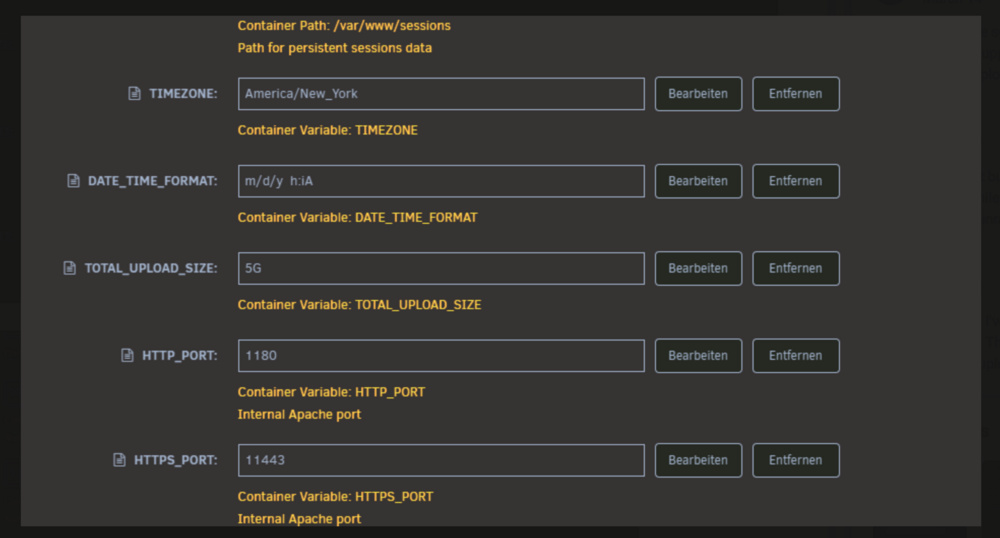
Dont change these from your picture the Internal Apache port keep those as 80 and 443.
-
@Eichhorn To simplify things and rule out all the weird edge cases, can you reset the container to a “known good” setup: 1. Stop and remove the current FileRise container (keep the appdata folders). 2. Re-add FileRise from the Unraid template with these settings: Network: bridge DO NOT change the internal Apache ports: Leave HTTP_PORT and HTTPS_PORT empty (defaults to 80/443 inside the container). Port mappings: Host 1180 > Container 80 (HTTP) (Optional) Host 11443 > Container 443 (HTTPS) PUID=99, PGID=100 (Unraid defaults) Set CHOWN_ON_START=true at least for this run, so the container can fix permissions on uploads/metadata/sessions. 3. Start the container, wait for it to finish the initial scan + chown in the logs. 4. In your browser, go directly to: • http://SERVER-IP:1180/ You should see the FileRise login page. 5. Try logging in again. Once this works on http://SERVER-IP:1180/, you can put a reverse proxy (nginx/Nginx Proxy Manager) in front if you want, but keeping Apache on 80/443 inside the container is the simplest and most tested layout.
-
Thanks for all the info – this helps narrow it down. From your screenshot of the logs I can see entries for things like: index.php app_dev.php authz_core errors Those files/paths are not part of FileRise at all. That means your requests are not actually hitting the FileRise app in /public, but some other Apache vHost or webroot (maybe from an old container or another PHP app that used the same volume/ports before). That would explain both: The “login session not established” message And the strange log entries that don’t match FileRise To get this sorted, can you please check these things step by step: 1. Confirm which container is serving the traffic In Unraid, open the Docker tab and: Click on your FileRise container → Edit. Take a screenshot of: The Repository (should be the FileRise image) The Port mappings The Volume mappings (especially anything mapped to /var/www or /var/www/html) If you’re reusing an appdata folder from some older PHP app, that can cause exactly this behavior (Apache serving the wrong app). 2. Port mapping sanity check On Unraid, you should only change the host ports (left side), not the internal container ports (right side). For example (just an example): HOST 1180 -> CONTAINER 80 HOST 11443 -> CONTAINER 443 If you changed the container port instead of the host port, the Unraid “WebUI” button will still point to the old port (e.g. 10443), and the app might not be listening where you expect it. When you say "docker gives me a site with port 10443 but I changed this to 1180": that usually means unraid template still pointing to the old value. Send a screenshot of the actual port mapping lines. 3. Try bypassing nginx / redirects Right now login only works over the redirect address, not over the IP. That’s another hint that you’re hitting two different backends. Please try: Temporarily bypass nginx / any reverse proxy. In your browser, go directly to the FileRise container via host IP + host port, e.g.: http://SERVER-IP:1180/ You should see the FileRise login page, not some generic PHP or different app. If you don’t see the FileRise login, but some other page, then nginx/ports are definitely pointing to the wrong container or wrong webroot. 4. Quick session check in browser If you do see the FileRise login page directly on http://SERVER-IP:1180/ but still get “login session not established”, please: Open DevTools → Network. Try to log in. Click on the /api/auth/auth.php and /api/auth/checkAuth.php requests. Send me a screenshot that shows: Request URL Response code The Cookies tab (to see if the session cookie is set) TL;DR: The log lines with app_dev.php and authz_core are a big sign that your browser is not actually talking to the FileRise app, but to a different Apache instance / webroot. Once we see your Unraid Docker template (ports + volumes) we can normally fix this pretty quickly.
-
It looks like the backend is running fine, so this is usually the browser not keeping the session cookie. Can you try this and let me know what happens? Use a private/incognito window Open a new private window. Go directly to the FileRise URL you’re using now (the new container, not any old bookmark). Try logging in again and see if the message still says “Login session not established”. Clear old site data for that host Since you had a very old FileRise install before, your browser might be mixing old JS/cookies with the new container. In your normal browser profile, clear cookies + site data just for that URL (files.example.com or the IP/port you use for FileRise). Then reload and try login again. Double-check the URL Make sure you’re always using the same URL when you: Load the login page And after login (no mixing http://IP:8085 and https://hostname) If it still says “Login session not established” after trying incognito + cleared cookies, send me a screenshot of your browser’s DevTools > Network tab around the /api/auth/auth.php and /api/auth/checkAuth.php calls and I’ll dig deeper. Note this should no longer be an issue on newer versions of FileRise since we cache bust.
-
@Eichhorn you also need the metadata folder META_DIR You need the UPLOADS PATH, META_DIR and USERS_DIR...
-
Hey @Eichhorn 👋 That log line: means FileRise still thinks it’s in initial setup which basically it’s not seeing any users in its users.txt file. So when you create the admin user, it’s either: not being written at all, or being written somewhere that isn’t persisted / readable on restart. On Unraid this is USERS_DIR mapping. Can you try this: Double-check your USERS_DIR mapping in the container template In the Unraid docker UI for FileRise: Make sure you have something like: Host path: /mnt/user/appdata/filerise/users (or similar) Container path: /var/www/users And the env var USERS_DIR should point to that container path ( /var/www/users). Also make sure that host folder exists and isn’t mounted read-only. Check if users.txt is actually created After you go through the setup screen and create the first admin: Open a console into the FileRise container (Unraid → Docker → FileRise → Console) Run: ls -l /var/www/users cat /var/www/users/users.txt or verify the users.txt was created at the host path.
-
@Eichhorn when you edit the container in unraid you set the location USERS_DIR: You can try deleting the adminConfig.json and siteConfig.json that may resolve the issue too. You can back these up too if you have changes to OIDC you want to keep.
-
@Eichhorn On Unraid this can happen if the appdata for FileRise was partially left over from an older version and something in users/ is now invalid. Make sure you’re on the latest FileRise image In Unraid, edit the container and make sure the image is: error311/filerise-docker:latest Then force a pull + restart. Fix the broken config + reset the admin user In your Unraid appdata for this container (e.g. something like /mnt/user/appdata/filerise), you’ll see: uploads/ users/ metadata/ To completely reset logins without touching your files: Stop the FileRise container. In the appdata folder, delete the users/users.txt file. On next start, FileRise will treat this as a first run and ask you to create a new admin user. Start the container again and go to the WebUI – you should see the initial “create admin” screen. That takes care of the login issue. If the json_decode error still shows up after that, it means one of the config files under users/ is corrupted
-
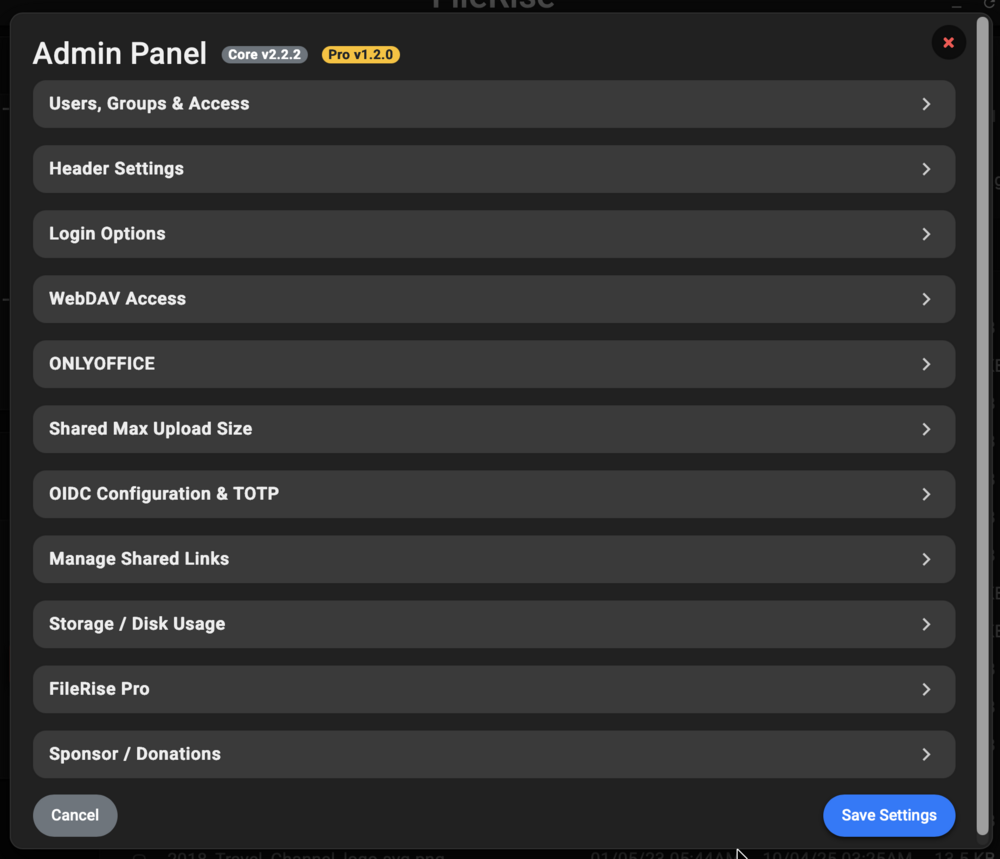
@Eichhorn Every release change is here https://github.com/error311/FileRise/blob/master/CHANGELOG.md and Admin Panel shows the version here:
-
No this is not normal and I did find/fix the bug. This is fixed in v2.0.3. Thank you for reporting the issue @Eichhorn
-
That means it's running that is the last message in the start.sh. I'll adjust that so it makes a bit more sense. Edit: this was updated to display in container log error.log and option was added to template to configure this to display access.log too if wanted. Thanks this was something I did miss. I will update this. No plan to turn off login but will look into adding that as a config option.
-
Please try the solution from this post: Adding a new container port in unraid. I still haven't updated the FileRise template been busy working on the web app more. I will get around to that hopefully soon.
-
Thanks for feedback @Eichhorn Just released more changes this morning. Profile pictures and UI changes. You can remove any user except yourself under Admin Panel > User Management > Remove User.
-
@Eichhorn I figured out the twitching/glitching issue with gallery view slider. It occurs when the browser scroll bar goes away. I haven't found a good fix I like yet but still looking into it. I did release a new update that adds selection actions and search filtering from your other suggestion. So it behaves the same as File List view. You can now use action buttons, multi select and context menu options.
-
Glad header title works for you now. Galleryslider I need to test different resolutions. Cooldown after 5 failed attempts is 30 minutes. You can delete the failed_login.json in user folder to bypass it. It also creates a fail2ban log file too for additional protection.
-
New change Refactor API endpoints and modularize controllers and models incoming soon. This might have some unintended bugs or issues. I am still trying to fix and test everything before I push it to unraid but just wanted to create a post to mention.
-
Thanks @Eichhorn New update available. I adjusted headerTitle so it display globally and update properly on page loads I adjusted max columns depending on screen sizes so that twitching issue you experience should be gone when columns didnt fit in window. https://github.com/error311/FileRise/commit/853d8835d94809b52de230141b9f43c053ac004a
-
Thanks for confirming. I just did another update lol I added a new custom-php.ini that should improve performance https://github.com/error311/filerise-docker/blob/main/custom-php.ini Try this update please. Also you did mention this issue started when I added cache to gallery view?
-
Sorry it was my fault. I changed the dockerfile from ubuntu 22.04 to 24.04 few days ago which increased the php version from 8.1 to 8.3. This made the TOTAL_UPLOAD_SIZE param not work. This is now resolved. I still need to look into header title issue and gallery view issues.
-
@Eichhorn I will look into header title it was a new feature so might be broken. The upload is fixed but you will need to clear the site cache or wait.


