XenoUniv3rse
Members
-
Joined
-
Last visited
Everything posted by XenoUniv3rse
-
Thank you!
-
Hi, I get this error when opening Apps: Something really wrong went on during get_content Post the ENTIRE contents of this message in the Community Applications Support Thread OS: 6.11.1 Browser: Mozilla/5.0 (Windows NT 10.0; Win64; x64) AppleWebKit/537.36 (KHTML, like Gecko) Chrome/112.0.0.0 Safari/537.36 Language: No data was returned. It is probable that another browser session has rebooted your server. Reloading this browser tab will probably fix this error
-
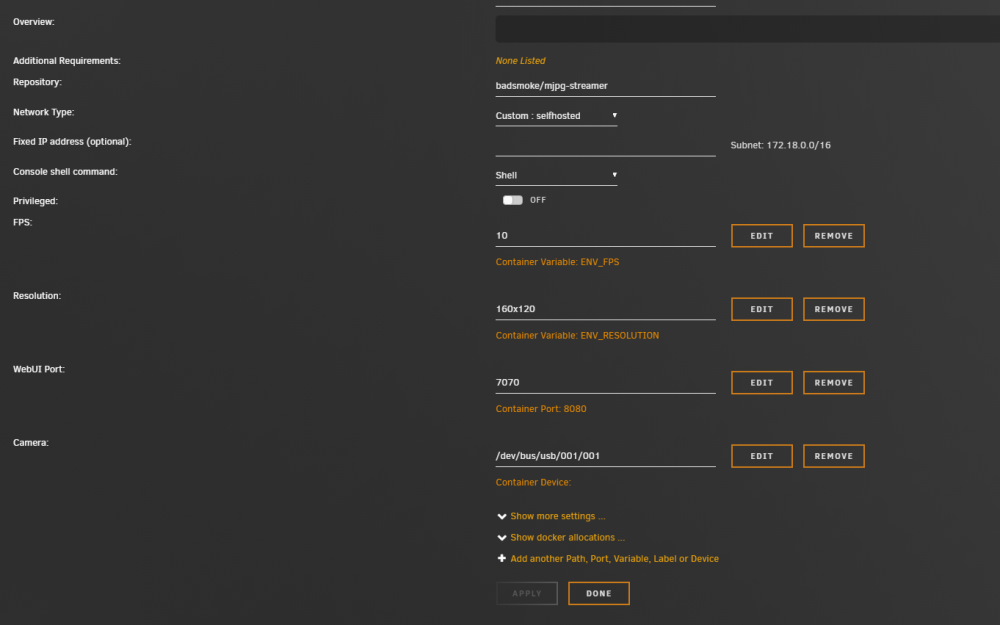
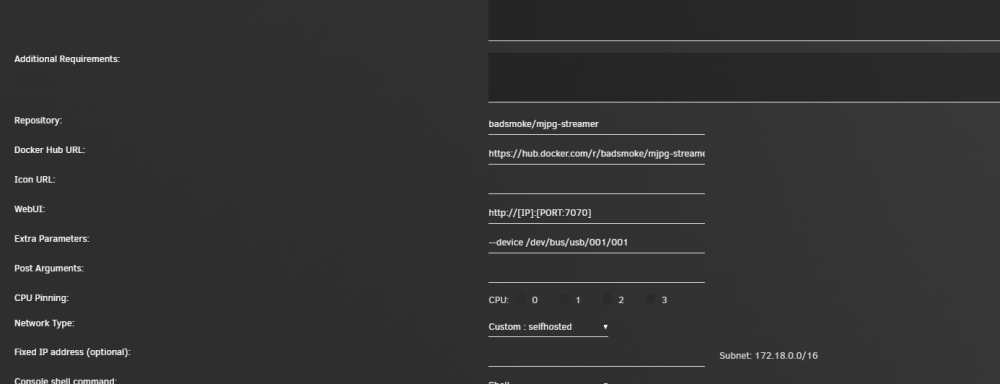
Hi, Thank you for the response. I have the USB passed through as in the docker settings screenshots. Not sure if I have to pass it through somewhere else as well. I just installed the DVB Plugin and selected LibreELEC Package and I am still getting the same error message, init_Videoin failed... Can i be that the camera is not supported? It is quite a common Logitech C920 i believe. Thanks in advance.
-
No answer ?
-
Hi all. I am trying to install MJPG on my unraid server so I can view my webcam. I get the below error when I view the logs for the docker: MJPG Streamer Version: git rev: 501f6362c5afddcfb41055f97ae484252c85c912 i: Using V4L2 device.: (null) i: Desired Resolution: 160 x 120 i: Frames Per Second.: 10 i: Format............: JPEG i: TV-Norm...........: DEFAULT i: init_VideoIn failed ** Press ANY KEY to close this window ** Below is my config for the docker: And the docker does not start. Can someone please assist me with this. Any help would be appreciated.