





medivh
Members
-
Joined
-
Last visited
Everything posted by medivh
-
Thank you. I thought this was unsolvable. I didn’t expect to meet the same needs as you here.
-
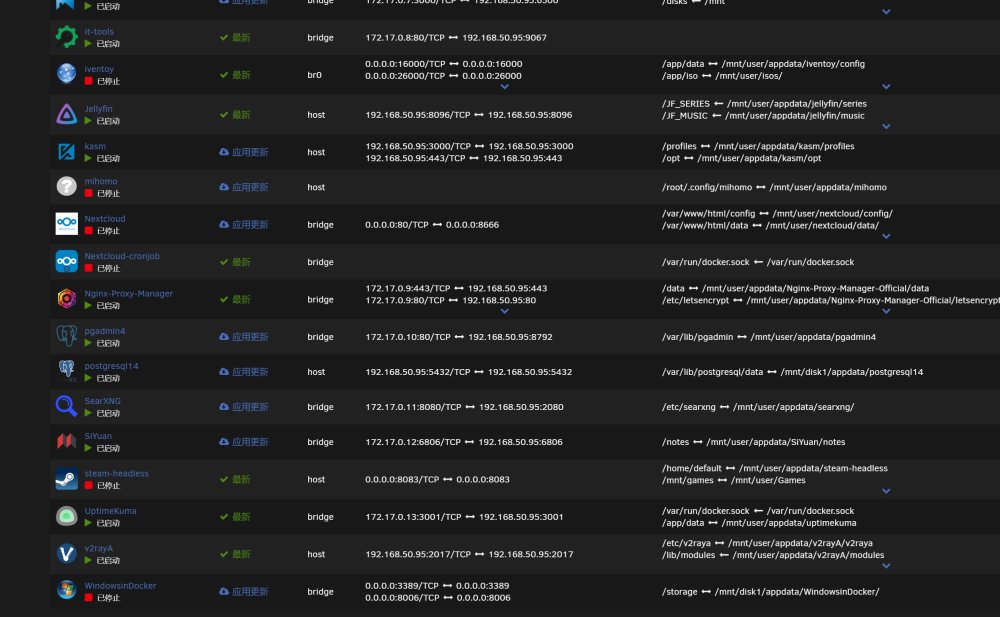
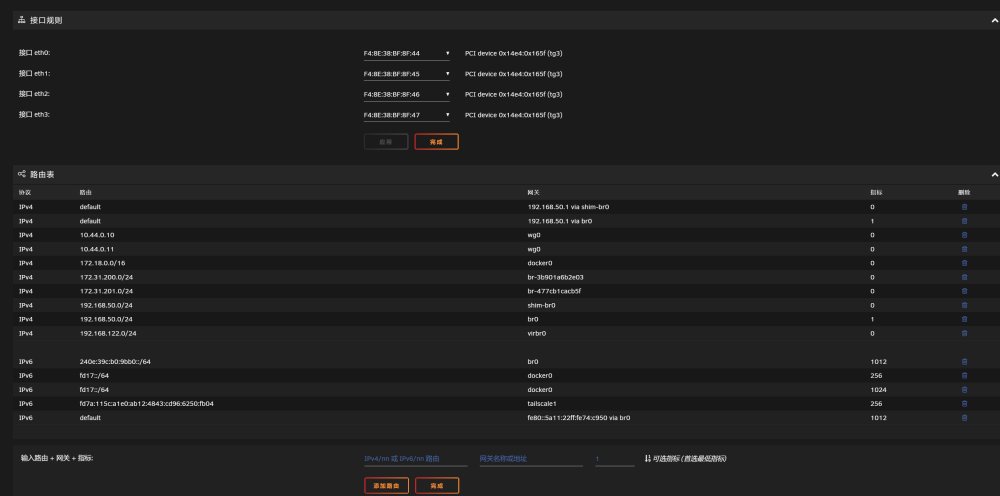
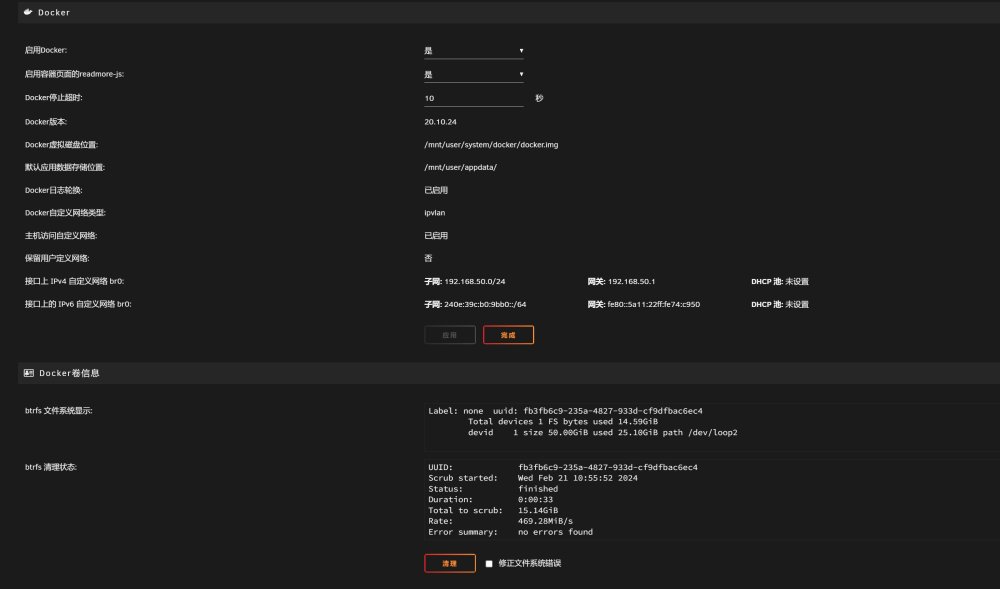
My server has been running for a long time and has always been running normally, but recently, all of my Dockers with a network type of bridge cannot be accessed through the ports mapped to the host computer For example, I have the following containers Nginx Proxy Manager cannot be accessed successfully through 192.168.50.95:80, and the container cannot ping the host 192.168.50.95 internally My network and Docker related configurations are as follows I haven't made any modifications, I just wake up and it won't work
-
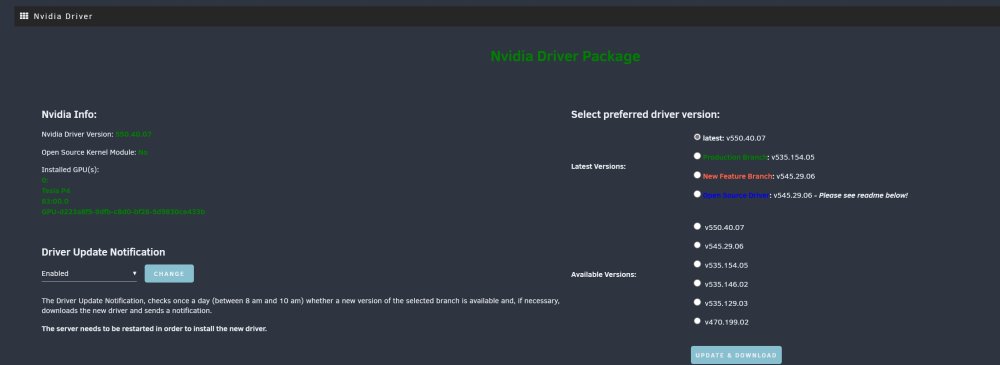
I changed the nvidia driver to production and solved the problem

-
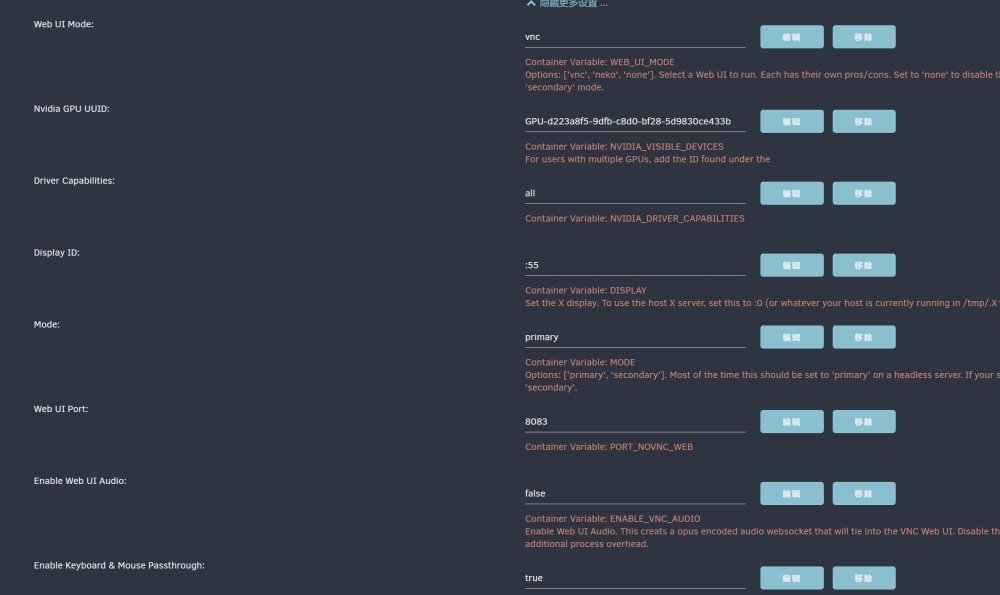
Hello, I encountered this error while trying to run Steam headless. What should I do? Thank you very much. [ /etc/cont-init.d/10-setup_user.sh: executing... ] **** Configure default user **** - Setting default user uid=99(default) gid=100(default) usermod: no changes - Adding default user to any additional required device groups - Adding user 'default' to group: 'video' - Adding user 'default' to group: 'audio' - Adding user 'default' to group: 'input' - Adding user 'default' to group: 'pulse' - Setting umask to 000 - Create the user XDG_RUNTIME_DIR path '/tmp/.X11-unix/run' - Setting ownership of all log files in '/home/default/.cache/log' - Setting root password - Setting user password DONE [ /etc/cont-init.d/11-setup_sysctl_values.sh: executing... ] **** Configure some system kernel parameters **** - The vm.max_map_count is already greater than '524288' DONE [ /etc/cont-init.d/30-configure_dbus.sh: executing... ] **** Configure container dbus **** - Container configured to run its own dbus DONE [ /etc/cont-init.d/30-configure_udev.sh: executing... ] **** Configure udevd **** - Disable udevd - /sys is mounted RO - Enable dumb-udev service - Ensure the default user has permission to r/w on input devices DONE [ /etc/cont-init.d/40-setup_locale.sh: executing... ] **** Configure local **** - Locales already set correctly to en_US.UTF-8 UTF-8 DONE [ /etc/cont-init.d/50-configure_pulseaudio.sh: executing... ] **** Configure pulseaudio **** - Enable pulseaudio service. - Configure pulseaudio to pipe audio to a socket DONE [ /etc/cont-init.d/60-configure_gpu_driver.sh: executing... ] **** Found Intel device 'Intel(R) Xeon(R) CPU E5-2690 v4 @ 2.60GHz' **** - Mesa has already been installed into this container **** No AMD device found **** **** Found NVIDIA device 'Tesla P4' **** - Leaving NVIDIA driver stock without patching DONE [ /etc/cont-init.d/70-configure_desktop.sh: executing... ] **** Configure Desktop **** - Enable Desktop service. DONE [ /etc/cont-init.d/70-configure_xorg.sh: executing... ] **** Generate NVIDIA xorg.conf **** - Configure container as primary the X server - Enabling evdev input class on pointers, keyboards, touchpads, touch screens, etc. - Configuring X11 with GPU ID: 'GPU-d223a8f5-9dfb-c8d0-bf28-5d9830ce433b' - Configuring X11 with PCI bus ID: 'PCI:131:0:0' - Writing X11 config with Modeline "1600x900R" 201.00 1600 1648 1680 1760 900 903 908 953 +hsync -vsync nvidia-xconfig: unrecognized option: "--no-multigpu" Invalid commandline, please run `nvidia-xconfig --help` for usage information. Some important configurations are shown in the figure
-
Hello, Can this plugin(System AutoFan) work on Dell R730


