EDACerton
Community Developer
-
Joined
Everything posted by EDACerton
-
This is a problem on your Windows machine, not something that the plugin can fix. Tailscale does allow for connections through to traverse NAT, but it can still be blocked by a firewall, especially on the client. You’ll have to look at the Windows Firewall configuration/logs to see why the client is preventing Tailscale communication.
-
You found the solution that I was going to give you Technically, any network access is a security risk, but I wouldn't be concerned about the docker setting
-
The advertised routes look fine. Based on your statement about the router/pihole being on a different subnet, I'd probably look at the rules on the router/firewall... the traffic might be getting blocked there.
-
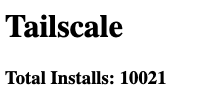
Just a fun update here... 10K active installs for the plugin! 🎉
-
This is correct on both counts -- setting accept-dns to false will prevent MagicDNS from working on the server, but that's almost never needed. My usual recommendation for anyone running Tailscale is to turn MagicDNS off for the Unraid server unless you have a specific need to use it.
-
Please provide diagnostics from inside the plugin settings. You can also try restarting the plugin (there's a button inside the Tailscale settings), that fixes some issues too.
-
The usual fix for this is to restart Tailscale using the button in the Tailscale settings. If that doesn't work, please generate diagnostics from inside the Tailscale settings, then post in the support thread:
-
A suggestion that will help with the port conflict: use a different port for the Vaultwarden "WebUI HTTP Port" (in the Vaultwarden container settings) and the Tailscale serve command. For example, if you have the Vaultwarden HTTP port set to 4743 (the default), you can serve Vaultwarden via HTTPS using this command: tailscale serve --bg --https=4280 localhost:4743
-
Running: tailscale up --force-reauth from the CLI will allow you to reauthenticate. I have a request in with Tailscale to improve the reauthentication behavior via the web interface, but I'm not sure when that will be worked on.
-
This can be done using the Unraid interface for Docker, but it's not a setting that can be "selected" per se. Create a Tailscale Docker container for the container you want to provide as a Tailscale "machine". Configure the network for the container that you are trying to connect to Tailscale: Switch to advanced view for the container settings. Set the "Network Type" to "None". Set "Extra Parameters" to "--network container:nameofyourtailscalecontainer" If you want more support for that, please post over on the support thread for the Docker container:
-
I use releases too, both for managing the current release of the plugin, and for building the packages that the plugin uses
-
I don't have any great insights for you here... all I could guess would be that you did something that you've since forgotten to get things to work that way .
-
Looking at your Tailscale logs, here's the command that's being used to start tailscaled: /usr/local/sbin/tailscaled -statedir /boot/config/plugins/tailscale/state -tun tailscale1 This is expected behavior based on the plugin settings (if the port is left at the default, the plugin doesn't force it), but from this situation I realize that this might not be the ideal setup. I'm going to look at changing that behavior in an upcoming update. In the meantime, you could try setting your wireguard port to something like 41642... this will let you force Tailscale onto that specific port.
-
For containers running on br0, UnraidTailscaleIP:Port will not work. For that, you either need to do subnet routing or run Tailscale as a sidecar for each container that you want to expose via Tailscale. See my comment here for more info on that:
-
Tailscale has a blog post that talks more about the setup: https://tailscale.com/blog/docker-tailscale-guide There are two important things to know when using a sidecar container like this: If you want to be able to establish local connections, you need to set up the ports on the Tailscale container, not on the connected one. When connecting via Tailscale, you will always use the "internal" ports on the connected container. (Often, the internal and external ports are the same, but this isn't always the case.)
-
I'd check to make certain that /var/log isn't full.
-
I've never seen this done, and trying to configure this is out of scope for the plugin. You could try asking over in somewhere like r/Tailscale to see if folks have successfully done what you're trying to.
-
It looks like the log files don't have the information that shows when Tailscale was last restarted. Can you restart Tailscale from within the plugin settings, then after a few minutes generate another diagnostics pack?
-
What type of networks are your docker containers using (bridge, ipvlan, macvlan)?
-
https://tailscale.com/kb/1103/exit-nodes#allow-the-exit-node-from-the-admin-console
-
Can you post diagnostics from inside the Tailscale settings?
-
Thanks. I think I misunderstood your original post, but looking at it again with the diagnostics I think I understand better now. Using TailscaleAddress:Port only works for containers that are running on the Unraid server's IP (bridge networking). In your case, you are using ipvlan networking for your containers so that they get independent IPs. For containers that have their own IPs, there are generally two approaches to connecting via Tailscale: Subnet routing, which you already have configured; or Running a Tailscale container to provide the networking for the service (which results in the container having its own Tailscale IP as well, it wouldn't share the host Tailscale IP). If the local IPs are working for you via Tailscale, then you've already done what you need to connect remotely. One other thing which has nothing to do with Tailscale -- I noticed that two of your Docker networks are ipvlan, but there's one macvlan network in the logs: Unraid1 rc.docker: created network macvlan eth0 with subnets: 10.x.1.0/24; If this is deliberate, ignore me , but I figured I'd mention it since macvlan has a history of causing issues, and that might have been something that you meant to either remove/switch and forgot.
-
You have to approve it in the Tailscale admin console. https://login.tailscale.com/ The expiration piece was probably just related to the server being unable to contact Tailscale; that seems to confuse the Tailscale client in some cases. Unfortunately, there's not much that I can do to resolve that part with the plugin -- I can only report back what the client tells me.
-
Go into the plugin settings, there is a diagnostics button there. Post the complete file that it downloads. (This includes the normal system diagnostics plus additional data for Tailscale.)
-
Please provide diagnostics from inside the plugin settings. Does the Unraid server itself have an IP on 10.1.20.0/24?