





d4man
Members
-
Joined
-
Last visited
-
Hello all, I have an NVME SMB share on unRaid that I use for my cloud, record CS2 games and whatever else I need it for. After the previous 2 updates I could NOT get the share to work, kept giving me an error that I didn't have permissions. Fixing it the first time took hours, I went under main>unassigned devices section>unassigned devices settings>and under SMB settings it was changed to 'no access' under my smb share info. Changing that back to read/write fixed the problem. Just FYI if anyone suddenly has no access to their SMB shares using unassigned devices plug in. Did NOT effect the array, just UDs
-
Hello again! Good news, it was a permission thing! The 'source' directory '/' was set to read only. So anything under /mnt/sourcefiles was read only, that includes basically all directories that are both source and destination folders in the array. Setting it to read/write slave caused it to fail on re-initialization, but setting it to read/write allowed a sync to happen. I remoted in to give it a try real quick, everything appears ok now, thanks for all your help, what a PITA!!!!
-
Hello! 99 for UID -- 100 on GID for DSP and the exact same for LuckyBackup
-
I can't seem to browse to my unassigned SSD to set as my source drive -- in DSP, I simply browsed to /mnt/sourcefiles/mnt/disks/uniqueidnumberhere1234/CS2Streams -- any ideas?
-
Yep, lots of free space
-
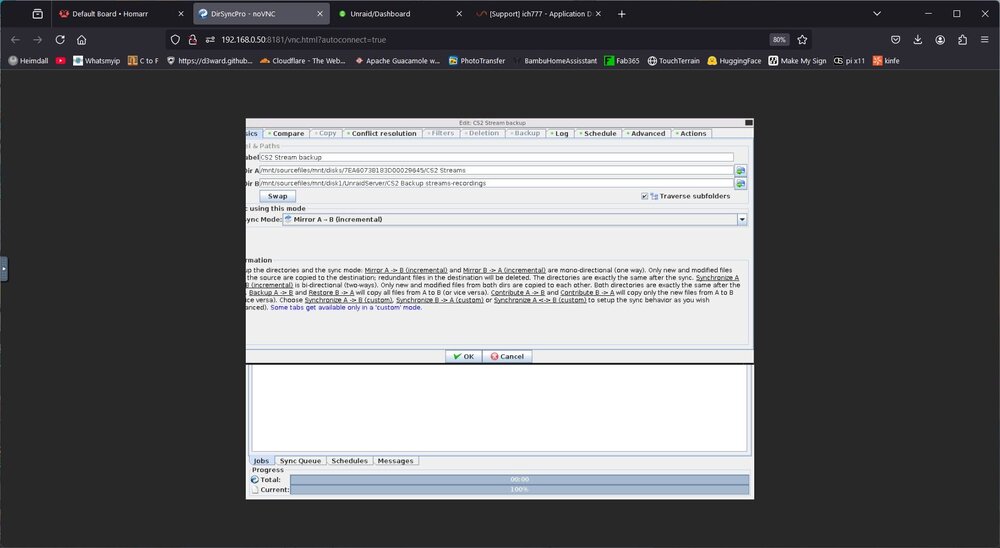
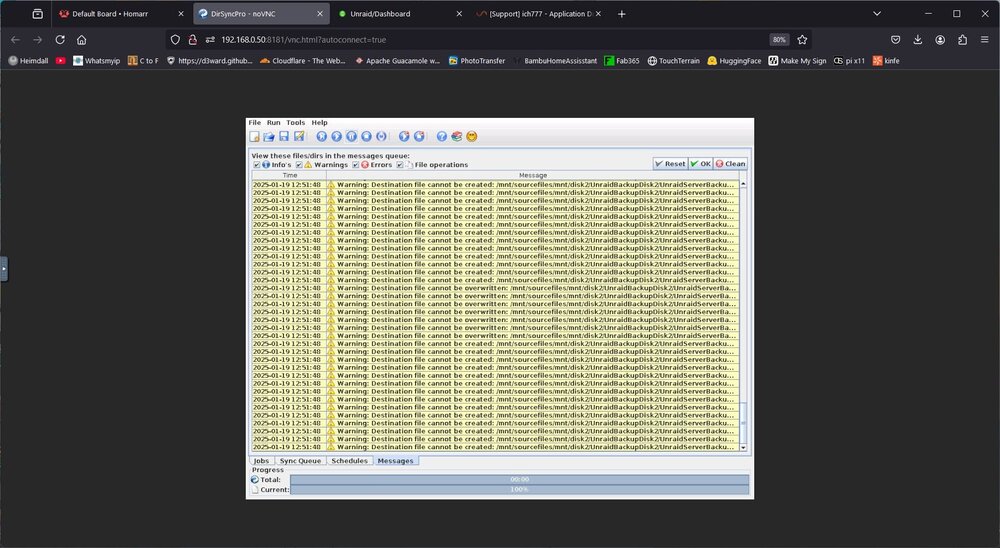
Heres some pics of dir configs and error messages
-
Any other ideas on things I could try?
-
I just noticed using the file browser in unraid that the 'remotes' permissions for the smb shares are set to nobody EDIT: copied folder back n forth, to and from shares using Krusader
-
Sure, I think that was one of the first things I tried. I even created a new 'test job' to back up my CS2 game streams and I get the same error. In fact, I get that same error no matter which job I try to sync.
-
I have not, I've done that with other containers when the 'fix common problems' plugin would flag it. Not sure how to do it with DSP. The shares are SMB shares 'mounted' using the UD plugin, then I created jobs to backup files/folders from 1 drive to other drives across my network
-
I just created a new test job, browsed each folder path thru the window in dsp and when I went to run it, got that same error, these paths have worked for a year, I have different jobs for different disks, and I like to record and backup my CS2 sessions.
-
Everything appears like it should, but there are warnings under the 'messages' tab in dirsyncpro, destination file can not be overwritten/created. I never had to do the r/w slave config for dirsyncpro. EDIT: the problem appears to be with the paths of the folders in the jobs I created.
-
No errors in logs One suspect line in logs tho: Local mounting is selected, please mount your local path to the container---
-
Thanks for your reply, I'll look into that later when I get home from work EDIT: tapped into PC at home, and near as I can tell SMB seems to work fine, shares show up, can browse all my shares, and my shares appear under the SMB shares and I can browse them thru unraid under the file manager tab, I'm at a loss lol
-
Hello, I just upgraded to unraid 7 and the dirsyncpro doesn't copy my SMB shares from my main PC out on my various network disks. It will analyze them, but when I hit the sync button nothing happens.


