





J-Cali
Members
-
Joined
-
Last visited
Everything posted by J-Cali
-
You rock! Thank you so much. Idk why I didn't think of that. I was trying to connect via the web IP.
-
ich777, First and foremost, thank you for creating all the containers that you have, I'm using the rust one now and besides one little hiccup it was super easy to set up and is working flawlessly. I'm running into an issue with my rcon port. I have the port open in my router for 28017 and I've specified it in my game parameters. The start up logs looks like it's working too. When I try to connect though on http://rcon.io/ I get an error. Here are a few screenshots for the game parameters and the start up log. Any ideas?
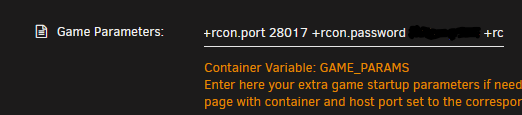
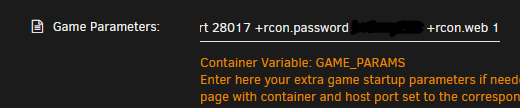



-
As a last resort I installed Tailscale to my server and was able to connect that way for anyone else having this problem. No idea how to fix the local network issue though. Thank you Frank for all your help.
-
Ok tried that and it does nothing it just says, "PING 192.168.1.216 56(84) bytes of data." but then it doesn't do anything further. The terminal is the unresponsive like it's frozen. If I exit the terminal then re-open and try to ping another random address like 192.168.127, it says destination host unreachable.
-
Ok both PCs can ping each other. I appreciate your help troubleshooting this too. Seems like this is an odd ball issue for sure.
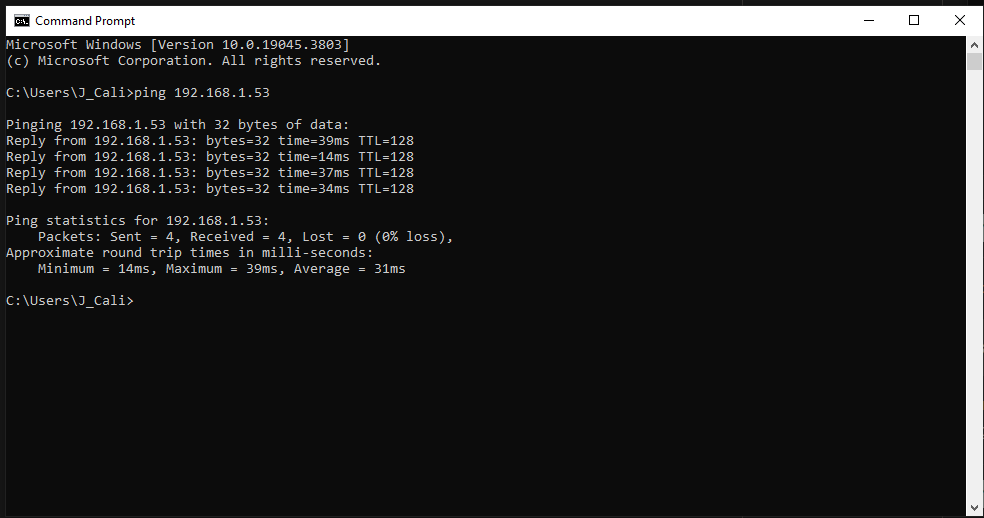
-
I double checked the network settings, but still the same thing. I couldn't agree more, this update stinks. I was up and running fine for months before this. I tried to ping it as well and it wouldn't go through. Same thing if I try to ping from the server to the windows 10 pro machine that isn't working.
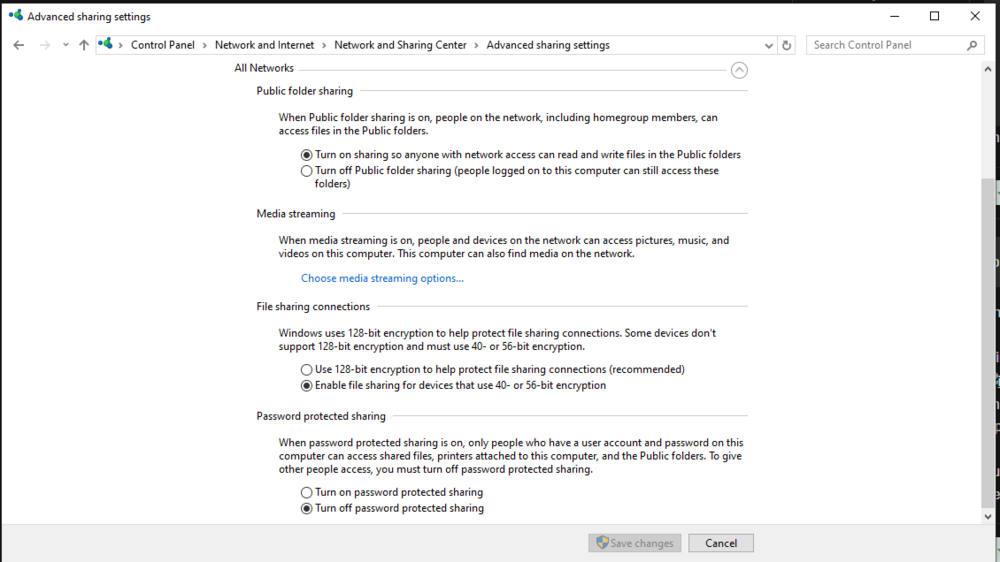
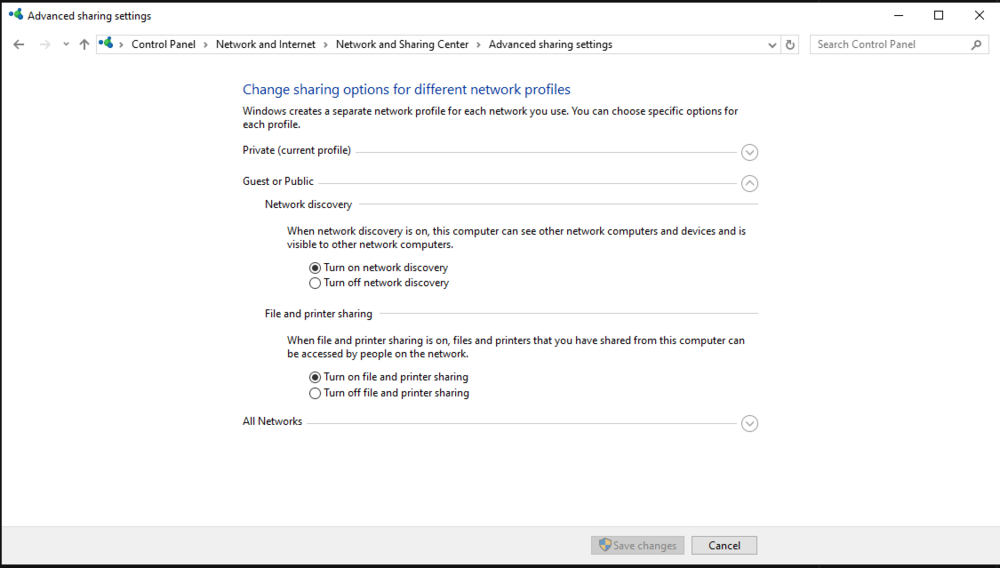
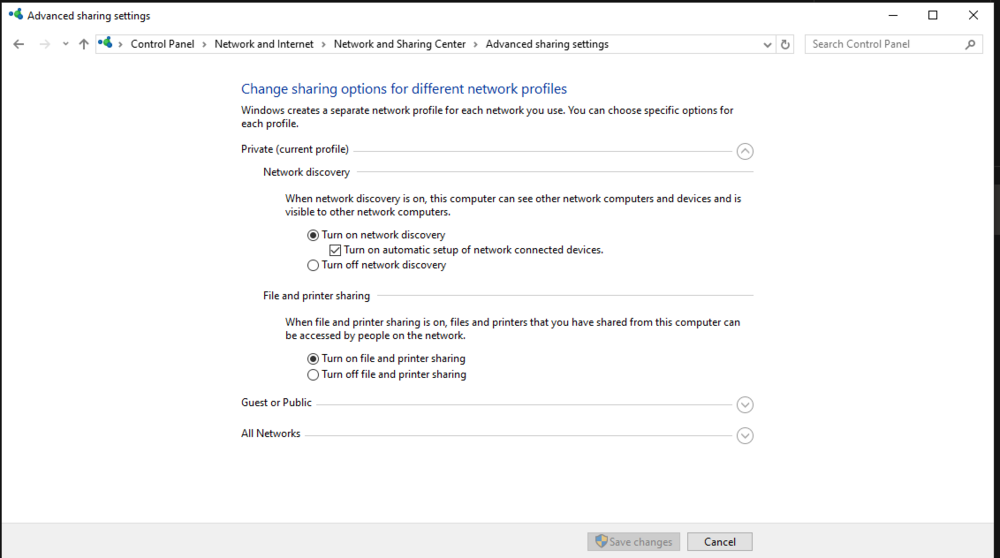
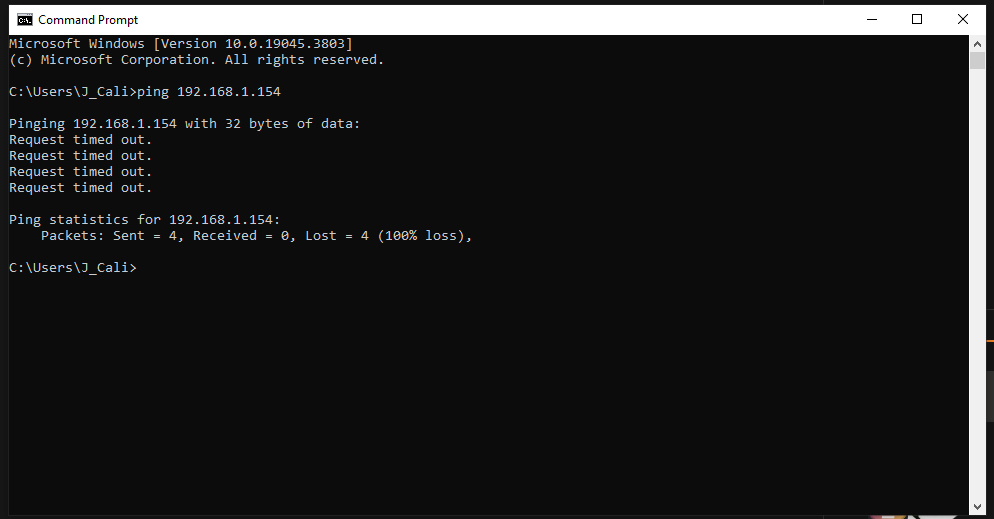
-
The IP for the windows 10 pro machine that won't connect is 192.168.1.216
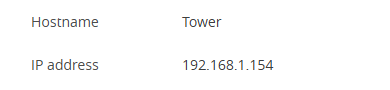

-
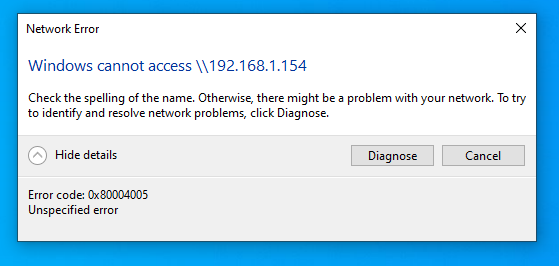
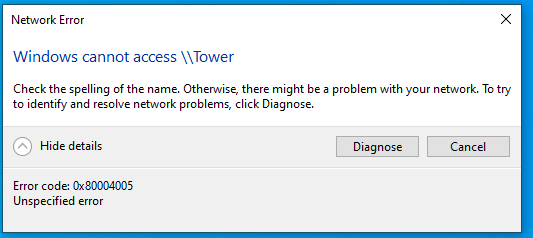
Ok currently running windows 10 Pro. Here is both the server IP from my router for the server(matches what my server says in my docker containers under Lan IP:Port, and what I can use on the other machines to connect) and the IP for my windows 10 pro machine that won't connect. Before I could see the server under my network tab as "Tower", but now it's gone completely. What is weird is that it the server appears in my network tab for my other windows 10 home machine.
-
Update: tried downgrading the os from Windows 11 to 10 and still can't see the server on my local network or my shares.
-
Here you go
-
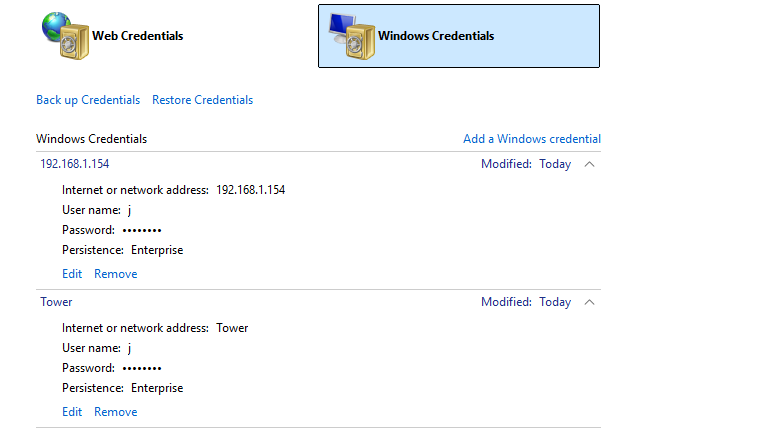
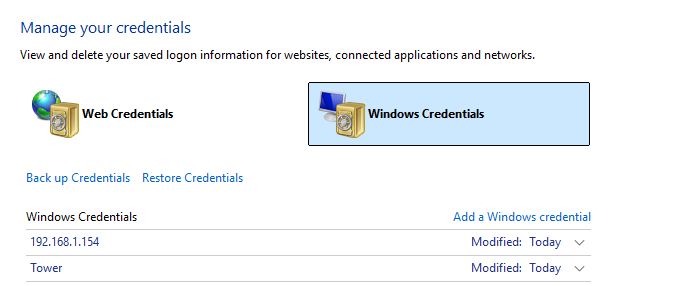
Yes, the share is set to public, but it's not showing up under the network tab. No luck with the gui either. Here's a screenshot of the windows credentials too. Not sure what I'm missing.
-
Just added a user and entered the user info to windows credentials, but still nothing is showing up.
-
Two days ago I lost all access to my server's local network gui and share for my windows 11 machine. No changes to either the server or windows 11 machine were made prior to the loss. The server is working fine, and I can access it from both a windows 10 machine and my cell phone when connected to my local network. I can't ping the server from the windows 11 machine or from the server side either. So far I've tried the following: Fresh windows 11 install Confirmed both machines are on the same network Tried connecting with both http:// followed by the local IP address and also Tower.local Confirmed my wifi is set to private network I have tired to turn off the network firewall for private and domain networks Confirmed Advanced Network Setting is on for private networks I have followed a guide to disable SMB signing as well. At this point I am at a loss. Any help anyone can offer would be greatly appreciated. Thank you!



