Ezzy91
Members
-
Joined
-
Last visited
-
I'm also having the same issue, there's nothing in the logs to suggest why, i've just set up an uptime robot also to see when it goes down also
-
Just the one worker, i had it pinned to 2 cores and the file took about 30 mins, pinned 6 to and it took 10 mins (file was about 3.2GB) end result was ~600mb with GPU and about 400mb with CPU (about 2.5 Hrs) in saying that i noticed my power draw is down and the overall usage on cores is down to about 60% on 6 cores (cpu only gets 80-100%)
-
@Josh.5 love your work! i've had the previous build dunning almost 24/7 with no issues on CPU. As soon as i saw you updated to add hardware encoding i installed straight away. There is a huge drop in times using 1050TI my only question is its still fairly CPU intensive. I've noticed the more cores I pin the faster it encodes - its not a huge deal just with plex i barley see a CPU spike an will have 3 tanscodes running on the GPU.
-
Thanks, I did a force update just to make sure. webUI says Version - 0.0.1-beta3
-
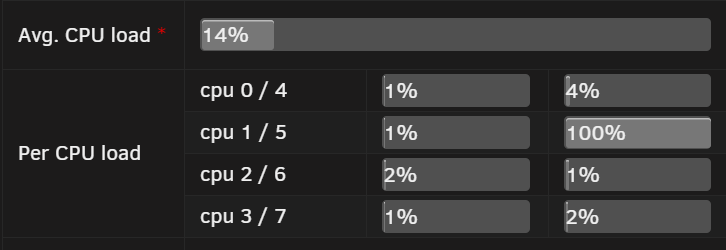
This is an awesome app! i've been waiting for some time for something like this. Does anyone else get 100% CPU usage on 1 core when its idle? For Testing i've allocated everything to run on 0/4 so there is nothing on the others and unmanic has 1/5,2/6,3/7 - it jumps around which core its using