





Niallain
Members
-
Joined
-
Last visited
-
Wouldn't recommend this. Causes spikes in the download speed as it unpacks during the download. Ends up taking longer overall instead of download then unpack.
-
Guess I'm just being picky then. Thanks, not sure why I thought it was always quicker to unpack...
-
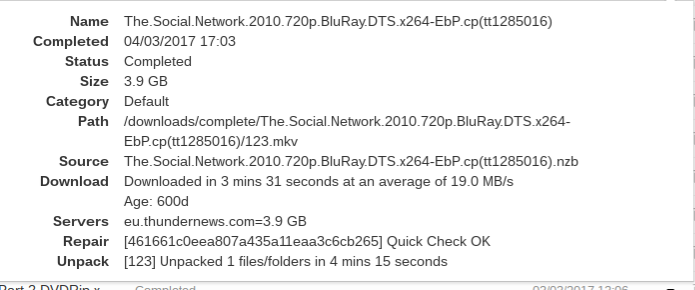
Sorry, was using 2 different examples File 1 - 4.7GB Downloaded in 1min 57 seconds at avg of 41.0MB/s No repair, unpacked in 1min 20seconds. File 2 - 46.6GB Downloaded in 20min 30 seconds at avg of 38.8MB/s 2x verify at 2min 10sec each Repair in 2min 6sec Unpack in 16min 59sec
-
I'll test this tonight. Unless I'm getting sensitive due to the fast download I now have... File from last week - 4.7GB Downloaded in 1min 57 seconds at avg of 41.0MB/s No repair, unpacked in 1min 20seconds. Surely I'd expect faster on an SSD? I've just enabled the "direct unpack" parameter in sab and will see if this makes a difference.
-
Digging this up again as I'm still experiencing this issue. Installed Dynamix SSD trim as suggested, saw some brief improvements but a recent example took 17 minutes to unpack 46GB. Can anyone offer any further suggestions for improvement?
-
How would I go about finding that? (Sorry, bit of a noob)
-
Files are taking a long time to unpack? SAB is installed on the SSD and the incomplete/complete download folders are also located on the SSD. Any possible way of speeding this up? Attached image for reference.
-
Thanks, that's got it working.
-
Getting the below error when trying to process downloaded episodes 17-2-24 20:08:51.7|Error|DownloadedEpisodesImportService|Import failed, path does not exist or is not accessible by Sonarr: /downloads/complete/Futurama.S06E12.1080p.BluRay.x264-WAVEY 17-2-24 20:08:51.7|Error|DownloadedEpisodesImportService|Import failed, path does not exist or is not accessible by Sonarr: /downloads/complete/Futurama.S06E11.1080p.BluRay.x264-WAVEY Image of mapping attached Where am I going wrong?

-
My bad, didn't open the port on my router. Fixed now.
-
Command: root@localhost:# /usr/local/emhttp/plugins/dynamix.docker.manager/scripts/docker create --name="letsencrypt"
-
Trying to get this setup but the container stops as soon as it is started. I'm seeing the below in syslog. Anyone have any ideas? Feb 21 20:10:13 Perks-NAS kernel: docker0: port 1(veth847b694) entered blocking state Feb 21 20:10:13 Perks-NAS kernel: docker0: port 1(veth847b694) entered disabled state Feb 21 20:10:13 Perks-NAS kernel: device veth847b694 entered promiscuous mode Feb 21 20:10:13 Perks-NAS kernel: docker0: port 1(veth847b694) entered blocking state Feb 21 20:10:13 Perks-NAS kernel: docker0: port 1(veth847b694) entered forwarding state Feb 21 20:10:13 Perks-NAS kernel: docker0: port 1(veth847b694) entered disabled state Feb 21 20:10:14 Perks-NAS kernel: eth0: renamed from veth5c8720b Feb 21 20:10:14 Perks-NAS kernel: docker0: port 1(veth847b694) entered blocking state Feb 21 20:10:14 Perks-NAS kernel: docker0: port 1(veth847b694) entered forwarding state
