





Kuusou
Members
-
Joined
-
Last visited
Everything posted by Kuusou
-
I'm setting up a new container, but the default account doesn't work. Is there a reason for this, or was it changed?
-
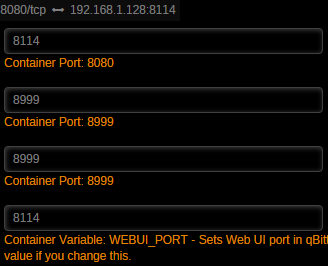
Woops, didn't realize what logs were which. It seems your update fixed the white screen for me though. My issue now is that changing the two given webui ports to the port I want seems to keep the 8080 port involvement, and then not let me access the webui anymore. If I just use 8080 it works fine. is there something else I need to edit here that I cant see? qbittorrent.log Edit: I was reading up on the other qBittorrent dockers and they seem to have the same issue. It might be a limitation of some kind. Let me know if you work around it. I'd love to change the port. Edit2: I'm unable to tunnel Radarr and Sonarr through the docker to use as a.. proxy.. for my proxy.., which I currently do with my other torrent client. Is there a workaround for this, or something I need to enable/do differently? Or would you simply recommend doing it a different way if I'd like to utilize this container from now on? Also I wanted to thank you for creating, working on, and updating/fixing this container. I had been waiting for someone to do so for a while, and even looked into options for doing it myself, but have little experience with dockers in unraid, so having a ready, or mostly ready option is just beautiful.
-
+1 I'm currently utilizing the Krusader docker , as well as CA Config Editor for this task and would really love a built in file manager/editor with permissions available.
-
I attached the log for you. Thanks for the quick help. qBittLog.txt
-
I'd really like to use qBittorrent over Deluge, but I'm having a bunch of trouble with this docker. My initial issue was: Options error: Unrecognized option or missing or extra parameter(s) in [CMD-LINE]:1: config (2.4.4) Which I fixed by just taking the spaces out of the .ovpn file. Good to know for future reference I guess. Sadly after that frustration was over, the docker loads, with only warnings about the way passwords are being stored, but the Web UI won't work. Currently it's just a blank page no matter how I attempt to access it. Typing it in, bookmarking it, or attempting to use the "webui" function in Unraid, which I figured I'd give a shot since.. whatever. Either way it spits out the same blank page. The docker also still seems to input/output on 8080, even though I've changed it to 8114: -A INPUT -i eth0 -p tcp -m tcp --dport 8080 -j ACCEPT -A INPUT -i eth0 -p tcp -m tcp --sport 8080 -j ACCEPT -A OUTPUT -o eth0 -p tcp -m tcp --dport 8080 -j ACCEPT -A OUTPUT -o eth0 -p tcp -m tcp --sport 8080 -j ACCEPT I thought maybe the port was locked in another docker setting, so I stopped the docker using 8080, reloaded qBittorrent 8080 as its set port, but again, just a white page. ... As a side question, I wanted to ask if there was any interest or plans to change the docker to act more like binhex's where all of the VPN settings are done within the container setup, instead of afterwards? Not exactly important, but something I personally like about his dockers, and would like to see. And are there issues stemming from this webui situation that make this docker incompatible with Sonarr/Radarr, etc? I'd hate to fuss with this thing so much, finally get it working, and then find out I can't link anything to it.
