





nasforthemass
Members
-
Joined
-
Last visited
-
I still haven't found a solution that allows the drives to spin down while still being accessible. Still hoping someone has an answer for this. Is the answer that these drives need to be in separate pools outside of the main Array and outside of Unassigned Disks? in case someone else is on the same boat as me, I am temporarily solving this issue by not letting the drives spin-down and having them pinged intermittently via a user script that runs every 5 mins: User script created with some vibe coding assistance, click to view script
-
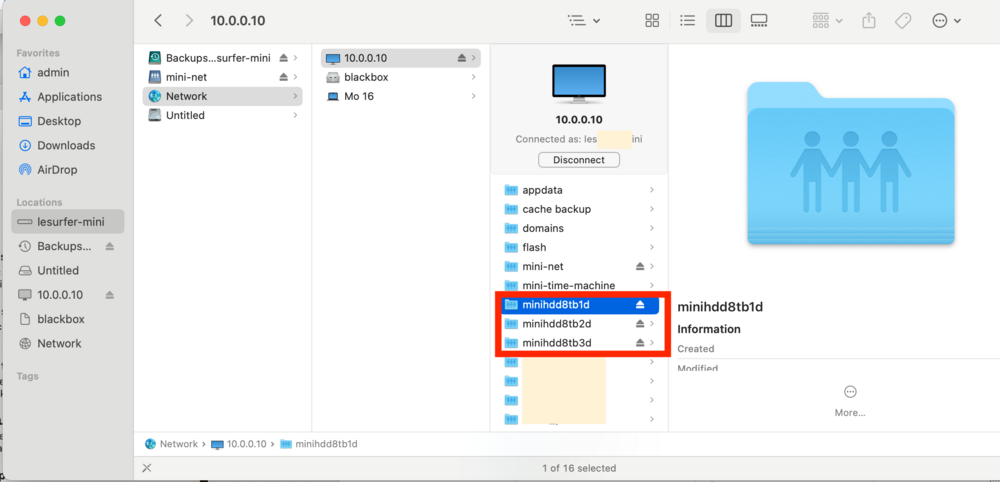
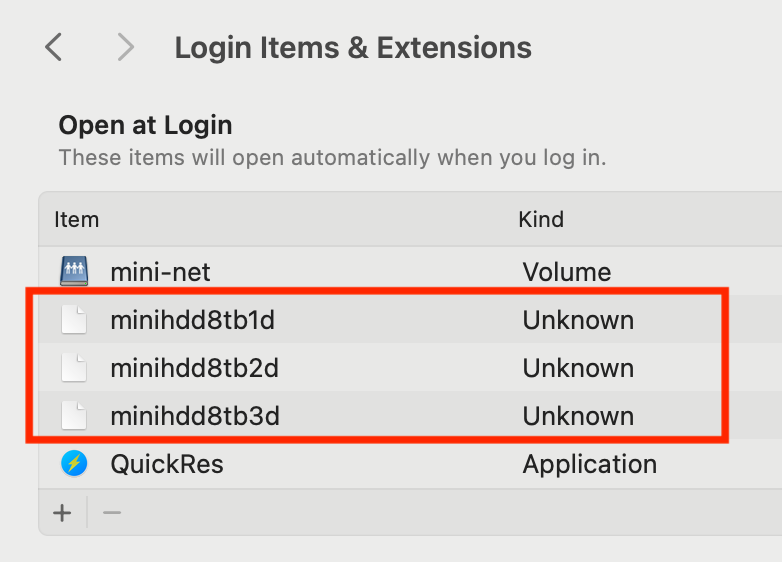
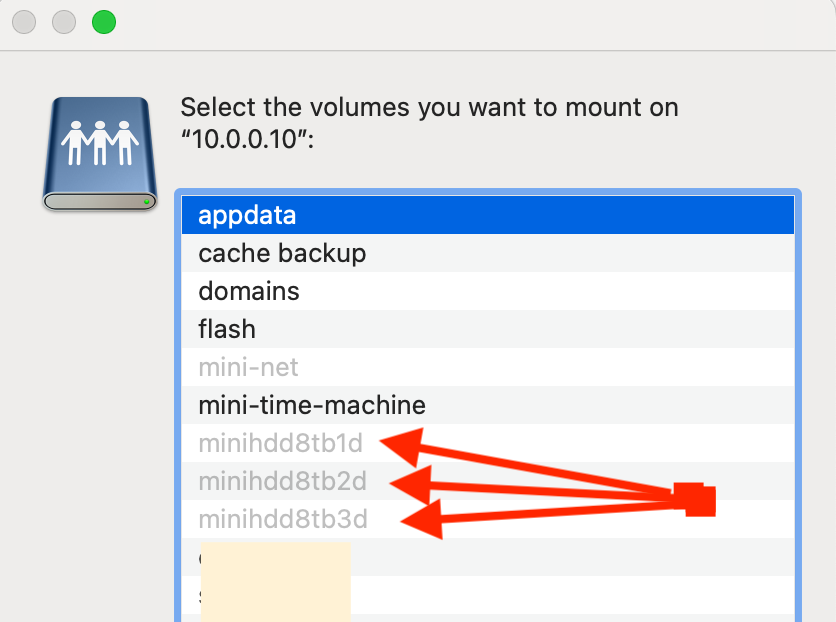
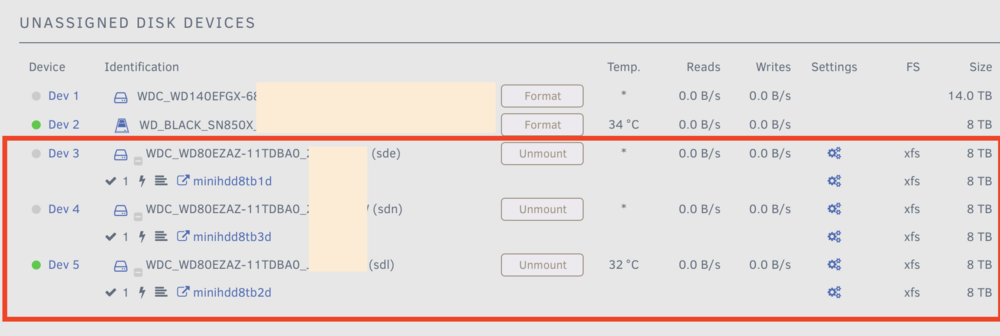
Hi everyone, I have been trying to troubleshoot this issue for 2 weeks and have not been able to find a forum page that describes the same issue: My Mac Mini is connected to my UNRAID NAS via a 10G direct connect with its own subnetwork/IP. The Direct Connection is not an issue for any of my volumes on the Array and Cache / Pool drives. -> X550 NIC on NAS - Unraid 7.1.4 - UD plugin up-to-date -> Mac Mini - OS 15.7.2 (2018, max specs, last intel model, built in 10G port) THE PROBLEM: I have 3x drives (outside the array) in Unassigned Disk Devices, each with their own volume. They mount perfectly during every boot up of the Mac Mini, but when those drives spin down in Unassigned Devices, the volumes disappear from the desktop (as an active folder that I can open). When I attempt to remount them, the "connect to server" window has the volumes greyed out (as if they were mounted). When I try to browse them via the server location in finder windows, the volumes appear to be mounted but do not display the internal content. Even when the drives spin up again, the Mac Mini cannot see into the volume. Ideally, I would like the volumes to not unmount/dissappear from finder, just like the other volumes from the Array and Pool. I am attaching some screenshots. As you can see: "mini-net" volume has no issues (part of the Pool Devices) "minihdd8tb1d", "minihdd8tb2d", "minihdd8tb3d" are volumes from the Unassigned Disk Devices. I thank you in advance!
-
Yes and YES. The K-CPU is normally easier to buy, nearly the same price as the regular and T variant, holds more resale value later on, can be unleashed to full power if you need that for a day, week or month, or very simply limited in the bios. ALSO, the K-CPUs are generally considered high quality since they are "certified" to be unlocked. AND YES, power and HEAT are reduced! the idle power ends up being within 1-2% of each other, depending on the core count. The "Brick under the gas pedal" is a great analogy of the "artificial limit". The most important thing to reach ULTRA LOW idle consumption is C-state and ASPM combination. this is achieved though specific parts, OS and motherboard slots. (ex: an HBA in a secondary pcie vs the primary-cpu pcie slot) Here is a quick summary from someone regarding low power goals on K CPUs: "... can idle as low as other Intel CPUs from that product line. Problem with this CPU is the middle/top power consumption when CPU boosts really high to finish its tasks. To keep K-SKU CPU under control so it could serve in low power (kinda) servers, then you must have a motherboard that supports overclocking options, but do everything backwards So set up lower PL1/PL2 limits, lower the multiplier for base frequency, do some undervolting (be careful with it, sometimes it's better to leave it alone). You will basically make your CPU into lower tier CPU that could still turbo pretty high on 1-2 cores inside the lowered power limits. To further lower the power consumption you can turn off hyperthreading and turbo above basic frequency Of course you need all of the other power saving features like active C-states, ASPM L1 support, SATA ALPM support etc. Your OS must be able to work in power saving mode and BIOS on the motherboard must be bug-free to be able to negotiate power saving mode with connected devices (and those devices must support ASPM L1)."
-
It's normally best to get a K version. The T and non-K CPUs are "artificially" limited, but the same limits can be created with the regular K chips. (bios limit pl1 pl2 options) The power consumption during idle is pretty much the same for 245k, 265k and 285k. this is because the "idle power" is normally determined by the generation technology/efficiency. The idle power difference is so minimal between the 3, that it is a "margin of tolerance" between the products. Personally, I bought the 265k because it was $299 at micro center. -->> a no-brain decision vs the price of the 245k. And when the budget permits, I'll grab a X14SAE-F as well. but my initial upgrade budget could not fit the Supermicro motherboard. I'm happy to hear that it fit's yours!
-
heihei! everything i wrote in the previous message is for enterprise components. if you want to stick to something smaller and more simple, you can use the consumer LGA 1700 CPU. Pros - It can do ECC, it is very power efficient, you can buy the items easily with European warranty, option for INTEGRATED GRAPHICS, high clock speed Mhz, modern and simple. Cons - very limited PCIE lanes, not many ECC motherboards available, ddr5 ecc is expensive. EXAMPLE: Pick any CPU you like, i recommend a "K" version, so that you have integrated graphics and unlocked Mhz. Motherboards - There are 3 main competitors in this space: see which one you like and is priced fairly for norway. Supermicro X13SAE (no ipmi) - https://www.supermicro.com/en/products/motherboard/x13sae Supermicro X13SAE-F (with ipmi) - https://www.supermicro.com/en/products/motherboard/x13sae-f Asus Pro WS W680-ACE (different versions available with ipmi) - https://www.asus.com/us/motherboards-components/motherboards/workstation/pro-ws-w680-ace/
-
hei! Norwegian electricity costs are fairly modest. so power efficiency is not as dramatic. (Also, you did not have one comment regarding electricity) In the US, his $750 price would be CRAZY expensive, but I cannot compare it to your local options. what I do know, is that the next generation of CPU and sockets (lga3647) would still be half the price and the RAM is very cheap for DDR4 ECC. examples: Motherboard and 2x CPU included - https://www.ebay.com/itm/195740136904 RAM - https://www.ebay.com/p/21033795743 ^^ This setup with 4x 32GB RAM would cost $450 (without shipping). Here is the specs for the motherboard - https://www.supermicro.com/en/products/motherboard/x11dph-t Important notes: 2x M.2, 2x 10Gbe, 10x native Sata ports, E-ATX size is big, but should fit in the Jonesboro N5.. The nice part is that the LGA 3647 CPUs are 1st generation, so you could buy different ones that have a faster MHz (clock speed) or wait and buy the 2nd generation when they become cheaper on eBay. You want XEON Silver, Gold, Platinum... not bronze Comparison of your friends setup with this sample - https://www.cpubenchmark.net/compare/2830vs3095vs2830.2vs3095.2/ 1st generation of LGA 3647 - https://en.wikipedia.org/wiki/Skylake_(microarchitecture)#Skylake-SP_(14_nm)_Scalable_Performance 2nd generation of LGA 3647 - https://en.wikipedia.org/wiki/Cascade_Lake#Cascade_Lake-SP_(Scalable_Performance)
-
this is the hardest part.. a country helps us pinpoint your best options. i'm guessing german language because you wrote "st." for quantity. $1000 USD is more than enough, without drives included. The biggest factor is whether you want all new components or if you are ok with used/refurbished. In North America and Europe, a large amount of people go with used enterprise hardware. Here's a basic summary within your $1000 budget: -New hardware would mostly be consumer grade CPU and Motherboard. Good news, they are very energy efficient at low idle usage and are easy to purchase. Bad news, they are not as flexible when it comes to expansions, because all consumer CPU have a very limited amount of PCIE lanes/slots. -Used Enterprise hardware is either datacenter items or professional workstations. Good news, they are very stable, meant to run 24/7, normally have cool features like IPMI, HUGE amount of PCIE lies/slots, wide range of products and solutions. Bad news, lots of options to choose from, less efficient idle power consumption, integrated graphics is not common. (gpu in the cpu) built to last much longer than consumer. (my setup is 11 years old) The supermicro setup that your friend has is awesome and a great start! but at what price? Good news, unraid will have no problem with that hardware, it has lots of pcie expansion options, motherboard can be used with 1x CPU to save power (30watts) by disabling some of the PCIE slots, it has ipmi, V4 is the latest CPU generation for that board. USED RAM for this is relatively cheap. LOTS of CPU cores to divide the work and create VMS. Bad news, that setup is like the "finale" for that CPU generation, (the next cpu is "LGA 3647" and needs new motherboards). ALL PCIE is 3.0, which is fine for most people since you have a separate gaming computer. Expect a good amount of heat from that setup. no integrated graphics, so you should consider a cheap used nvidia gt 710 for quick access, diagnostics or VM machines. no modern m.2/u.2 connections, so you'll need to use PCIE adapter cards.
-
you want to start using intel QSV (quicksync). GREAT! There are a few ways to approach this, but I many things depend on budget. -your cheapest option would be to keep your setup and buy a a310 intel ARC gpu. all the transcoding power you'd need, low power (slot powered). these have become pretty impossible to find NEW in recent weeks, but the next "size-up" is the a380, but needs a power connection. -many people shift their setup, using a second computer to run plex via linux, that pulls the files from your (current) NAS. low power mini-pc or used 10thgen or newer dell/hp off from eBay. -you can go into premium motherboards for the LGA 1700 CPUs. a very popular example is the Supermicro X13SAE or X13SAE-F (-f is for ipmi). currently around $400-475 new on eBay. it has 2x x8 pcie and 1x x4 pcie. https://www.supermicro.com/en/products/motherboard/x13sae-f https://www.servethehome.com/supermicro-x13sae-f-intel-w680-motherboard-mini-review/ (power consumption on page 3) REGARDING the HBA speed and connection: LSI 9305-16i cards can run just fine on a pcie 3.0 x4 slot. the overall bandwidth is halved, but the ONLY time you would need all drives @ max speed is during the Parity check. example: 10 people watch plex from 10 different files on 10 different drives. AND file reading during plex is very "slow" speed requirements from your disks. Just to help you with approx numbers: The x4 would be fine for up to 13-14 or so at 250MB each. DO NOT consider and x1 slot for your LSI card.... There are other LGA 1700 boards that have more "balanced" pcie lanes in consumer boards. this asus board has an x16 and TWO x4 slots: https://www.microcenter.com/product/653703/asus-z790-e-rog-strix-gaming-wifi-intel-lga-1700-atx-motherboard?ob=1
-
Your setup is already really decent, considering it's on a modern consumer board. I see you've had some rough time with your hardware recently, so I have to ask: Are you sure your iGPU doesn't work? (it could be a configuration issue in unraid) The i7-13700K comes with an iGPU and you can assign it to a VM or docker. There are many written guides on that. The other point you asked is about power. If your server is in idle, the intel 12 gen and newer CPUs are very efficient during that low power mode. In fact, the 12-14 gen Intel CPUs all "mostly" all idle within a few watts of each other. (looking for link to data now)
-
There are SOOOO many options. Can you clarify a bit more on your options? You want ECC and 2x NVME But lots of other factors would narrow down the search: -INTEL vs AMD -Which CPU generation (which socket) -Motherboard Form Factor (E-ATX, ATX, mATX, etc..) -Is 1 gig ethernet ok? or do you need more -How many PCIE slots do you need -Whats your budget and country -Are you comfortable with used parts from a good reseller/company All of this makes it much easier for everyone to help
-
I love all the work and info everyone brought to this thread. I couldn't find the exact solution i wanted in the N/U series, so I ended up with an Alder lake setup. But I hope the info keeps coming for others that might need it. edit: I mistook a motherboard as unique, was just a reseller. https://www.amazon.com/Motherboard-IntelI226-V-Firewall-Mainboard-N305/dp/B0D9HDCSY7/
-
PLEX (linuxserver's Repository) I recently went through the OS upgrade of 6.9.2 -> 6.10.3. Everything smooth except PLEX, again. All libraries showed up but playback was not working on almost every file. I noticed that it seemed to be because of the transcoding progress. "Plex UI" would sometimes say " Could not Transcode". Docker Log contained multiple errors after attempting to play items, but there was an error that displayed in the log just when starting the docker "Critical: libusb_init failed". Looking at the log errors that happened when attempting to play media: Plex was having issues accessing certain media folders AND could only play certain files with different experiences between devices. Quick solution for MY Plex errors: I used "binhex-krusader" to look at the plex folders and saw that the "Transcode" folder (edit docker to find path) was R-x (read only). NOTE: the villain was the transcode folder that was inside the transcode path folder i created in plex. I edited the docker container and gave the "Transcode" field a new path / custom folder. When I launched Plex again and tried playing transcoded content, it worked! And in my new "Transcode folder path", there was now a folder just called "Transcode" that plex created with R-W-x permissions!
-
I didn't have time to find my spreadsheet, but creating something like this will help you with your homework of "create a build plan".
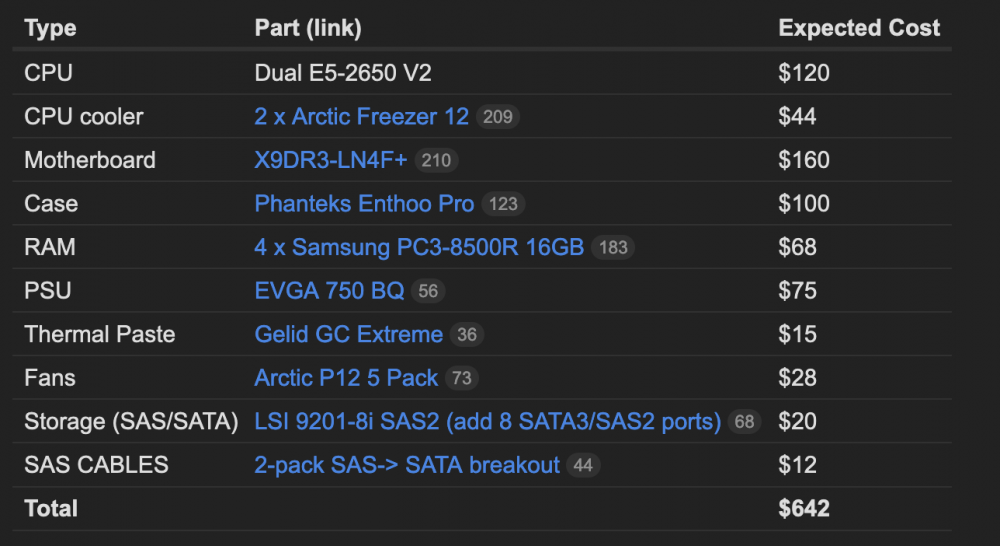
-
Well, I'm glad some of that info helped you out. And yes, there are many options and tricks to learn...but really, it's more important to understand your individual needs and how to execute them. There is a FANTASTIC youtube channel you need to follow/watch to expand your knowledge! https://www.youtube.com/channel/UCZDfnUn74N0WeAPvMqTOrtA/videos (this guy is a legend!!!!!) Regarding building your own setup: There is a builds section in this forum and there are specific forum areas just for hardware https://forums.unraid.net/forum/9-hardware/ https://forums.unraid.net/forum/15-motherboards-and-cpus/ https://forums.unraid.net/forum/33-storage-devices-and-controllers/ ^^this last one, "storage devices and controllers, will be pretty helpful for you regarding the HDD connections. If you would like a little info from a different source, I used this website/group a TON, because they are more interested in used datacenter and small office server parts vs new and off the shelf consumer parts. I know you have a decent starting budget, but the reason this is helpful, is because server parts are usually built to last longer, have more customizations and built for large scale setups. https://forums.serverbuilds.net/c/builds/18 https://forums.serverbuilds.net/t/guide-anniversary-2-0-starter-kit/1075/8 (lots of helpful info like this) Example: My motherboard can handle 14x Sata/Drive connections directly from the motherboard, no HBA/LSI card required. Here's your homework before buying your components: -Watch a ton of SpaceInvaders videos, especially the ones that sound a little more basic. you will learn many things even if its repetitive. -Have a "build plan". Watch the video below, 320TB video editing server. This is a real world scenario with a game plan. -Focus on your personal needs: how much space do you have, how many drives will you need to fit in the case, do you need to be energy efficient, do you need it to be super quiet, is heat an issue??? All of this will change the components you will use. -Will your UnRaid box be for storage only, or will you try and use the VMS and Docker functions? big difference in components. -RESEARCH your Motherboard/cpu combo!!!!!! this will be the limiting factor to your set-up scale/potential. Example: My current motherboard has 2x 10GB ethernet built-in, 14x sata connections, LOTS of ram upgradeability, Lots of PCIE lanes, etc.. (I wanted 10GB ethernet on-board, I wanted to avoid an LSI card so that I had more PCIE slots for GPUs and PCIE storage AND I wanted to be able to have lots of CPU options) PS: I think you will be fine with a 10GB ethernet connection. It doesn't sound like your use case will need more than that and 10GB = LESS HEAT than 40GB. (if you are doing big transfers from drives that already have info on them, you can add/mount those drives inside the server as a separate "unassigned device" and copy that data internally) i did this when i first setup my raid and needed to copy 4x 4TB HDDs into the UnRaid volume, vs connecting them from my computer and transferring them via 10G ethernet/SMB file share.
-
You got answers from 2 pretty experienced members. nice! maybe you'd like to hear some feedback from someone that was in your position not too long ago... Before i do, I would like to make sure your understanding and expectation of data read/write speed is on the same page of different raid set-ups and how your storage is connected/managed. I only say this because I run LARGE 80TB+ storages in both of the following setups. DAS is "direct attached storage". NAS is "network attached storage". It seams like you are trying to create a NAS that works as a DAS. BOTH a DAS and NAS can run a traditional raid set-up, but I am only aware of a NAS being able to run other methods of raids. The basic "storage" foundation of UnRaid (this OS) is as follows: you can have multiple HDDs of mixed capacity and speeds all work in unison, while still having 1 or 2 drives as Parity you can add more drives and substitute drives at any time, with minimal work a file is written entirely to one drive only, meaning that drive can be read individually without needing the other drives from your system you can create a faster drive pool/cache for higher speed volumes Let's pretend you only have 10x 18TB Seagate Exos in your UnRaid system and you choose 1x of those drives as parity. (we'll save the SSD's and cache for later) Your Raw storage is 180TB, but your Volume/Usable storage would be 162TB. (-1x 18TB drive used for parity) Imagine you had a folder called "Movies" with 999 files/folders in them, each one around 65GB. Although you would see the "Movies" Folder and everything in it like a traditional single HDD/SDD, the folder would actually be physically across all the drives without "splitting" the individual files; an easy hypothetical would be: 999 movie files split between 9 drives (because the parity doesn't store the useable date)... meaning each drive would have around 111 movies stored on it. Cool? Have we understood the basics of it? Let's say you want to transfer/read/copy one of those movies files: The main limiting speed will be the drive that it is stored on. Yes, a Seagate Exos can do upto 260MB/s, but that is only a portion of the HDD that can read/write that fast. In the real world, some parts of that same Seagate Exos will only get around 50-80MB/s. Different areas of a HDD have different read/write speeds (depending on how full it is). A good SSD on the other hand, can read/write almost the same speed on any part of the drive. Good practice for users new to UnRaid: Not all storage needs to be wicked fast! But even if you do want higher speed storage, UnRaid has other tricks up it's sleeve, like cache pools, being able to mix in SSDs, creating folders that only use the faster storage array and other folders being stored only on the "slower" HDD setup. Example from my setup: (Notice how there are 3 levels of speed/importance) I have 8x 8TB of HDDs. I store pictures, videos and back-ups on there. Especially older files that i don't need regularly. (ski vacation pictures from 8 years ago) I have an 4TB SSD that only has 1 folder in it and the data in that folder doesn't get split to the HDDs. This is where I keep recent pictures that i don't need on my laptop. I have a 800GB PCIE/NVME storage that is used as a write cache. If i transfer 50GB of new pictures and drone footage to my Unraid, this storage is the fastest at receiving it, and then transfers it to the SSD or HDD (depending what folder I choose) at a pace that suits it. If I were to transfer the 50GB of new files directly to the HDD volume, my transfer speed would be limited by the write speeds of my drives. (They're around 88% full, so its around 100MB/s UnRaid is awesome, but understanding it's core functions are pretty important when it comes to your expectations and usage. BUT you're right. there is a learning curve to being a confident user. there are lots of functions, settings and best-practices that will improve or make your server work best for you! If you build your own system, you will learn more about system bottlenecks (when one component is slowing everything else down) and solving this. PS, I built both my systems from used server parts one bay (from reliable vendors). the first system was great, i learned a lot. but i then built a second system because i saw the bottlenecks/limits of my first system and was more informed on how to build a more up to date one.




