





Holaf
Members
-
Joined
-
Last visited
Everything posted by Holaf
-
@FoxxMD sorry for the trouble 😅 My scripts are available here : https://github.com/grokuku/stable-diffusion but I think you got everything 👍
-
I'm working on it, slowly, but it's coming. I'm learning as I go so it's a bit longer than expected 😵💫
-
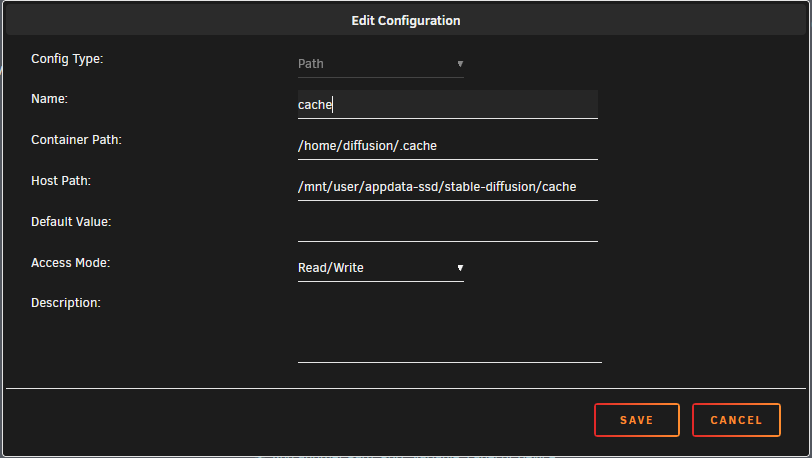
They changed the command name 😵 I will update that before tomorrow. I also changed the default cache path to a path that's mapped on unraid to prevent filling docker.img (it will no longer be necessary to add a path like I told you to do)
-
Perhaps it's the cache folder. With everything that is downloaded it could effectively grow a lot. You can add a path to store this outside of the image
-
Sorry I had a rough week and I didn't had time to patch all this (or to look to github) 😵 I'll do all that as soon as possible.
-
There is a small description on docker hub at the bottom of the page (https://hub.docker.com/r/holaflenain/stable-diffusion) Version 2.0.0 : Utilize Conda to manage dependencies efficiently. Prepared for Reactor in Auto1111, SD-Next, and ComfyUI. More common folders merged in the models folder. Split install scripts for easier maintenance. Implemented various fixes. For github I don't know how it works 😅 I'll take a look
-
Just pushed a big update, I tested as much as I could, but I'm sure I let some bugs go through ... Don't hesitate to report here
-
strange 🤔 I'm working on a new version, I hope to push it on dockerhub this week-end. It's a bit long to do because I'm modifying all scripts and I have to test multiple installations from scratch 😣 I hope it will work for you with this next update
-
Honestly, the way InvokeAI handles models/settings is still a bit of a mystery for me 😅
-
I tried to do a fresh install and invokeAI downloaded by itself controlnet models (it took some time after I could connect to the webUI) Perhaps you could try to remove or rename the actual invokeAI folder and try to install it again
-
@ados I tried a fresh installation of lama cleaner alone, and a fresh installation of lama cleaner with easy-diffusion already installed, and it worked in both cases 🤔 Can you stop your container, delete both folders "cache" and "50-lama-cleaner" and then relaunch your container ? I think it's your best chance to get it working 🤞
-
Thanks for the info, I'll take a look at this tomorrow.
-
I believe that the runtime comes with the nvidia driver, so for me it's a bug with the nvidia plugin or your server, but not with my container 🤷♂️
-
I have the same driver, so it should work 🤔 Can you try to uninstall/reinstall the plugin ? can you also check if the driver is running with the command "nvidia-smi" ?
-
Sorry I was busy lately, I will fix this asap edit : simple fix : ) You stop the container, go in the Fooocus folder and remove the venv directory. When you'll lrestart the container it will reinstall all the correct dependencies 👍
-
Nope, sorry. But you can look at /entry.sh It's this script that does everything (It can be a bit messy, I'm not used to do this kind of thing) For AMD GPU I didn't do anything mainly because I don't have one on my servers, so it will be hard for me to test.
-
I believe this is "normal" With comfyUI my container is using actually 35GB of RAM. I suspect that most of this ram is used by Python libraries. Most of the people using those tools are running them on their local computers and not on servers, so they'll restart them often. In any case I won't be able to do anything about this, unfortunately
-
Hello, It's now Fixed on the last version of my container (1.5.1) FYI, found the fix here : https://github.com/AUTOMATIC1111/stable-diffusion-webui/issues/12770
-
Glad to hear that it's working fine now
-
The easiest way is to edit the file 02-sd-webui/parameters.txt and add this parameter : --skip-torch-cuda-test I don't know if this extension will work, but at least the interface should launch edit: I did test it, and it works 👍
-
Like FriendlyFriend said, SDXL is just a model and can be used with at least ComfyUI, Automatic1111 (1.5+), SD-Next and Fooocus. I believe you can find tutorials on YouTube for each one. And if you're unsure of what to do, the easiest way to use SDXL is with Fooocus (interface 06). It only works with SDXL and you have nothing to do except writing prompts.
-
That was local network issue not related to the container However, I did update the container with the last install script for easy-diffusion. There are now six choices for image generation : 01-easy-diffusion 02-sd-webui 03-invokeai 04-SD-Next 05-comfy-ui 06-Fooocus and two other tools : 50-lama-cleaner (inpainting) 70-kohya (model training)
-
Can you try to remove the folder 01-easy-diffusion, update the container to the latest version, and run the installation again ?
-
You have a parameters.txt for each interface. For InvokeAI you can edit the file stable-diffusion\03-invokeai\parameters.txt and remove or comment the line that contains --max_loaded_models=2 I will fix this on my next update (hopefully this week-end)
-
With this amount of vram It will be hard to produce images larger than 512x512 (and even at this resolution I'm not sure it will work). some interfaces (easy-diffusion for instance) have an option for low memory GPU. you could try that. note that it will also use a lot of RAM (20GB to 25GB)



