





tungndtt
Members
-
Joined
-
Last visited
-
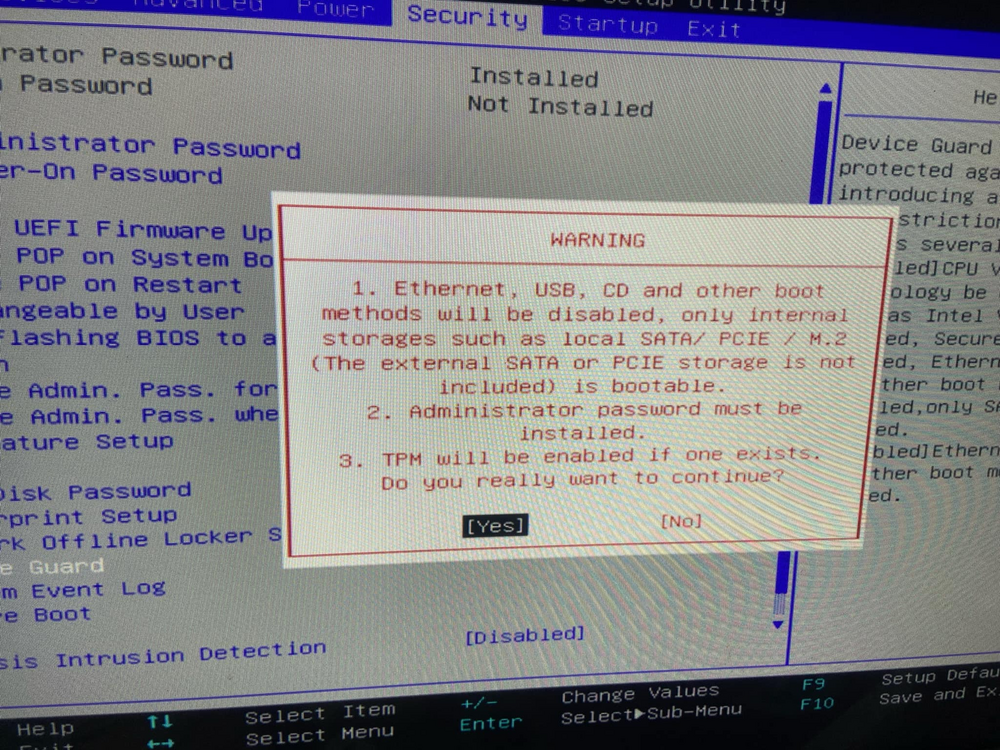
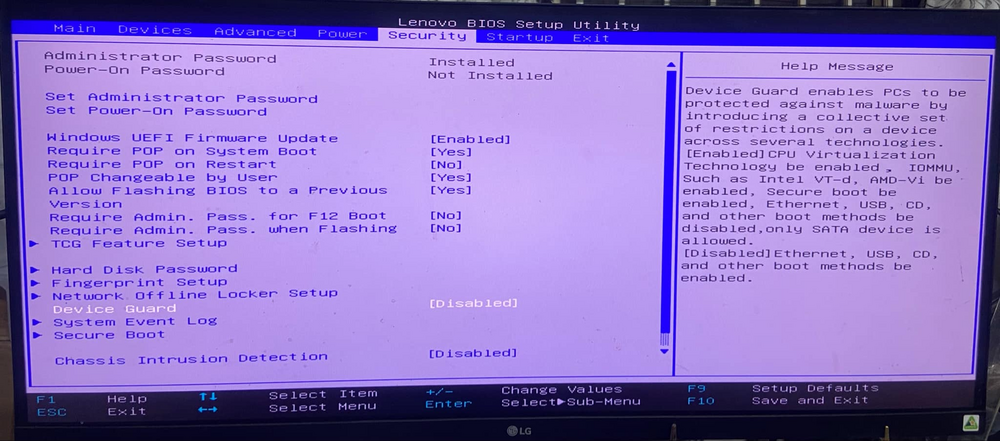
As screenshot, you can see on the right panel, enabling this Device Guard will make VT-d, IOMMU enable but Ethernet/USB boot disabled. You can see this Warning when I chose to enable it:
-
Hello all, I have moved from my old hardware (Z420) to a Lenovo P510. However I have found out that my plan to use a Windows VM as my machine has failed! After checking System devices I found that there's "No IOMMU Groups Available" In my P510 's Bios, there's an option to Enable Device Guard, but it will sacrifice the ability to boot from USB, which will reject the whole Unraid system to boot, as my photo below: Is there any workaround for this? The case has 4 SATA bays, and I did a small mod to turn its DVD bay into another 2 3.5 bays, while having my SSD hanging over, total of 7 drives and it consumes all SATA ports, so far I have only 10% of total storage space free so reducing a drive is not a choice for now. Even I have thought of a choice to buy a PCI to M2 card to add a M2 to boot, I don't know if Unraid support this booting device? If yes then how? (and so far I have just replaced my USB this year, dann!) Thank you and have a good day friends
-
Hello, Thanks for your script DZMM and guys here who discussed on issues. I managed to mount my google shared drive and have plex docker read from my mergerfs folder successfully. However I couldn't figure out why no file uploaded to drive. These are the environment and what involved: - I don't use sonarr radarr etc.. but use j2downloader (due to sources' language reason) - I don't encrypt files since I want to read it directly from google drive web whenever wherever. The procedure is, I have j2downloader downloads all files to a folder like: /mnt/user/downloads/j2downloader , then I move them manually to my mergerfs folder which is /mnt/user/mount_mergerfs/gdrive/Media/Movies (or /TV) (because I don't want the script to upload unsuccesful downloaded files, which might hang forever, to drive, so I do it manually after using tinyMediaManager to do the works Radarr/Sonarr do, also because they do it badly than I do manually) What I found in the upload script log file is: GNU nano 5.3 log.txt Script Starting Jun 16, 2022 00:20.01 Full logs for this script are available at /tmp/user.scripts/tmpScripts/rclone-upload/log.txt 16.06.2022 00:20:01 INFO: *** Rclone move selected. Files will be moved from /mnt/user/mount_rclone_local/gdrive for gdrive *** 16.06.2022 00:20:01 INFO: *** Starting rclone_upload script for gdrive *** 16.06.2022 00:20:01 INFO: Exiting as script already running. Script Finished Jun 16, 2022 00:20.01 Full logs for this script are available at /tmp/user.scripts/tmpScripts/rclone-upload/log.txt Script Starting Jun 16, 2022 00:30.01 Full logs for this script are available at /tmp/user.scripts/tmpScripts/rclone-upload/log.txt 16.06.2022 00:30:01 INFO: *** Rclone move selected. Files will be moved from /mnt/user/mount_rclone_local/gdrive for gdrive *** 16.06.2022 00:30:01 INFO: *** Starting rclone_upload script for gdrive *** 16.06.2022 00:30:01 INFO: Exiting as script already running. Script Finished Jun 16, 2022 00:30.01 and so on. Don't know how to track what was going on and while new files that I moved in don't get uploaded. Below is my mount (working) and upload script: #!/bin/bash ###################### #### Mount Script #### ###################### ## Version 0.96.9.3 ## ###################### ####### EDIT ONLY THESE SETTINGS ####### # INSTRUCTIONS # 1. Change the name of the rclone remote and shares to match your setup # 2. NOTE: enter RcloneRemoteName WITHOUT ':' # 3. Optional: include custom command and bind mount settings # 4. Optional: include extra folders in mergerfs mount # REQUIRED SETTINGS RcloneRemoteName="gdrive" # Name of rclone remote mount WITHOUT ':'. NOTE: Choose your encrypted remote for sensitive data RcloneMountShare="/mnt/user/mount_rclone" # where your rclone remote will be located without trailing slash e.g. /mnt/user/mount_rclone RcloneMountDirCacheTime="720h" # rclone dir cache time LocalFilesShare="/mnt/user/mount_rclone_local" # location of the local files and MountFolders you want to upload without trailing slash to rclone e.g. /mnt/user/local. Enter 'ignore' to disable RcloneCacheShare="/mnt/user0/mount_rclone" # location of rclone cache files without trailing slash e.g. /mnt/user0/mount_rclone RcloneCacheMaxSize="400G" # Maximum size of rclone cache RcloneCacheMaxAge="336h" # Maximum age of cache files MergerfsMountShare="/mnt/user/mount_mergerfs" # location without trailing slash e.g. /mnt/user/mount_mergerfs. Enter 'ignore' to disable DockerStart="plex" # list of dockers, separated by space, to start once mergerfs mount verified. Remember to disable AUTOSTART for dockers added in docker settings page MountFolders=\{"downloads/complete,downloads/intermediate,downloads/seeds,movies,tv"\} # comma separated list of folders to create within the mount # Note: Again - remember to NOT use ':' in your remote name above # OPTIONAL SETTINGS # Add extra paths to mergerfs mount in addition to LocalFilesShare LocalFilesShare2="ignore" # without trailing slash e.g. /mnt/user/other__remote_mount/or_other_local_folder. Enter 'ignore' to disable LocalFilesShare3="ignore" LocalFilesShare4="ignore" # Add extra commands or filters Command1="--rc" Command2="" Command3="" Command4="" Command5="" Command6="" Command7="" Command8="" CreateBindMount="N" # Y/N. Choose whether to bind traffic to a particular network adapter RCloneMountIP="192.168.1.252" # My unraid IP is 172.30.12.2 so I create another similar IP address NetworkAdapter="eth0" # choose your network adapter. eth0 recommended VirtualIPNumber="2" # creates eth0:x e.g. eth0:1. I create a unique virtual IP addresses for each mount & upload so I can monitor and traffic shape for each of them ####### END SETTINGS ####### #!/bin/bash ###################### ### Upload Script #### ###################### ### Version 0.95.5 ### ###################### ####### EDIT ONLY THESE SETTINGS ####### # INSTRUCTIONS # 1. Edit the settings below to match your setup # 2. NOTE: enter RcloneRemoteName WITHOUT ':' # 3. Optional: Add additional commands or filters # 4. Optional: Use bind mount settings for potential traffic shaping/monitoring # 5. Optional: Use service accounts in your upload remote # 6. Optional: Use backup directory for rclone sync jobs # REQUIRED SETTINGS RcloneCommand="move" # choose your rclone command e.g. move, copy, sync RcloneRemoteName="gdrive" # Name of rclone remote mount WITHOUT ':'. RcloneUploadRemoteName="gdrive" # If you have a second remote created for uploads put it here. Otherwise use the same remote as RcloneRemoteName. LocalFilesShare="/mnt/user/mount_rclone_local" # location of the local files without trailing slash you want to rclone to use RcloneMountShare="/mnt/user/mount_rclone" # where your rclone mount is located without trailing slash e.g. /mnt/user/mount_rclone MinimumAge="15m" # sync files suffix ms|s|m|h|d|w|M|y ModSort="ascending" # "ascending" oldest files first, "descending" newest files first # Note: Again - remember to NOT use ':' in your remote name above # Bandwidth limits: specify the desired bandwidth in kBytes/s, or use a suffix b|k|M|G. Or 'off' or '0' for unlimited. The script uses --drive-stop-on-upload-limit which stops the script if the 750GB/day limit is achieved, so you no longer have to slow 'trickle' your files all day if you don't want to e.g. could just do an unlimited job overnight. BWLimit1Time="01:00" BWLimit1="0" BWLimit2Time="08:00" BWLimit2="3M" BWLimit3Time="16:00" BWLimit3="3M" # OPTIONAL SETTINGS # Add name to upload job JobName="_daily_upload" # Adds custom string to end of checker file. Useful if you're running multiple jobs against the same remote. # Add extra commands or filters Command1="--exclude downloads/**" Command2="" Command3="" Command4="" Command5="" Command6="" Command7="" Command8="" # Bind the mount to an IP address CreateBindMount="N" # Y/N. Choose whether or not to bind traffic to a network adapter. RCloneMountIP="192.168.1.253" # Choose IP to bind upload to. NetworkAdapter="eth0" # choose your network adapter. eth0 recommended. VirtualIPNumber="1" # creates eth0:x e.g. eth0:1. # Use Service Accounts. Instructions: https://github.com/xyou365/AutoRclone UseServiceAccountUpload="N" # Y/N. Choose whether to use Service Accounts. ServiceAccountDirectory="/mnt/user/appdata/binhex-rclone/services_account" # Path to your Service Account's .json files. ServiceAccountFile="sa_gdrive_upload" # Enter characters before counter in your json files e.g. for sa_gdrive_upload1.json -->sa_gdrive_upload100.json, enter "sa_gdrive_upload". CountServiceAccounts="9" # Integer number of service accounts to use. # Is this a backup job BackupJob="N" # Y/N. Syncs or Copies files from LocalFilesLocation to BackupRemoteLocation, rather than moving from LocalFilesLocation/RcloneRemoteName BackupRemoteLocation="backup" # choose location on mount for deleted sync files BackupRemoteDeletedLocation="backup_deleted" # choose location on mount for deleted sync files BackupRetention="90d" # How long to keep deleted sync files suffix ms|s|m|h|d|w|M|y ####### END SETTINGS ####### In total, after reading mergerfs successfully, I want files that I moved into merferfs manually get uploaded to my shared drive. I used to have a baremetal server running Cloubox before with them working (plex reading from Google drive and a watch folder which will upload despite manuall or automatic all moved in files), however my ISP keep blocking port 80 so Cloudbox can't renew LetEnscrypt, I need to move to here but no success in uploading. Please help me figure out how to trace the issue and solve it. Thank you
-
That means I will let plex point its libraries to mergerfs instead of unionfs right?
-
Hello, Thank you for your works. It took me a week to go this far but it still not work for me. Now that I ran the script and I have my google drive files appeared in /user/mount_mergerfs/gdrive and /user/mount_rclone/gdrive , but I can't find /user/mount_unionfs anywhere. Please guide me what to do next?
-
I'm finding the solution for this too. If anyone has experience with this please share ;)

