PanicMechanic007
Members
-
Joined
Everything posted by PanicMechanic007
-
I looked at the code to see if I can optimise it further but it's already very optimised. I can only think of splitting the different sensor updates so that the user can specify the intervals for CPU, Temp, Disk, Network, UPS, etc Other option is you can look into whitelist / suppress the HA IP so that it doesn't show in the logs. https://github.com/domalab/ha-unraid/wiki/Troubleshooting#ssh-session-log-spam
-
Checkout the wiki too for more info and automation ideas https://github.com/domalab/ha-unraid/wiki
-
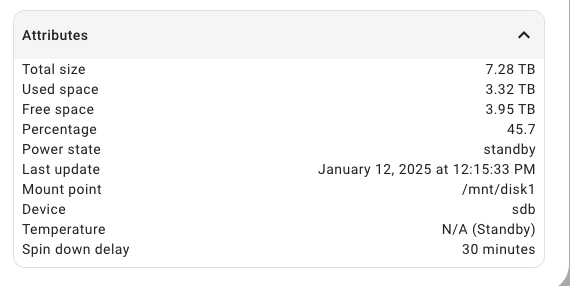
Yes you can, if your disks are on all the time then you should see the disk temperature attributes under disk usage and disk health sensors. In my case my disk spin down after 30 minutes of inactivity and temperature readings shows N/A (Standby) You can use the temperature attribute in your automation to trigger Fan or AC
-
Can you please log it as an issue? https://github.com/domalab/ha-unraid
-
Good to know. I'll investigate and try and fine tune the code to reduce it some more.
-
I noticed when you run /etc/rc.d/rc.libvirt status on version 6.12.x it doesn't return anything but when you run the same command on version 7.0 RC it returns libvirt daemon is currently running. Looks like issue with libvirt RC script on 6.12.x versions
-
Yes, it’s reading the SMART health from disks. I will be releasing an update soon with better SMART integration
-
Did you try to ssh to unraid from the HA VM using the HA Terminal add-on? Is your HA VM directly connected to same network as Unraid?
-
@John Graham Here’s the link to the repo. Install via HACS https://github.com/domalab/ha-unraid
-
I'm excited to share a new custom integration I've developed that brings Unraid server monitoring and control capabilities to Home Assistant. 🚀 Features System Monitoring - 📊 Real-time system metrics: - CPU usage and temperature - RAM utilization - Boot drive status - Cache drive usage - Array disk status - Individual disk monitoring - 🌡️ Temperature sensors: - CPU temperature tracking - Motherboard temperature monitoring - ⚡ UPS integration: - Battery status - Power monitoring Docker Management - 🐳 Complete Docker container control: - Start/stop containers - Monitor container status - Execute commands within containers - Container health monitoring VM Control - 💻 Virtual Machine management: - Start/stop VMs - VM status monitoring - Automated VM control Command & Script Management - 🛠️ Advanced control capabilities: - Execute shell commands - Run user scripts - Schedule automated tasks - Background task execution 🔧 Installation 1. Add through HACS (recommended): - Add custom repository: https://github.com/domalab/ha-unraid - Install "Unraid Integration" 2. Manual installation: - Download the repository - Copy to your `custom_components` folder - Restart Home Assistant 📚 Documentation - GitHub Repository https://github.com/domalab/ha-unraid - Comprehensive Wiki https://github.com/domalab/ha-unraid/wiki - Issue Tracker https://github.com/domalab/ha-unraid/issues 🤝 Contributing Contributions are welcome! Feel free to: - Report bugs - Suggest features - Submit pull requests - Share your automation examples 💬 Feedback I'd love to hear your thoughts and suggestions! Feel free to: - Share your use cases - Suggest improvements - Report any issues - Ask questions