





Discode
Members
-
Joined
-
Last visited
Everything posted by Discode
-
Yeah, read this reply. I completely forgot to add it to the guide. Just in case here it is: DUCKDNSTOKEN Under SWAG's docker settings, Add another Path, Port, Variable, Label or Device Setting: Value Config Type: Variable Name: DUCKDNSTOKEN Key: DUCKDNSTOKEN Value: yourDuckDNS_Token (Your token from https://www.duckdns.org/) Default Value:

-
Wow I was so close. Thank you.
-
Admin Token So you run the command: docker exec -it vaultwarden /vaultwarden hash Example Output: root@UnraidServer:~# docker exec -it vaultwarden /vaultwarden hash Generate an Argon2id PHC string using the 'bitwarden' preset: Password: Confirm Password: ADMIN_TOKEN='$argon2id##################################' Generation of the Argon2id PHC string took: 131.303881ms You then copy the values of ADMIN_TOKEN without the single quotes, i.e: $argon2id################################## Paste it into Vaultwarden's Admin Panel under General Settings: Vaultwarden also says: NOTE: The settings here override the environment variables. Once saved, it's recommended to stop setting them to avoid confusion. This does not apply to the read-only section, which can only be set via environment variables. I guess you can delete the values on the container variable itself. That's why mine is highlighted in yellow. Vaultwarden Container Yeah, thanks for this. I forgot to add that those had to be manually added. I'll update the guide.
-
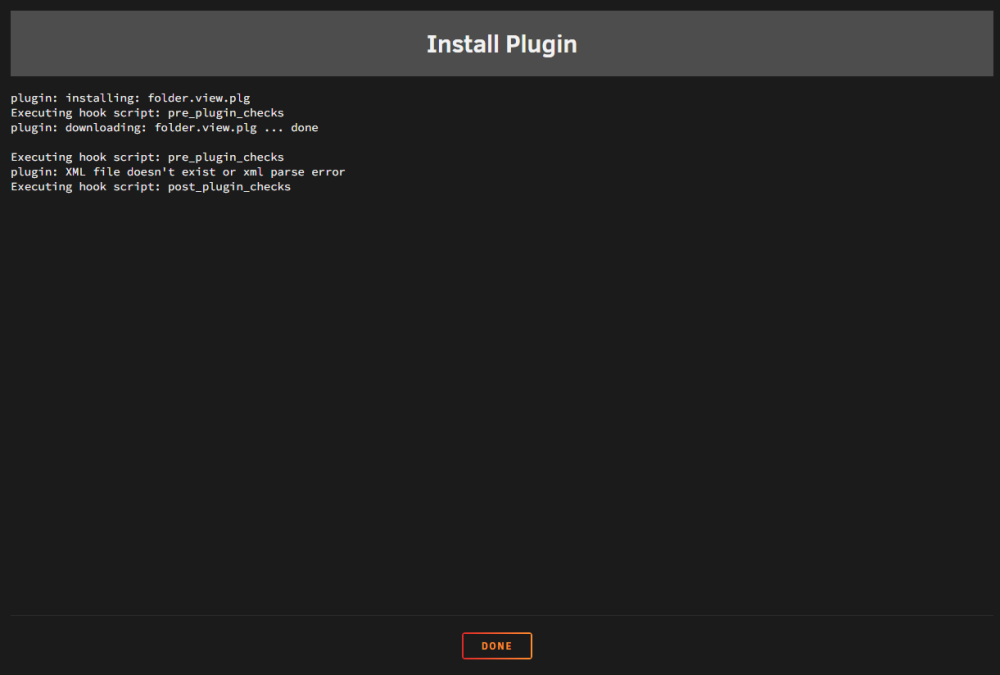
I genuinely don't know how to install this plugin. Forgive me for being ignorant. I am on Unraid 6.12.8 I did try using the Install Plugins tab and I'm encountering this error: plugin: installing: folder.view.plg Executing hook script: pre_plugin_checks plugin: downloading: folder.view.plg ... done Executing hook script: pre_plugin_checks plugin: XML file doesn't exist or xml parse error Executing hook script: post_plugin_checks URL I used: https://github.com/scolcipitato/folder.view/blob/main/folder.view.plg
-
Table of Contents Overview Guide DuckDNS Unraid SWAG Vaultwarden fail2ban Sources Overview Hello, I created this guide to document how to setup these containers as well as help people who are also trying to figure this out. The information to set this up is spread out all over the place and this is a way to group up all of the steps together. Please let me know if I did anything wrong. This was how I setup Vaultwarden so if I missed something, I'd like to fix it for my own server as well. The purpose of this guide is to show you how to install Vaultwarden and allow you to access it safely over the internet through Swag in Unraid. Vaultwarden is a self-hosted password manager based on Bitwarden. SWAG - formerly known as letsencrypt is an Nginx webserver and reverse proxy that offers a safe way to host Vaultwarden through the internet. It offers this safety through: fail2ban - an intrusion prevention software that prevents brute-force attacks SSL certs - Encrypted data transmission. Reverse Proxy (From Spaceinvader One video): Allows online access Redirects requests made to it to other places behind a firewall Additional layer of abstraction and therefore additional security. DuckDNS - Free dynamic DNS. Support the project through their Patreon This guide is mostly taken from Spaceinvader One's videos but with updated information. How to Setup and Configure a Reverse Proxy on unRAID with LetsEncrypt & NGINX Easily Setup a Bitwarden/vaultwarden Server on Unraid or a VPS for Password Management Guide DuckDNS DuckDNS allows us to track our WAN IP. This IP changes often depending on your ISP so this is why DuckDNS is needed. With DuckDNS, you can easily access your server at myUnraidServer.duckdns.org Go to https://www.duckdns.org/ Create an account and add 2 domains. The first domain points directly to your Unraid server. Example: myUnraidServer.duckdns.org The second domain points to your Vaultwarden container. Example: myUnraidServerVaultwarden.duckdns.org Make sure you write this down somewhere, or can remember it Go to APPS/Unraid Community Applications and install Linuxserver.io's duckdns container Variables: Value Repository: linuxserver/duckdns Network Type: Host Privileged: On SUBDOMAINS: myUnraidServer.duckdns.org, myUnraidServerVaultwarden.duckdns.org TOKEN: yourDuckDNS_TokenYour (token from https://www.duckdns.org/) Unraid Port Forward On your Router port forward your server ports: External Port | Internal IP | Internal Port 80 | myUnraidServerLanIpAddress | 180 443 | myUnraidServerLanIpAddress | 1443 The Internal Port numbers do not matter, just make sure they're not used by other services on your server and take note of them. Create a UserDefinedBridge In Unraid, create a UserDefined Bridge. There are many reasons to do this but here are some from docs.docker User-defined bridges provide automatic DNS resolution between containers User-defined bridges provide better isolation Containers can be attached and detached from user-defined networks on the fly Each user-defined network creates a configurable bridge Linked containers on the default bridge network share environment variables Disable Docker by going to Unraid Settings>Docker>Enable Docker set to No then apply Under Docker settings and with Advanced View enabled, set Preserve user defined networks to Yes Reenable Docker Unraid Settings>Docker>Enable Docker set to Yes then apply Open an Unraid Terminal then run: docker network create myNetName SWAG We are now ready to install the SWAG container. Go to APPS also known as Unraid's Community Applications and install linuxserver's swag: Overview: SWAG - Secure Web Application Gateway (formerly known as letsencrypt, no relation to Let's Encrypt™) sets up an Nginx webserver and reverse proxy with php support and a built-in certbot client that automates free SSL server certificate generation and renewal processes (Let's Encrypt and ZeroSSL). It also contains fail2ban for intrusion prevention. Variables: Value Repository: lscr.io/linuxserver/swag Network Type: myNetName (This is the custom network or UserDefinedBridge) WebUI: 1443 (This is the custom internal port that was forwarded) Port 80: 180 (This is the custom internal port that was forwarded) URL: duckdns.org VALIDATION: http SUBDOMAINS: myUnraidServer, myUnraidServerVaultwardenThese are the custom domain names you made in DuckDNS DNSPLUGIN: duckdns EMAIL: [email protected] STAGING: false DUCKDNSTOKEN: yourDuckDNS_Token (Your token from https://www.duckdns.org/) Log Storage Path: /mnt/user/appdata/logs/ (See Log Storage Path) Appdata: /mnt/user/appdata/swag 2. Apply to pull container. 3. Verify the SWAG container logs to check if it's running properly. On initialization, the logs should say something along like: DUCKDNSTOKEN Under SWAG's docker settings, Add another Path, Port, Variable, Label or Device Setting: Value Config Type: Variable Name: DUCKDNSTOKEN Key: DUCKDNSTOKEN Value: yourDuckDNS_Token (Your token from https://www.duckdns.org/) Default Value: Log Storage Path This is used for fail2ban. Under SWAG's docker settings, Add another Path, Port, Variable, Label or Device Setting: Value Config Type: Path Name: Log Storage Path Container Path: /logs Host Path: /mnt/user/appdata/logs/ Default Value: Access Mode: Read Only Create a folder wherever you would like(Host Path). In my case I used `/mnt/user/appdata/logs` vaultwarden.subdomain.conf Under /appdata/swag/nginx/proxy-confs/ or where Appdata variable is set for swag: swag/nginx/proxy-confs/ Create a new file named vaultwarden.subdomain.conf. There should be samples for different services under swag/nginx/proxy-confs/ Refer to the vaultwarden.subdomain.conf file attached to this guide. vaultwardensubdomain.txt Vaultwarden Install the vaultwarden container. Go to APPS/Unraid's Community Applications and install vaultwarden: Variables: Value Repository: vaultwarden/server Network Type: myNetName (This is the custom network or UserDefinedBridge) WebUI HTTP Port: 4743 SIGNUPS_ALLOWED: false INVITATIONS_ALLOWED: false WEBSOCKET_ENABLED: true ADMIN_TOKEN: yourTemporaryPassword (See ADMIN_TOKEN) LOG_FILE: /logs/vaultwarden.log (This variable has to be manually added. See LOG_FILE and Log Storage) Log Storage: /mnt/user/appdata/logs/ (This variable has to be manually added. See LOG_FILE and Log Storage) Storage: /mnt/user/appdata/vaultwarden ADMIN_TOKEN Before initial setup On your Unraid terminal, run: openssl rand -base64 48 Use the output as your ADMIN_TOKEN After initial setup Secure the ADMIN_TOKEN Important: The ADMIN_TOKEN should be hashed after the initial setup. While the vaultwarden container is running, on your Unraid terminal: docker exec -it vaultwarden /vaultwarden hash LOG_FILE and Log Storage https://github.com/dani-garcia/vaultwarden/wiki/Logging You will have to create two variables: LOG_FILE Under Vaultwarden's docker settings, Add another Path, Port, Variable, Label or Device Setting: Value Config Type: Variable Name: LOG_FILE Key: LOG_FILE Value: /logs/vaultwarden.log Default Value: Log Storage Under Vaultwarden's docker settings, Add another Path, Port, Variable, Label or Device Setting: Value Config Type: Path Name: Log Storage Container Path: /logs Host Path: /mnt/user/appdata/logs/ Default Value: Access Mode: Read/Write Vaultwarden setup Click on the Vaultwarden container and press the WebUI button. This should take you to the admin page myUnraidServerLanIpAddress:4743/admin. Change the Domain URL to https://myUnraidServerVaultwarden.duckdns.org. This should be the DuckDNS domain you created. Secure the ADMIN_TOKEN. (See ADMIN_TOKEN section above) Optional: Follow Spaceinvader One's video to enable SMTP Email Under General settings, temporarily enable Allow new signups Save/Apply the settings by pressing the Save button on the bottom left of the UI. Restart the Vaultwarden container. Go to https://myUnraidServerVaultwarden.duckdns.org and create an account. Go back to the Vaultwarden admin panel, General settings > disable Allow new signups IMPORTANT Edit vaultwarden.subdomain.conf at /appdata/swag/nginx/proxy-confs/ to disable the admin panel from WAN access but allow local/LAN access or just disable the admin panel altogether. fail2ban Swag also includes fail2ban. We can setup fail2ban to read Vaultwarden's logs and ban an IP address if attempted logins exceed a certain amount. On /appdata/swag/fail2ban/jail.local Add a new jail: [vaultwarden] enabled = true port = http,https filter = vaultwarden action = iptables-allports[name=vaultwarden] logpath = /logs/vaultwarden.log maxretry = 5 bantime = 14400 findtime = 14400 On /appdata/swag/fail2ban/filter.d/ Create a new file: vaultwarden.conf # https://github.com/dani-garcia/bitwarden_rs/wiki/Fail2Ban-Setup # - Set up logging to file > https://github.com/dani-garcia/bitwarden_rs/wiki/Logging # - Set logging level to warn or error # Logged in bwdata/logs/identity/Identity/log.txt [INCLUDES] before = common.conf [Definition] failregex = ^.*Username or password is incorrect\. Try again\. IP: <ADDR>\. Username:.*$ ignoreregex = vaultwarden.txt Verify fail2ban works by using a VPN and fail login past the maxretry value(default is 5) Logs are located at /appdata/swag/log/ and /appdata/logs You can unban an IP using the following command on your Unraid terminal: sudo docker exec -t fail2ban fail2ban-client set vaultwarden unbanip XX.XX.XX.XX Extras Swag Dashboard - Installation Guide - Dashboards for Swag Maxmind Docker mod for Nginx - Allows IP bans based on geolocation Sources How to Setup and Configure a Reverse Proxy on unRAID with LetsEncrypt & NGINX Easily Setup a Bitwarden/vaultwarden Server on Unraid or a VPS for Password Management SWAG fail2ban Vaultwarden Alternative Link on gist.github jail.txt
-
Hey guys I created a guide in setting up Vaultwarden and Swag together in Unraid. Hopefully it'd be helpful to you guys trying to set this up. Also let me know if I can add anything to this. This was pretty much how I setup Vaultwarden so if I missed something, I'd like to fix it for my own server as well. I added the guide to the forum as well:


