






scolcipitato
Community Developer
-
Joined
-
Last visited
Everything posted by scolcipitato
-
I don't really know what is going on, I tried to replicate your setup and for me, it seems to work, I saw a single difference in your debug file, so I tried to fix it. You can try to reinstall the plugin and see if it works.
-
I run a couple of tests with the debug file you gave me, I didn't find any problem, I see that you have other plugins that change the webui of the vm folder, maybe is that. What I can say with what I have is that the plugin expect to find your VMs in this order.: Windows 11 Fast Tools Stardom HA Dev SimaticTIA17Pro Home Assistant HAOS GeoSCADA2020 Macinabox Catalina CodeSys T11 SimaticTIA17Unified Geo SCADA 2021 Centum_FT StardomT11 Windows 10 Gaming Tiny11_2311 Potentially the other plugins you have changed this order and if they do so it can lead to issues, I can advise making a backup of the config, uninstall folder view and see if the order match.
-
I need the debug file (first post for instructions)
-
If the CSS uses my custom classes only, I think you might be able to use it in the VMs tab, but in this case I think it's not that simple. You need to make some changes because of the different layout of the VMs. If you want, here you can find the template for the VMs and Docker. If the file is the same you add the -vm, if the file is not the same I suggest replacing the .docker with .vm, because you might want to affect the VMs tab and not the docker tab.
-
This feature was introduced because folders being only client side, it wouldn't affect the real order of the containers, this is not a problem normally, but it is a problem when you enable autostart, to fix the problem reorder one container/folder and refresh the page, the color of the icon won't change if you don't refresh.
-
You can't move folders when they are expanded, and you can't move the containers in the folder when the folder is expanded.
-
The plugin only adds a class to the folder root element to make them sortable, if there are no error in the console I can't do anything, you can check if your folders have the sortable class. They should have it, if not I suggest backing up all of your config and uninstalling and reinstalling.
-
The plugin don't make changes to that, if you have any ad blocker disable them, than you can check the browser console for errors.
-
Do you have the old plugin installed?
-
Open the browser console and send a screenshot.
-
Ok, now I understand the issue, I managed to replicate it, and made an update, check if it works. I hope it fixes the issues of @Mattaton and @nrgbistro
-
I had a similar issue when stating stopping multiple folders at one, but a refresh fixed it, I think my problem is with the async functions overlapping, but as I said not big deal, a refresh fixes everything. Your issue is a little strange, folders won't appear if the server does not respond or the response has no folder in it, I think I can rule out the ladder, but the server not responding is strange. Sadly the debug file in this case is useless, because I see that everything is working fine, if you encounter the issue again open the browser console and send a screenshot of that. What I can advise in this situation is not to reorder, reordering will as you said overwrite the order you have with the order you see on the webui. If the webui has no folder, no folder will be included in the order. I just say this because to me CSS is like magic, I received a PR on GitHub with some changes to the CSS and the code. The changes are now in the version you are using, so it may conflict with your CSS and cause the folder not to appear. I'll leave the new CSS here. .folder-element .ct-name .inner > span.appname { width: 177px; display: inline-block; overflow: clip; word-break: break-all; } .folder-preview-wrapper .inner > span.appname { width: USER_DEFINED_TROUGH_CODE; display: inline-block; overflow: clip; white-space: nowrap; word-break: break-all; } As said above, I haven't experienced this but to me this is different, so I'd like to dig further into this. It would be helpful to have a screenshot of the browser console and the debug file, I suggest in this order (the screenshot fist and then the debug file), when you encounter the error.
-
My plugin don't affect directly the userprefs, but it masks the folder as containers so when you move a folder it gets inserted in the userprefs. If you get the incorrect start order, just reorder one element (folder or container) in the container tab and then refresh the page.
-
Well, I was about pushing an update... I'll do it just in case.Order should be an array, you can try reordering at least one VM, then refresh the page, if this doesn't work run this in your browser console and send the output. JSON.parse(await $.get('/plugins/folder.view/server/read_unraid_order.php?type=vm').promise())Open the browser console, you should see an error, I need that.You have to uninstall the old docker folder plugin.The createFolderBtn function is defined inside the docker.js, you can check if it is loaded either by going to the network tab and searching for that or by looking thought the source of your docker page.Anything that is on the /boot and /mnt (technically there is more, but for most people this is enough). Anything under those paths is mapped 1:1 so what you see in the command line you can use in the image path. In my case I have my images under /boot/config/plugins/folder.view/img/internal-services.svg Here you can see what I mean.
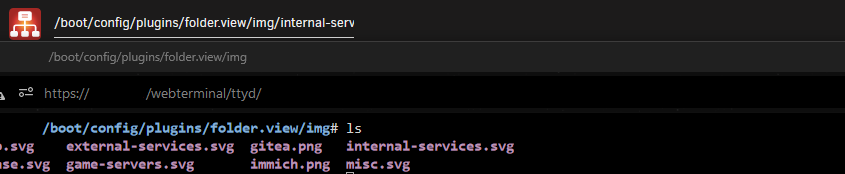 This is my initial idea, the only difference being that I would take the delay from the server and not from the webui. But as I explained the implementation has downside, for me too much to be reliable, considering that scripts offer a much more reliable and flexible way to do what you want. Just create an userscript and that add it in the folder settings, if you want you can hide the default start/stop/... button. For creating the script itself you can use a bash script, or you can use python or even PHP, what you feel comfortable using. For a simple implementation (like just waiting x amount of time) I suggest using a bash script, if you need to interact with the container to check for service availability I suggest python or PHP.As I said in my response, the plugin is coded to run on the webui, this means I can only check the status that docker report. Because of this reason, you can not close the webui until all the container are started. On top of this you lose the flexibility of scripts that not only can do what you are asking on the server side (no wait of the webui) and you can check container status in different way (HTTP response, a query in case of a db). Considering this, implementing this feature would be hard, and useless, you can already do it with scripts and the plugin gives you the ability to run scripts, this is the way to do what you want.If you want to translate you can do it, the instructions are in the first post, otherwise you can ignore the error.In this case, the image is on my server. As you can see, you can input links to external sites (ex. GitHub). But remember, everything is requested client side, so if you have any ad blocker or, maybe there are problems with CORS, the request may be blocked, and you end up not seeing the icon. If this doesn't work, send a screenshot of the browser console (if there is anything).
 I think this is a problem with CSS, the remove should be under the edit button, and from what it looks like it is there, you can expand the browser window and you should be able to see the button or you can run this in the browser console in the tab where is your folder, NOT the dashboard. rmFolder('yourfolderid'); Replace yourfolderid with the id of your folder, you can find that in Setting > FolderView.



