






scolcipitato
Community Developer
-
Joined
-
Last visited
Everything posted by scolcipitato
-
Thought the same thing when updating to unraid 6.12, I really liked the old way, but as I said, I won't change how unraid handle this sort of stuff.
-
You can reorder them just like normal containers, if that won't work, I need the debug file (first post for instructions)
-
I developed FolderView on 6.12.3, so I set the minimum version to that, either way, you will lose all of your config in the migration, so you can uninstall the old and install the new after the update, if you want to migrate the config manually some time ago I have posted a "tutorial".
-
This can work, I'll see if this won't mean major code changes and if not implement it. For now, I'm focusing on the context menu for the docker tab.
-
If the file you are trying to import is the file from this plugin, I need the debug log and just to be sure the screenshot of the browser console after just after the import, but if the file that you are trying to import is from the old plugin, then you can't do that automatically and I suggest you to go and read a couple of pages back.
-
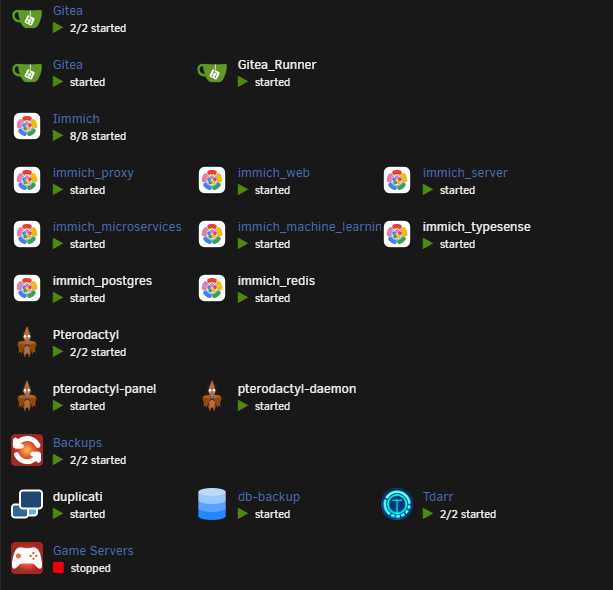
I can do that, but then the problem would be the reverse, would end up with something like this. Even when a folder is collapsed, if you are fine with this you can do it even now with a minor modification to the CSS I have made before.

-
I managed to get something, not the exactly what you have, but it's something. .folder-docker:has([expanded="true"]) { display: block; width: 100%; } Note that this work only of chrome, in Firefox you have to enable an option to even get the :has pseudo-class, but still, it won't work, it won't update when you expand the folders.
-
I have made a "guide" here.
-
In the docker tab, just drag and drop. If you set to expand on dashboard, yes. I won't add it, I will keep just as is, but I think you can have the container inside a folder go under when expanded with the custom CSS.
-
You have to reorder containers when you add or edit a folder, just drag and drop them.
-
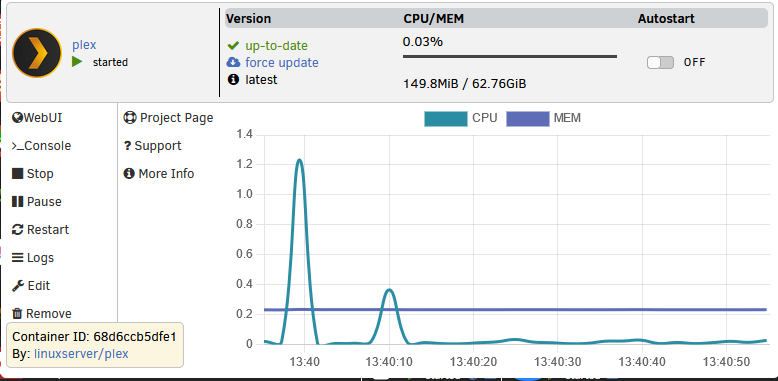
It's a long time I haven't made an update, so I figured it's better to let you see what I'm doing. As I said in an older post, I have been working on making the old context menu. The graph was the difficult part, getting it to work properly was a nightmare, but managed to get it working, just need to add the other graph modes, test if they are working correctly and the update is done. As always, my CSS skills are not the best, I'll try to refine it.
-
The debug log shouldn't be needed, you can check your console for any Content-Security-Policy, if there is any you should change the link of the image to comply with that (in my case was a matter of changing the link http to https), if there is none I'll need the debug.
-
I don't remember exactly, but i haven't made any changes to this, so it's the default of unraid.
-
Only if you move a folder, that it does. I'll make an example to clarify. You have 10 containers, all on autostart, the start order is the number of the container (1, 2, 3, ...) You create a folder (A) with 1 and 5. At this point the start order is not changed, because you only created a folder, but if you change the order on the UI to 2, 3, 4, A (1, 5), 6, 7, 8, 9, 10 then the start order change to what you see (2, 3, 4, 1, 5, 6, 7, 8, 9, 10). I hope this explains it. Just visual, you have to reorder again to make the change happen on unraid side.
-
Sometimes it doesn't, sometimes it does. Like I said the autostart is handed by unraid, and this is the problem, when you create a folder you might have noticed that the folder shows up on the top, this means the folder is not in the order, and in some cases this means that the order of the container you see is different from what unraid actually knows, you can solve that by moving something (a container or a folder) in the docker/VM tab, this put the containers in their place, and align what unraid sees to what you see. If this is not clear, feel free to ask, I know it's a bit confusing.
-
You can do it in 2 different way, you can use an image in your system and put the absolute path of that image as the link or use the base64 notation (links are provided in the help tooltip on the create/edit page). I was working on it before the Starfield release, I will continue the work soon. This is a bit tricky, you can order them in the create/edit page simply by dragging and dropping them. I talked about autostart here. I need the debug log for that. (first post on how to get it)
-
I will fix it, so it will work even without internet access, it should be an easy fix, although I have no way to test it, i need my server online, so we will see.
-
Thank you, but no, I won't accept donation, I don't need them. I was working on implementing it, I stopped the work because of Stanfield, but I will get it out, just need to finish the graph and some minor CSS stuff. I wanted to keep the stock plugin close to the unraid style, but you can make a custom CSS theme, and maybe publish it for others to use, if you are interested in the first post there are the instructions on how to do it. This is not supposed to happen, I have tried to reboot my server and everything is fine, someone had a similar problem before you can look for that. If this doesn't solve the issue, I suggest looking at the syslog for any error.The autostart is handled by unraid and how it sees the docker order, so to make sure PUT (if you created the folder reorder something in the docker tab, this is because when you create a folder and don't reorder t what you see and what unraid see is different) the folder with the db before the one with the game servers, the case is similar when the db is inside the folder, you have to make sure the db is before the container you want to start after the db, and then reorder something in the docker tab (same reason as before). Beware that although the folder start/stop work similarly, the start is not staggered and the start happens back to back, so it might happen that the db is slower than other containers, this applies if the db is in the same folder.I never used it, so I didn't know how it worked, so I haven't included it. I can try and integrate the user script plugin and add buttons in the context menu. Again I don't know if this is how it worked before, but you have to wait, I'm working on the advanced context for the docker, so I will integrate with that update.This is the old plugin. Have you uninstalled it?Forgive me, but I can't understand the problem you are having, Here I see everything collapsed, and it looks right, the Docker and VMs sections are collapsed so nothing is shown. And here I don't see the Docker or the VMs section. I tried debugging the file you gave me, but I didn't find any error, but I don't know if I'm looking for a bug in the logic or a bug in the UI part. I think you can do it, you just need to move things around a bit. If you want, you can DM me on discord, I have the same username.If it doesn't let you download the debug file there is an error before the debug file is created and downloaded, I need a screenshot of the browser console.


