Skatman
Members
-
Joined
-
Last visited
Everything posted by Skatman
-
Just read through the last page or so before updating my Radarr instance. Is the problem now fixed and are updates working without issue? Is it/was it just a Binhex Radarr issue or issue across all repos? Does it also impact Binex Sonarr?
-
It's always a lovely feeling when something you write with the objective of helping people in a similar position to you, helps someone in a similar position to you. Glad it helped! This was a pain in the backside for me too, except I had 20TB of data to move haha.
-
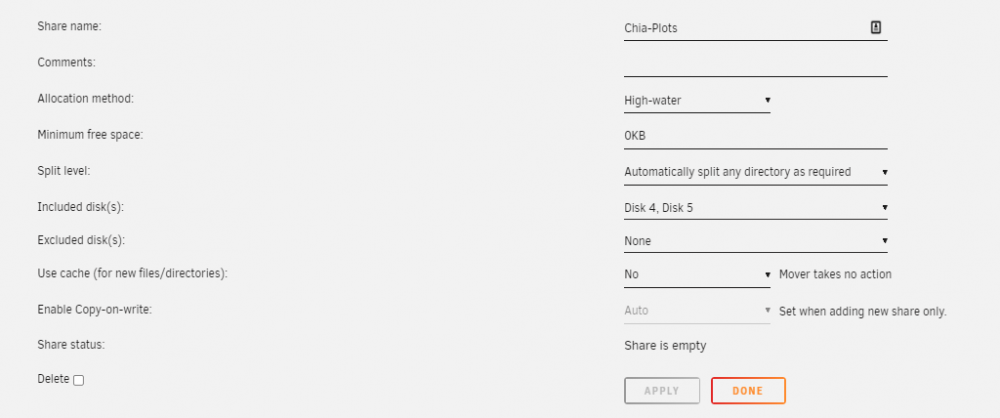
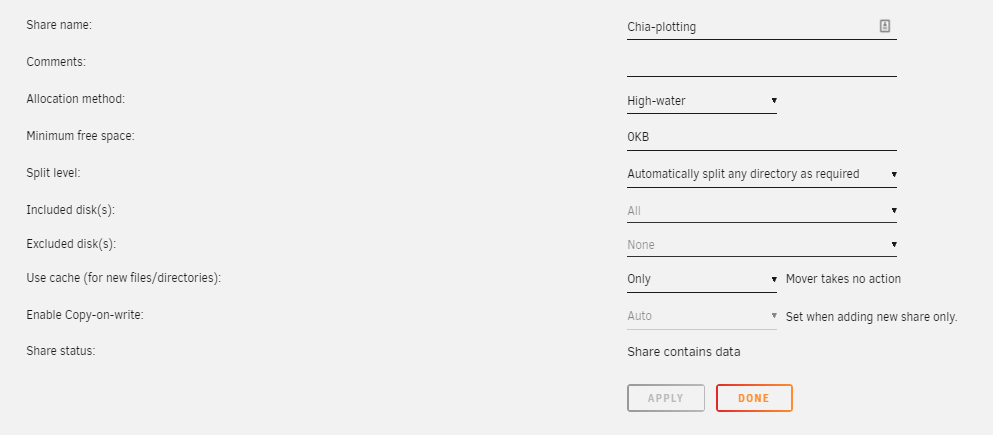
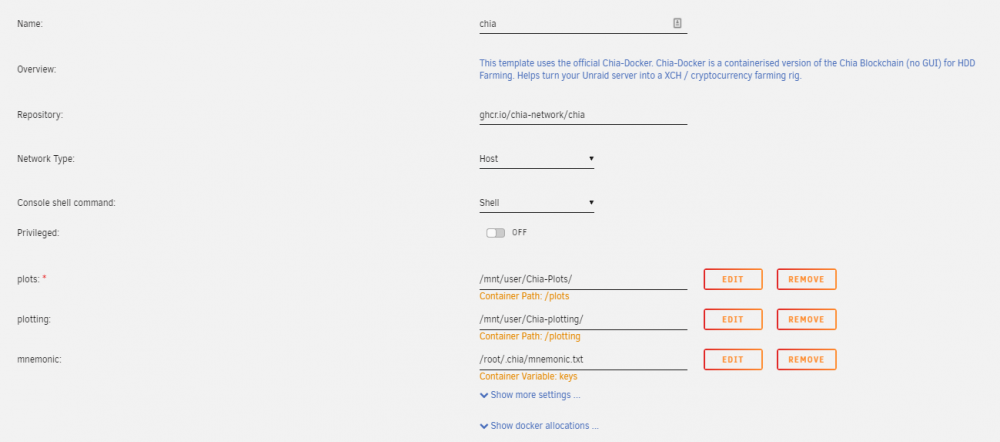
Hey, Found this as an answer for why the docker image size is at 100%. Copied what you entered, but to no avail. I created new shares with the following info: /mnt/user/Chia-Plots /mnt/user/Chia-plotting With the Chia docker configured like this: Still getting 100% Docker usage. Docker vdisk size set to the default 20GB. Having said this. It appears to be working. I've got a load of lines in the docker cli stating: "Bucket 46 uniform sort. Ram: 11.652GiB, u_sort min: 0.563GiB, qs min: 0.281GiB." etc. is that expected?
-
Forced update works for me. I've also been having a few issues with both Radarr and Sonarr not moving *some* of my downloaded files from the "complete" folder to my actual media folder. No idea what's causing this as neither are producing any logs. Hoping this update fixes it for Radarr. Also sent you $5 @binhex . Thanks for all that you do.
-
Hey, no, it was all local. Share is stored locally on UnRAID, SAB is in a Docker locally. Ironically, my virtual Windows box with my old instances of SAB, Sonarr, and Radarr could connect in just fine. Anyway, I watched the Spaceinvader1 video again and it worked OK. Must have been entering the info in wrong somewhere.
-
Hey, I've got an issue with SABnzbd on my UnRAID platform. I've been using it for about 2 years now on a Windows 10 box and then connecting via an SMB share to transfer the files across. Thinking of just using my UnRAID platform to run it all, so installed it and it loads fine. Issue I have is trying to find the folders I want for downloading. I have created /mnt/user/Downloads/Downloading and /mnt/user/Downloads/Completed and are set to public share access with SMB. I try typing the full directory path into the Sab config and it says "Cannot create directory". Not only this, but I can't find it if I click on the "Browse" button. If I click that, I can navigate to the root drive, but when I click on /mnt/ I end up with nothing. The Volume Mappings in the Docker itself are pointed to the right place. Any ideas?
-
Great, thank you! I'll add this to the initial post. I didn't know that it only effected the way parity was created, but because I removed parity and enabled turbo-write at the same time, I wouldn't have noticed.
-
Amazing. Thank you so much for your time. Yes, I'm beginning to see that now. I just ran a test and figured out that data transfer direct to the array is quicker (obviously not initially, but over the duration of the transfer it is). I've updated my initial post while you were writing this, but thank you for the clarification that I'm not just a noob/doing something silly and my thought process was accurate! Thanks. I thought it was some form of process overhead, but I didn't know what it would be. Thought it could be the mover just not working as efficiently as it could, but the share overhead would similarly make sense. I did. I changed it to 20GB because it said: The minimum free space available to allow writing to any disk belonging to the share. Choose a value which is equal or greater than the biggest single file size you intend to copy to the share. Include units KB, MB, GB and TB as appropriate, e.g. 10MB. I don't have any files larger than about 16GB (that I'm aware of). Was this the wrong thing to do? Ah, OK. Can you do this on-the-fly, or do you have to power down your array? I'm assuming the latter as changing a RAID type isn't trivial. If I have to power the array down, I wont do it because of your comment on point 2 (I'm now not using the cache). Either way, this sort of thing being an option when setting up your cache would have been useful rather than it being hidden away in a different menu. Thank you for your time! Hopefully this thread will help people similar to myself who have just started. It's often difficult to write a 'noobs guide' when you're no longer a noob as the questions you ask yourself are different. haha.
-
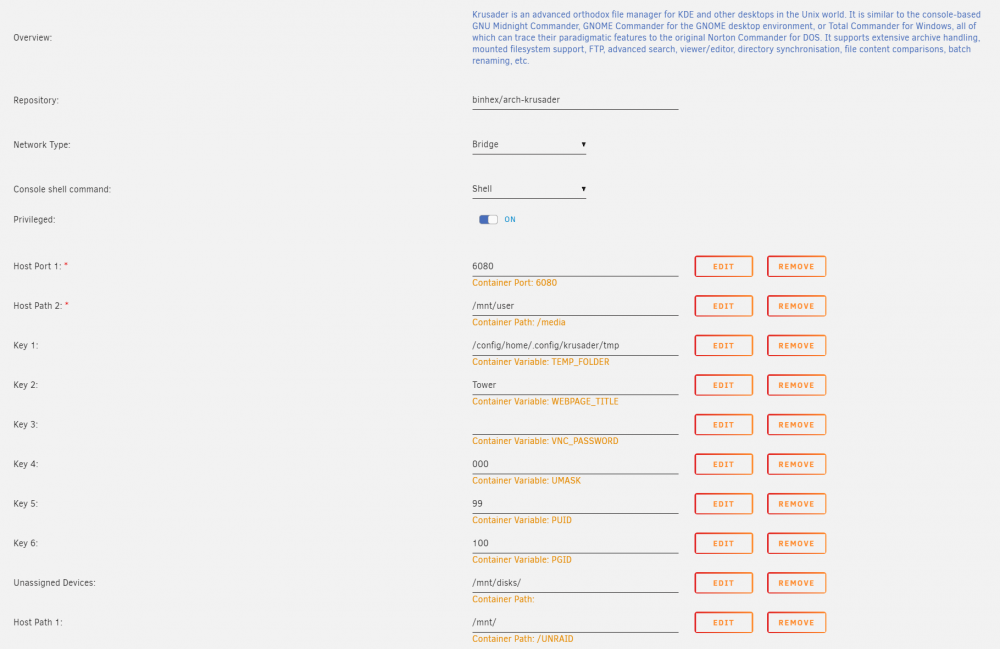
Hi all, thought I'd share my experiences with transferring large amounts of data for the first time. After all, the best time to write about learning is whilst you're doing it so that other people can follow along with you. ***NOTE: ALL OF THESE WERE COMPLETED ON AN EMPTY SERVER*** TL;DR: Use Krusader, my config is included as a screenshot. *Remove the parity drive before starting the transfer - but only do this on a virgin build as you lose any resilience. Turbo-write makes no difference if you have removed parity. It is used in the creation of the parity drive at the expense of spinning up all drives. It is probably worthwhile turning it on for the first time you create your parity drive, then turning it off to save power/drive longevity. (Thanks to Jorgen for this info) Disable the cache for a more consistently-high throughput over the duration of the transfer. (Thanks to ChatNoir for this info). Full-fat: Krusader makes things super easy to transfer files and Spaceinvader One's video was helpful, but at 4:06, it differs from how it's done in reality now. I tried just continuing like the YouTube comments suggested, but I couldn't find some of the files specified in the video - namely the /UNRAID one, so I followed this helpful guide by Arcaeus and then it started working. The image attached shows my current config and should work at time of writing for anyone setting it up (17/11/2020). The only thing I couldn't get working was the /FLASH section. I'll investigate and update this thread later. The major one for speed improvements, remove the parity drive before starting. Stopping the 'sync' in the 'Main' menu doesn't work. You have to stop the array, remove any parity drives you may have and start the array again before copying. **Please note, removing the parity drive(s) will remove any protection of your data, so I would only recommend doing this on a virgin build where you are transferring large amounts of data for the first time**. When doing this, my write speeds changed from between 20MB/s and 60MB/s to between 150MB/s and 180MB/s. To put this into perspective, I have 20TB of data to transfer from two external USB HDDs. At 20MB/s it would have taken me 11 days to transfer. At 60MB/s it would have taken me 4 days to transfer. At 150MB/s it will take me just under 2 days to transfer. Obviously that 150MB/s is a 'per disk' figure and, because I've removed parity (at least I think it's because I've removed parity), I've often seen at least two disks being written to simultaneously at that 150MB/s figure. With parity (and, again, I think it's because of the parity disk), you're limited to the speed of the single parity disk (roughly between 150MB/s and 180MB/s but this depends on the speed of your disk). All of the above equates to a MAJOR reduction in the amount of time it takes to transfer large amounts of data and I would recommend this to anyone just starting out. I estimate that removing the parity drive has reduced my transfer time from between 11 and 4 days to about 13 hours. Once your data is transferred, stop the array, add the parity disk, and let it rebuild. Once the parity has been built, you can then remove the other drives you are using as a store, shuck them out of the cases, and then add them to your array (at least that's what I plan on doing). I also enabled Turbo-Write by going into Settings -> Disk Settings, and changing the "Tunable (md_write_method)" to "reconstruct write". However, I'm not sure what difference this has really made to the speed of the transfer as I did it at the same time as point 2 and point 2 made such a huge difference, any improvements are being masked by it. Turbo-write makes no difference in the transfer of data to the array. It only makes a difference when creating the parity drive. It's probably worth while putting on the first time you create your parity drive, then turning it off afterwards to save power/your disk longevity. (Thanks to Jorgen for this info). I have found that setting the "Use Cache" option for the Share to 'No' actually improves throughput over the duration of the large transfer. Not sure why this is, and there's still a few questions around it below, but I paused my transfer in Krusader, let 'Mover' move everything remaining, then changed my option in the Share from 'Yes' to 'No' in the "Use Cache" option, then started the transfer up again. In this circumstance, I'm seeing a slower initial transfer (as it's not using the much faster SSD in the cache), but it's more consistent in my experience and it's actually using the 3 disks simultaneously. My guess for this is that the 'Mover' process isn't as efficient as it could be at transferring data from the cache to the array which, adding in the fact that it can't be set to 'on' permanently for a set period, reduces the longer-term throughput of the whole transfer. But this is just a guess at this point. Ongoing Questions / Issues Not sure why the /FLASH section isn't working. I'll post a screenshot when my data has finished transferring. I don't want to upset it. I wish there was an option to set the 'Mover' for continuous use. i.e. whenever it sees data in the cache that should be in the array, it moves it automatically and it keeps doing that until the only data left in the cache is what should be there. So far I've only seen an option to schedule it every hour, but my cache fills up *way* quicker than that. Sometimes I've noticed that it isn't working and I have to manually set it to work, any idea if it can be set to 'always on' for a specific period of time or if this feature can be implemented? The theoretical max throughput of the 3 disks in my array without parity is around 600MB/s (going off 200MB/s for a 7200RPM disk x 3 disks), but I very rarely see that getting maxed out. What is the reason behind this? I understand that there is likely overhead in terms of creating new directories and starting the copying process etc, but I'm rarely getting 400MB/s? The intermediary source shouldn't be a problem as it's a SATA SSD (cache drive) and I'm generally seeing about 300-400MB/s on that when it's capable of a sustained 550MB/s read and 520MB/s write (although I'm not sure if it's capable of both simultaneously and that could account for some of the problem?) EDIT: Please see the first section for update. My Share is set to 'Yes' with regard to 'Use Cache', which should mean that, once the cache drive is full, it automatically starts sending data to the array instead. That doesn't appear to be happening. My transfer dialogue boxes in Krusader pop up with a 'This drive is full' notification asking me to 'cancel', 'retry', etc. I can retry after a short while once Mover has transferred some files to the array, but this doesn't appear to be working as per the description in the hint section. Any ideas what this could be? Is it that it's using the 'docker' share option rather than my user share option? This, combined with points 2 and 3 means that transferring large amounts of data initially is taking longer than it should. Is it work simply disabling the use of the cache to start with? EDIT: Please see the first section for update. I have 2 x 500GB Samsung 860 EVO SSDs in my cache drive, but I'm only seeing about 500MB of available storage. What is going on here? It's like the two are in RAID 1 or something. Is there any way this can be changed? I'd rather it be RAID 0 for the initial transfer and then change it back to RAID 1 afterwards. Appreciate it may not actually be *RAID* in this instance, but the premise is similar. Thanks for reading my essay.