





Kulisch
Members
-
Joined
-
Last visited
-
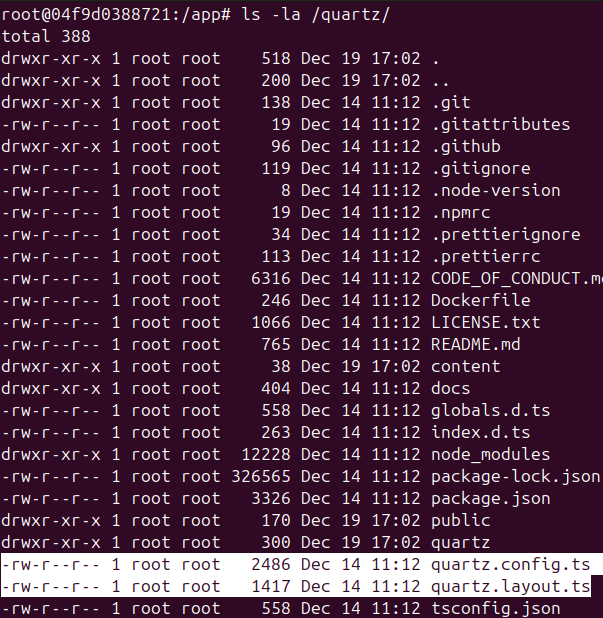
Hello, thank you very much for this app template. This is something that I really wanted and appreciate. As far as I can see, the /quartz directoy contains config files that I want to change. https://quartz.jzhao.xyz/configuration I edited the quartz.config.ts and after restarting the container, the changes were visible. I was just about to make the path /quartz persistent, but I noticed that when the container is recreated, the files disappear. I'm not too deep into Docker yet, but are there any possibilities to store configuration files persistently? And most importantly, would they also work after updating the container without overwriting my own config files? Or do I have to manually download and keep them up-to-date over the time? Thank you very much. Best regards,
-
Sorry für die späte Rückmeldung. Hab dazwischen nochmal ein Update von Unraid gemacht und deshalb gewartet ob der Fehler nach einem bestimmten Zeitraum wieder passiert. Uptime sind nun 18 Tage und es sieht alles gut aus. Vielen Dank für die Hilfe. 👍
-
Aber auch nicht konstant. Manchmal hat es für über 10 Tage auch alles funktioniert. Deshalb dachte ich nicht das es das wäre, weil ich davon ausgegangen wäre das es IMMER nach 24 Stunden angefangen hätte probleme zu machen. So oder so, hoffe ich das es das war. Ich gebe nochmal Feedback 👍
-
Beim starten nicht. Die sind nach 24 bis 48 Stunden gekommen. Ich warte mal ab was die nächsten 10 Tage passiert. Wenn dazwischen kein absturz ist, hat allles geklappt. Aufjedenfall danke vielmals für die Zeit und den Support. 👍
-
Bin nach dieser Anleitung gegangen Bridging und Bonding ausgeschalten. Host Access aktiviert. macvlan war ja vorhin schon eingestellt. Ich habe eine Fritzbox im LAN. Glasfaser -> Fritz -> OpenWRT (NAT) -> Unraid Was das betrifft: erinnern kann ich mich nicht mehr genau, aber ich schätze die zenstates habe ich eingestellt zum troubleshooten von meinen Ryzen Freezes. Den unteren Teil kann ich mich nicht mehr erinnern wofür das war. Die von dir markierten Sachen habe ich mal auskommentiert. Erneut in Safe Mode rebootet und hier sind die diagnostics. unraid-diagnostics-20240712-1208.zip
-
Nevermind Dachte muss es beim hochfahren auswählen. unraid-diagnostics-20240712-1049.zip

-
Mach ich sobald ich zuhause bin. Danke schon mal für die Antwort.
-
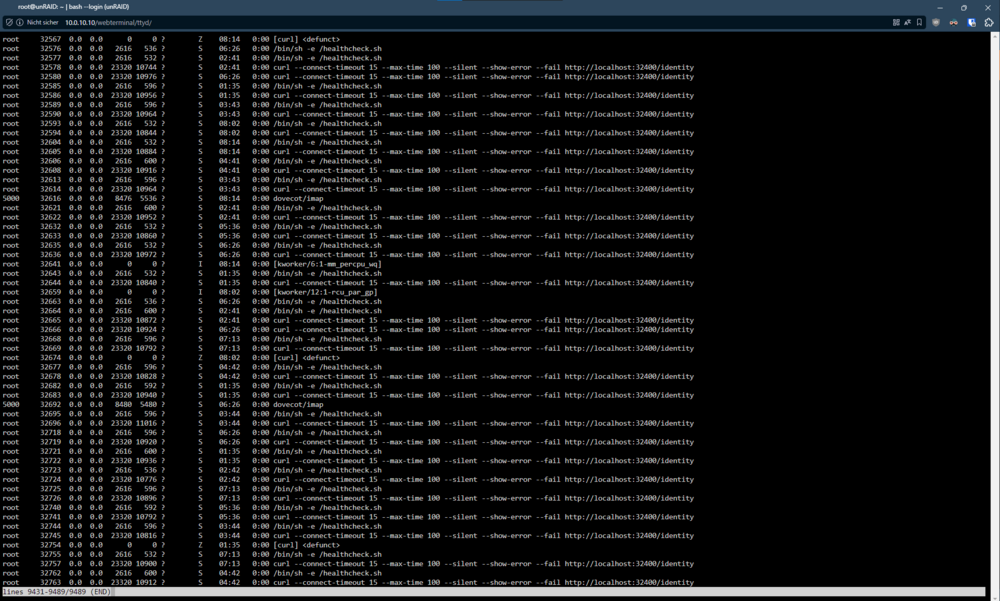
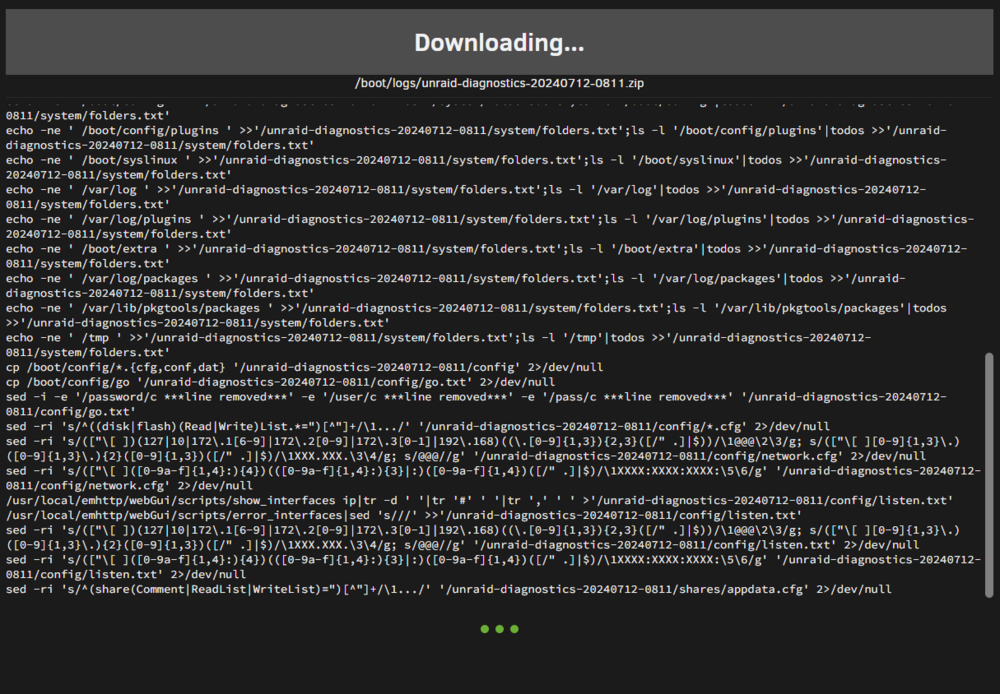
Hallo zusammen, Ich mache in der letzten Zeit hin und wieder die Erfahrung das Unraid zum teil einfriert. Heute habe ich das Glück dass das System nicht komplett einfriert wenn ich im Dashboard klicke. Mit "zum teil" meine ich das gewisse Sachen nicht mehr reagieren, aber der Host noch erreichbar ist. Die Diagnosedaten hänge ich mal mit an. (Zumindest die, die ich auch sammeln konnte) Ich nutze viele Docker Container (38, wovon ca 25 aktiv laufen). Ich merke das manche Container nicht erreichbar sind, aber laut Dashboard laufen. Bedeutet das ich mittels IP:Port stichprobenartig ein paar Container erreiche. Mein Reverse Proxy Swag macht aber nichts. Ich habe es nicht probiert die Container neu zu starten, da dies hin und wieder dafür gesorgt hat das der shutdown Prozess nicht aufhört und dadurch auch das komplette System eingefroren ist. SSH funktioniert aktuell nicht. Das Terminal über WebUI schon. Habe als Standard ZSH für SSH. im Web Terminal wählt er aber nur Bash. Ob das relevant ist fürs troubleshooting lasse ich offen. Was mir sofort aufspringt ist die Tatsache das ich tausende Prozesse sehe die nur daraus bestehen: /bin/sh -e /healthcheck.sh curl --connect-timeout 15 --max-time 100 --silent --show-error --fail http://localhost:32400/identity "lines 9431-9489/9489 (END)" Die Diagnosedaten wollte ich sammeln, es bleibt aber stecken. Habe das was verarbeitet wurde gezippt und hier hochgeladen. Hoffe es ist dennoch hilfreich. Kann jemand mir sagen was das ist und wie ich das unterbinden kann für die Zukunft? EDIT: Die Festplatten lassen sich auch nicht steuern. Spin Up and Spin Down funktionieren nicht. unraid-diag12072024.zip
-
Reserved post for possible upcoming informations.
-
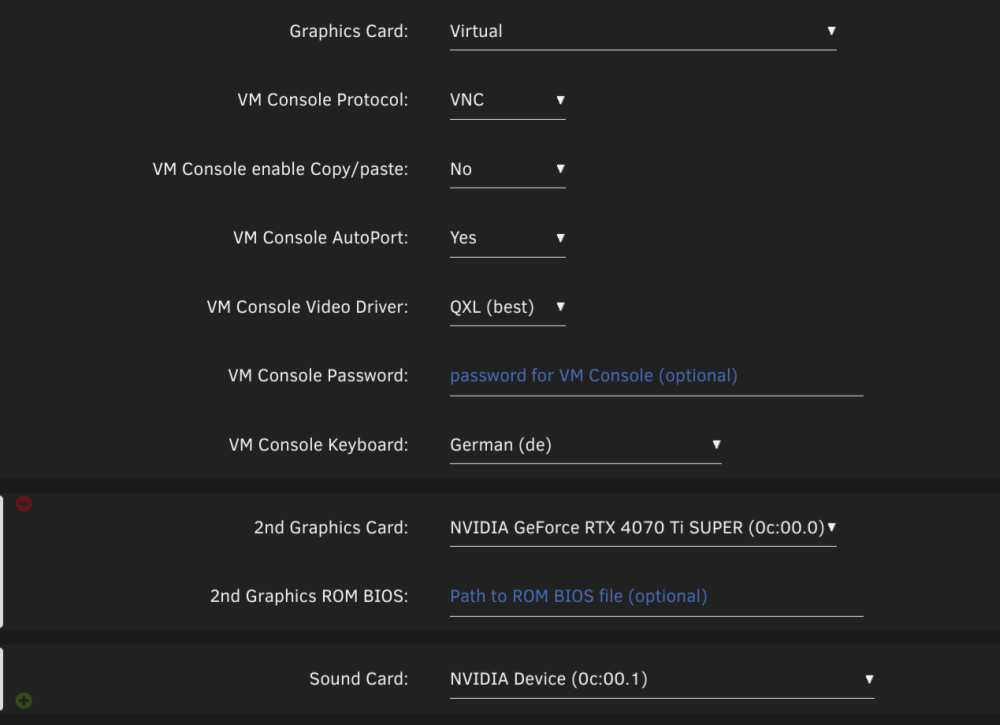
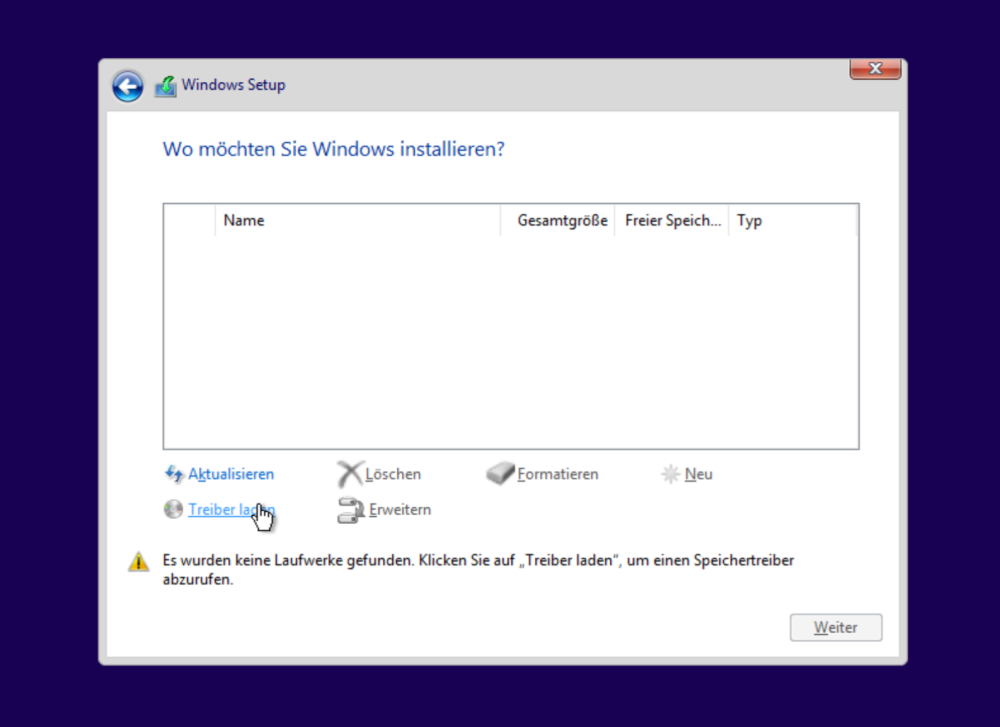
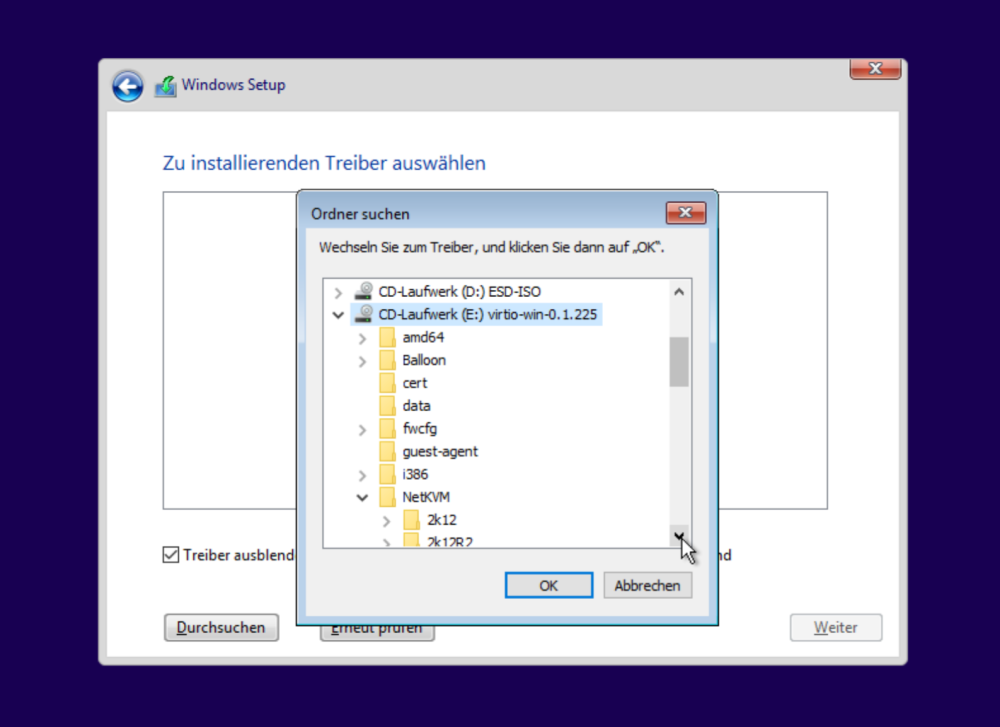
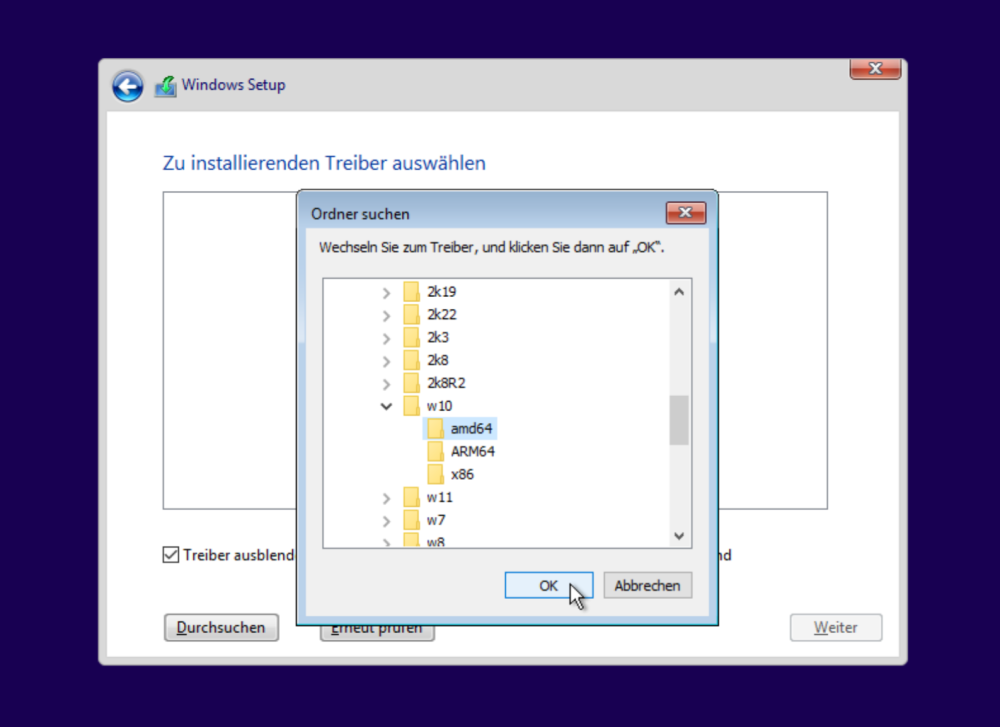
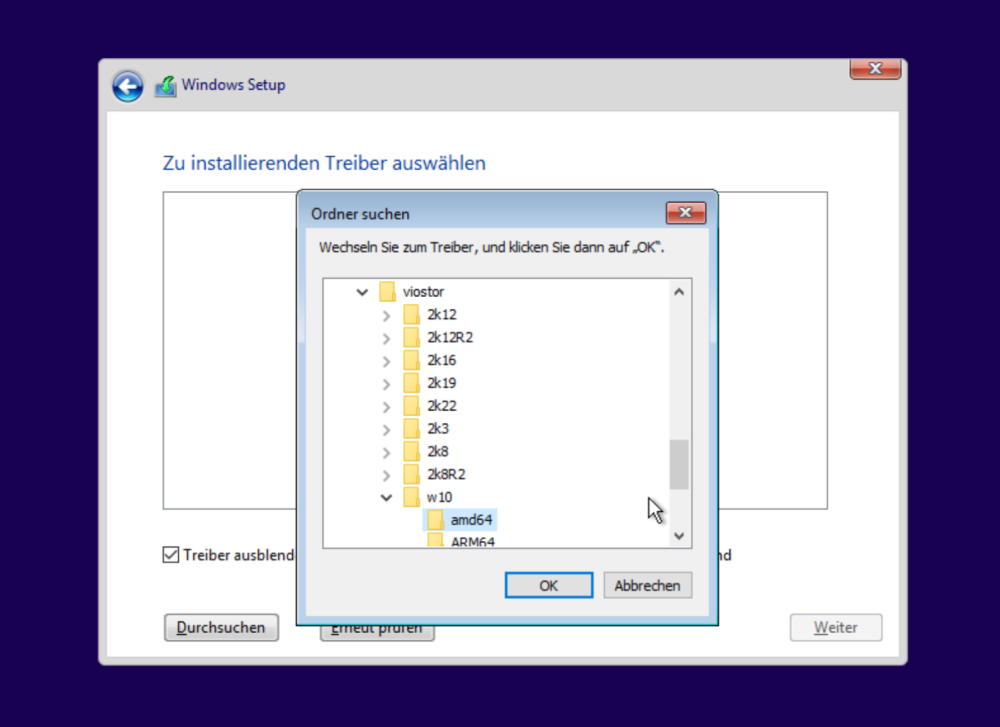
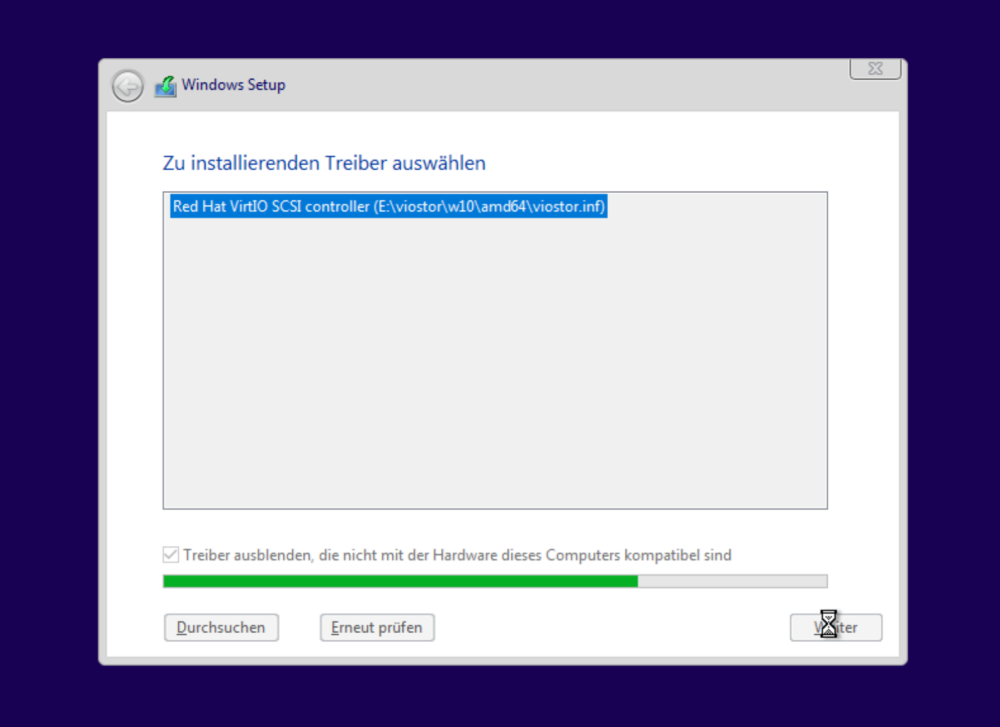
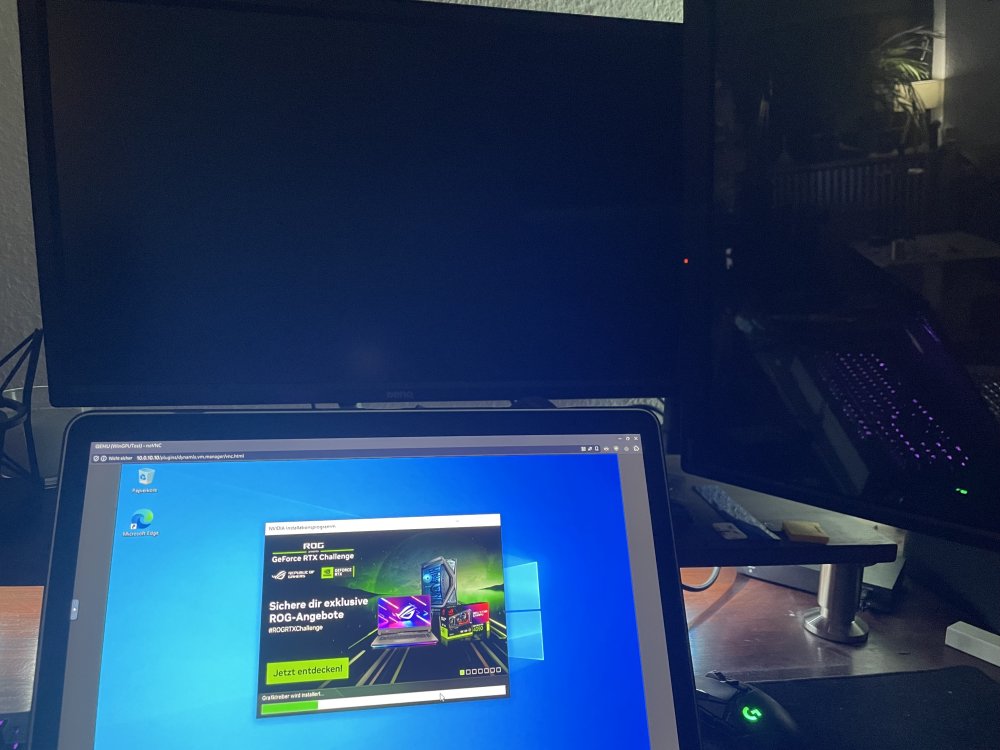
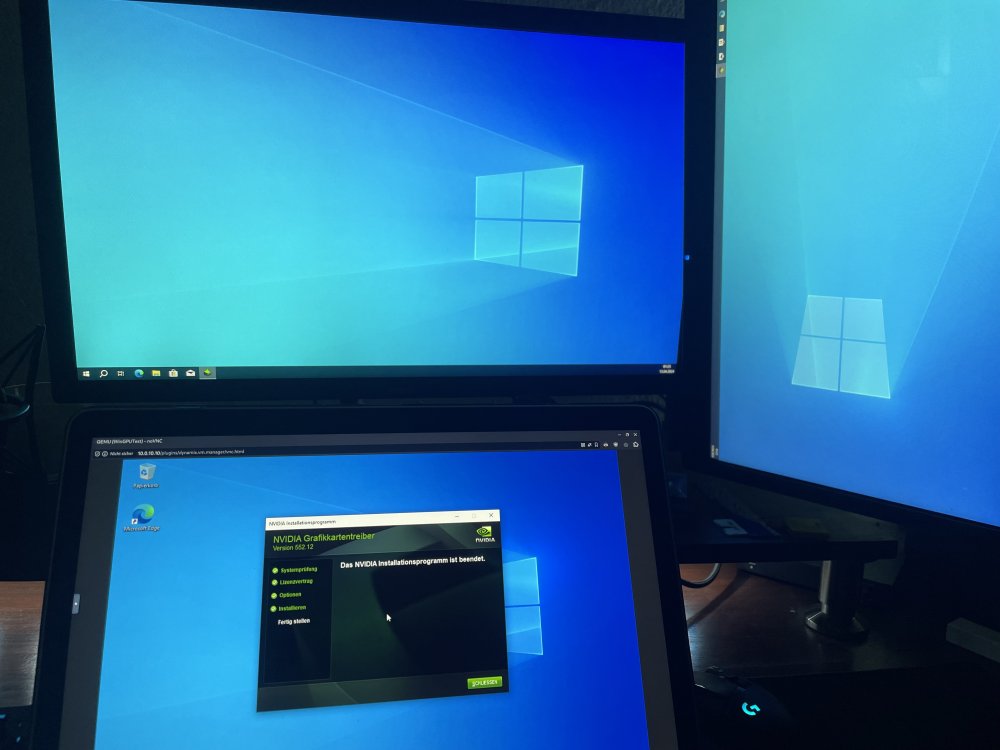
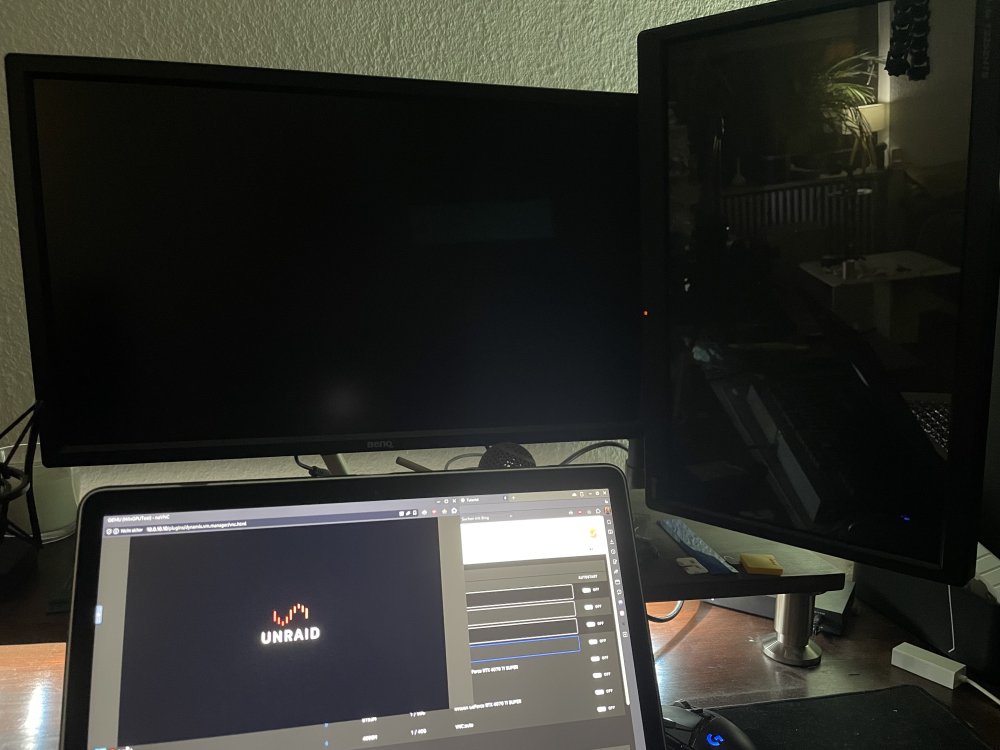
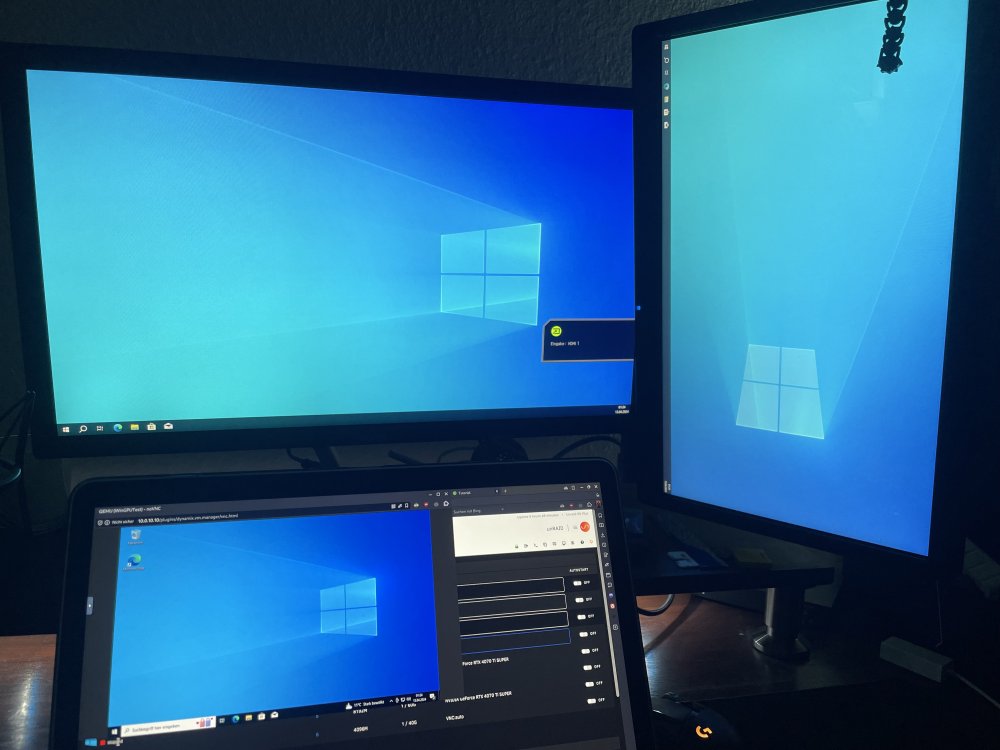
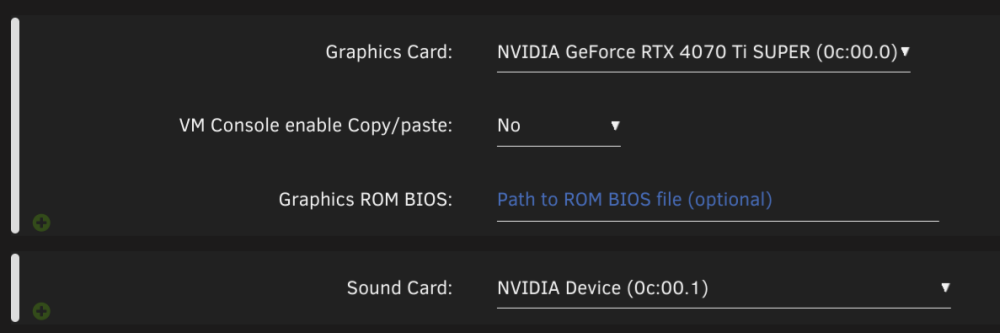
Hello everyone, despite the expensive prices from nvidia I decided to upgrade to a new gpu to open up more possibilities with AI. I have therefore decided to say goodbye to my 1070 from Zotac and bought a ASUS TUF 4070 TI Super OC from Asus. No other gpus are installed or iGPUs that I can use. (Ryzen 3800XT) So that I could use Docker containers with my new GPU, I wanted to install the latest nvidia drivers. For some reason, however, there were problems downloading them and it kept giving me errors, despite rebooting the host system. So I removed the nvidia plugin, reinstalled it again, restarted unraid and successfully downloaded the latest drivers. Then I rebooted the system again and the Docker containers were able to work with the graphics card (if Docker Settings are correctly configured). I also had difficulties with the VMs at the beginning. In my setup where the 1070 was active I needed two things. Once a vbios file which I got from the TechPowerUp website and a user script that was executed when the array was started. #!/bin/bash echo 0 > /sys/class/vtconsole/vtcon0/bind echo 0 > /sys/class/vtconsole/vtcon1/bind echo efi-framebuffer.0 > /sys/bus/platform/drivers/efi-framebuffer/unbind my vbios file: Zotac.GTX1070.8192.161103.rom Both are apparently no longer necessary. The vbios file is no longer needed in the 4000 series, as I have read several times, because nvidia has apparently made some changes to make it easier for the user. If I understand correctly, the script has disconnected the GPU from the host system to make it "available" for the VMs. This was necessary with the 1070 so that I could use it there. Even if both are no longer necessary, I still had a black screen when booting up. While browsing the forum I read that it is also possible to use the VNC interface as a graphics card in addition to the nvidia card. Do not forget to configure the corresponding sound card from the nvidia graphics card. I therefore created a Windows 10 VM and carried out the installation via the web interface. I also installed the virtio drivers for the network interface (NetKVM) and the storage (viostor) from the virtio ISO. And here the storage drivers: After installing the OS, I created the offline account and finished the setup. Then downloaded and installed the latest nvidia drivers. Normally it is possible to get graphics card drivers from Windows Updates but in my case none were offered for download. The physical display output appeared after the installation process. Just to make sure that this is not only temporary, I restarted the system via the OS. Then shut it down and booted it up again... and it stayed that way. However, I noticed that the BIOS is only visible in the VNC. On the physical screen, the display output only appears when the OS and the corresponding graphics drivers are loaded. After making sure that this works for the most part, I removed the VNC graphics card. The nvidia card remains in the configuration. Started again and after a few seconds the Windows desktop appeared in the physical monitor when the OS is fully booted. How exactly I solve the problem to get a permanent display output to see the BIOS or when updates are running or a hard disk check is performed,.. I can not say at the moment. If anyone has similar experiences or even a solution to this problem, I would be very grateful if you could let me know. I hope I could help some of you with this information.
-
If I understand correctly... you want to use this Docker to pull/synchronize mails from a 365 mailserver and store them on the Docker mailserver? What speaks against using a mail client? (Thunderbird, Outlook, Roundcube, etc.)
-
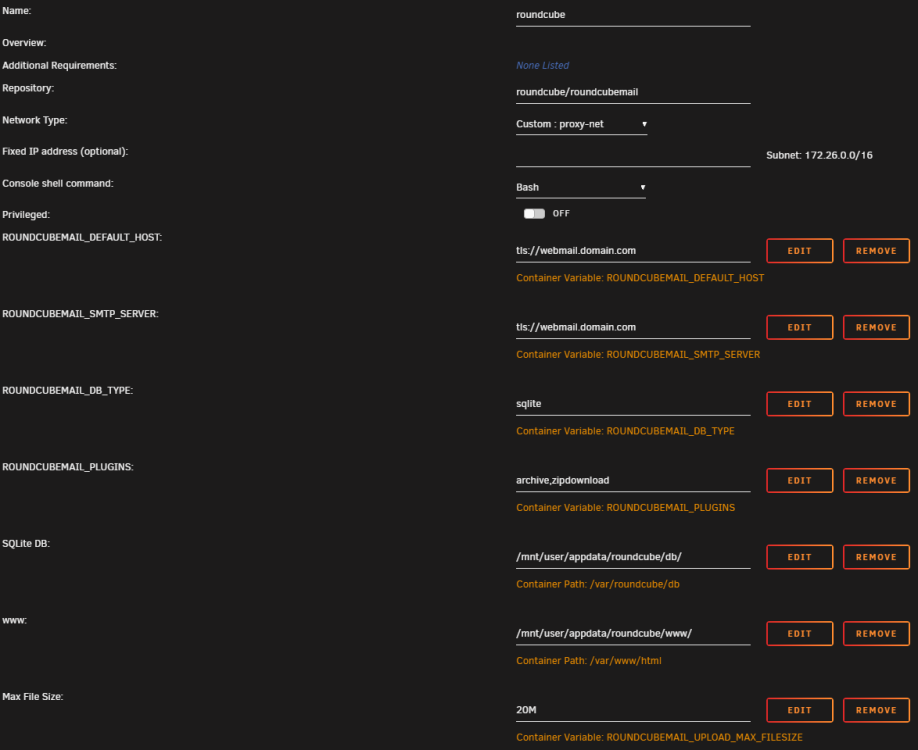
I cannot recommend an admin web interface. I only use the "setup" command in the container directly (in the console or terminal). docker exec -it docker-mailserver bash To be honest, I'm also not sure if there is one that you can work with properly as they advertise that you can only customize everything via configurations. https://github.com/docker-mailserver/docker-mailserver/issues/1555#issue-650874945 with the "setup" command you can configure everything you need. I can recommend Roundcube as a web client. I downloaded it directly and configured it via the Docker Hub. See configuration in the picture. I hope the information was valuable.
-
What are you using for Login? Username, Password (special Characters?), Mail Adress, Domain, SSL/TLS, Port? (please censor sensitive data) Is the information you entered in iOS the same as in Outlook? Did you tried Thunderbird?
-
I'm just here to say thank you. Just found this a few days ago and installed it successfully. Everything works great and I'm using this daily. 👍
-
I guess this is a read/write problem. Have you changed the permissions? If you are not sure, try a new container or a new path to see if the error happens again. If so, try the following command (not for production environments) chmod 777 /mnt/user/appdata/<dms path>




