





guy.davis
Members
-
Joined
-
Last visited
Everything posted by guy.davis
-
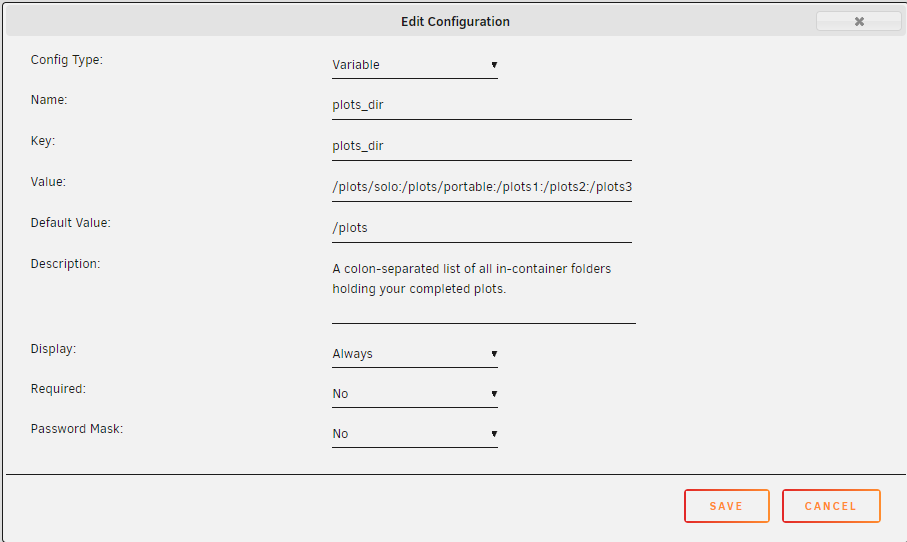
Yeah, sorry again for this. To fully correct, you want your `plots_dir` to have Key: plots_dir (not /plots). Like this:
-
Hi, see the Wiki and set 'plots_dir'. That should help, watch out for duplicates of 'plots_dir' in Unraid's Edit window.
-
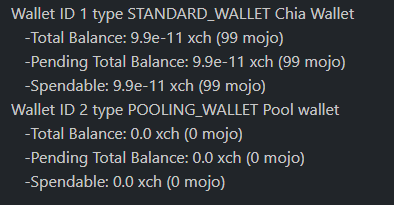
Yes, that's good. Now that you have created the NFT by choosing Self-pool. Wait until the Chia wallet (not Flax) is showing like mine above. My screenshot was of my Chia wallet (1 standard + 1 pool). When you see Wallet ID 2 Pooling, then you can next choose: Connect to pool again. This should use your existing NFT and join to the pool.
-
Hi, please make sure your Chia wallet is showing as "Sync Status: Synced" (see the Wallets page). Then see what type of Wallet you have at ID=1. The plotnft command above should create Wallet ID #2 for you, a pooling wallet. However, Chia binaries are complaining about the original wallet (#1), a standard wallet. If problem persists, you may need to delete your the Chia portion of your Machinaris install and start over. Stop Machinaris container, rm -rf /mnt/user/appdata/machinaris/mainnet, then start Machinaris again. Hope this helps.
-
Yes, Machinaris bundles the Chia 1.2.0 binaries on Ubuntu in the container, so it will happily farm both solo and portable plots. Just be sure to add all your final plots directories to the "plots_dir" variable, then restart Machinaris. Edit: this assumes you used the same private key (mnemonic) for all systems. If you have multiple private keys, things are a bit trickier, but still doable, probably more manual configuration.
-
Try restarting the Machinaris container, which forces both Chia and Flax debug.log files to INFO level from default WARN. This is needed as Chiadog/Flaxdog require INFO level. To check after: tail -f /mnt/user/appdata/machinaris/flax/mainnet/log/debug.log Should see Flax chugging away hopefully.
-
Good day! The next version of Machinaris now available: v0.5.0. Thanks to all those who tested and provided feedback during the release cycle. All contributions are appreciated! Changes: Support for official Chia pools. Chia and Madmax plotters can create portable plots. Plotting and farming on the Flax Network. Enabled by default, but can be disabled. NOTE: There is a known issue related to environment variables for Machinaris container in Unraid. Please ensure you: Expand the 'Advanced View' switch when editing Machinaris container settings on Unraid | Docker tab. Click the 'Show more settings' link to expand all settings. Verify that you do not have duplicates of env vars: plots_dir, blockchains, and auto_plot. If you have duplicates, delete the one where the name is not equal to key, then restart Machinaris.
-
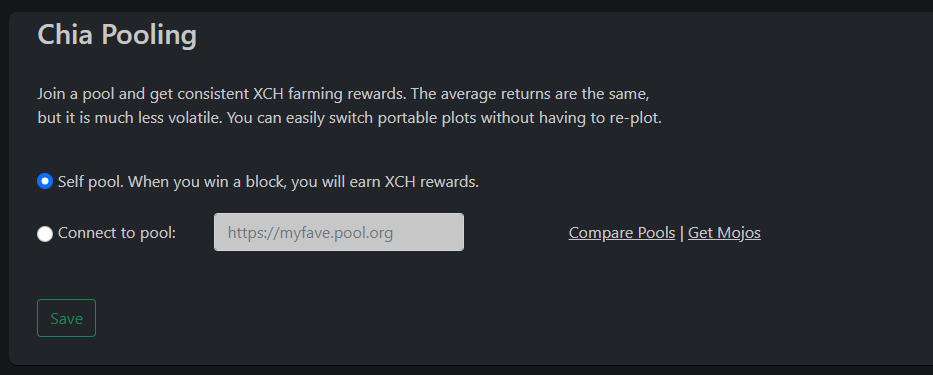
Hi! Over on the Discord, we've been building/testing pooling support in Machinaris for a week now. Pull the latest test version to try it out. Final release coming soon.
-
Yes, test version has manual configuration support for pooling. However, I am working on a WebUI approach to joining a pool. Not ready yet, even for testing. Based on your concern above, I would recommend waiting for final release with the WebUI settings page for Pooling.
-
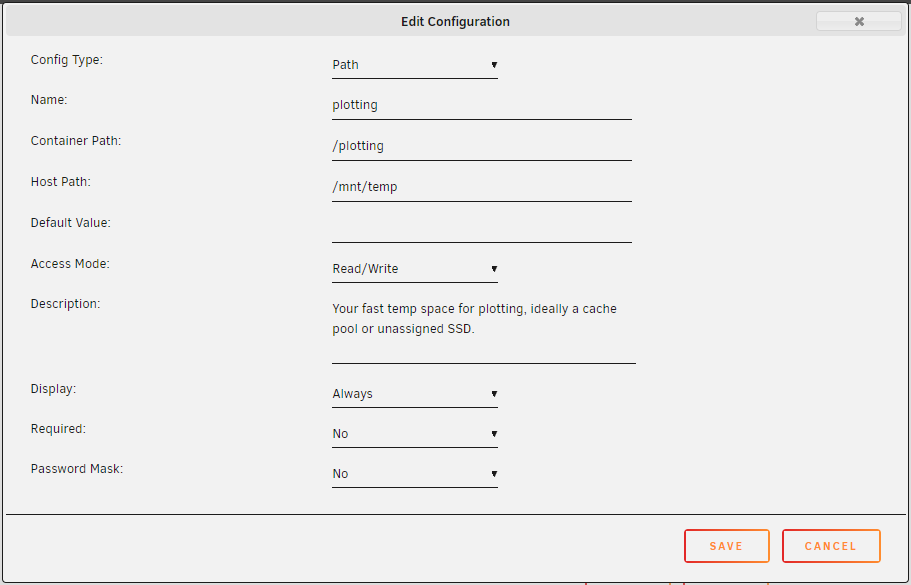
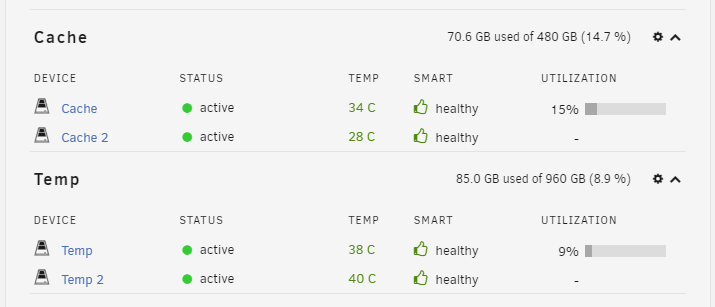
Hi, please share some details of your cache pool you are using as your temp plotting directory. For example, please show the Edit view of the 'plotting' path in Machinaris Docker Edit screen for Unraid: What do you see on your Unraid Dashboard page for the cache? If paths are correct, then when Machinaris (v0.4.0+) starts to plot, any stale *.tmp files in your temporary plotting location will be deleted before a new plotting job is started. If you Kill a plotting job, but have Plotman still in running state, it's likely that a new job will immediately launch as per the plotman config. Then if you stop the Machinaris container with that running plot job, you could have stale *.tmp files left behind. However, on next start of Machinaris and plotting, the stale tmp will be cleaned as outlined above. Hope this helps!
-
Yes, currently test support for official pooling requires come command-line and manual config. Go ahead and add the pool_contract_address value to your config as in the example.
-
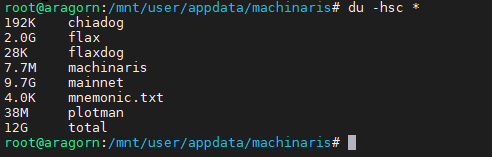
No, that still seems quite large at 36 GB total. The bulk of space will be used by Chia (and Flax) for their blockchain databases. Here's my top-level usage, only 12 GB, almost all in Chia's mainnet folder: Edit: Actually, I am using 12 GB of disk at above path, but in Docker container space, only about 5GB:

-
Good day! That does sound like perhaps something is misconfigured. When I go to Advanced View and expand all settings for my install of Machinaris, I see: Makes me think perhaps you are plotting within the container space itself? You definitely want to double-check your volume mounts. If you choose, the *.db and *.log files can be purged, during a container stop/start. Hope this helps!

-
Hi, well, a restart of the container should do it, unless there is some sort of file corruption or upgrade error. Anything in the logs at /mnt/user/appdata/machinaris/machinaris/logs/ ? Also, to restart Chia services from inside the container use: chia start farmer -r Hope this helps!
-
Great! Btw, are you the same fellow behind the Flaxdog port? If so, thanks! I am wiring this up into Machinaris right now. Regarding the multiple plots dirs, please set them via the 'plots_dir' environment variable. It's probably in Unraid Docker Edit for Machinaris if you toggle Advanced View and Show More Settings. Should be a colon-separated list of in-container paths. Will be used to both add dir to chia and for Machinaris to list plots in WebUI. Hope this helps! Actually, maybe you're seeing the 150 plot limit (sorted by newest descending), I just added to the Farming page? Previously it listed everything on a single page, but I thought this was a bad idea for many plots. I could change it back. I really need to make all the tables sortable/paged/searchable/etc...
-
Thanks for the quick response. I would recommend only one running Machinaris fullnode/controller on your LAN, which hosts the control WebUI for the network. The others can be workers such as plotter, harvester, or harvester+plotter. Details on the Workers wiki page. Hope this helps!
-
Hi! Thanks for providing feedback on the test release with Flax support. The test release is being updated regularly, fixing issues and adding enhancements as quick as possible. So, please be sure to pull the latest when restarting the container: ghcr.io/guydavis/machinaris:test
-
Hi, glad to hear it! Please share why you aren't able to run Machinaris as a remote harvester on Windows? Hi, if the primary instance is a Machinaris fullnode/controller and the remote worker is a Machinaris harvester, then yes in Machinaris v0.4.0 only the plots attached to the Machinaris fullnode are included in ETW calculation. Unfortunately, I didn't catch this defect until just after the release. However, I have now fixed the ETW calculation to include all plots across the Machinaris-managed farm. Currently available in the test version and fix will be available in next release. Thanks for the report!
-
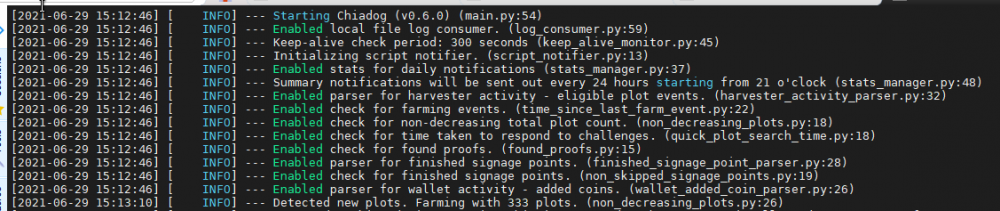
No, that log line is part of the Chiadog start-up process indicating the log monitor is activating its various checks, one of which is to watch for added coins. As it occurs at the beginning of every Chiadog launch, this activation of the checking module does not indicate the check was actually triggered by a real event. Sorry!
-
Hi! The Machinaris workers (harvester, plotter, or harvester+plotter) connect to the Machinaris controller/fullnode, by hostname or by IP address. To launch a harvester, try these directions. Let me know if you have any trouble.
-
Hi, thanks for testing the test version. I have enabled Flax by default now to simplify things. Please update to the latest ghcr.io/guydavis/machinaris:test image. Thanks again for testing Flax integration in Machinaris!
-
Thanks for testing the test version. You should not need to run init flax. Would you mind sharing the Logs output view from Unraid for Machinaris?
-
Good day, thanks for testing the test version. Please stop the Machinaris container, delete the following files, then restart: /mnt/user/appdata/machinaris/machinaris/dbs/machinaris.db /mnt/user/appdata/machinaris/machinaris/dbs/stats.db /mnt/user/appdata/machinaris/chiadog/dbs/chiadog.db On startup wait a few minutes for things to populate. Afterwards, take a look at /mnt/user/appdata/machinaris/machinaris/logs/migration.log. Thanks!
-
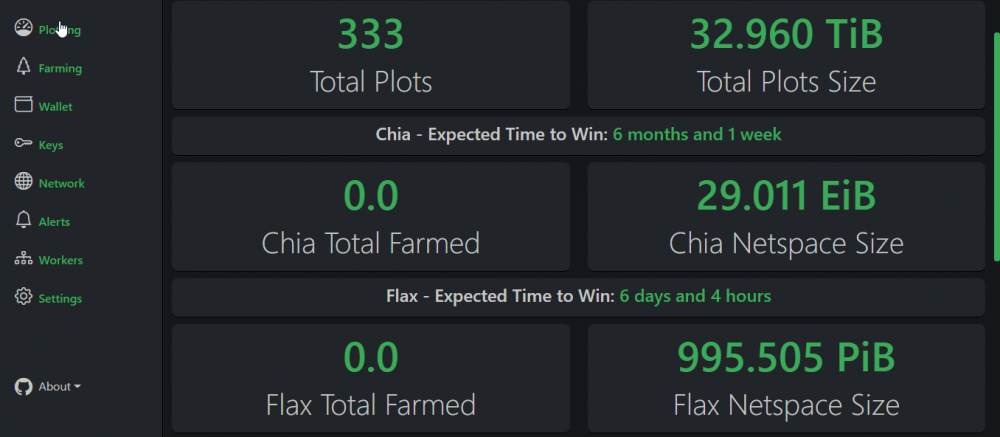
Hi all! Test version (ghcr.io/guydavis/machinaris:test) now has initial support for concurrent farming of the same plots on the Flax network. This is early stages, with some known issues, but feedback on the implementation so far is appreciated. Details on the Flax wiki page. Thanks!
-
Glad to hear you got Madmax plotting. Please verify your Plotting config against the sample Madmax config on the wiki. The SSDs should only fill up as you show if: Madmax runs are crashing, failing to create a final plot, and then Plotman is starting a new Madmax run. In this case, I would recommend dialing down your settings to match the sample, and slowly increase only after successful runs. Plotman is configured to run multiple Madmax jobs (global_max_jobs > 1 and tmpdir_max_jobs > 1) so Plotman is running multiple at the same time, which consumes your temp disk space. Hope this helps!





