





lonebear
Members
-
Joined
-
Last visited
Everything posted by lonebear
-
Already done. As stated in the fact that I've run through all the steps in the multi page pdf that everyone points to. It was set this way when it stopped working.
-
checked my /etc/sabba/smb-shares.conf and all shares show there with correct options
-
No. Root is not touched. Why in gods name would I touch root. Other than being sacrocent. It was never mentioned above. Note my comment. USER password
-
no share. attempted with no user (and yes, i checked/reset unraid user password) - fail. added user to credential manager. both with name and ip both fail. interestingly, if I click on the win10 DESKTOP in the Browse for Folder it also returns "...Not accessible..."
-
100% fail. I can not attempt to chose a share, which is set to what I had before it stopped working AND what was listed above. When I browse to tower I get the error: Windows cannot access \\tower Check the spelling of the name. Otherwise, there may be a problem with your network. To try to identify and resolve network problems, click Diagnose. When I enter the IP in the explorer selection bar I see my NFS shares. When I enter \\tower\ i also only see my NFS shares
-
I have done that before during my test and will try this again. But again. WHY did this stop working. Unclear: Should I remove all my maps on the windows box also.
-
I will look at your suggestions and past the results below. But to be CRYSTAL CLEAR the system was fully functional with SMB and stopped with NO changes being made by me. The SMB settings are as they have been since before the fail, and Enable SMB is: Yes (Workgroup). And my Windows box is in Workgroup. My settings - from when it was working HAD SMB exports, Security of public. Changed to Private with R/W for my user. Same exact failure. There is only 1 windows credential to the server by _name_ (not ip), which I added during this latest round of failures. As noted in my 2nd from last line. Do you mean remove and re-add the same credential?
-
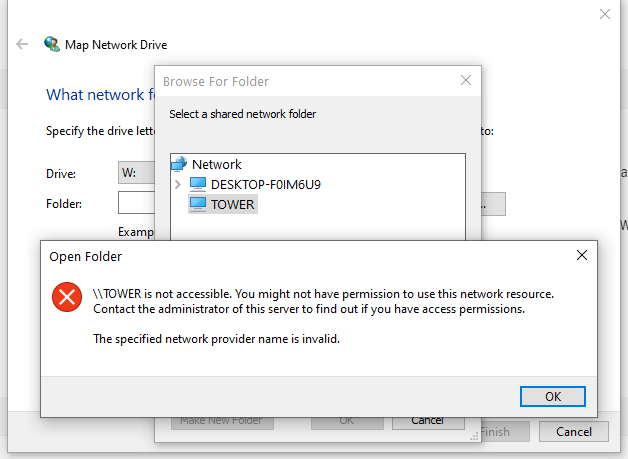
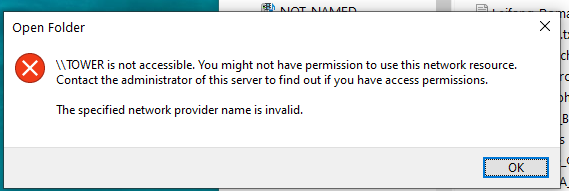
Raid has SMB enabled. Was functioning until about (mumble) months ago - I can search for my first post on the failure if necessary. ping, NFS, console, terminal, etc (I.E. _ALL_ other access to server functional. Failure sequence (text. screen caps if needed) explorer | this pc | map network drive selection box: chose drive letter click browse browse for folder box appears click on "tower" get error: "\\TOWER is not accessible. You might not have permission to use this network resource. Contact the administrator of this server to find out if you have access permissions. The specified network provider name is invalid." I have verified SMB1 off, 2/3 on. I have run through adding a credential. I have gone through the multi-page pdf from elsethread.
-
And I have the unluck of this unraid issue. Working on trying to restore SMB to my unraid for well over 6 months now. Tried every fix here and in other threads to no avail. tower-diagnostics-20230220-0945.zip
-
Win 10 workstation fully patched connecting to unraid 6.11.5 Since at least one unraid update ago I have not been able to connect with SMB. I _can_ connect with NFS All SMB shares are public. When I have the windows 'Map Network Drive' 'browse for folder' box open I will see the server _name_ disappear and reappear when I make any changes to a SMB share as a test (to private for instance). Which makes me think that Windows sees some SMB but not all of it. The error when I try to Browse by server name is '\\TOWER is not accessible...The specified network provider name is invalid." connecting by ip in the Map Network Drive folder selection does work for NFS. I have gone through the How To on Advance Network Settings to no avail. Yes, I can continue with NFS, but SMB allows better control and use of the wonderful recycle bin plugin.
-
As I expected, it _appears_ to be an unraid issue. I finally got off _my_ duff and translated what i needed from RH to slack and also noticed that the dashboard and main had " Array Started•Starting services." up. So I looked, and /etc/rc.d/rc.samba status returns "Starting Samba" and that specific failure persists even after a fresh reboot.
-
Still only a semi-functional network/system. Copy or move to the server over nfs (as opposed to smb) often hangs for minutes. I still can not connect via smb to unraid.
-
was able to clear with net use * /delete. Still getting error using any method _other_ than \\tower in explorer bar. I also enabled nfs in windows services so I expect I'm using that now instead of smb. And it appears to run slower than befor. Still annoyed that this happened. Ah well. ETA: Copies and moves appear to inconsistently fail to these mounts.
-
Same failure. These are all steps I have gone through multiple times. The network is functional. I can get to the internet. I can get to another device on 192.168.1. I can get to at least one docker (plex). The only failure is to SMB shares. tower-diagnostics-20221025-1207.zip
-
I was fully running with authentication as a user for some shares and open for others. The credential existed. The system was working. I removed and recreated the credential. There have been multiple reboots of server and workstation.
-
results as expected - no change. Again - as the system was and is working to the internet. And a bit of additional detail. It is certainly not on the windows side as I can access both the internet, and a web cam that is in the 192.168.1.x network.
-
I will attempt this, but I can almost guarantee that this will not work. As I did not change anything on the windows side between the smb mount functioning and it not. The linked document says "...edge case situation where a brand new Windows 10 computer..." This is a system that has been running for a long while with no network additions or changes.
-
After the my server plugin issue this morning I can not access any mounts on my unraid server. I can ping from unraid terminal to windows ip I can ping from cygwin terminal to unraid ip When I try to connect i get: M:\ is unavaiable. When I go to Map network drive then click browse and select the server "TOWER" it returns: \\TOWER is not accessible. You might not have permission to use this network resource...." This qualifies as a really odd failure - to me at least. tower-diagnostics-20221024-2034.zip
-
will do so thanks
-
I agree. But I have no idea what could be causing this failure to connect. I should probably close this and open another topic. Or just give up.
-
Nope. Array shows Green Array Started. I can ssh from windows to tower I get: {share} is unavailable... error box.
-
I'll reboot again. Array shows running. tower-diagnostics-20221024-1751.zip
-
Yup. no errors under my name dropdown. But the server is not appearing, either by name or ip address. //192.168.1.xxx/{share} or //tower/{share} both fail. I can ping the IP from cygwin. Filebot returns Server disconnected (code 1006) as does handbrake I'll dig more after my work ends, but this is odd.
-
Failure there known. Now still can not connect. can ping. docker (plex) appears functional. But neither unraid ip or name are being seen in windows.
-
new error is now: My Servers Error Unexpected token '<'," Hope this comes back up. The wife and kids will not be happy if plex is down <smile>
