BKG
Members
-
Joined
-
Last visited
-
Sorry for the delayed reply. I did notice it was happening during the time I have higher temperature in the basement. When i replaced the HVAC motor and AC came back on reboots stopped. My case has adequate amount of fans and fans speed is proportional to the temperature. So need to catch why the temp difference is the factor. Not the drives! I know that as they set for threshold warning.
-
Apologies for hijacking thus thread, but is there any way to catch what's causing the reboots? My understanding once rebooted the logs are cleared. Thanks
-
I looked more into it, and apparently server reboots randomly and that is what causes parity to start , which us normal. Now I need to figure out why it does it.. All seems to be good and the server is on UPS so no power drops.
-
Any one figured it out? Same problem here. No reboots, but parity starts every other day on its own. I disabled the schedule completely, still dies it. Thanks
-
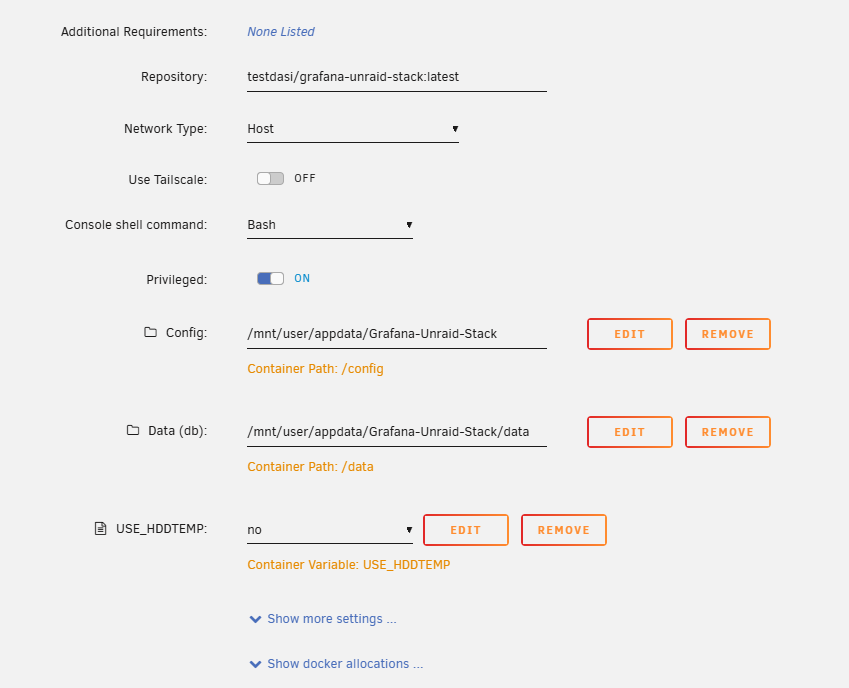
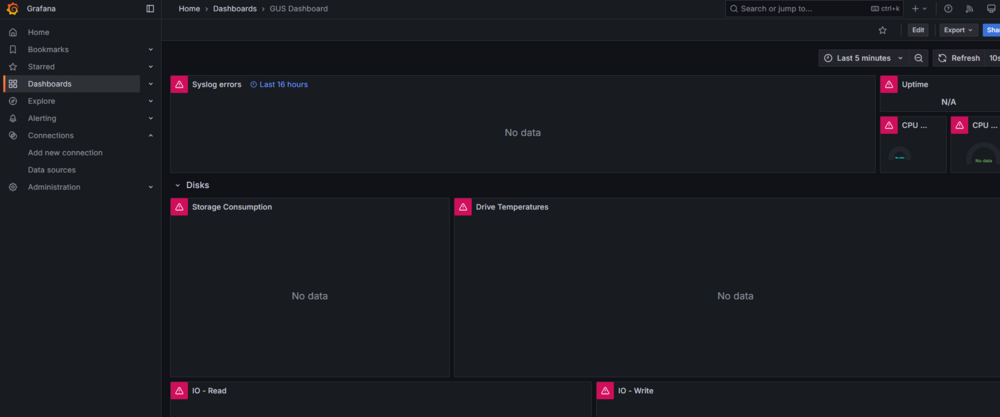
hi, I'm experiencing a similar issue as reported by @harshl. Also, I am new to grafana and want o make sure I don't need to make modifications to the docker from the default install. i installed docker and selected 'GUS Dashboard'. Thanks.
-
Hey man, everything is working fine now. The mistake I was making was that I used just '/sdf' instead of '/dev/sdf/' so the system was writing to ram. And, if i tried yuor way with '/dev/disk/by-id/' from the beginning it would have solved it. So thanks !
-
man... it's doing it again and after I ran the VM for a couple of hours. I resumed it in the bug report thread.
-
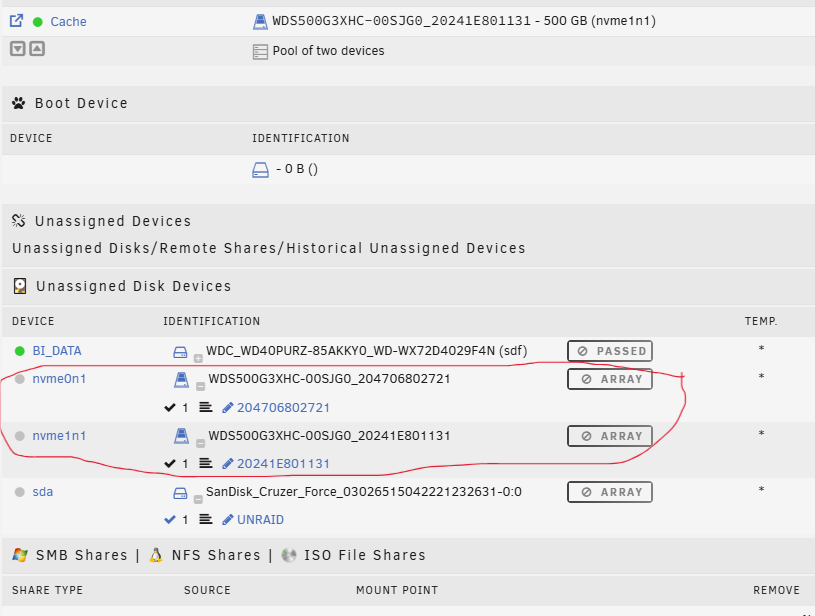
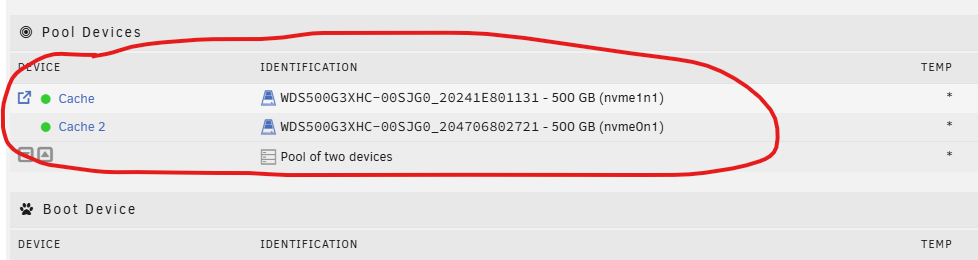
no, I use 2 x NVMEs for cache and a separate 4TB HDD for passthrough for my VM to store files on toand yes, cache set in raid1mine was always setup like this
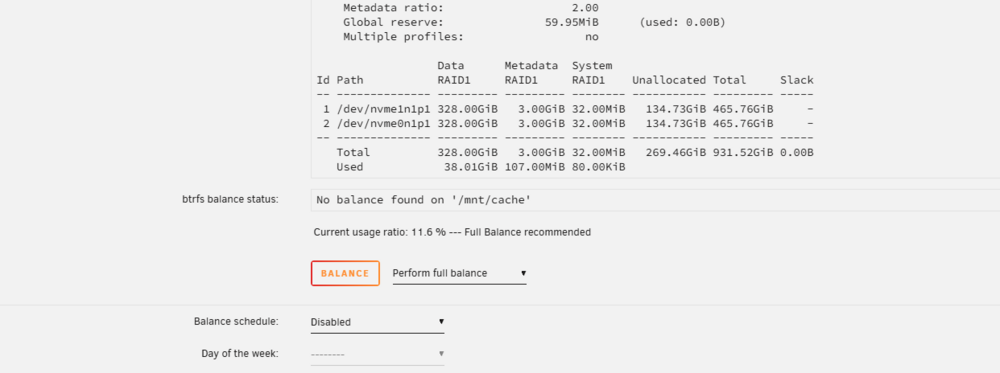 thanks. i will look into that. So far so good . testing freshly installed VM. One thing was still the same when I tried to use HDD name/serial it would not allow me to format the drive inside the VM and will freeze the VM completely, basically back to my original problem I listed here. So, I had to use /sdf and for the 2nd drive and that fixed the issue and I was able to format it inside VM and it is now working fine. I will update in a bit as I don't think enough time has passed.Hi, I think it is the VM that was causing the chaos. I removed the VM and re-upgraded to v.7 again and it is running fine now and without the VM. So, I am now going to install VM again and see what happens. I reported it in the bug report thread -After an upgrade to v.7 my cache pool started to break apart and put together sporadically causing all kind of issues including web UI dropping while logged in.Thanks BDDD. I know about the sdf , sdh, etc may change. Not a big deal in my setup as i only have one disk in passthrough, but your method is definitely better. I am interested in conversion of vdisk into NTFS. I didn't know that. Anyway, I started to regret that I upgraded to v.7. RAID is unstable. I keep loosing my cache pool. It keeps breaking down to a multiple devices and then back together again. I think it could be the reason i had my original problem with the passthrough , since when you working with VM page you don't see the dashboard and don't see the action there. I am thinking of downgrading back as it was rock solid before the upgrade. May be any wisdom from you on this?