leth
Members
-
Joined
-
Last visited
Everything posted by leth
-
Rebooting helped ❤️ - glad I didn't start recreating anything, pehew 🙂
-
As the stated in the title. I enabled docker, noticed that all my containers was booting up, was like oshit don't start then quickly disabled the docker service again and now later I get the "Docker Service failed to start." Will I have to recreate the docker image? People write its easy, but I have like 18 images many of which has multiple instances with different custom configuration. Is there an easy way to get it going again? I have "Appdata Backup" plugin will that backup the image?
-
After not finding any extreme usage by any of the following commands: Docker Disk Usage docker system df Containers with Sizes docker ps -a --size --format "table {{.ID}}\t{{.Names}}\t{{.Size}}" Images with Sizes docker images --format "table {{.Repository}}\t{{.Tag}}\t{{.Size}}" I found this way of checking for volumes with size Volumes with Sizes docker volume ls -q | xargs -I {} sh -c 'echo -n "{}: " && docker run --rm -v {}:/volume alpine du -sh /volume | cut -f1' At first I did not see the output as any issue but decided that a complete prune of everything unused couldn't hurt. First MAKE SURE TO START EVERYTHIN! This will remove all unused docker resources so if you want something to stay as it is make sure it is running before running this command! Prune all unused docker system prune -a --volumes After running that I ran the "Volumes with Sizes" command again and realized that `docker volume prune` would have been enough. Hope this helps.
-
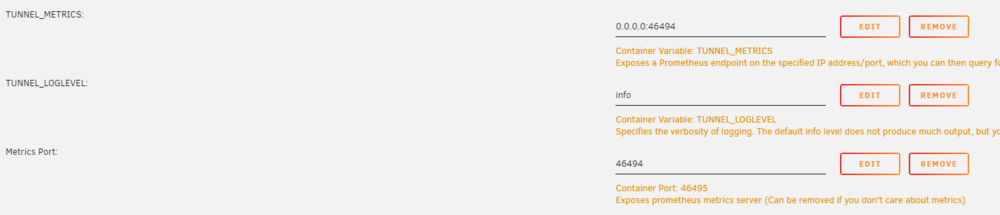
Can anyone get the metrics working on a different port? I have two Cloudflare tunnels running and thus require the metrics endpoints to differ a bit. So I have 'Cloudflared-01' and 'Cloudflared-02' 01 - uses the default metrics port '46495' 02 - tried using '46494' with no luck. Nothing comes up when i call 192.168.1.100:46494/metrics but I hit the metrics endpoint just fine on 192.168.1.100:46495/metrics
-
I installed a new Unraid using the installer on the new USB, moved over the Config from the Read-Only USB and put one new key in the Config folder... followed some instructions that came up then.. it just worked again! USB failing is shush a small price to pay for running shush a cool OS Bought two Samsung BAR Plus and the downtime (practically nothing) was a great excuse to install 3 new overkill NOCTUA NF-A14 3000PWM fans
-
Alright - I will just order a couple of new ones. They will get here in a couple of days - I will do the transfer then. I guess the read-only USB will work until then. First time I had a USB fail on me since I started on this (its been years) - is this what people talk about when they say their USB dies it really becomes read-only?
-
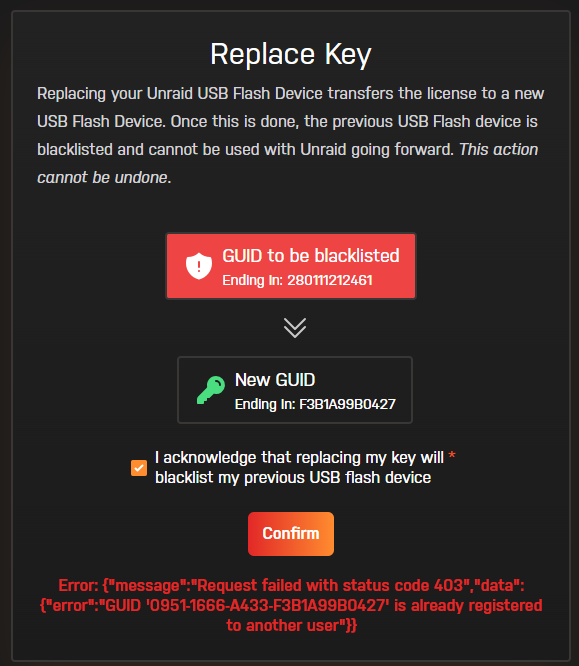
Damn.... I guess this is one of them "contact support" cases... I will try with a free trial license until I can get my license transferred
-
So I tried a couple of times to reinstall using the unraid installer and it crashed at the end with an error message leaving the USB unreadable by Windows. Noticed that the USB was getting super hot so I will now attempt using an older USB that I have used before for another license. A DT50 Kingston that has this big block of metal on it - ideal for keeping it cool i guess. I read here that the way to transfer the license would be to just put it on the new USB and boot from it... hope that works when the USB is associated with another license.. https://docs.unraid.net/unraid-os/manual/changing-the-flash-device/
-
Do you mean recreate? *How do you mean recreate?* - my mistake Should I re-install using the installer and then copy over the config folder?
-
tower3-diagnostics-20240623-1029.zip Right, of course! I created it for the former post but forgot to attach it
-
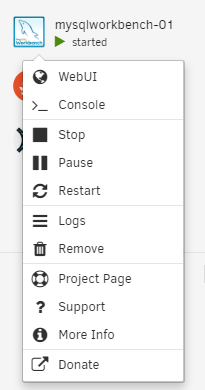
I just noticed that I'm unable to edit newly created Docker containers. I have read from other posts that this is due to the XML configuration file in DockerMan not being available (\config\plugins\dockerMan\templates-user). So, I fetched a new Flash Backup from my Unraid instance and was unable to find the ...\mysqlworkbench-01.xml. I have also noticed that I'm unable to edit containers/VMs/shares, etc., like the USB has gone into a read-only mode. Because this has something to do with the USB stick, I think it's important to provide a little section about my recent changes that may have something to do with this issue: I have recently made some changes to the USB key because I had two instances with Unraid running. One with a Pro license and another with a Plus license. I now consolidated everything and decommissioned my former server running the Pro license. I now had the Pro license free and wanted to move it to the newly created consolidated instance. Due to the fact that the license key is locked to the USB, I moved everything from my Plus license USB stick running the newly consolidated instance into the former decommissioned USB stick with the Pro license available (licenses stayed in place on the USB sticks). This may be just a coincidence that I made this change yesterday and today when installing new Dockers experienced this issue.... but it's one hell of a coincidence then... So, my question is, any suggestions for a fix?
-
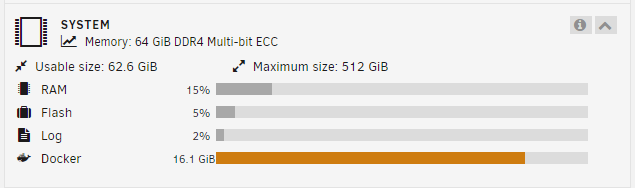
What is this 'Docker' metric? Am I about to run out of something? I should have plenty ram but looks like this 'Docker' thing is not picking up on that.
-
Why blink when I have notes? Can I disable this? I have notes about when I run certain tasks like backups and maintenance to keep a clear picture in one place. So I have one big note at the Dashboard page. I don't want it blinking all the time and I'm well aware that i have notes. How about just making it red color when notes are available at a certain page. The blinking keeps me thinking I have to do something about it.
-
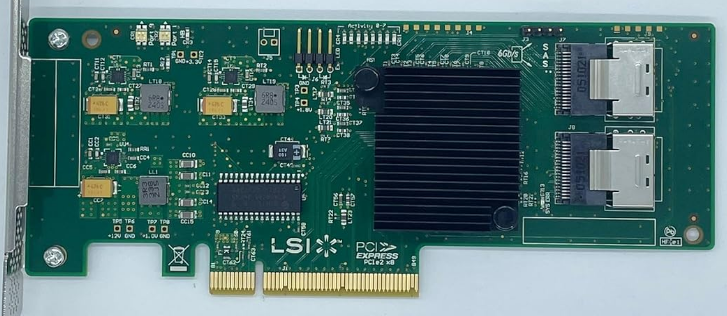
That is now my conclusion as well. I have now tested with a controller I have working in my second Unraid server and that worked out just fine. Must be a compatibility issue with the 8P6G-PCIE-SATA-CARD from StarTech.com. I found an identical controller to the one I tested on Amazon that I just ordered. It was a "LSI 2008-8i" and listed on Amazon as "SXTAIGOOD LSI 9201-8i 9211-8i SAS2008 Chip 8-Port 6Gb/s PCI-e HBA SAS SATA RAID Controller Card 2*SFF-8087 SATA" I hope I may event get better speed as its an x8 instead of x4..
-
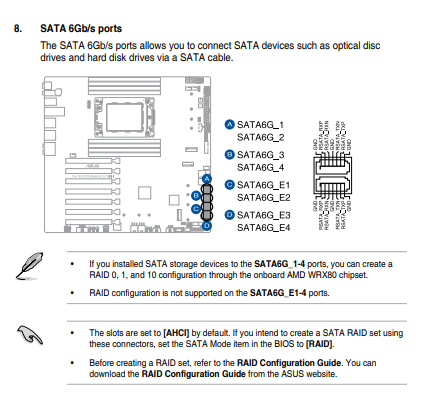
Hello again Jorge It works when I plug the drives directly into SATA 6GB/s ports directly on the motherboard. Is that what you mean by onboard SATA controller? Plugged them into Ports 1,2,3 (page 1-12 in the manual - https://dlcdnets.asus.com/pub/ASUS/mb/Socket sTRX4/PRO_WS_WRX80E-SAGE_SE_WIFI_II/E21365_Pro_WS_WRX80E-SAGE_SE_WIFI_II_UM_WEB.pdf?model=Pro WS WRX80E-SAGE SE WIFI II) Its a quite bad solution for my build as the enclosure is a Fractal 7 XL with a storage configuration - its big, but not big enough for the Asus Pro WS to have any room for cables out the side without costing my HHD trays. .. well maybe I can force some cables that way, but it will be super tight. Besides, I have 9 drives more waiting to get added so I would still need to utilize the PCIe for connecting storage.
-
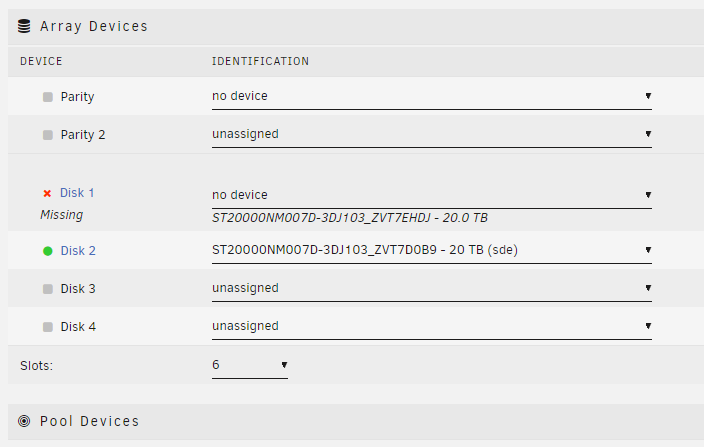
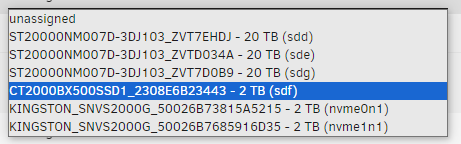
My build is: Asus Pro WS WRX80e-SAGE Wifi II STARTECH.COM 8 port - 6Gbit/s PCIe x4 Gen2 to SATA III - (8P6G-PCIE-SATA-CARD) 20TB Seagate EXOS X20 ST20000NM007D I have 3 x 20TB drives I'm working with. I will reference them in this post with the 2 last characters of the serial number - 'B9', 'DJ', '4A' Its an all new setup meaning no important data anywhere and can be taken down and brought up when ever required. When booting up all drives is found and visible in the Unraid dashboard. (it took a while to get here, had to disable IMMOU in the Bios) I assign the disks to array slots in the dashboard. Lets say I picked 4A as the parity drive, start the array, start the parity build - then after approximately 5GB of parity building it stops, after a minute or two I get thusands of erros on the parity drive. So I attempted new power cables - same result. Then new data cables (those cables that came with the controller) - same result. I tried new SAS port on the controller - same result. I then tried using the drive 'DJ' instead of '4A' as the parity drive - same result. I then tried using SATA cables to plug directly to the motherboard and everything seemed fine - success. That configuration is just not a great fit for my build with the placement of those cables os I went back to the controller and this time I picked 'B9' as the parity drive and it worked. B9 got to around 50 GB before i decided to cancel the parity build. So my question is what is going on here? I have attached diagnostics of an attempt where I used the 4A as the parity drive. Got to around 5GB and realized it failed again. Attempted to cancel the parity build before it could error out entirely and update the array device with errors. I then attempted to format the drives just to realise that the two drives that is unable to act as the parity drive (DJ and 4A) had transitioned to some sort of disconnected state... tower3-diagnostics-20240509-0957.zipHope that someone with more Unraid experience can help me figure this out.
-
Hell yea! So I finally managed to locate the IMMOU setting - it was berried deep within the BIOS! Advanced -> AMD CBS -> NBIO Common options -> IOMMU = Disabled .. and that did the trick.
-
@JorgeB Ahh okay.. I did not notice this - "pci=realloc=off" - was marked as a solution on a post linked in the post you linked I tried adding the best I could but I'm not sure I did it right. Attached the "syslinux.cfg" as I understand it should be put in there. The drives attached to the controller still doesn't show up 😕 Can anyone confirm it was done right? syslinux.cfg
-
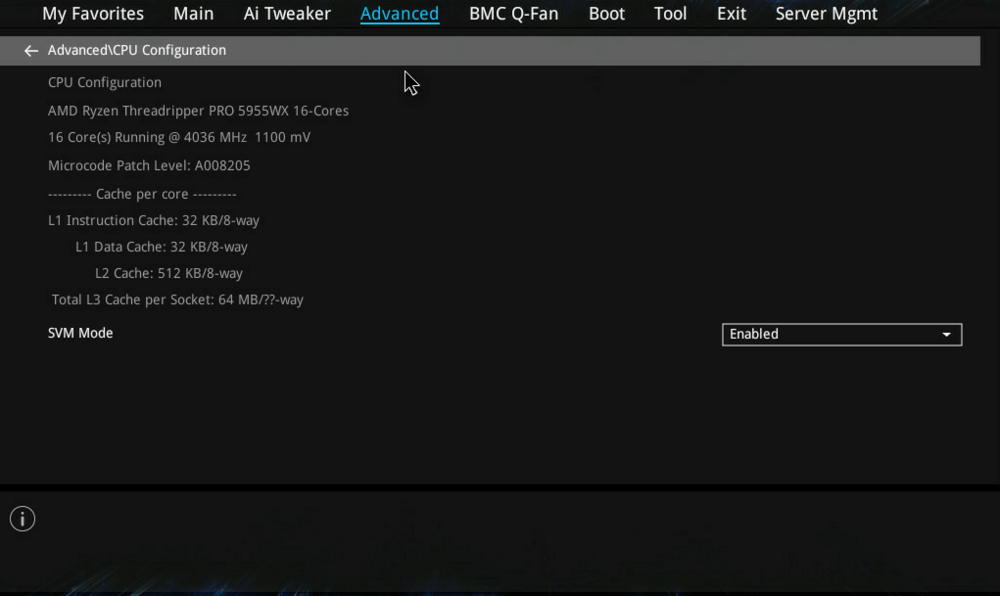
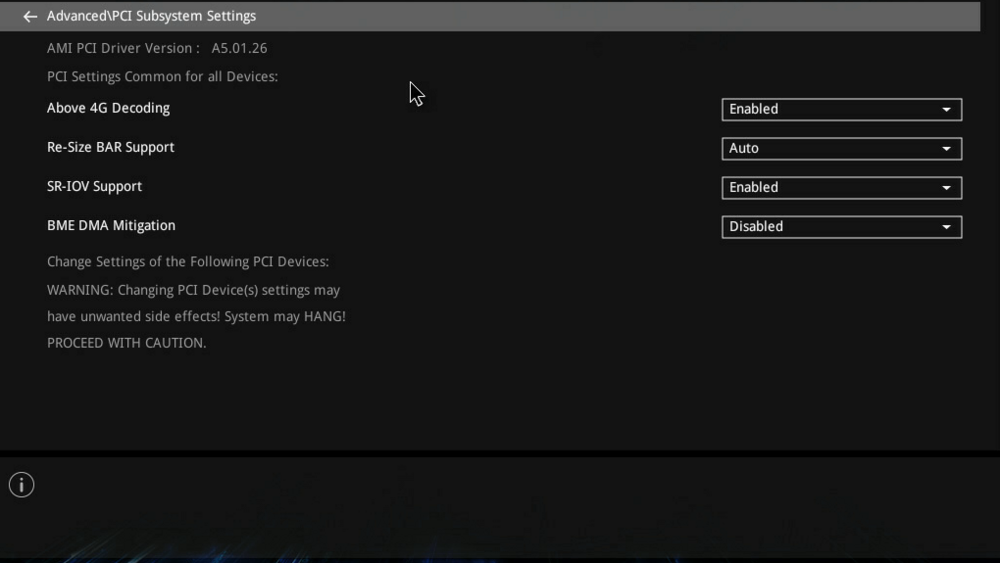
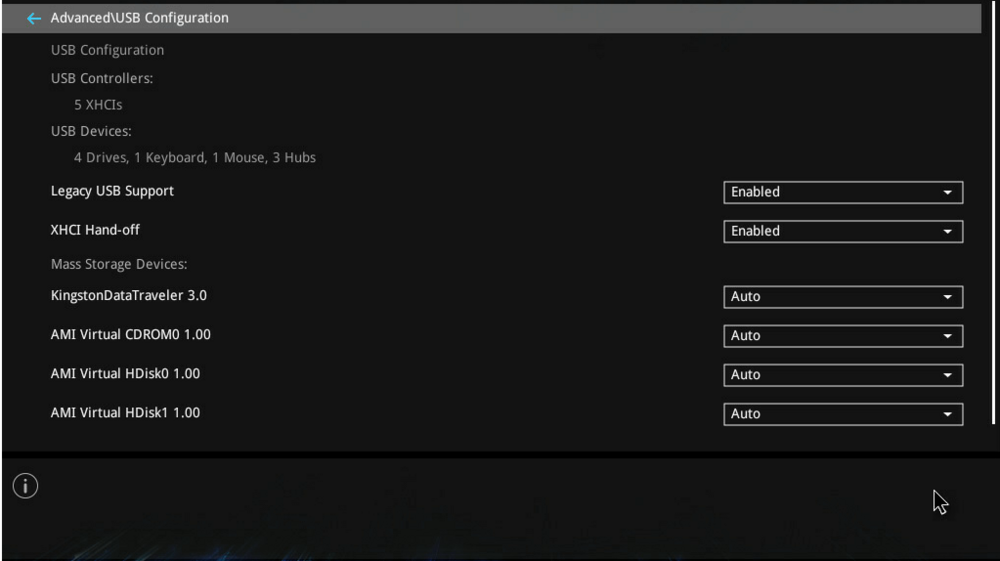
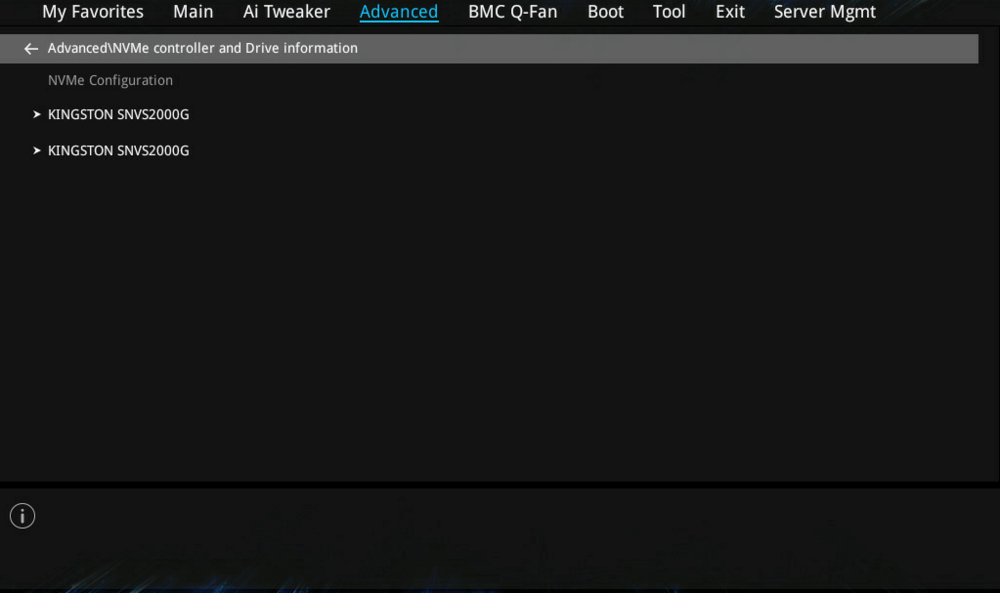
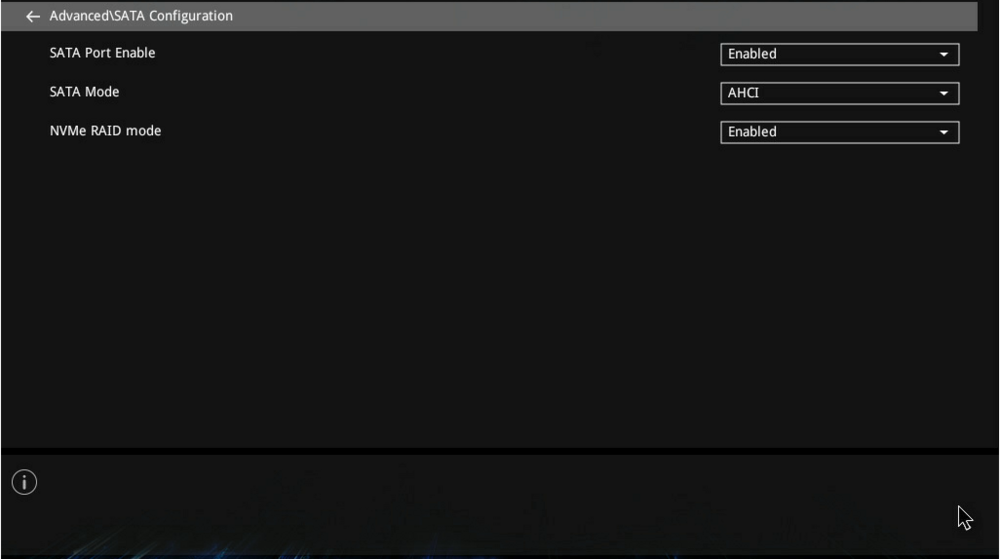
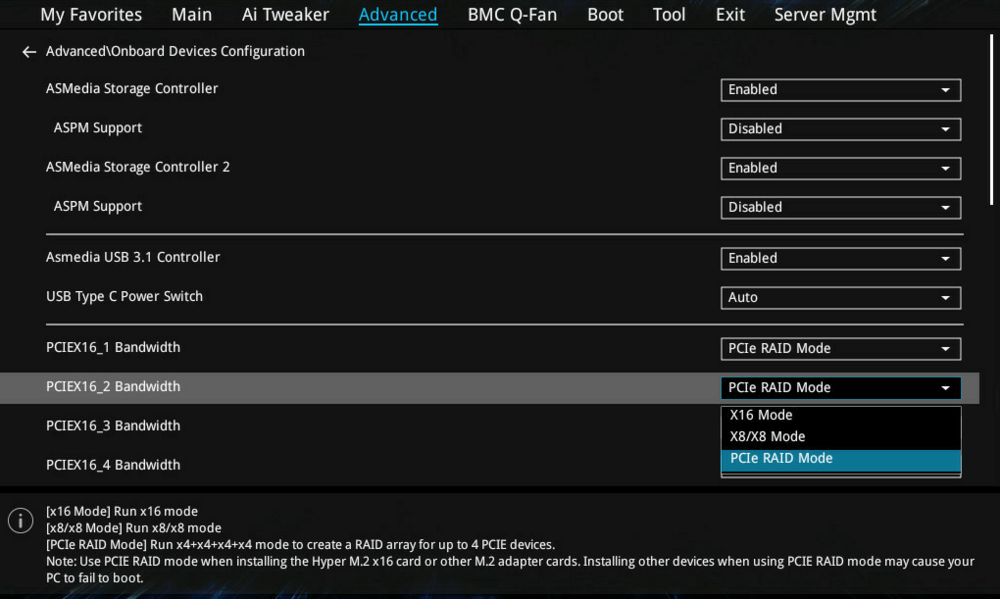
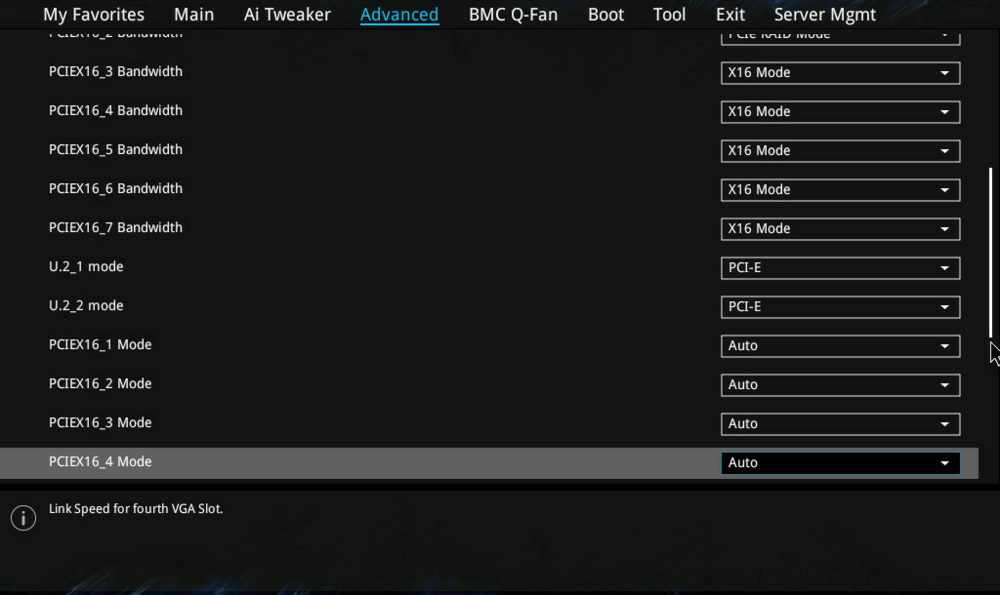
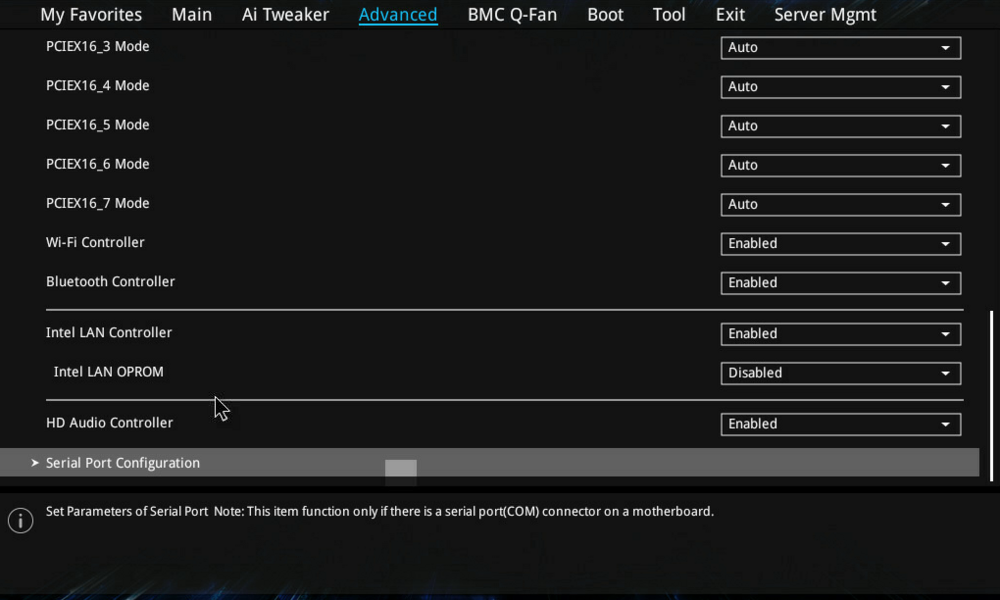
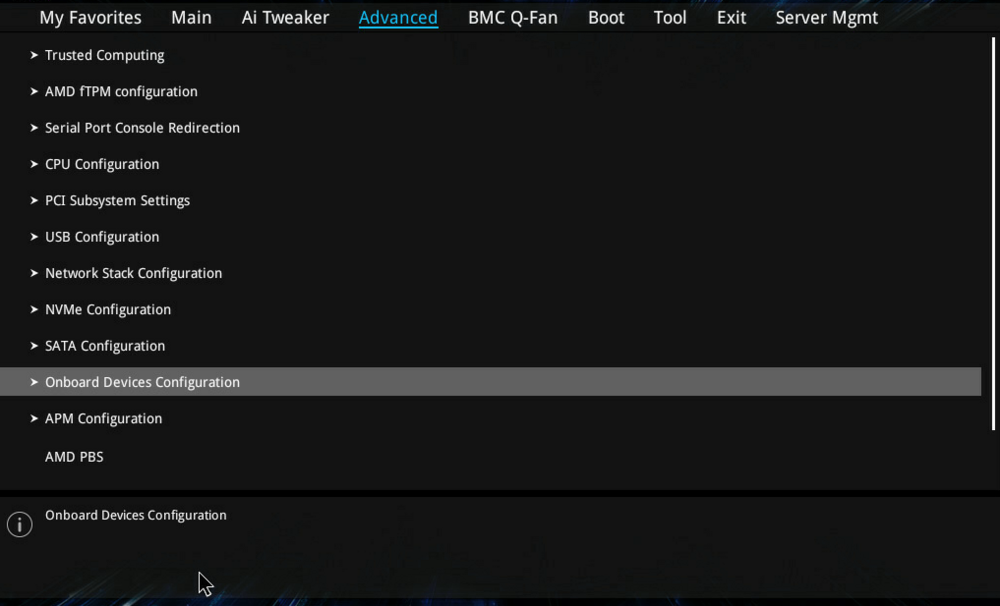
Unfortunately tweaking the BIOS settings as "mytech" described did not fix the issue. I was unable to locate any setting that mentioned "IOMMU". I have attached screenshots of my BIOS settings from the "PCI Subsystem Settings" and "Onboard Devices Configuration". Maybe you can spot anything that I may have missed. In the "Onboard Devices Configuration" tab I can set the lane-mode (hope you know what i mean). I'm not entirely sure that changing this makes a difference so I went through all of them.. No luck 😕
-
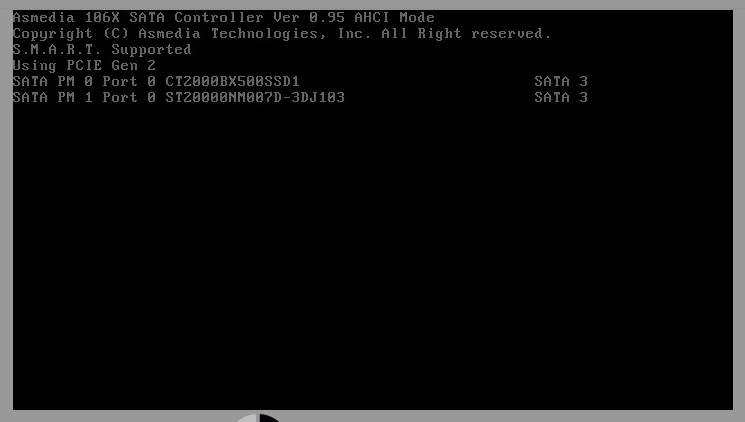
I have recently bought one of those SAS to SATA controller to add more storage to my workstation. I bought a STARTECH.COM SATA PCIe controller 8 port - PCIe x4 Gen2 to SATA III listed as (8P6G-PCIE-SATA-CARD) I currently connected 3 Exos 20TB HDDs and 1 SSD 2TB. The motherboard is an Asus Pro WS WRX80E-Sage Wifi II It will boot and disks are recognized in the onboard SATA ports. I can also see and use a couple of m.2 NVME disks connected through an Asus Hyper M2 expansion card. During boot I see some lines I believe to be indication of issues with the recently added drives: [ 13.122194] ata11: found unknown device (class 0) [ 13.125671] ata11: SATA link up 6.0 Gbps (SStatus 133 SControl 300) [ 13.129197] ata11: link online but 1 devices misclassified, retrying [ 13.132712] ata11: reset failed (errno=-11), retrying in 10 secs I'm ready to try out any advice, tips and tricks you may throw my way... I have already check that; - disk works in other system (windows) - power cables changed - SAS-SATA cables changed I have attached my diagnostics, dump of dmesg, and lspci output - things that was requested in other posts i have found. I also attached a screenshot of something I think show the expansion card initializing in some way - it shows at least two of the 4 drives attached to the controller for a short time before I can navigate into the BIOS. If I can provide any other information please let me know and I will get on it ASAP. tower3-diagnostics-20240504-1318.zip dmesg.txt lspci.txt