





chaosclarity
Members
-
Joined
-
Last visited
Everything posted by chaosclarity
-
I got this working - I just had to type some text in to the telegram chat and it started working.
-
I think it was getting corrupted somehow. I was using the Dynamix File Manager plugin and uploading the ISO from my machine to Unraid box. Instead I used qbittorrent to download the ISO this time and now it boots fine.
-
I have 2 unraid boxes, one running 6.10.1 and one running 6.10.3. I have had Telegram notifications running fine on the 6.10.1 box, so I directly copied the API key from that box to the new box running 6.10.3 and when I click Test, nothing happens. It's definitely enabled as well. Is something not working right in 6.10.3 perhaps or am I doing something wrong? It seems dead simple to get this wrong. Thanks
-
It's a VM, so I create the VM in the VM section, select Server 2016, and then select the server 2019 ISO located in my ISO share. I tested with a Ubuntu server ISO and it works fine. But when I try to do it with a windows server 2019 iso, I get that image during first boot, meaning I can't even get to the install. It will first say "Press any key to boot from CD or DVD" as usual, I press Enter, and that error occurs.
-
Maybe? I've tried 4 different ISOs though.
-
Using the WIndows 10 template doesn't matter - it's the same as the Server 2016 template. I tried it, same result. The default bios selected is OVMF, which I'm pretty sure is UEFI.
-
I have a new Unraid server setup and I've been trying to get Windows Server 2019 to boot the install ISO but I keep getting the error in attached picture. I've tried multiple ISO's, including the eval one directly from Microsoft, and using the default settings for a new Server 2016 VM in Unraid. As far as I know those defaults should work just fine without tweaking anything. I can boot Ubuntu Server install ISO just fine, but NOT Windows Server. Any ideas?
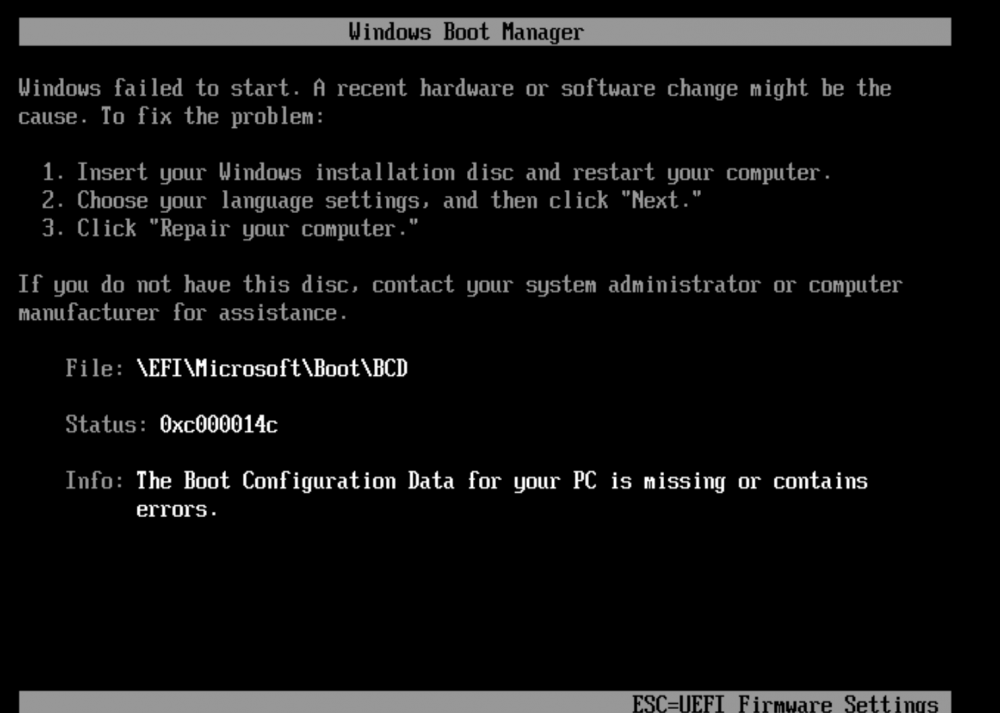
-
I added that config line as you stated and then rebooted. Unfortunately the teamgroup 1TB ssd didn't ever come back so the array was started without it and Unraid removed it from the cache pool. Is it safe to say this ssd is dead?
-
Do you think then it's a good idea to setup a scrub schedule for the cache pool? Or, just run it if I have issues like this?
-
Thank you. One question, in this current state as it's running now, is the cache pool operating OK?
-
Attached tower-diagnostics-20220624-0831.zip
-
Hi, This morning I received a notification about a cache pool device is missing: Samsung 980 1TB Now, the strange part is that in the dashboard main section I can see all 3 1TB devices (1x Samsung 980 1TB, 2x Teamgroup 1TB), but the one that looks strange is one of the Teamgroup 1TB ssd's as it's not reporting temperature readings any more. But, why did Unraid tell me the Samsung 1TB is missing? I'm really confused here. I had an unplanned power outage 2 days ago, and I'm guessing this could be the result of that, not sure. Any idea what I should do here?

-
I'm testing this to backup some vm's which are using vmdk files from my previous esx environment. I noticed the backup files generated are just copying the vmdk and not the actual vmdk flat file (which has the actual data in it). Am I missing something, or is vmdk support not there yet?
-
Fresh install here, getting the same error as last couple people above, Another process is initializing Nextcloud. Waiting 50 seconds Seems broken to me, why they haven't fixed it yet is strange lol.

