





CyberDev
Members
-
Joined
-
Last visited
Everything posted by CyberDev
-
Hi, first of all - I'm really sorry for not responding @DiscoverIt. I just forgot to answer your question because suddenly everything was working properly in my system. Maybe this will help you @SteelsFinest: What I did was installing the IPMI-Tools Plugin from the App-Store. After that I did a reset of the BMC and afterwards I configured the IPMI according to my preferences. E.g. the devices for polling temperatures and global sensors. Additionally I configured the "Fan Control"-Tab which is responsible for the FAN-Speeds. Somehow what I wasn't able to do manually was properly done by the IPMI-Tools plugin. After the polling time of e.g. 3 minutes, the fan speeds got adjusted and finally the speeds decreased. One important thing though: After IPMI-Tools plugin takes control of the fan speeds - do not manually override the fan speeds behavior using the BMC as this breaks the configuration of the IPMI-Tools plugin somehow. At least in my case. I hope this will help you in any way - unfortunately it was nothing more than trial and error for me - until its got working.
-
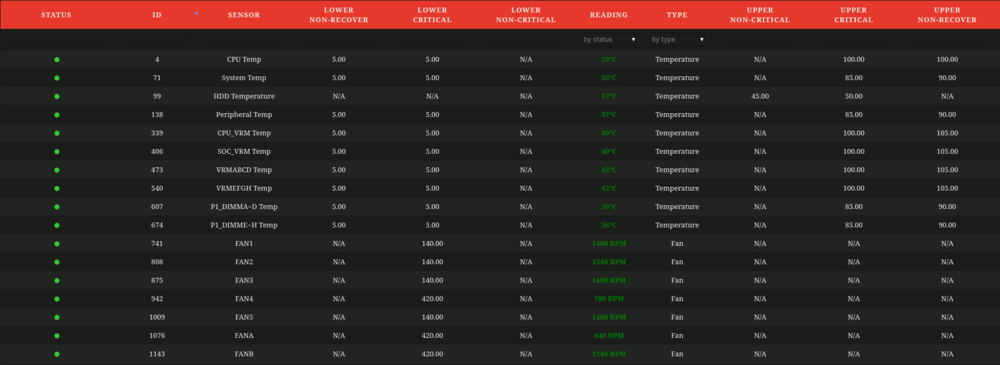
Thanks for the reply! Is resetting with IPMITool the same as resetting to factory defaults via BMC/IPMI WebUI? If so, than I already did this several times, unfortunately without success. Afaik the LCT for the Noctuas are 280 RPM - this is at least the value to which the fans briefly jump by themselves. By default the LCT is set to 420 RPM with a hysteresis of 140 RPM in both directions. I don't know if there is a correlation between the LCT and hysteresis as 420 RPM - 140 RPM = 280 RPM. But this could also be just a coincidence. In the meantime I got an answer from the Supermicro Support: I don't want to disable these FANs as I want to remote-monitor them in case of failure or some other problem. What I already tried was: - Setting the LCT to 280 RPM and (just to test) to 140 RPM --> BMC still shows critical and ignores the value - Reset BMC (Reboot) - Reset BMC to factory defaults - FAN-Control using the IPMI-Plugin Another thing I noticed is that if I try to set the LCT using the ipmi-sensors-config (FreeIPMI using the IPMI plugin) it throws errors for most of the values saying the value is not allowed. But for some values it does work, e.g. 140 RPM. If I set the LCT via IPMI-Plugin Unraid WebUI using the "sensor config" I can set any value I want and its also shown in the WebUI. Therefore I tried setting the LCT values to 140 RPM (see image), and its seems to be recognized by the BMC but it just ignores it. And anayways the IPMI plugin sets the Fan Configuration to "Full Speed" which makes the LCT values irrelevant in that configuration.
-
Thanks for your guide - appreciate it! I still have a problem with my setup, though - maybe you have an idea? I recently upgraded to a Supermicro H12SSL-I and connected various fans: - 1 x bequiet! Silent Wing 2 PWM - 2 x Noctua NF-A14 PWM - 1 x Noctua NF-F12 PWM - 1 x Noctua NF-A15 (CPU-Cooler) PWM - 3 x Fractal Design (incldued in the case, 3-PIN, so no PWM, I know I can't control them) I'm struggling with this configuration. I have the same problems you had: If I set the fan configuration to any other than "Full Speed" via BMC/IPMI Web UI, the fans decrease the speed as temperature is not high enough but the BMC increases the speeds again as the Lower Critical Threshold is set to 420 and the fans go down to 280 RPM by themselves. I installed the IPMI plugin and set the speeds and configuration accordingly. But it seems that this plugin just sets the fan configuration to "Full Speed". The fans are always on Full Speed with this plugin and it doesn't dial down the fans speeds. I did several Unit Resets via IPMI WebUI and also reset the system to factory defaults. Unfortunately no success. Also I tried to set the the LC Threshold to 280 or 140 - but the board seems to just ignore these manually set values. The new values are shown on the IPMI WebUI but the BMC still throws the "Critical" sign if the fan's speed is below 420 RPM. Do you have an idea what I could do?
-
Alright, thanks for the information. I think after some research I actually figured out how it works (at least as far as I understand it): General: 1. The host saves the world (buildings, cut trees, ...) and it's own inventory. That's what the server is doing regularly (like specified in the configuration file). 2. The client / guest saves their own inventory and location in the world in a file that will be stored on their local machine. Unfortunately, when moving from a p2p-coop-server to a dedicated server, the former host will loose all his inventory stuff (besides the items he eventually got dropped in single player - as you described; I wasn't able to drop my whole inventory, only a few items; This could be solved with different kinds of a shelf) as these new files will be used by the new host (server / docker). That means that for every former normal client / guest nothing changes (maybe except some buildings that are lost because they were not saved for any reason). More detailed paths and explanation The paths to the save files explains this more "complex" save system as followed: 1. The host / docker has it's save files in 'saves/Multiplayer/SlotX/' storing world attributes and its "own inventory". There is a guid-file which will be created if not existed. This file seems to contain a UUID for the server. 2. The clients / guests will store the save files in 'C:\Users\<user>\AppData\LocalLow\SKS\TheForest\<steamID>'. This folder contains one folder for SinglePlayer and one for MultiPlayer. The SinglePlayer folder contains (as obvious) all Slots from SinglePlayer games. The structure of this Slot-folders (containing __RESUME__, guid, info, ...) is nearly the same as the one on the server / docker (except some files e.g. thumbnail). That's why it's possible to move a multiplayer game with it's saves to a singleplayer game and vice versa. When moving from MP to SP the game will contain the world and inventory of the host. When moving from SP to MP the world will be the same but the user will loose his inventory (as described above). The Multiplayer-folder contains two other folders: cs (maybe abbr. for ClientSave) and SlotX. - The SlotX folders are for every Multiplayer game that is hosted on this machine (e.g. coop with friends). As this is a host the folder structure will be again the same as the one on the server / docker. Now, when moving the save files from this local machine to a dedicated server (as it was in my case) the world attributes will remain but the former host will loose his inventory (again as described above). This works also vice versa, but with moving save files from the dedicated server to the new local machine nothing will get lost. The only difference this new local machine as the new host will have the former hosts inventory. - The cs folder contains files named after the guid of the host server the client is playing on. E.g. if one host with guid 1 (just theoretically) and another host with guid 2 exist and the user is playing on both (and has saved the game on both) the cs-folder will contain the two files: 1 and 2. These files contain finally the inventory data and location in the world on the according server. I hope that I didn't explain it too confusing. I absolutely confirm this. It's really funny, especially with friends. And really cool that you can play it with VR, I think, as you already said, it's extra scary with it. UPDATE The paths described above are not completely correct. When running "The Forest" on a Dedicated Server the paths on the local machines (for the clients / guests) change as follows: As soon as playing on a dedicated server and creating a save, a new folder (if it not already exists) will be created inside the "TheForest" folder, named: ds (I think it stands for Dedicated Servers). From now on the paths will be the same, so you'll find a "Multiplayer" folder inside of the ds folder and then the "cs" folder for all clientsaves. As already written above this cs folder will then contain every save file for all the dedicated servers on which you have already played.
-
Thanks! Actually I'm trying to understand how saving in multiplayer with 'The Forest' works and it seems to be more complicated than I thought. If I replace the server files with the existing ones I can't continue the game (the button for continuing when joining the server is greyed out). I just have the option to join as a new game. Is there anything I can do to get back my old inventory? The world and it's buildings seems to be fine. Is there any configuration to force all players to save their game when the server saves the game?
-
Thanks for the reply! I will change the network type back to standard 'bridge'. I thought there could be some issues if running the docker in bridge mode. I have validation enabled, but I'll change it back to disabled. Good to know that it's only for updating the container, thought it couldn't hurt to enable it :-) Just one question regarding the docker itself and save files: Is it possible to initialise a game with existing save files? I have some saves already on another PC and I'm wondering if I could use these files for the server. Could that be done by just replacing the save files on the server with the existing ones?
-
Thanks again for the reply! Yes you're absolutely correct, it's not a good solution. But I worked on that problem the last few weeks and couldn't find a solution, that's why this is currently the best chance I have. On occasion I will look for a better one in another Unraid-Topic Thanks for the hint with the tunneling of UDP, I will include that when I set up the VPN. I thought so as well. If I encounter this problem again I will post it here on the forum. Good to know for the future. Alright, I will do so. Ah yes, I just started with the game yesterday so I only assumed there would be any ingame console. Now I have an explanation for that. Me too! I didn't know there is a Server Browser View. I think browsing ingame for servers is the default and proper way as this should work in general case (Unfortunately not possible as you said in my case). Yeah! I know you can't help me with the CG-NAT, I will see how this will go on. Maybe someone can help in another subforum. Thank you again for your immediate support and have a nice weekend. UPDATE: Just tried again with network type = 'host' and the docker gets stuck just after DS configuration tests. The whole startup is attached. Error_when_network_type_host.txt
-
Thank you for the quick and detailed reply! I already asked them for a static public IP, unfortunately they couldn't help me with that. They said it's simply not a feature that GigaCubes support. Therefore I wanted to use a VPN (Tailscale), hoping I can get the connection to Steam Servers working, which should work if I understand the matter correctly? Unfortunately when I tried that with the 'host'-custom-type the docker got stuck at startup during the Test-Phase for the connections. If I can reproduce that, I will post the error / time when the docker is hanging up. Ah ok, I didn't know that, but that explains it. That was a good hint. Steam recognises it as a 'The Forest' - GameServer with the currently correct name (The Forest Docker) and the amount of players (4). When I try to connect, Steam opens the game and shows a blackscreen with white font saying 'Connecting Client'. But this is all, I think it's hanging there. Also in the Server Browser Window it shows an Ip-Address, which is not my local IP but another beginning with 45. (I assume it's my "public" IP-Address) and the status of that "client" is 'not responding'. Could that be the case because I use a token from the account with that I want to connect to the server? Maybe I need a different token from a different steam-account for the docker? The docker uses about 30% of CPU and about 3.5GiB of RAM. Alright, I will ignore them. I thought already that this might not be an harmful issue because of the last line but I didn't know what the last message of the startup is Yes I have two cache drives installed. Use Cache of 'appdata' is set to 'Prefer'. There are two paths to appdata within the docker template. One for SteamCMD and one for theforest itself. Shall I change the path of both entries or just the one for 'theforest'? For the testing now I will set - as mentioned in the template - only the ServerFiles (theforest) to the given path (/mnt/cache/appdata/...). Thank you for your help and have a nice evening! UPDATE: If I open the game first and then try to connect to the server it works (incorrect password for the default admin password ('adminDocker') but with the 'Docker' password it works)! This should not be a problem because I think it's possible to change the admin password in the config. The loading screen with the title 'Connecting Client' only appears when not opening the game first.
-
service_log.txt connection_log_27015.txt TheForest_startup.txt

